Setting up and using the Fraud Detector
Last updated: September 24, 2026
Fraud Detector is an AI teammate that screens candidates for fake credentials, fraudulent patterns, and synthetic identities before you spend time reviewing or interviewing them. It analyses resumes, email addresses, phone numbers, social profiles, and network signals to flag likely fraud.
Who can do this: Admin and Super Admin enable it and add it to a job. Recruiter and Hiring Manager can run manual checks, view results, and change a fraud status.
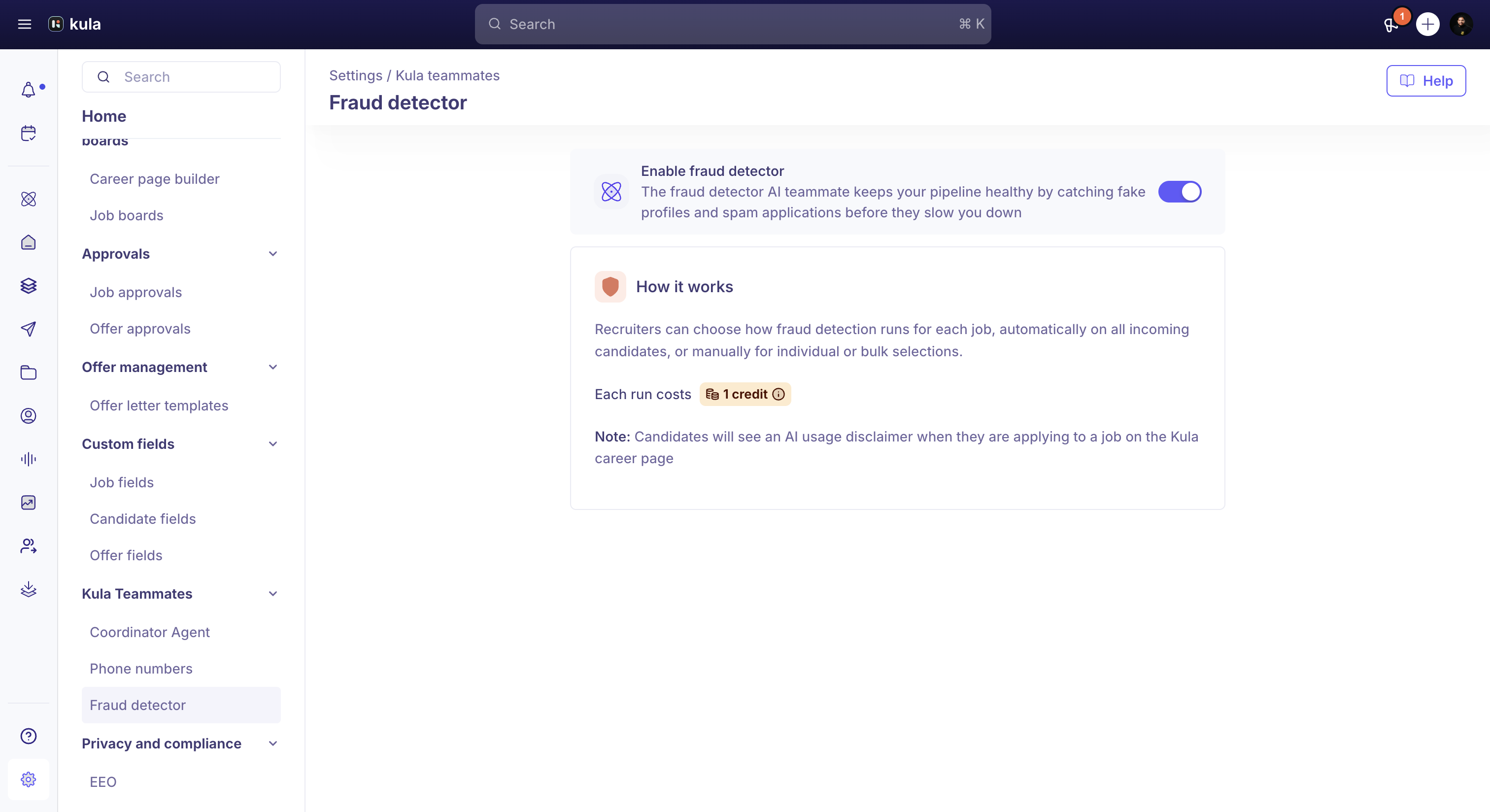
Where to find it: Settings → AI Teammates → Fraud detector (turn it on for your organisation), then Jobs → a job → Settings → AI Teammates tab (add it to that job).
Before you start
The Fraud Detector is an add-on. If its card on a job says Unlock with Add-on, it isn't on your plan yet. Contact support to have it enabled.
Turn it on
Go to Settings → AI Teammates → Fraud detector and turn on Enable fraud detector. This makes it available, but doesn't check anyone yet.
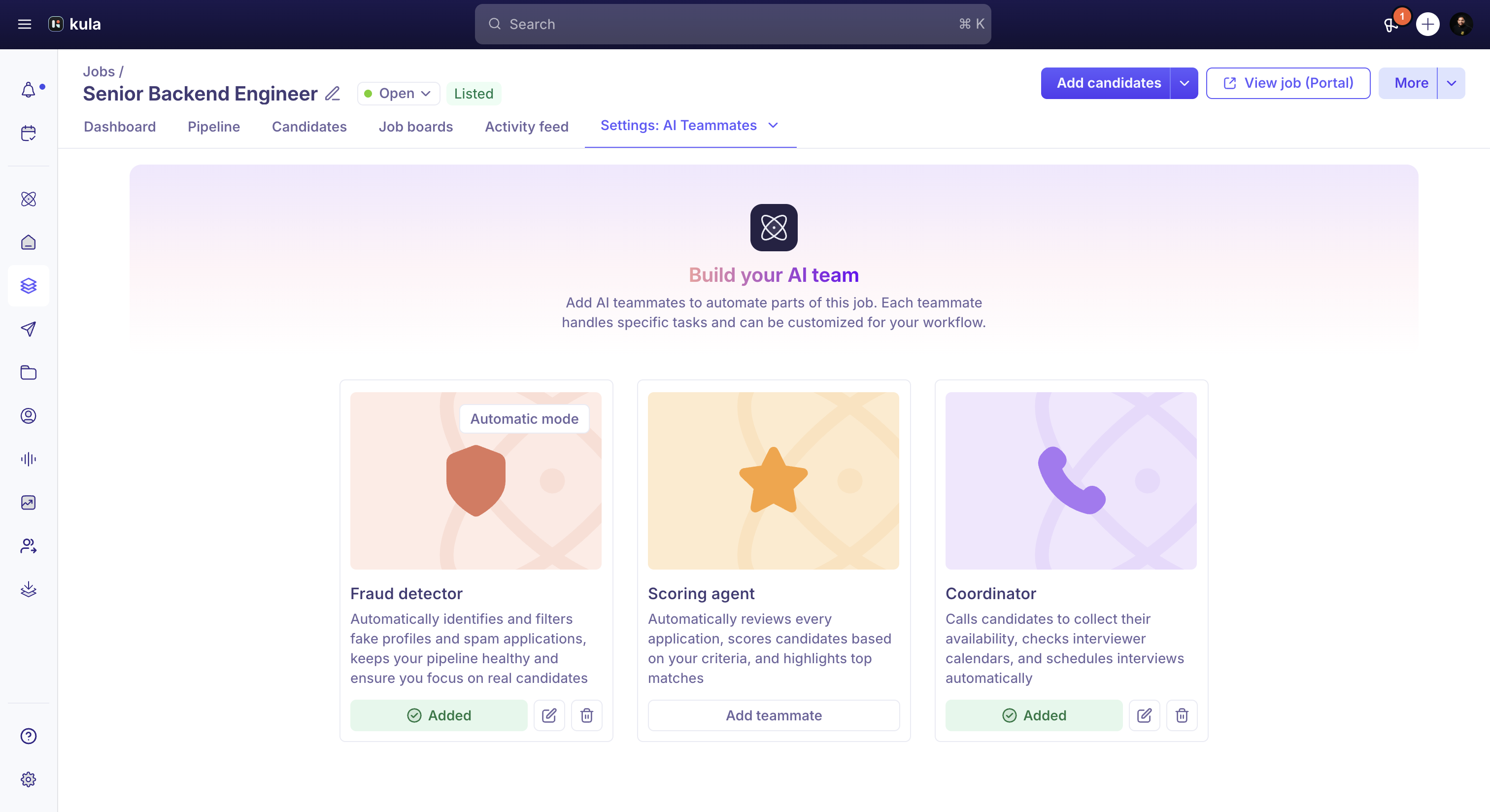
Open a job, go to Settings → AI Teammates tab, and click Add teammate on the Fraud detector card.
Choose Automatic (checks every eligible applicant as they apply) or Manual (checks only when someone asks).
Optionally, turn on Auto-reject for candidates marked Suspicious.
Click Save.
Repeat steps 2–5 for each job you want checked. Once it's on, candidates applying through your Kula career page see an AI usage notice. See also Configuring the AI teammates for the job.
What it needs to run
A fraud check needs a resume, email address, and phone number on the candidate's record. If any of those is missing, the check can't run — this is also why Automatic mode won't cover every applicant: it only runs on candidates who already have all three on file.
Run a check
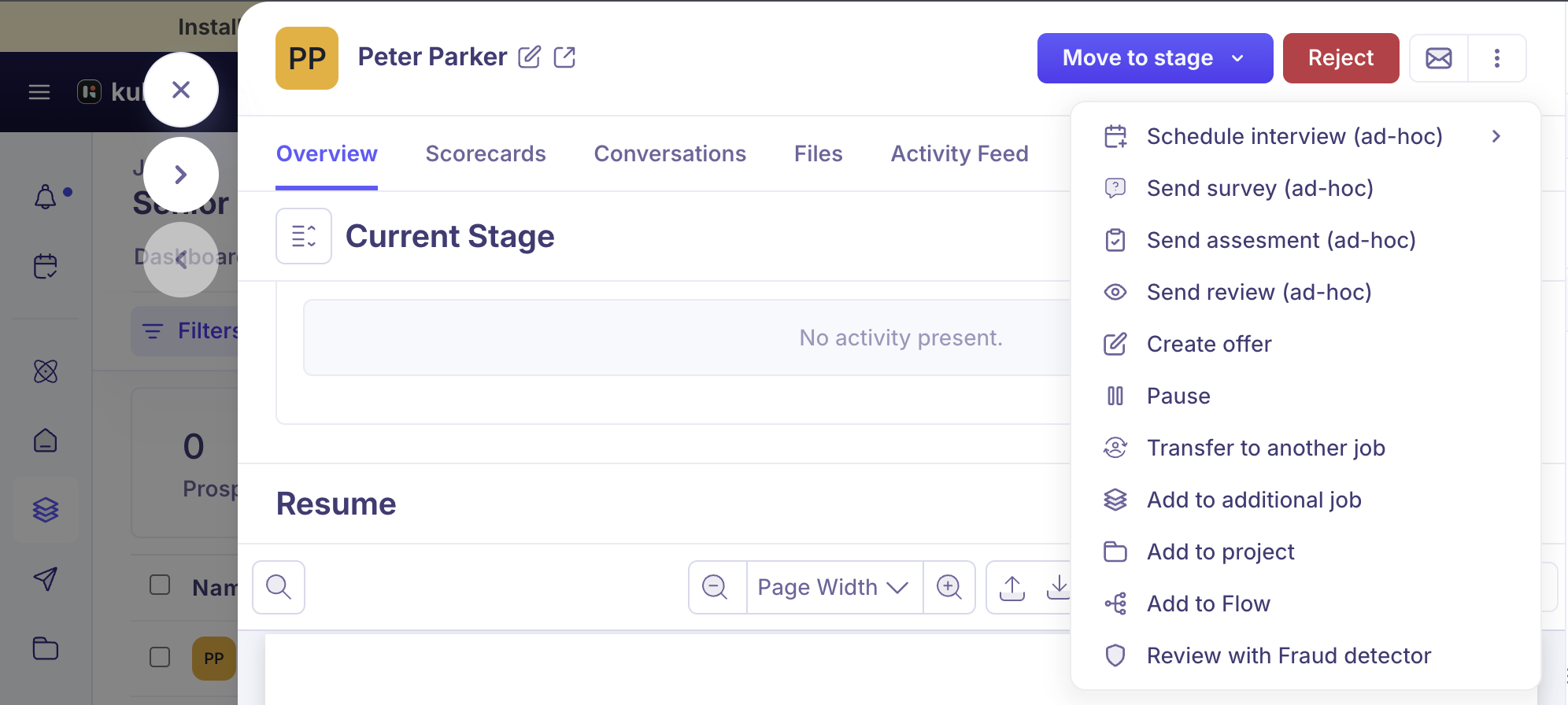
One candidate: open their profile, click the three-dot menu, select Review with Fraud detector, and click the fraud status badge once it finishes to see the results.
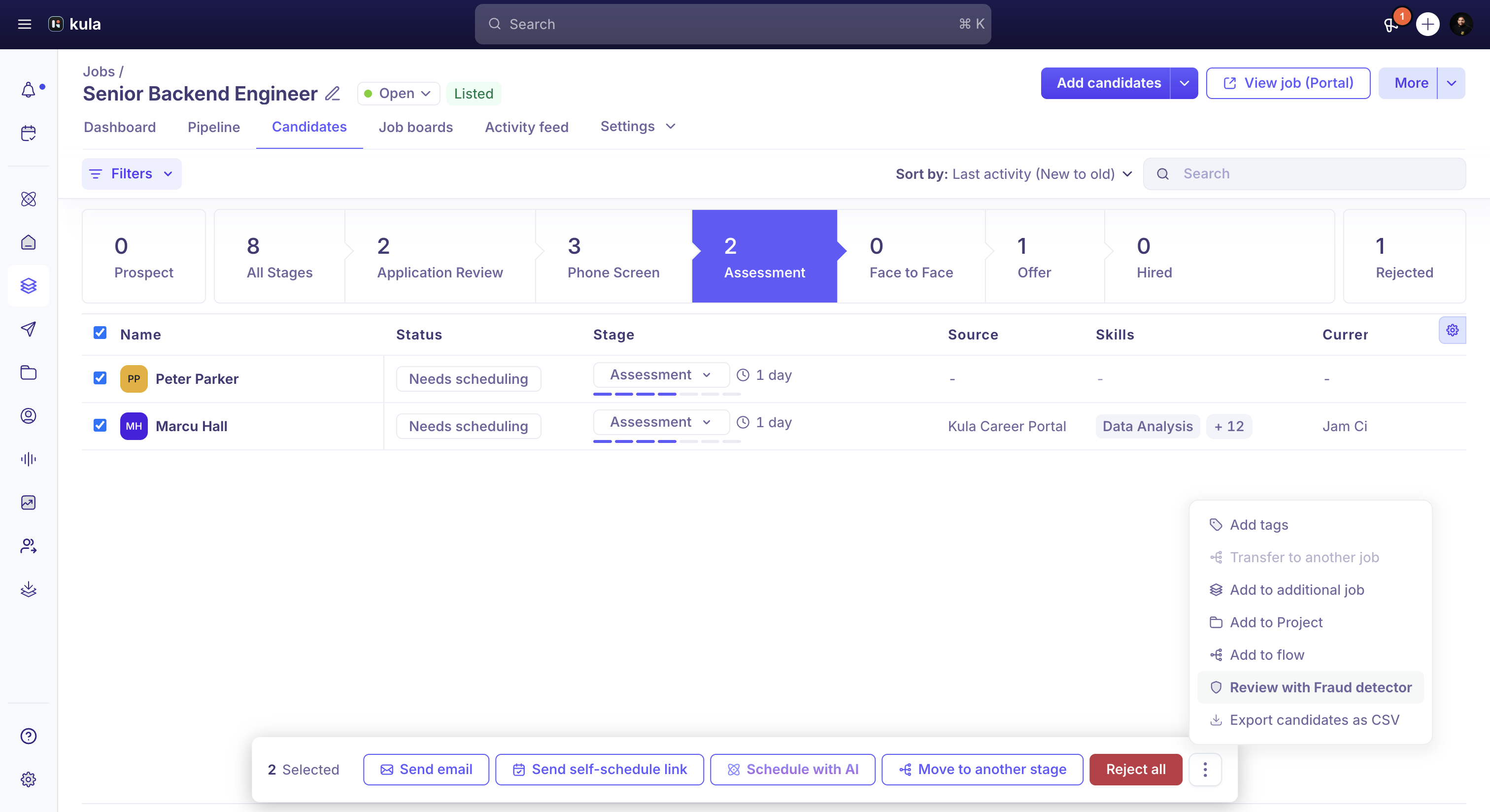
Several at once: in the Candidates tab, select candidates, open the bulk action menu, and select Review with Fraud detector — a progress widget shows you how it's going.
Re-run a check: if the previous evaluation Failed, or if the candidate's resume, email, phone number, education, or work experience has changed since the last check.
Read the result
Status | Means |
|---|---|
Not evaluated | No check has run yet |
In progress | The check is running |
No issues | Result: nothing suspicious found |
Inconclusive | Result: not enough to decide. Review it yourself |
Suspicious | Result: strong signs of a fake or fraudulent profile |
Failed | The check didn't finish, usually because something was missing. No credit is used |
Click the status badge to open the Fraud Detection panel. It shows the overall evaluation, the signals checked, risk levels, explanations, an audit trail and the previous result.
Override a result
Open the Fraud Detection panel, click Change fraud status, enter a reason (required), and save.
Auto-reject
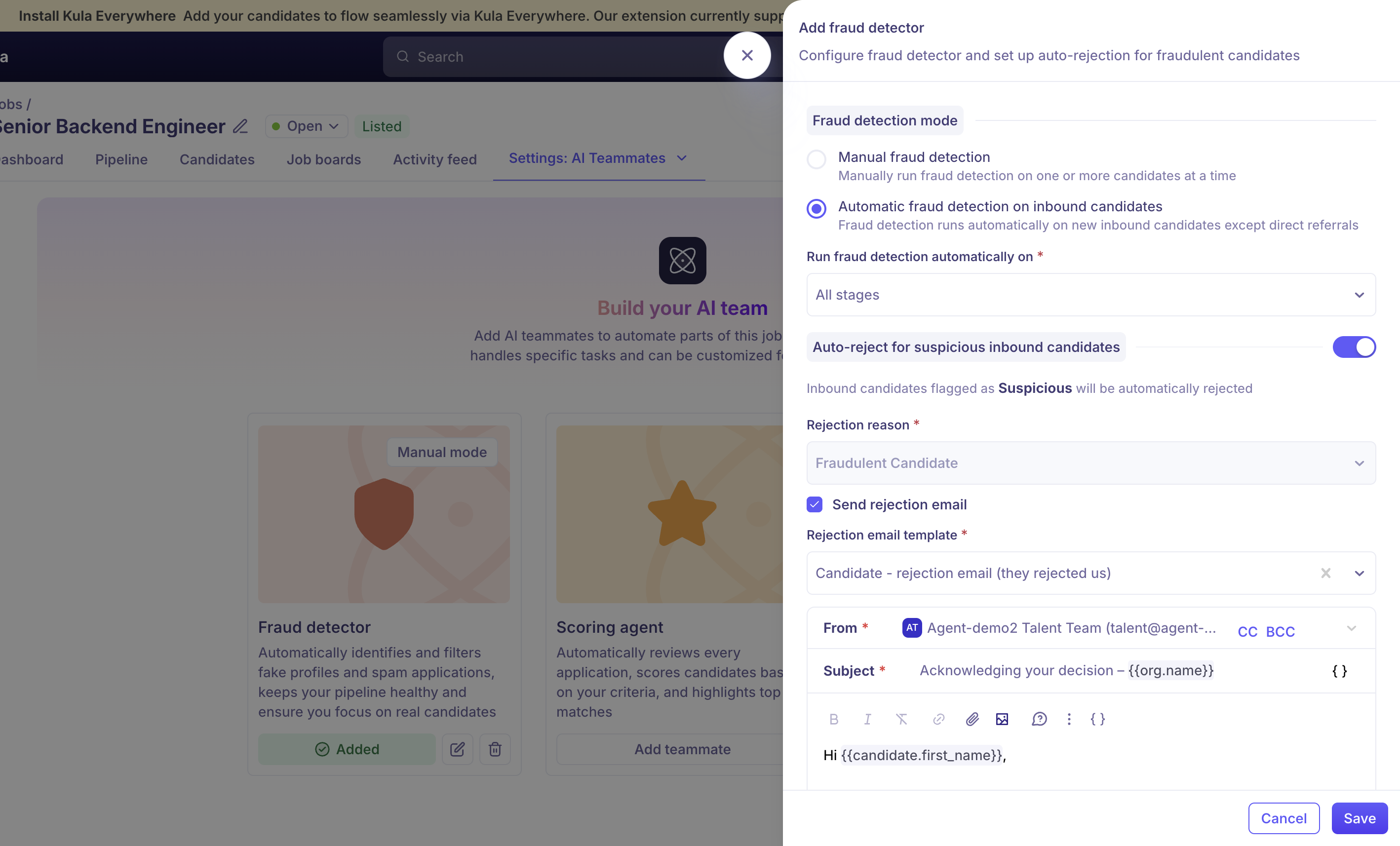
If Auto-reject is on, a candidate marked Suspicious is rejected automatically with the reason "Fraudulent candidate." Recruiters can reactivate the candidate or edit the rejection afterward if it turns out to be a false positive.
Auto-reject only fires on a candidate's first automatic pass — a later manual review, or a recruiter manually changing someone's status to Suspicious, won't trigger it again.
Turn it off for a job
For one job: click the delete icon on the Fraud detector card and confirm Disable. Statuses already given stay as they are.
For everyone: turn off Enable fraud detector in Settings. Per-job settings are kept and work again when you turn it back on.
Good to know
Each check costs 1 credit and takes about 30–50 seconds. Failed checks don't consume credits.
There's no self-serve view of your remaining credit balance. Admins can request more credits; non-admins should notify an admin if the team is running low.
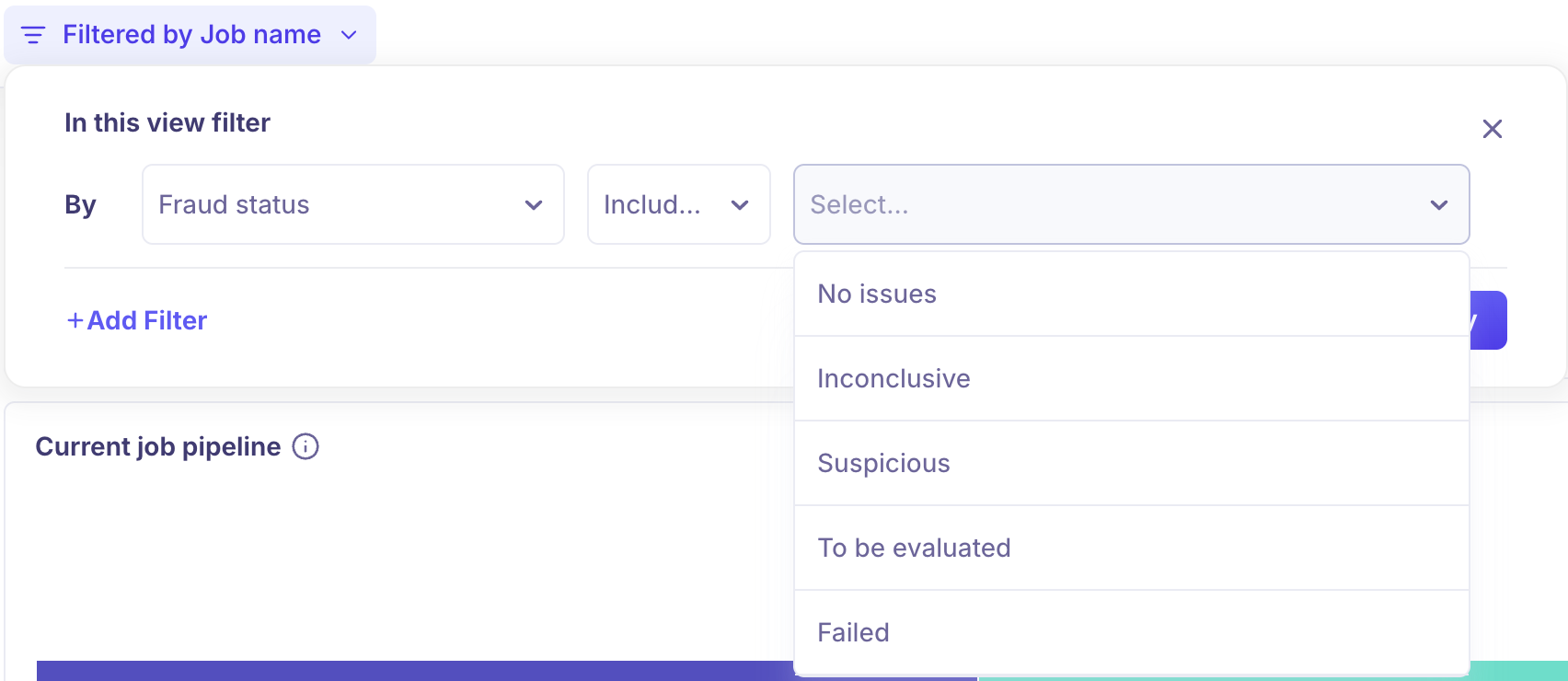
Fraud status is in your reports. It's available as a filter, group-by and breakdown option in the Current job pipeline, Pipeline history and Candidates reports.
FAQ
Why doesn't Automatic mode check every applicant?
Automatic mode only runs on candidates who already have a resume, email address and phone number on file. All three are required for a check to run, so anyone missing one won't be checked until it's added.
How many fraud check credits do we have left?
There's no in-app view of your remaining credit balance. Admins can request more credits; if you're not an admin, ask one on your team to check or top up.
Need help?
If you have questions or need assistance, reach out to us at support@kula.ai or use the in-app chat.