Setting up the Coordinator Agent
Last updated: September 25, 2026
The Coordinator Agent phones candidates, collects their availability, and books interviews against your interviewers' calendars. This is the one-time organisation setup: what the agent is called, what it sounds like, and which kinds of call it is allowed to make.
Who can do this: Super Admin, Admin — and anyone on a custom role with the Manage interview configuration permission
Where to find it: Settings → AI Teammates → Coordinator Agent → Details
Before you start
The add-on must be unlocked. If the Coordinator card on a job reads Unlock with Add-on, contact Kula support first — this page won't be available otherwise.
You'll need a phone number. The agent calls from a number your organisation owns. You can finish this page without one, but nobody can add the Coordinator to a job until at least one number exists. See [Buying and managing phone numbers]
Give the agent a name and a voice
The name and voice are what the candidate hears. The agent introduces itself by this name at the start of every call, so pick something that sounds like a member of your team rather than a system — candidates respond better to "Maya from the talent team" than to "Kula Bot".
Go to Settings → AI Teammates → Coordinator Agent.
On the Details tab, turn on Enable Coordinator Agent. The rest of the form only appears once this is on.
Enter an Agent name.
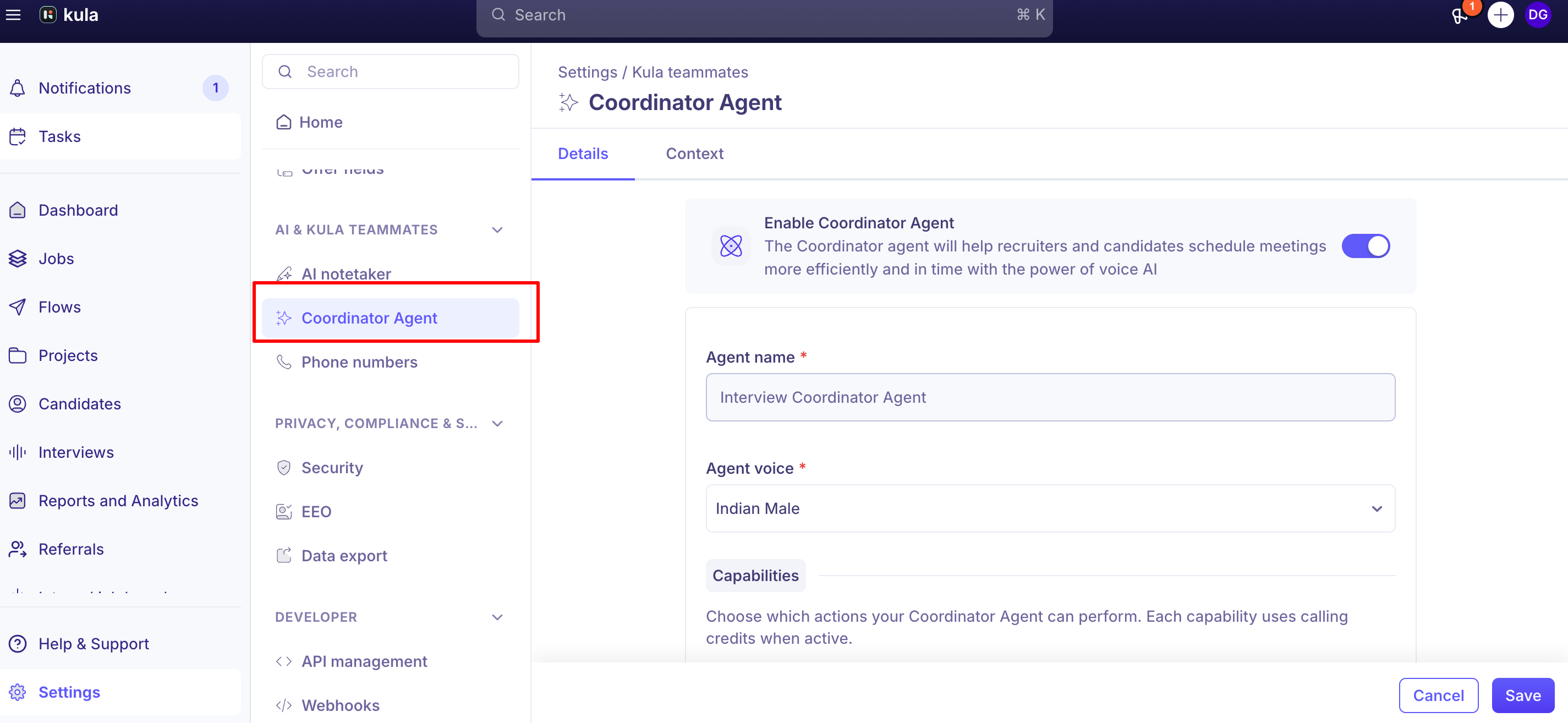
Open Agent voice and choose one. Each option has a play control — listen before you decide.
Click Save.
Voices are described by accent and gender — American Female, British Male, and so on. Accents available are American, British, Australian and Indian. Pick the one that matches where most of your candidates are, then override it on individual jobs if a particular role hires somewhere else.
Decide what the agent is allowed to do
Capabilities control which situations trigger a call. Each one is a different conversation with a different purpose, and each consumes calling credits when it runs.
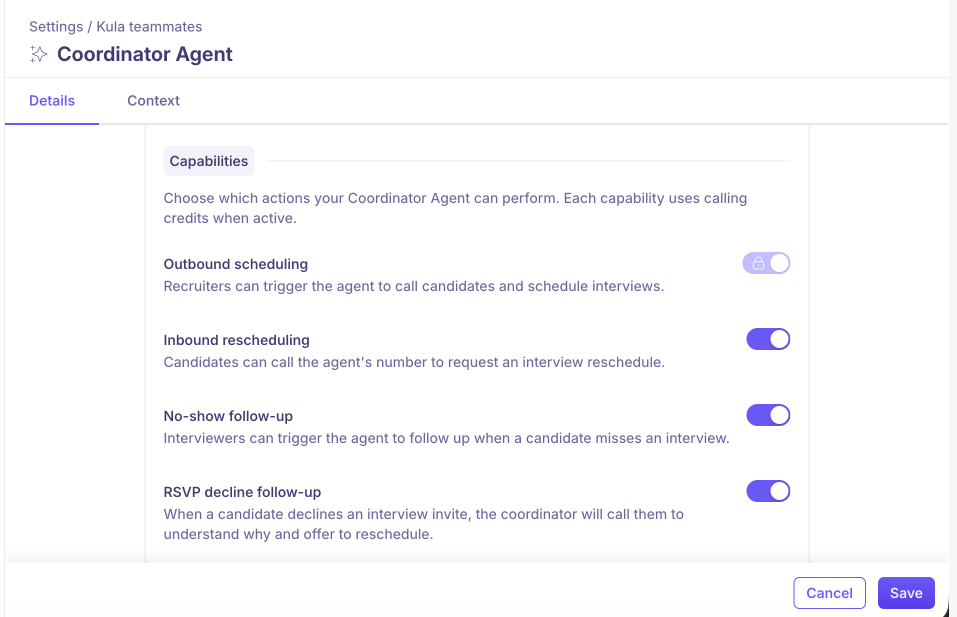
Outbound scheduling — always on
A recruiter triggers the agent to ring a candidate and book their interview. This is the core of what the Coordinator does and it cannot be switched off; the toggle is locked, and hovering it explains why.
Inbound rescheduling — optional
Gives candidates a number they can ring themselves when they need to move an interview, instead of emailing your recruiters and waiting. The agent takes the call, finds a new slot, and updates the booking.
Turn this on if rescheduling requests are eating your coordinators' time. Leave it off if you'd rather every change go through a person.
No-show follow-up — optional
When a candidate doesn't join their interview, the interviewer can trigger the agent to call and find out what happened — whether they're running late, need to rebook, or have dropped out. It saves the awkward chase and gets the pipeline updated the same day.
Capabilities apply across every job. When someone adds the Coordinator to a job they see these as a read-only summary with ticks and crosses — they can't change them there, so this page is the single place they're decided.
Add context templates
Candidates ask questions on these calls. Without any background the agent says it doesn't know and moves on, so it's worth writing a few context templates before you start calling.
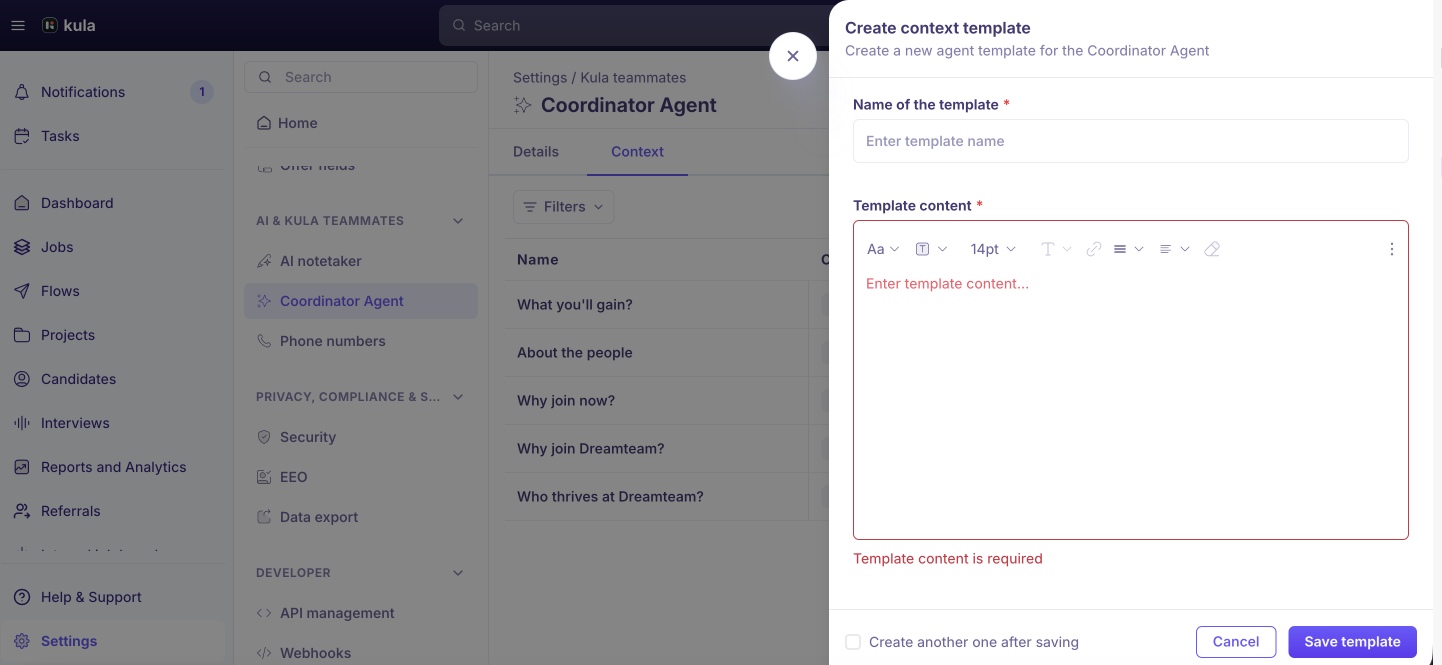
A context template holds the answer to one question candidates ask — "Why join now?", "About the people", "Our interview process". You write them once on the Context tab, and each job then picks the ones that apply.
Open the Context tab beside Details.
Click Create template.
Enter a Name of the template. Phrase it as the question it answers.
Write the answer in Template content.
Click Save template.
Keep internal information out — anything in a template is material the agent may say out loud to a candidate.
For what to write in each one, managing and cloning templates, and how they shape the way the agent speaks, see [Coordinator templates and tone]
Good to know
Outbound scheduling cannot be turned off. Its toggle shows a padlock and the tooltip "Outbound scheduling is always enabled for the Coordinator Agent."
Both the name and the voice are required. Saving with either blank blocks the save and highlights the field.
Save and Cancel stay greyed out until you change something — that's expected, not a permissions problem.
Turning the agent off doesn't delete anything. Per-job setups are kept and start working again when you switch it back on. Use this if you need to stop all calls quickly.
Recruiters and Hiring Managers can see this page but can't edit it. Editing needs the Manage interview configuration permission, which sits on Super Admin and Admin.
FAQ
I'd like to enable the Coordinator agent on my account. Can you help me get started? The Coordinator is an add-on, so Kula switches it on for your account first — use the in-app chat or email support@kula.ai. Once it's unlocked, complete this page, buy a phone number, then add the agent to the jobs you want it working on. For more, see What are Kula Teammates?
Do I have to set this up again for every job? No. The name, voice and capabilities here apply everywhere. On each job you only pick which number to call from, optionally a different voice, and any context specific to that role.
How do I stop the agent calling for one job without switching it off everywhere? Remove the Coordinator from that job on its AI Teammates tab. Only use the toggle on this page when you want every job to stop at once.
Can different jobs use different voices? Yes — the voice set here is the default and any job can override it. The agent's name is shared across the organisation and can't be changed per job.
Need help? If you have questions or need assistance, reach out to us at support@kula.ai or use the in-app chat.