How to Use the 'Add to Job' Button in the Kula Extension
Last updated: February 25, 2025
The 'Add to Job' button in the Kula Everywhere Chrome extension allows you to quickly add candidates to a job within your ATS. This guide will walk you through how to use this feature efficiently.
Steps to Use the 'Add to Job' Button
Open the Kula Extension
Ensure you have the Kula extension installed and logged into your account.
Open the extension while browsing LinkedIn or other supported platforms.
Locate the 'Add to Job' Button
When viewing a candidate’s profile, you’ll see the 'Add to Job' button within the extension interface.
Select a Job
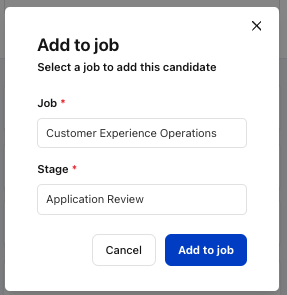
Click on the 'Add to Job' button.
A dropdown menu will appear listing open jobs from your ATS.
Select the appropriate job to associate with the candidate.
Select the stage you would like to add the candidate to.
Add Candidate to Job
Click the Add to job button to complete the action.
The candidate will now be added to the selected job within your ATS.