Connecting LinkedIn Premium Contract
Last updated: December 2, 2025
Important: This integration works only with Linkedin Recruiter accounts, not Recruiter Lite.
This guide will help you integrate your existing LinkedIn Recruiter account with Kula. Once connected, you can publish job postings directly from Kula to LinkedIn and utilize your existing LinkedIn job posting credits.
Prerequisites
Before you begin, ensure you have:
An active LinkedIn Recruiter account
Access to your Kula account with admin permissions
Your LinkedIn company ID
Integration steps
Note: Before you begin your integration, please log out from your Linkedin Recruiter account.
Step 1: Navigate to job board settings
Open your Kula account in your web browser.
Navigate to the global admin settings page.
Locate and click on Job boards settings.
Click the ‘Add contract’ button to view available job board integrations.
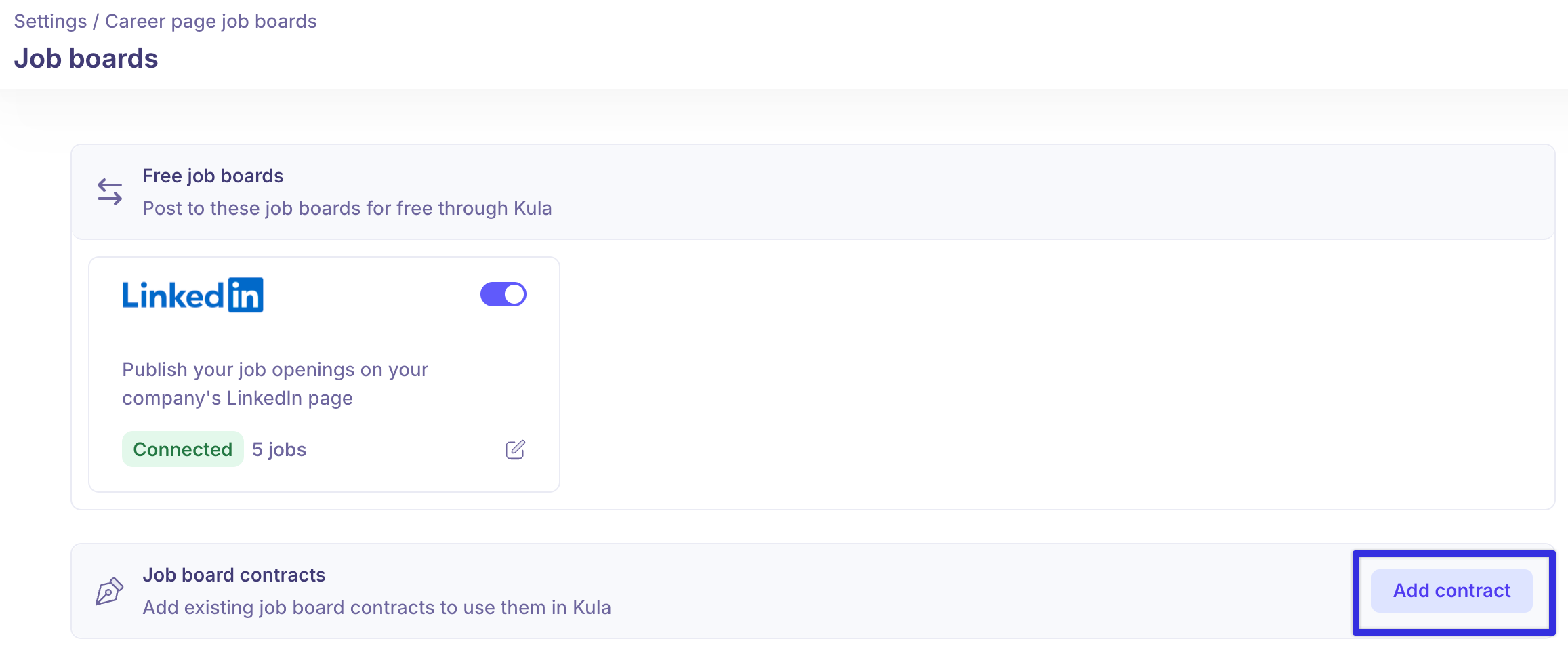
Step 2: Connect your Linkedin account
From the list of available job boards, locate and select LinkedIn.
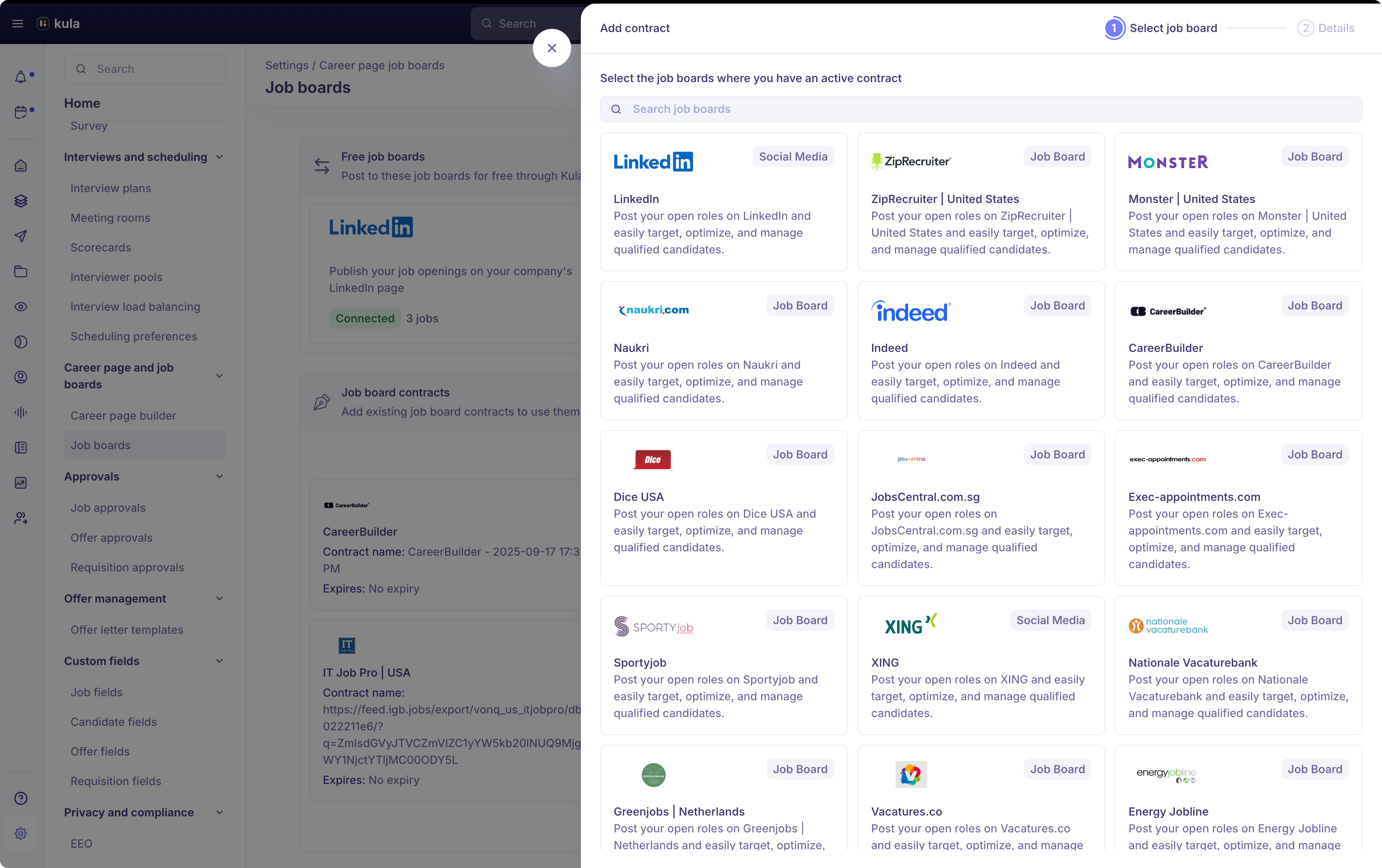
In the LinkedIn integration slider, click the Authenticate button. This will redirect you to the Linkedin login page.
Sign in to your Linkedin account by entering your username and password. Once you're authenticated, you will be redirected back to the confirmation page.
If your organization has multiple Linkedin Recruiter contracts, you'll see them listed here. Select the contract you want to use with Kula, then click Continue.
You'll now see the premium job postings settings screen. This is where you need to configure who will be listed as the job posted for all the positions published through Kula.
Look for the Job posted section. You'll see your name listed there by default. Click the Edit button right below your name.
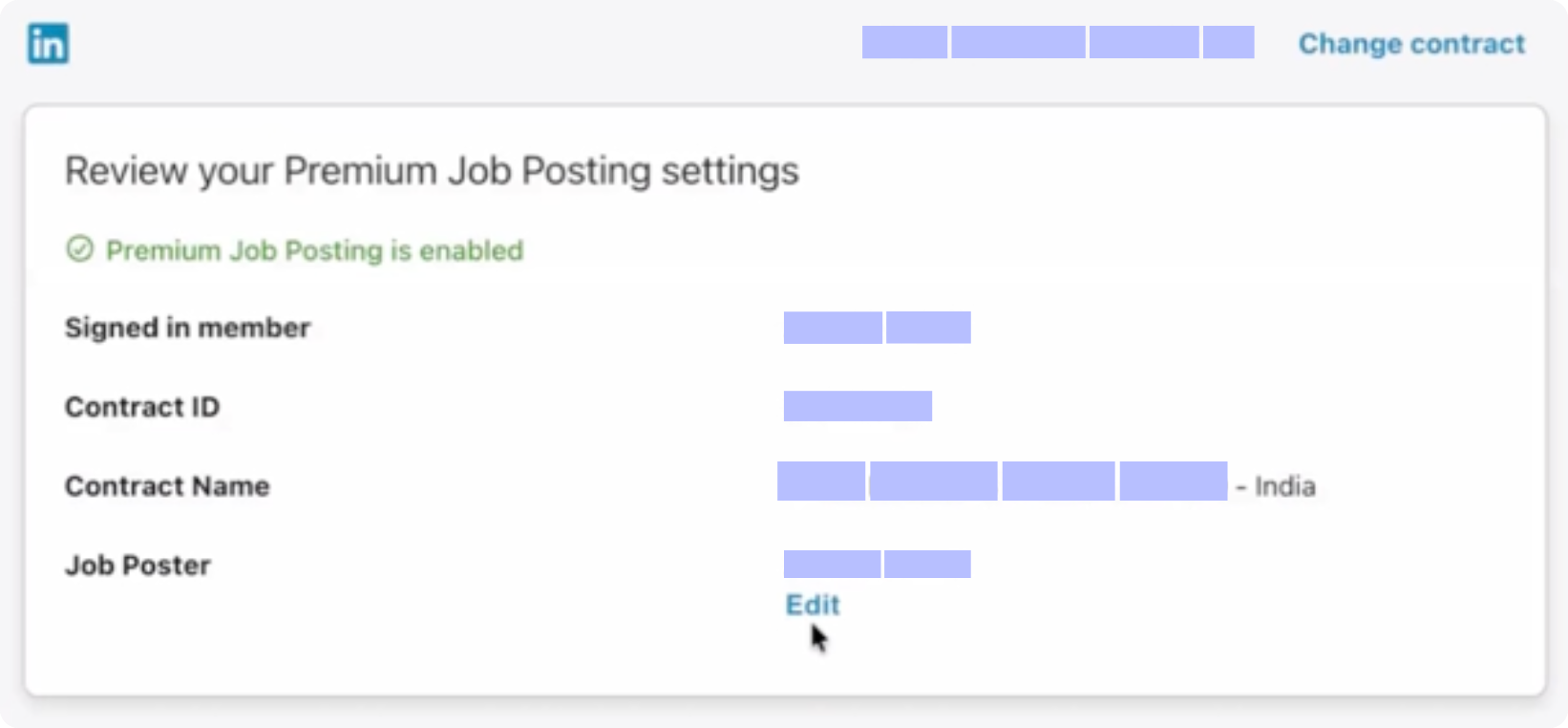
Delete your name completely from the field and retype your name back in, or enter the name of whoever should be listed as the job poster.
Click Save. You'll be redirected back to your Kula account.
Step 3: Enter company ID
Locate the Company ID field in the slider.
Enter your LinkedIn company ID. You can find this ID in your LinkedIn company page settings. Find your company ID.
Click Save to finalize the integration.
Publishing jobs to Linkedin
Now that your Linkedin contract is connected, you can start publishing your jobs directly to Linkedin from Kula. To learn more about how to publish jobs to your contracted job boards, please refer to our article: Publishing jobs to Contracted Job Boards.
Troubleshooting
If you encounter any issues during the integration process:
Ensure you are completely logged out of LinkedIn before starting the process
Verify that your LinkedIn account has active job posting credits
Clear your browser cache and cookies, then restart the integration process
Double-check that you have admin permissions in both LinkedIn and Kula