Publishing Jobs to Contracted Job Boards
Last updated: December 2, 2025
Once you've connected your job board contracts with Kula, you can easily distribute your job postings across multiple platforms. This article will walk you through the process of creating campaigns and publishing your jobs to contracted job boards.
Step-by-Step Guide
Step 1: Access job board distribution
Once your contracts are added, you're ready to start distributing jobs.
Navigate to your Jobs page in Kula.
Select the job you want to publish to external job boards.
Navigate to the Job Boards section within the job details.
Look for the Add Campaign section to begin the distribution process.
Step 2: Select contract boards
Your previously connected contracts will be available for selection.
Your already-added contracts will show up under the Contracts section.
You can select one or more contracts to create a campaign and post your job across multiple platforms.
Click Add to cart on your preferred contract boards. Each selection will be added to your cart.
Click on the cart option at the bottom of the page to view a summary of your selections.
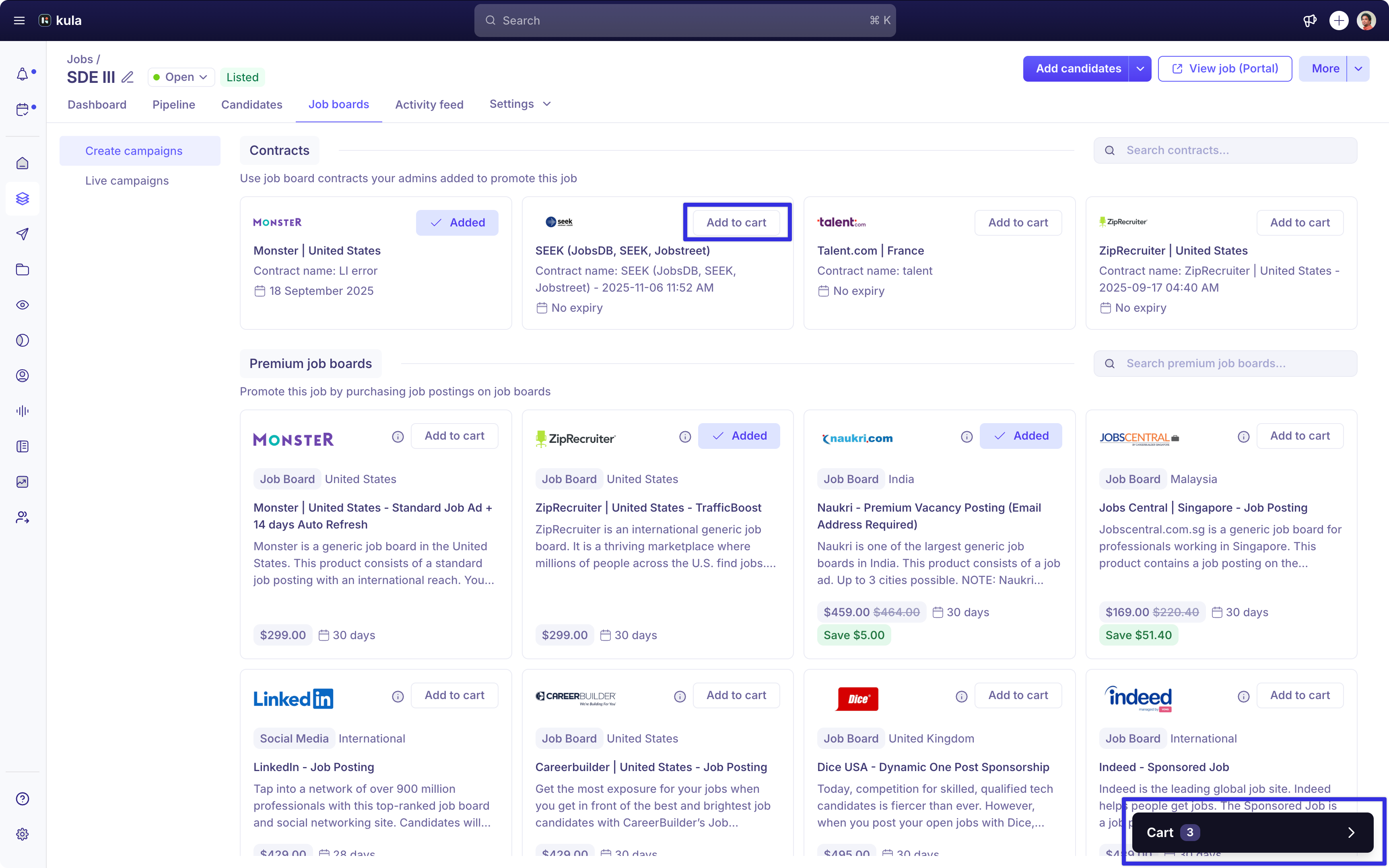
Review your selections and click Review Order to start creating the campaign.
Tip: It is recommended to select all the required contracts and premium boards together to create a single comprehensive campaign.
Step 3: Complete campaign setup
The campaign setup is a 3-step process that ensures all necessary information is provided:
Fill in campaign details - Provide essential information such as campaign name, duration, and other general settings for your job posting campaign.
Fill posting requirements - Complete the required fields for each job board. Different boards may have different requirements.
Review and create campaign - Review all the information you've entered and finalize the campaign before publishing.
Note: Based on the information available in your job posting, Kula will automatically pre-fill many required fields such as job title, description, company name, location, and more. However, it is recommended to review the entire form carefully and fill in any missing information to ensure your job posting is complete and accurate.
Step 4: Track your campaigns
Once your campaign is created, you can monitor its progress and manage your postings.
Navigate to the Job boards section of your job to view campaign status.
Find your active campaigns under the Live Campaigns section. Here you can see the status of each posting across different job boards.
For campaigns that are not yet completed, check the Draft section. You can resume and complete these orders at any time.
Note: Campaigns saved as drafts allow you to pause the setup process and return later to complete the configuration before publishing.
Best practices
To get the most out of your job board campaigns:
Batch your postings: Select all required contracts and premium boards together when creating a campaign. This saves time and ensures consistent posting across all platforms.
Review auto-filled information: While Kula automatically fills many fields, always review and complete all information to ensure accuracy and compliance with each job board's requirements.
Monitor campaign status: Regularly check the Live Campaigns section to track the performance and status of your postings across different platforms.
Complete draft campaigns: Don't forget about campaigns saved in the Draft section. Complete these to ensure your jobs reach all intended platforms.
Troubleshooting
If you encounter issues while publishing jobs:
Contracts not showing: Ensure your job board contracts are properly connected in the Global Admin Settings under Job Boards Settings.
Missing required fields: Some job boards have specific requirements. Make sure all required fields are completed during the posting requirements step.
Campaign creation fails: Verify that your contract has available credits and that all required information is provided. Check the error message for specific details.
Need help: Contact Kula support for assistance with campaign creation or job board integration issues.