Connect CodeInterview to Kula
Last updated: September 25, 2026
Connecting CodeInterview lets you send coding assessments to candidates from inside Kula and review the scored report on the candidate's profile, without exporting or re-uploading anything.
Who can do this: Super Admin, Admin
Where to find it: Settings → Organization → Organization integrations → Assessments
How to Connect CodeInterview with Kula
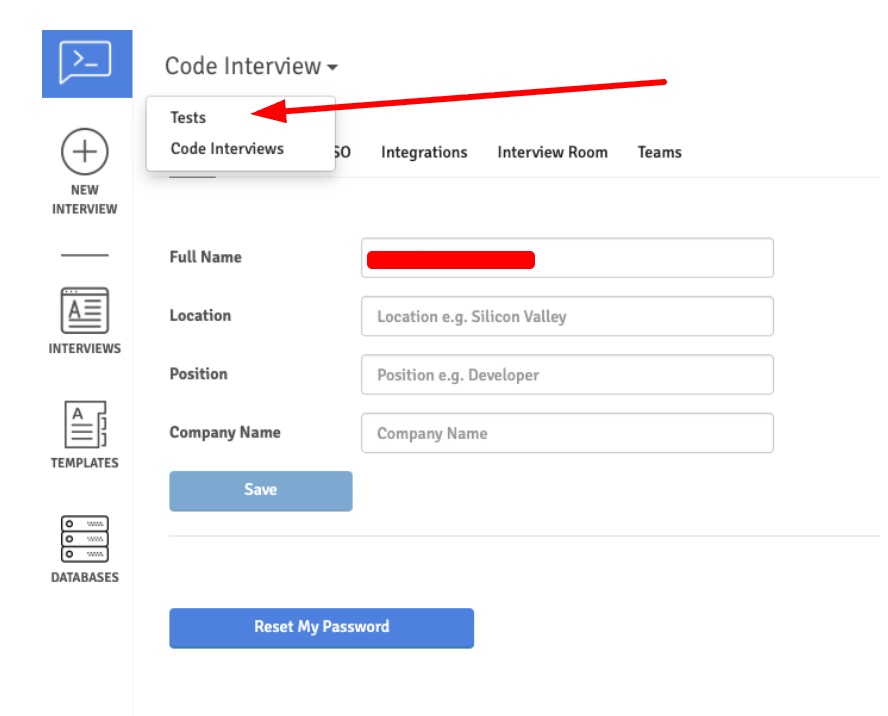
Before you start: get your API key from CodeInterview. In the RemoteInterview dashboard, click Tests, then your profile icon → Integrations. You'll come back to the same page to add Kula's webhook.
Go to Settings → Organization → Organization integrations.
Find the CodeInterview card under Assessments.
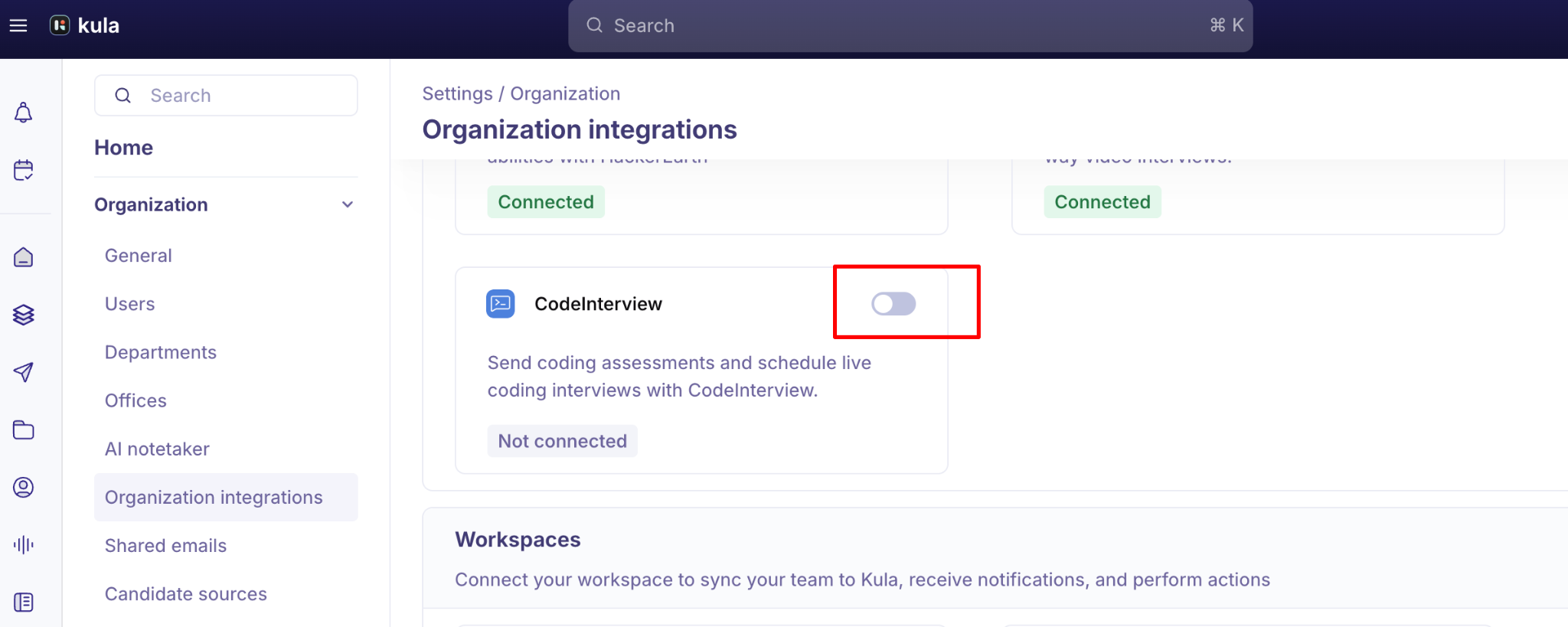
Turn the toggle on. The CodeInterview Settings panel opens.
Enter your CodeInterview API Key and click Connect CodeInterview.
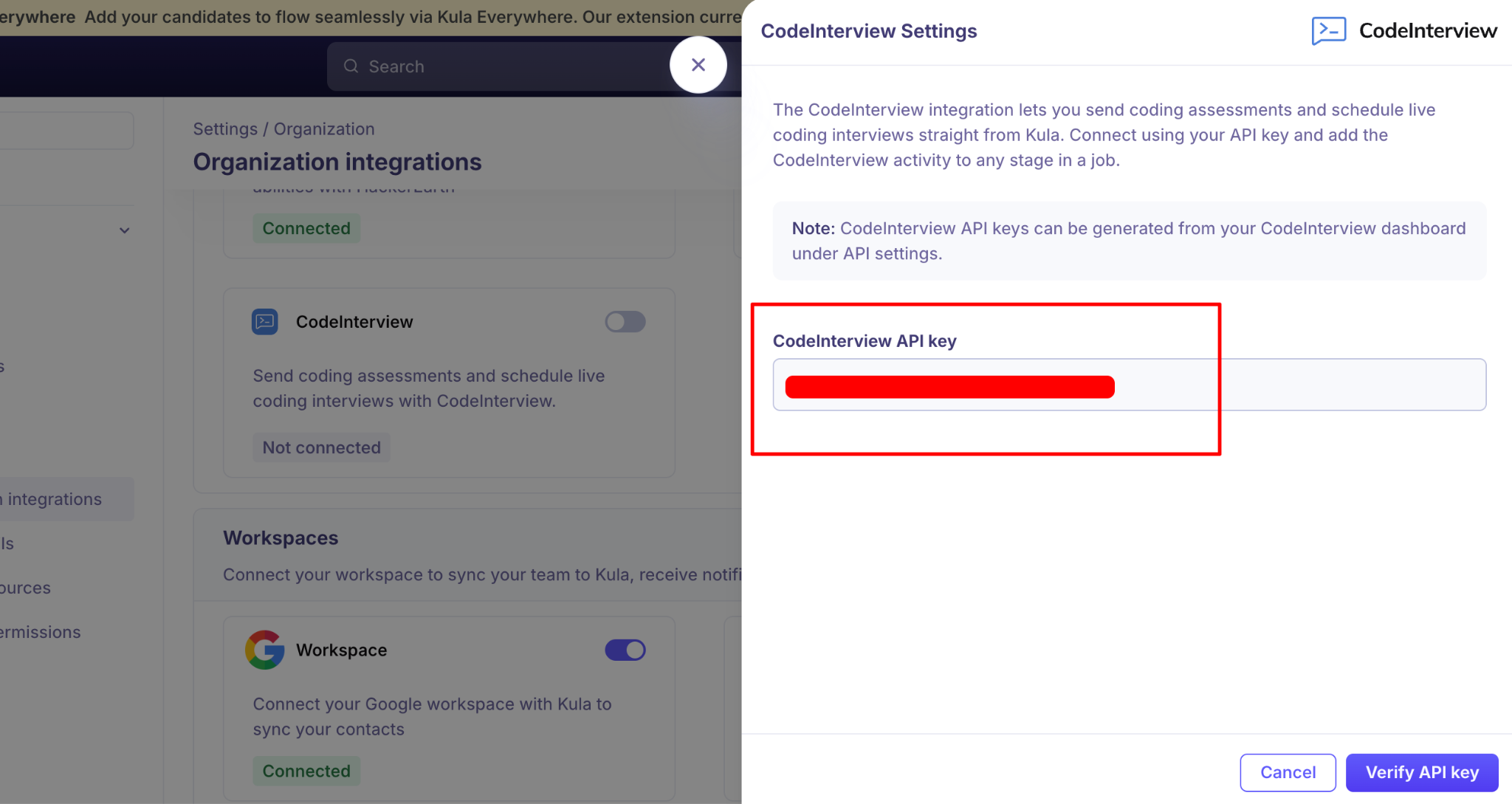
Once the API key is verified, a webhook gets generated.
Add this webhook in CodeInterview's RemoteInterview dashboardIn the RemoteInterview dashboard, click Tests.
Then click on the profile name icon > Integrations:
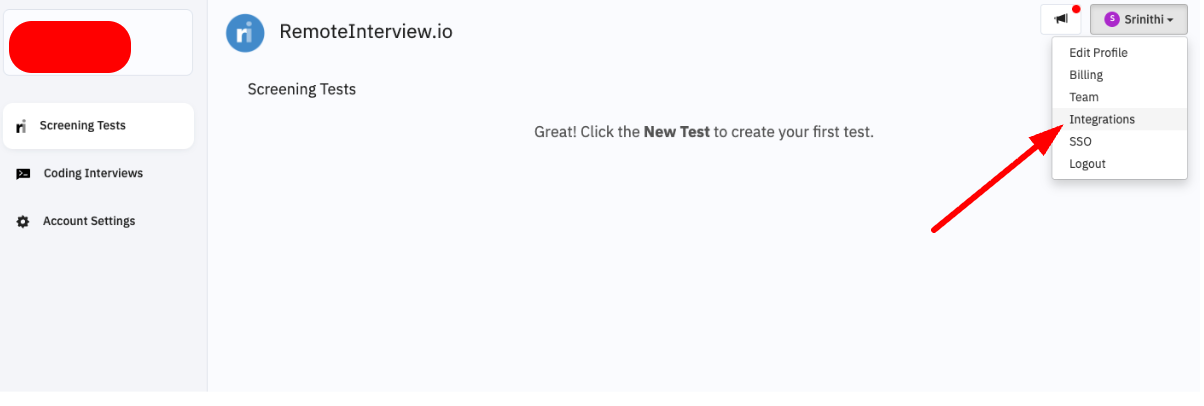
Paste the webhook in the Outgoing Webhooks section:
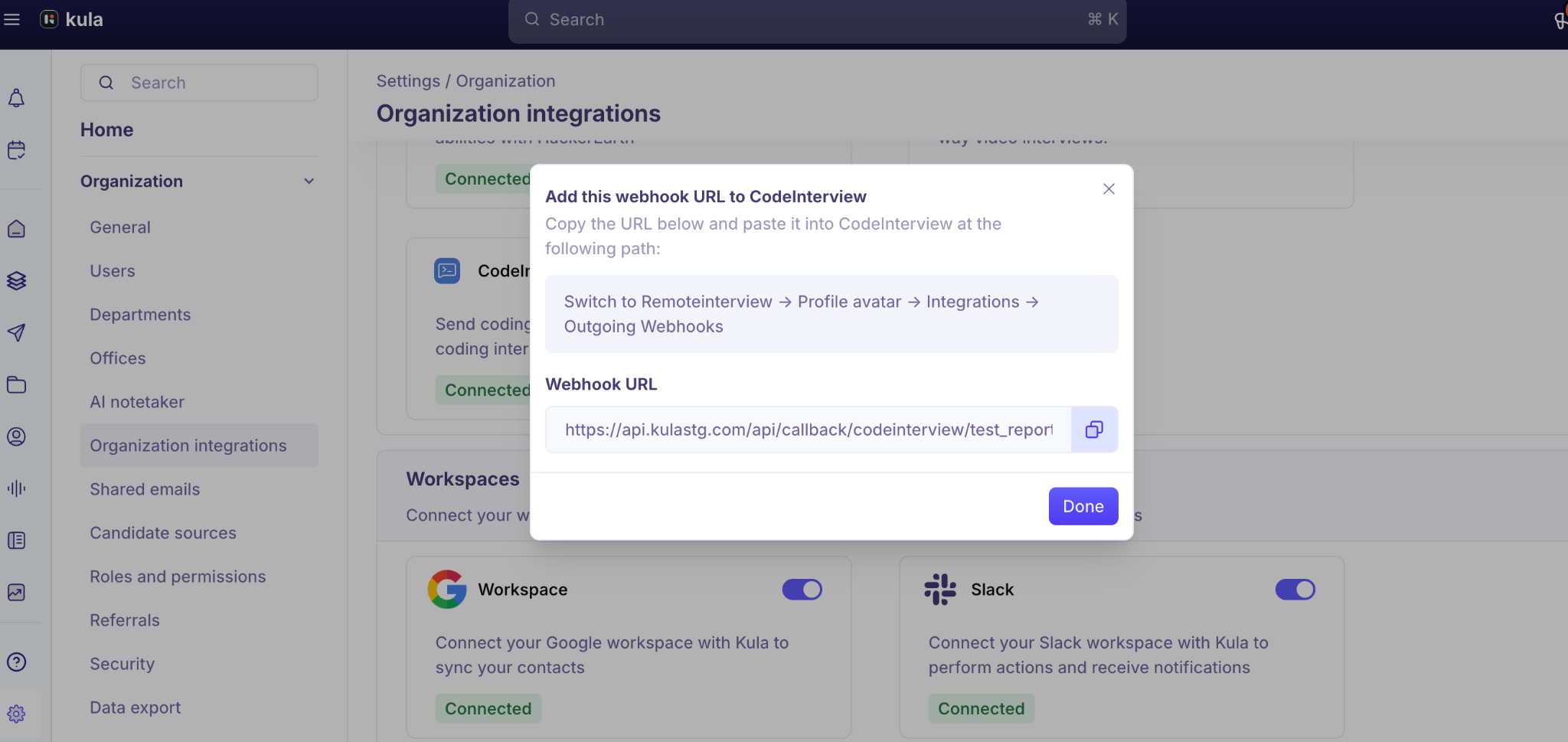
The card shows Connected once verification succeeds.
What you can do once it is connected
Send a CodeInterview coding assessment to a candidate from Kula.
Candidates take the assessment in CodeInterview with nothing extra to set up on your side.
The scored report flows back to the candidate's profile in Kula automatically the moment they submit.
Add it to the interview plan
For roles where every candidate has to clear the same technical bar, add a CodeInterview assessment activity to a stage in the job's interview plan. Pick the test, the reviewers who'll score it and the scorecard they'll fill in. Tests come from the RemoteInterview section of your CodeInterview account. See What is an interview plan?
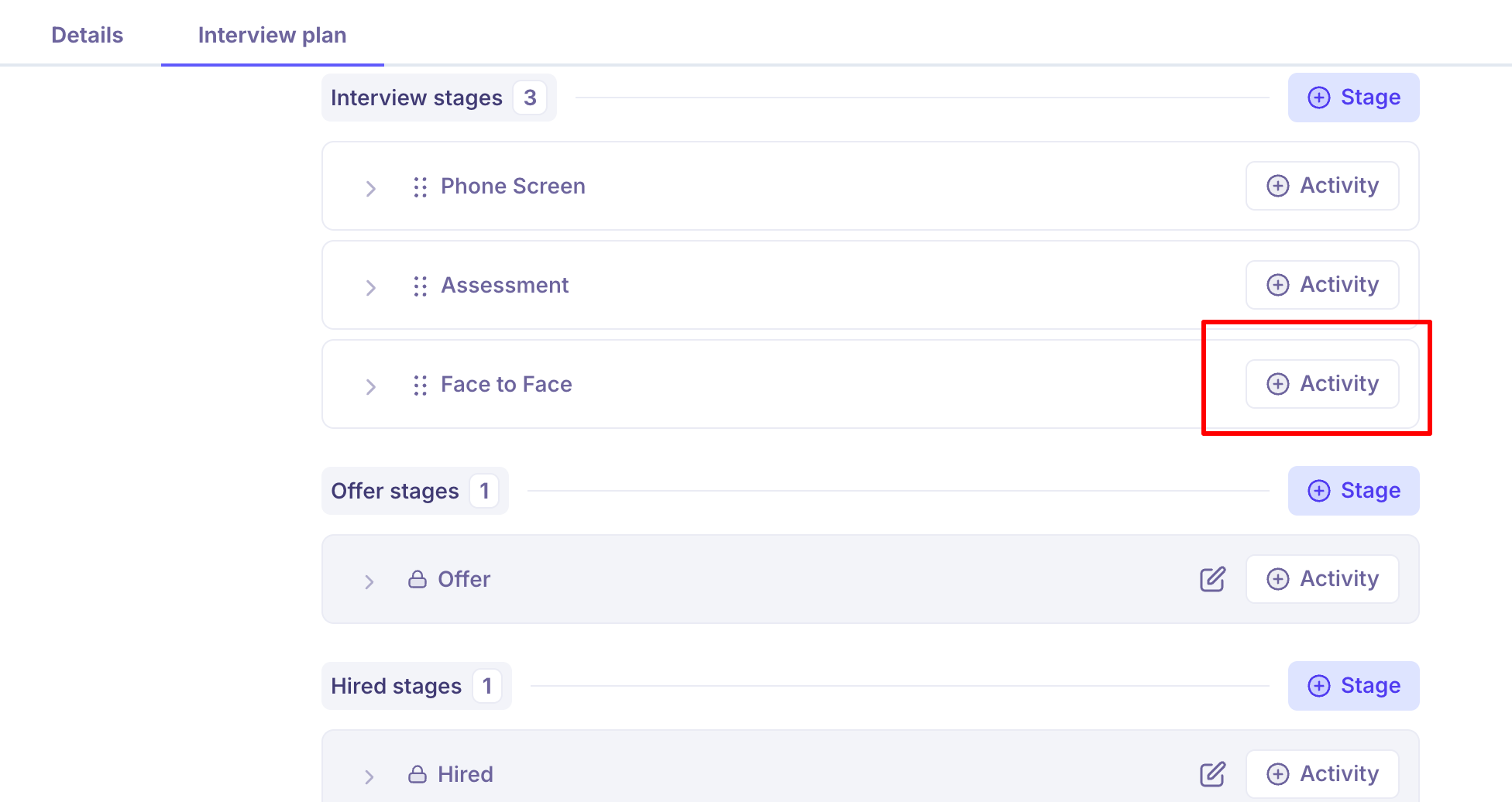
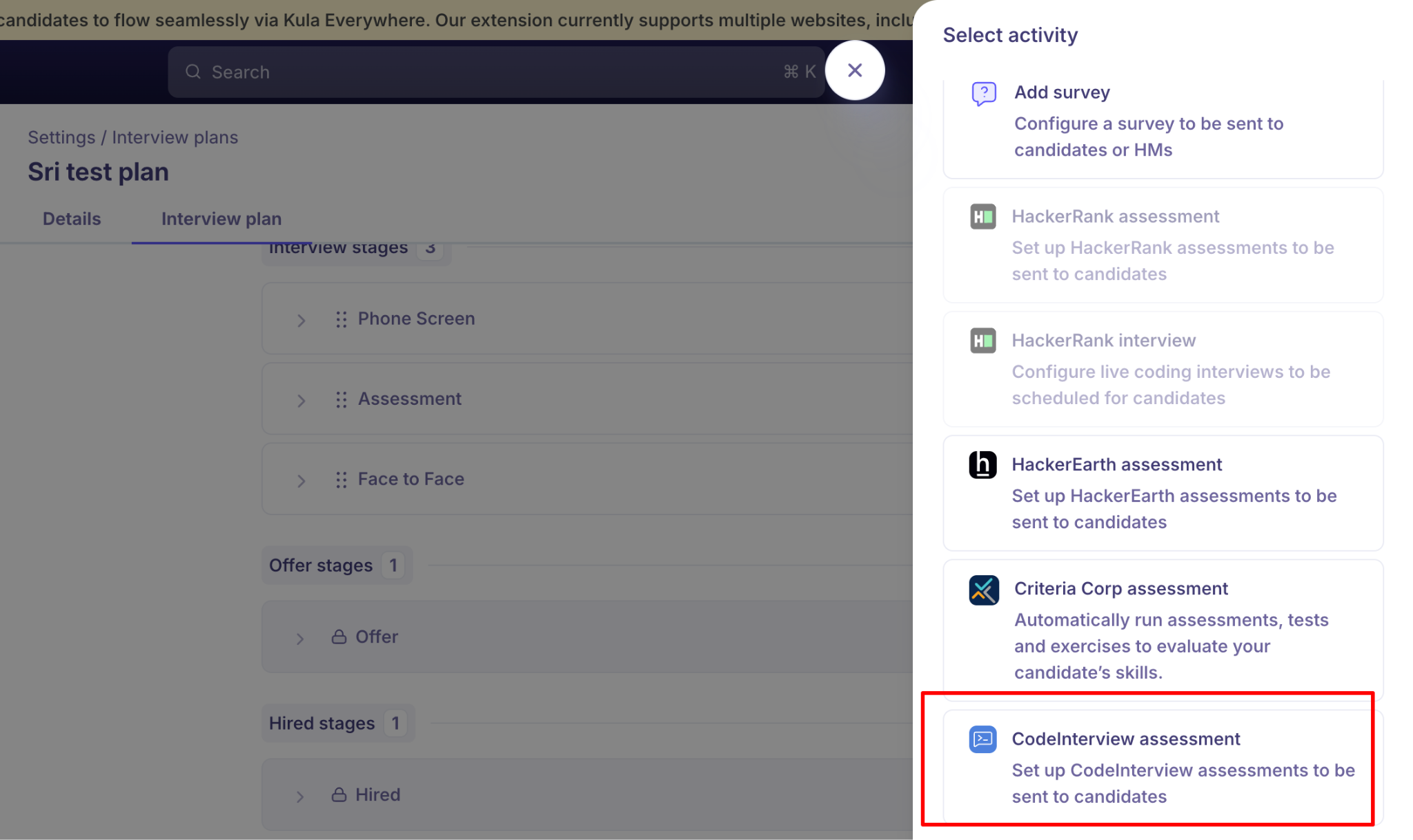
You can also choose Code Interview as the location of a live interview.
Send an assessment to one candidate
Open the candidate.
From their actions menu, choose Send CodeInterview assessment.
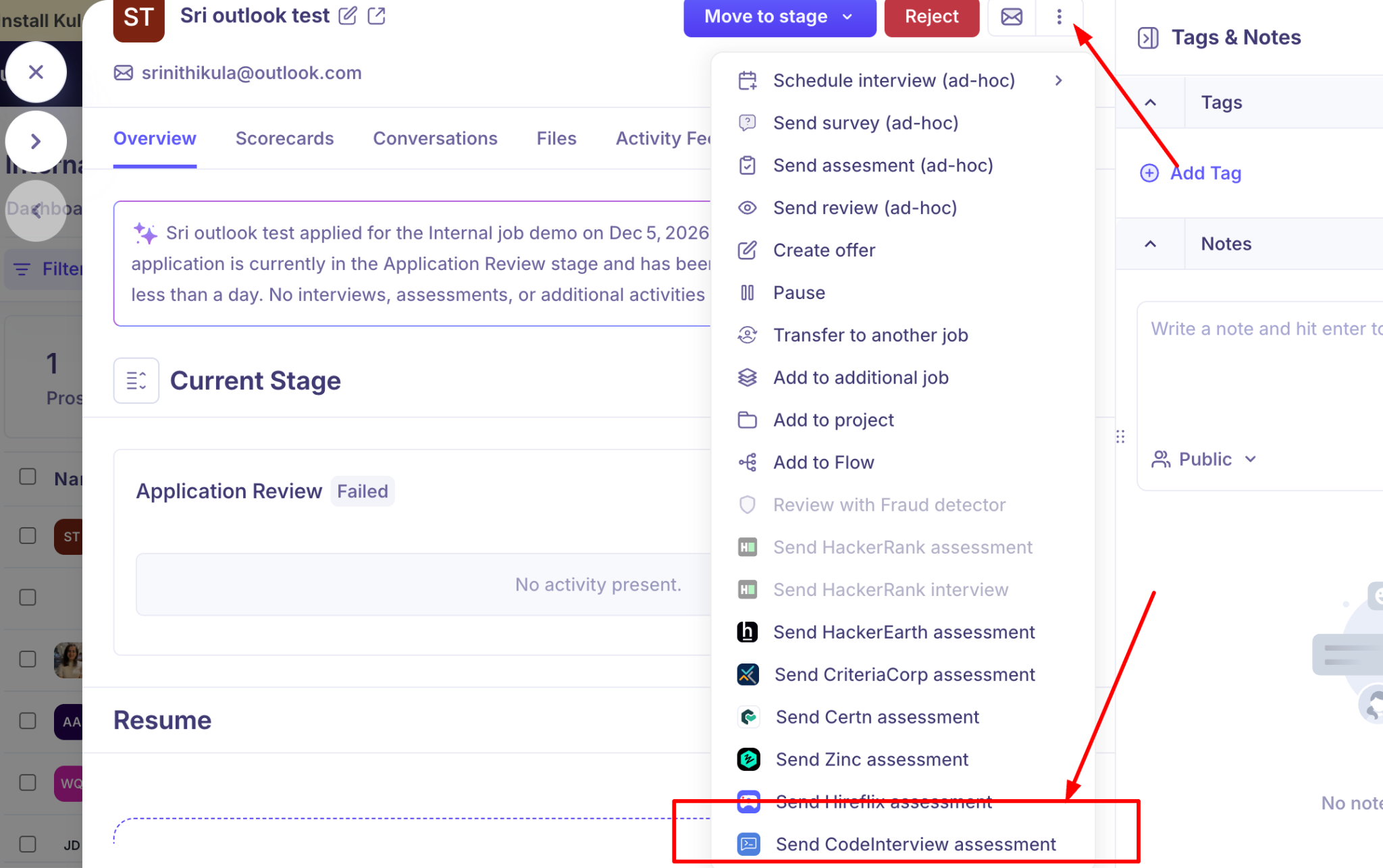
On Details, choose the reviewer(s) and the assessment to send.
On Scorecard, set the scorecard the reviewers will fill in.
Send.
The candidate gets an invitation and takes the test in CodeInterview. They don't need to set anything up.
See the result
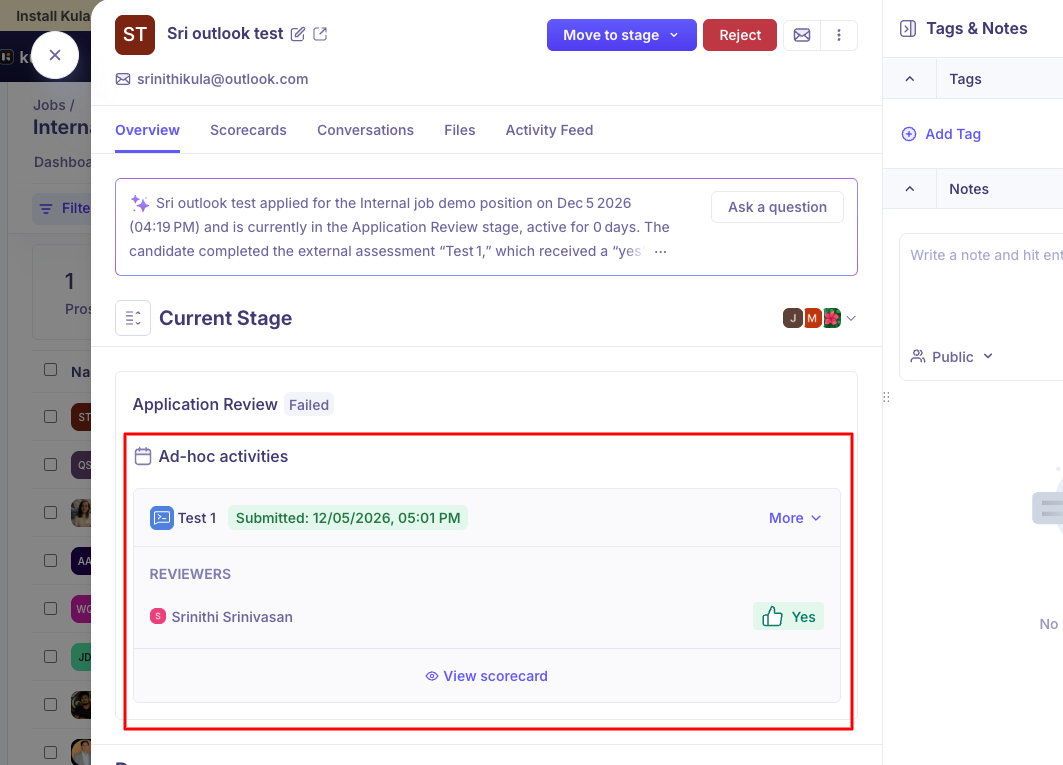
On the candidate's Overview tab, the assessment sits on its stage, or under Ad-hoc activities if you sent it as a one-off. You'll see the test name with a Submitted time, each reviewer's rating, and View scorecard for their full feedback. The report syncs as soon as the candidate submits.
Status | What it means |
|---|---|
Sent | The link was sent but the candidate hasn't started |
Completed | Finished; results and feedback are available |
Expired | The link expired before the candidate finished |
Good to know
Reports sync on their own. There's nothing to export, download or re-upload.
The webhook is required. Without it in CodeInterview's Outgoing Webhooks, results won't reach Kula.
Tests are built in CodeInterview, in the RemoteInterview section. Kula only reads them.
Only Super Admins and Admins can connect or disconnect the integration.
FAQ
Do I need to download the report and attach it to the candidate? No. The scored report syncs to the candidate's profile as soon as they submit.
I can't see the assessment I want in the list. Kula lists the assessments in the connected CodeInterview account. Check it exists there and that the integration is still connected.
Does the candidate need a CodeInterview account? No. They only need the invitation.
Results aren't coming back. Check that Kula's webhook is pasted into Outgoing Webhooks in CodeInterview.
Need help?
If you have questions or need assistance, reach out to us at support@kula.ai or use the in-app chat.