Configuring and Customizing Job Posting Settings and Visibility
Last updated: June 9, 2025
When creating or editing a job post in Kula, you have the flexibility to control how and where your job posts are displayed, who can see them, and how candidates apply. Here’s a guide to help you configure and customize these settings effectively.
Job Post Title
The Job Post Title is the name of the position as it will appear on:
Your Kula Career Page
External job boards
Make sure to write a clear and descriptive title that accurately reflects the role.
Job Post Visibility
You can choose between two visibility settings for each job post:
Listed
Makes the job visible on external job boards, your Kula Career Page, and/or your internal job board.
Unlisted
Hides the job post from external visibility. Candidates won’t be able to find or apply unless given a direct link.

Important: When a job post is set to Unlisted, the application form will not be available, and candidates will not be able to apply through Kula. You might use this for confidential roles or for positions you plan to share manually.
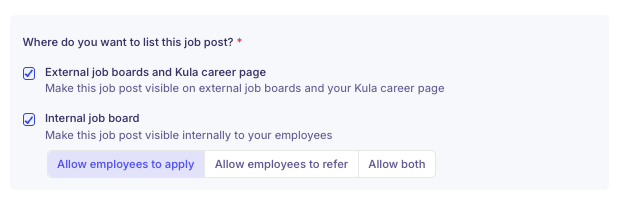
Where Do You Want to List This Job Post?
Choose where your job post should appear. You can select one or both of the following options:
✅ External Job Boards and Kula Career Page
Make the job post publicly visible on Kula Career Page and distribute it to external job boards.
✅ Internal Job Board
Make the job post visible only to your internal employees.
For Internal Job Board postings, you can further refine how employees interact with the job post:
Allow Employees to Apply
Employees can apply for the role directly.
Allow Employees to Refer
Employees can refer external candidates for the role.
Allow Both
Employees can either apply or refer others.
Application Form
Note: The Application Form is only available for Listed job posts. If the job is set as Unlisted, the application form and its settings will not be accessible.
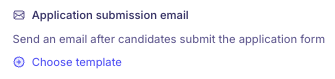
Application Submission Email
Send an Email After Candidates Submit the Application Form:
Choose whether to send a confirmation email to candidates after they submit their application.
You can select a template for the email.
Customize the Application Form
Choose or create the application form that candidates should fill out when applying for this job.
Fields can be marked as:
Mandatory (required for submission)
Optional (candidates can skip)
Hidden (not visible to candidates)
You can also create custom application fields to gather additional information relevant to your process.