Creating and managing email templates
Last updated: October 23, 2026
Kula ships with a set of ready-to-use email templates for the most common moments in a hiring process — application received, interview confirmations, offers, rejections, and more — and you can create, edit, clone, and archive your own on top of them.
This article covers how templates work today, plus a few limitations worth knowing about before you build out a full library.
Who can do this: Any user with the "Manage templates" permission can create and edit templates — this isn't limited to Admins and Super Admins by default, so check your account's role setup if you're not sure who on your team has access.
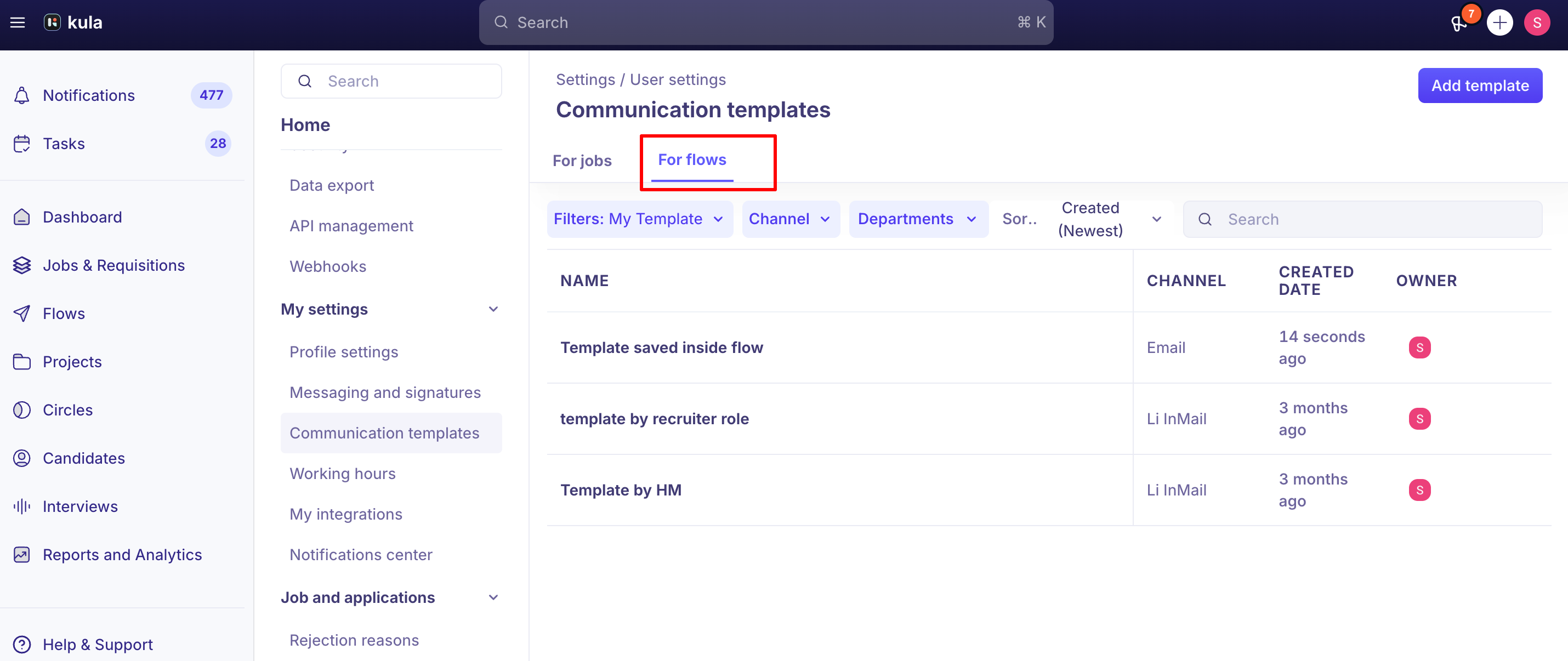
Where to find it: Settings (bottom of the left-side menu) → Templates, under User Settings.
The default templates Kula provides
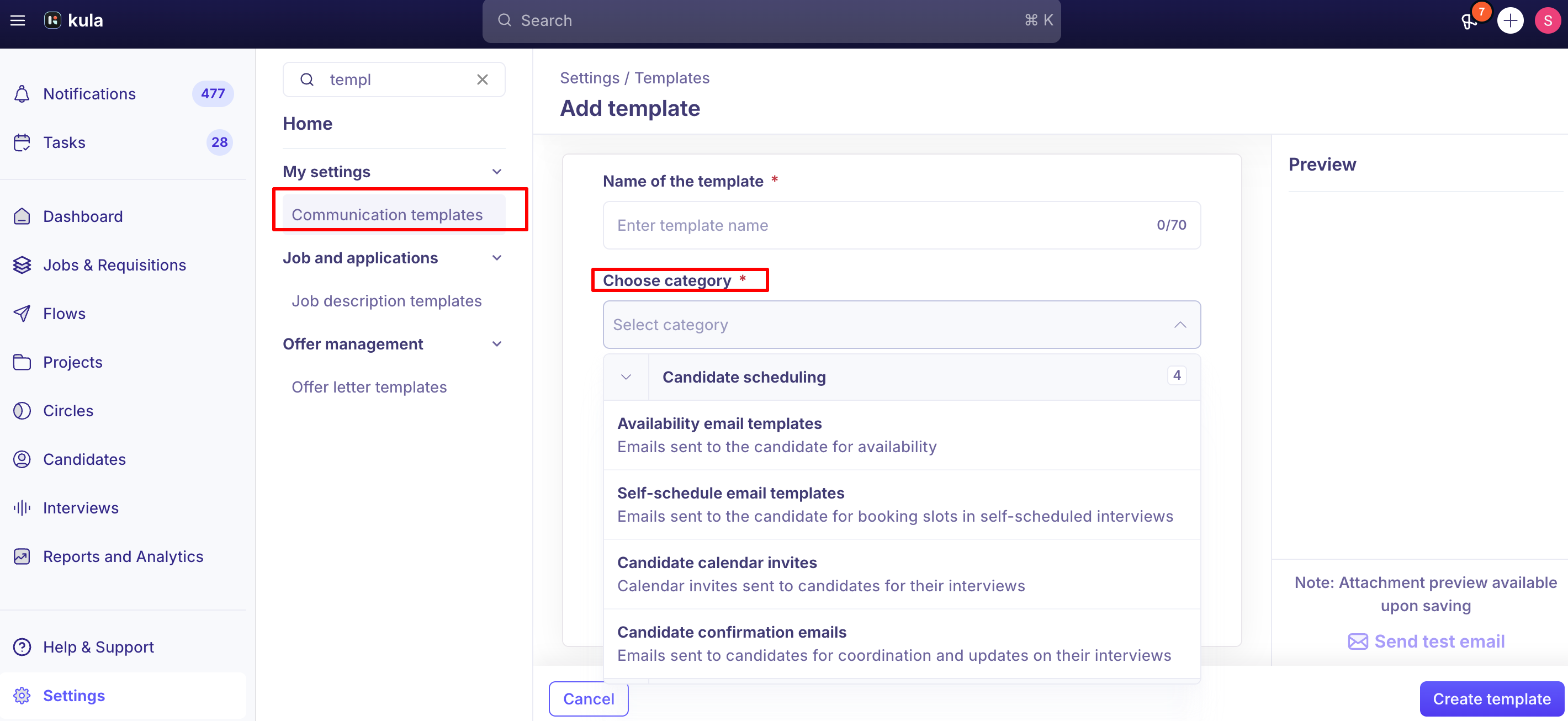
Out of the box, your account comes with sample templates covering the most common candidate and interviewer touchpoints. Every template belongs to a category, and the category determines where that template shows up when you're sending an email or scheduling an interview — so it's worth knowing what each one is for before you start editing or adding your own. These are starting points; you're expected to edit them to match your own voice and process.
Application submission — sent automatically to a candidate when they apply to a job. This is the one category most accounts customize first, since it's the very first email a candidate gets from you.
Candidate interview coordination — the candidate-facing confirmation for a scheduled interview, with separate default templates for phone/online vs. in-person interviews. You pick which one an interview activity uses from within the interview plan, so different stages of the same job can use different confirmation templates.
Interviewer coordination — the interviewer-facing counterpart to the above: what an interviewer sees on their own calendar invite for a scheduled interview.
Self-schedule email templates — the invite a candidate gets when you send them a self-scheduling link to pick their own slot. This is configured per interview activity in the interview plan, so different stages (a recruiter screen vs. a panel round, for example) can each point to their own self-schedule template rather than sharing one default.
Availability email templates — used specifically by the "Request Availability" flow, where a candidate confirms open times rather than booking a slot directly. This is a distinct flow (and category) from self-scheduling.
Offer email — includes a DocuSign-enabled variant for e-signature offer letters, alongside the standard offer email.
Rejection email — two default templates live here: one for you rejecting the candidate, and one for the candidate declining you (withdrawing). They're easy to mix up since both sit in the same category — see Good to know below.
Email activity — the general-purpose category for candidate emails you attach to an interview-plan activity that isn't one of the standard scheduling/offer/rejection scenarios above.
Ad-hoc candidate email templates — for one-off, unplanned emails sent outside the interview plan structure. Kula's ad-hoc composer also shows your Email Activity templates alongside this category's own, so you generally don't need to duplicate a template into Ad-hoc just to be able to send it outside a planned step.
Survey email templates — for survey activities, for example pairing a candidate-experience survey link with a rejection when someone doesn't move forward.
Creating a template
From Settings → Templates, click Add Template, give it a name, choose the category it belongs to, write the subject and body, and save. A couple of things to know before you commit to a category:
The category you choose at creation is locked in afterward. There's currently no way to move a template to a different category once it's saved — if you pick the wrong one, your best option is to create a new template in the right category rather than try to re-categorize the existing one.
Not every category supports attachments. Categories tied to calendar invites, for example, don't allow attachments on the template — this is enforced by design, not a bug if you can't attach a file to certain template types.
Editing, cloning, and archiving
You can edit any template by opening it and saving your changes.
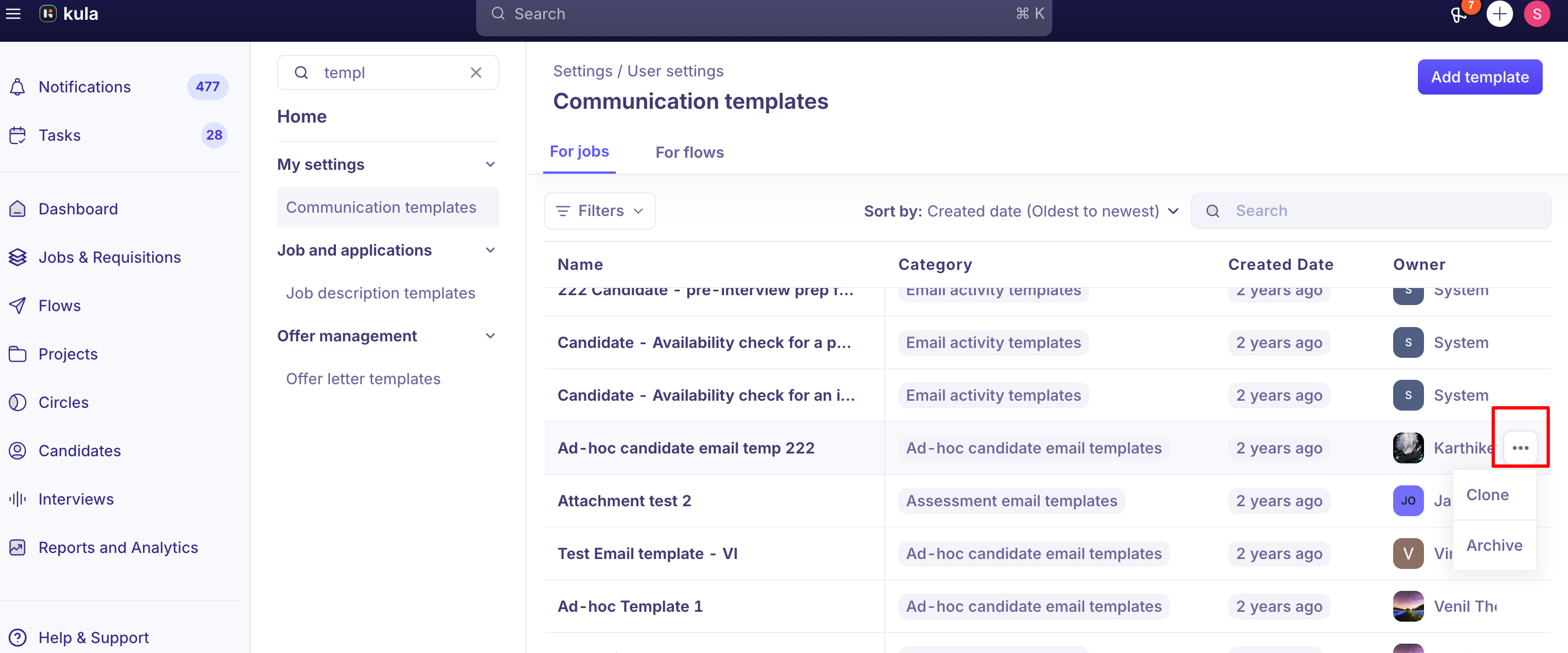
Cloning (via the three-dot menu on the Templates list) is the fastest way to start a new template from one that's close to what you need — just be aware you'll still need to set its category correctly, since that can't be changed later either.
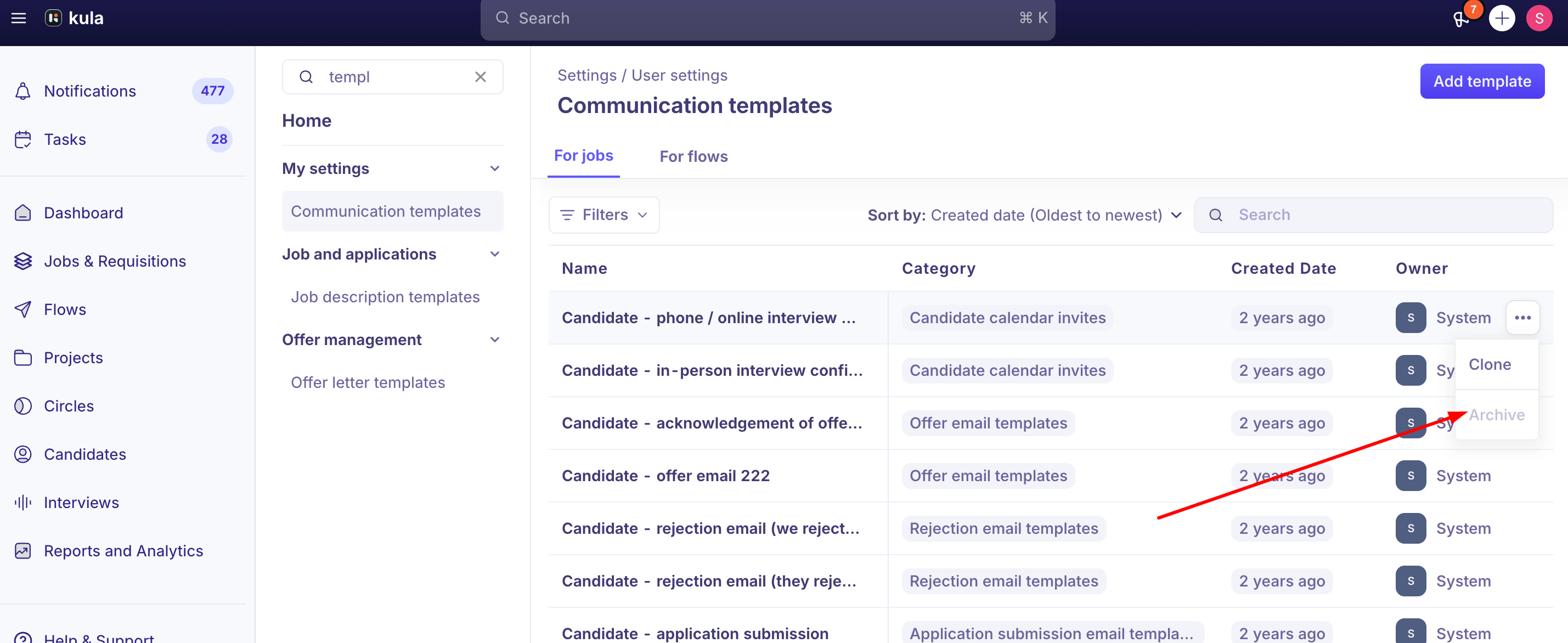
Archiving (also via the three-dot menu) soft-deletes a template: it stops appearing as an option going forward, but it isn't permanently destroyed.
If a template is currently set as your account's default for a category (for example, the default Application Submission template), you can still edit it, but you can't archive it while it's set as the default — change the default first if you need to retire it entirely.
Previewing and personalizing
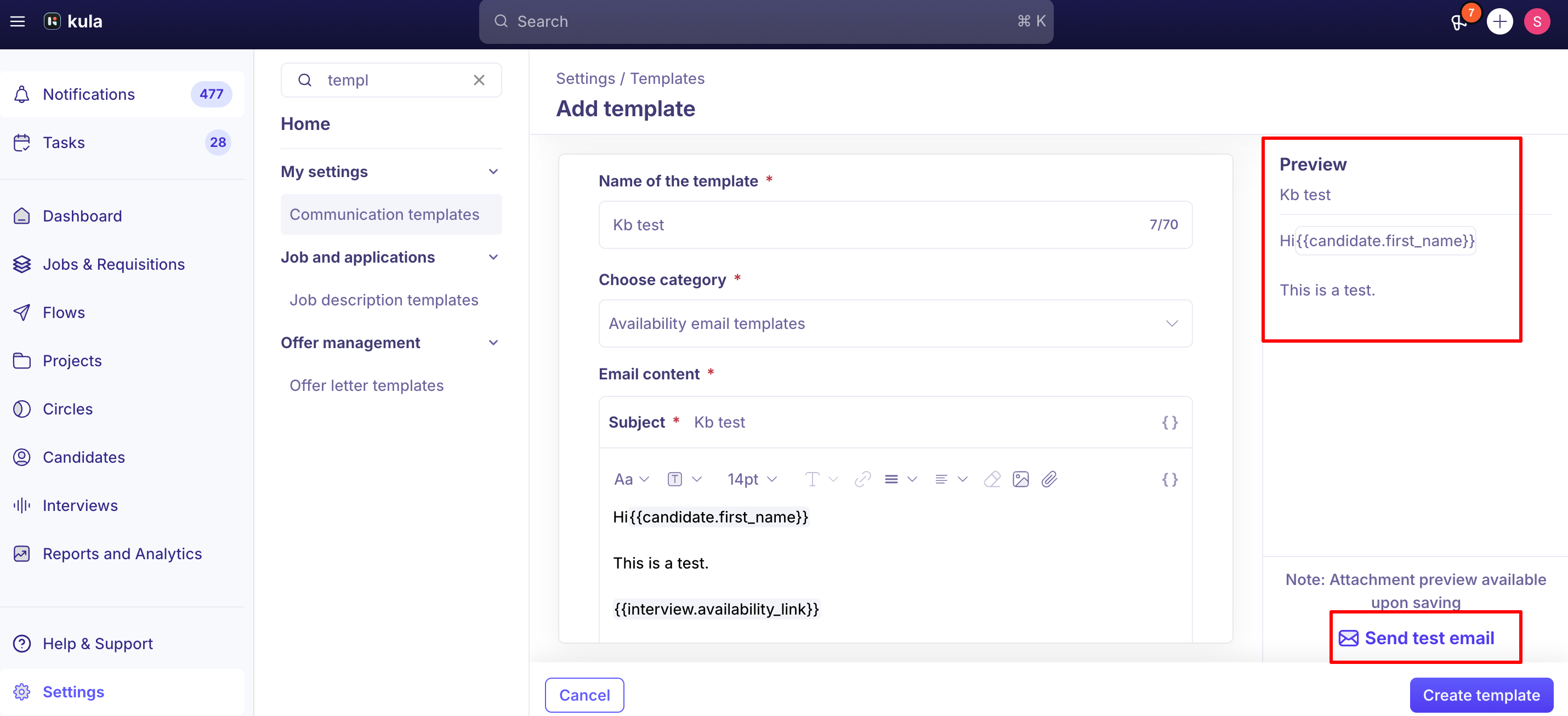
Before saving, use the Preview option to see roughly how the email will render for a recipient, and hover over dynamic values for tooltips showing what they'll resolve to.
Templates support the same personalization tokens used elsewhere in Kula (candidate name, job title, sender name, and so on) so you're not hand-typing details for every send.
Private vs. shared templates
There's no private/personal template option today — every template you create under Settings → Templates is visible to anyone with template access on your account, not just you.
If you need a template only your team uses, the closest current option is simply naming and organizing it clearly within the shared list.
Good to know
The category you pick when creating or cloning a template can't be changed later — double-check it before saving, since your only fix afterward is creating a new template in the correct category.
Attachments aren't supported on every template category — calendar-invite-related categories, in particular, don't allow them. This is expected behavior, not a bug.
There's no private/personal template option yet — everything under Settings → Templates is shared with anyone who has template access on your account.
A template set as your account's default for its category can be edited but not archived — reassign the default first if you want to fully retire it.
Templates are grouped in one flat list by category today, not by broader purpose (like "Scheduling" vs. "Rejection" vs. general email) — if you're managing a large template library, some customers have found this makes it harder to scan at a glance. There's no dedicated filtering or regrouping beyond category yet.
Archiving doesn't affect emails you've already sent — it only removes the template as an option for future use.
FAQ
I need a template for a scenario Kula doesn't have a default for (like an ad-hoc interview invite) — do I edit an existing one or create a new one? If nothing close already exists, create a new template under the relevant category (for example, an ad-hoc or interview-coordination category) rather than repurposing an unrelated one — that keeps it showing up correctly wherever templates are selected for that scenario.
Can I remove a field from a default template, like the interview location on a confirmation email? Yes — open the default template and edit the body to remove whatever dynamic value you don't want included, then save. You don't need to build a new template just to drop one field.
Can I make a template private so only I can see or use it? Not currently — all templates are shared across anyone with template access on your account.
Can templates be organized by purpose instead of one long list? Not beyond category grouping today.
I picked the wrong category when creating a template — can I move it? No, not directly. The category is fixed once the template is saved. Create a new template in the correct category instead.
Why won't a file attach to my calendar invite template? Some template categories, including calendar-invite-related ones, don't support attachments by design — this isn't specific to your account or a bug.
Will archiving a template break an interview activity that uses it? No. When you pick a saved template for an activity, the activity keeps its own copy of the text. Archiving the original only stops it appearing in the dropdown for future use.
Can I see which jobs or activities use a template? No. Activities keep their own copy, so there is no live link to track.
Which templates should I leave alone? You can archive templates your team created. Leave system templates and any template set as a default untouched.
Can the DocuSign offer email use a saved template? Not currently. It uses a default message that you can edit each time you send.
Can system and default templates be hidden from the dropdown or listed below my own? Not currently. Templates appear in one list by category and there is no option to hide or reorder them. Archiving a template removes it from the dropdown, but a template that is set as the default for its category can't be archived until you choose a different default. We recommend leaving system templates as they are.
Need help?
If you have questions or need assistance, reach out to us at support@kula.ai or use the in-app chat.