Sending or scheduling an email to a candidate
Last updated: September 24, 2026
Send a one-off email to a candidate — a question, a follow-up, a reminder — straight from Kula, either now or at a time you choose. Emails that Kula sends as part of a process, like rejections, offers and assessments, are covered in their own articles.
Who can do this: anyone with access to the candidate. To appear in the From list, your mailbox (Gmail or Outlook) must be connected — see How to connect your email and calendar.
Where to find it: the Email button on the candidate's profile, or the Conversations tab on the candidate or their application
Write and send the email
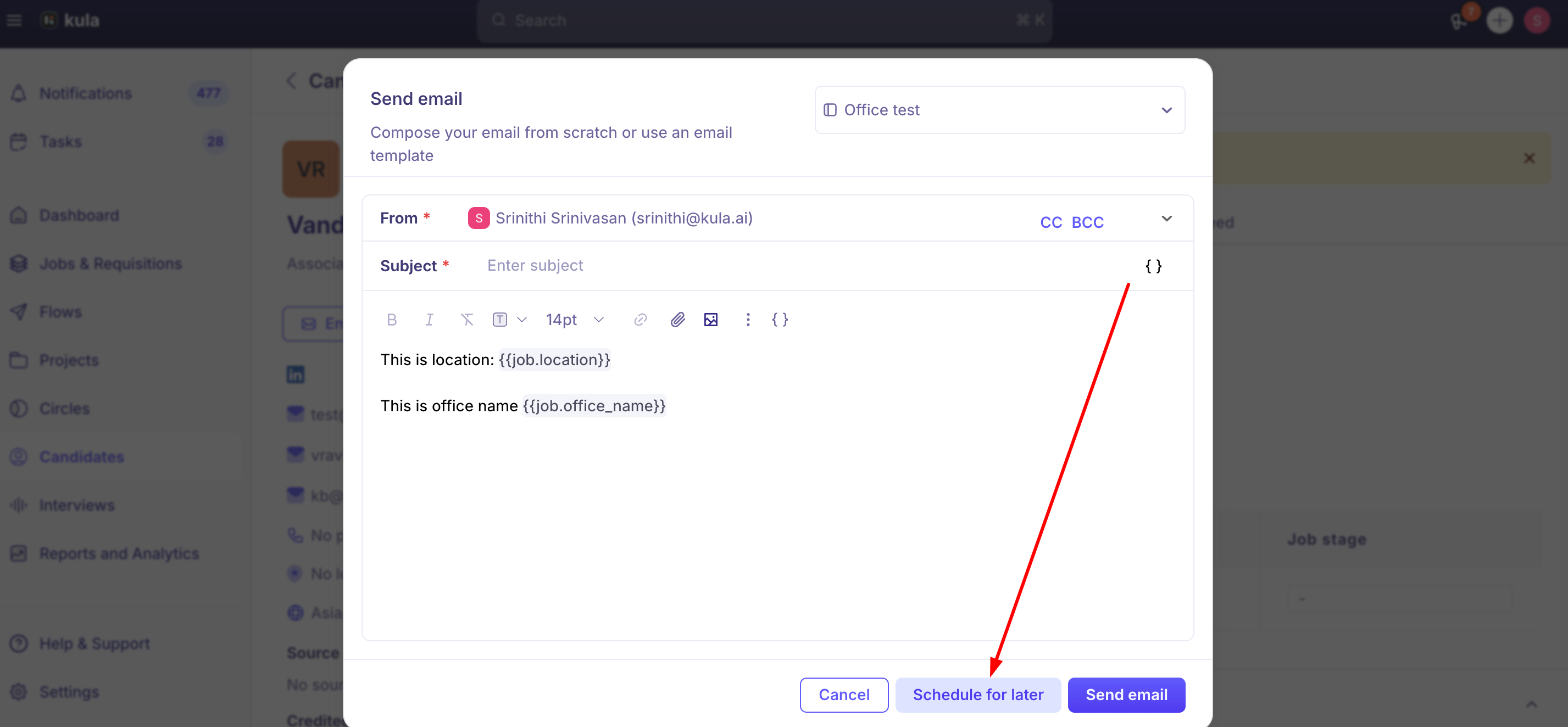
Open the candidate and click Email. You can also start a new email from the Conversations tab on the candidate or on their application.
To start from a template, pick one in Search templates. Otherwise, write from scratch.
Choose who it's From. Click CC or BCC to copy anyone else in.
Enter a Subject and write your message. Use the { } button to add personalisation tokens, such as the candidate's name or the job title. You can also add images and attachments.
Click Send email, or schedule it for later (next section).
Schedule it for later
In the Send email window, click Schedule for later.
Pick the date, time and time zone you want it to go out.
Click Schedule. The button stays unavailable until you've picked a time in the future.
The window now shows Scheduled for with the date, time and time zone, and Send email changes to Save this email. Click it.
Before you save, you can change the time with the pencil icon next to Scheduled for, or click the bin icon to remove the schedule and send the email straight away instead.
Find, change or cancel a scheduled email
Scheduled emails wait in the Scheduled section of the candidate's Conversations tab. The section starts collapsed, so click it to open it. Each scheduled email has these options:
Option | What it does |
|---|---|
Send now | Sends the email immediately instead of waiting. |
Edit email | Opens the email so you can change the message or the send time. |
Delete email | Cancels it. The email is never sent. |
Choosing who it's from
The From list shows your own connected mailbox, plus any shared team inbox (like recruitment@yourcompany.com) that's been shared with you. See Shared email inboxes.
Good to know
It goes to the address on the candidate's profile. There's no To field. To email a different address, update the candidate's profile first.
The candidate needs an email address. If their profile has none, you can't email them from Kula.
Scheduled emails send without you. Kula sends them at the scheduled time whether or not you're signed in, in the time zone you picked.
Replies come back into Kula. When your mailbox is connected, the candidate's replies appear in their Conversations tab. See Email sync and tracking.
Files sent back to a profile-level email aren't saved to Files. If you email from the candidate's profile rather than from an application, attachments in their reply can't be saved to the candidate's Files. Email from the application when you're expecting documents.
Emailing a group. When you email several candidates at once from a job's pipeline, you may also see Schedule for later. Kula then confirms "Email scheduled for" and the number of candidates.
FAQ
Can I email an address other than the one on the candidate's profile? Not directly. Update the email address on their profile first.
Can I send from a shared team inbox? Yes, if it's been shared with you. It appears in the From list.
How do I change or cancel a scheduled email? Open the Scheduled section on the candidate's Conversations tab and choose Edit email or Delete email.
Can I send a scheduled email early? Yes. Choose Send now.
Will a scheduled email send if I'm offline? Yes. You don't need to be signed in.
Where do the candidate's replies show up? In the candidate's Conversations tab, as long as your mailbox is connected.
Need help? If you have questions or need assistance, reach out to us at support@kula.ai or use the in-app chat.