Shared email inboxes
Last updated: September 25, 2026
Shared emails let your recruiting team send candidate-facing messages from a professional, team-owned address — like recruitment@yourcompany.com — instead of individual personal inboxes or Kula's default no-reply address. Replies come back into Kula rather than scattering across everyone's individual inbox, so the whole team can see the same conversation thread.
Who can do this: Setting up and managing shared emails requires the Manage shared emails permission, which Super Admin and Admin have by default.
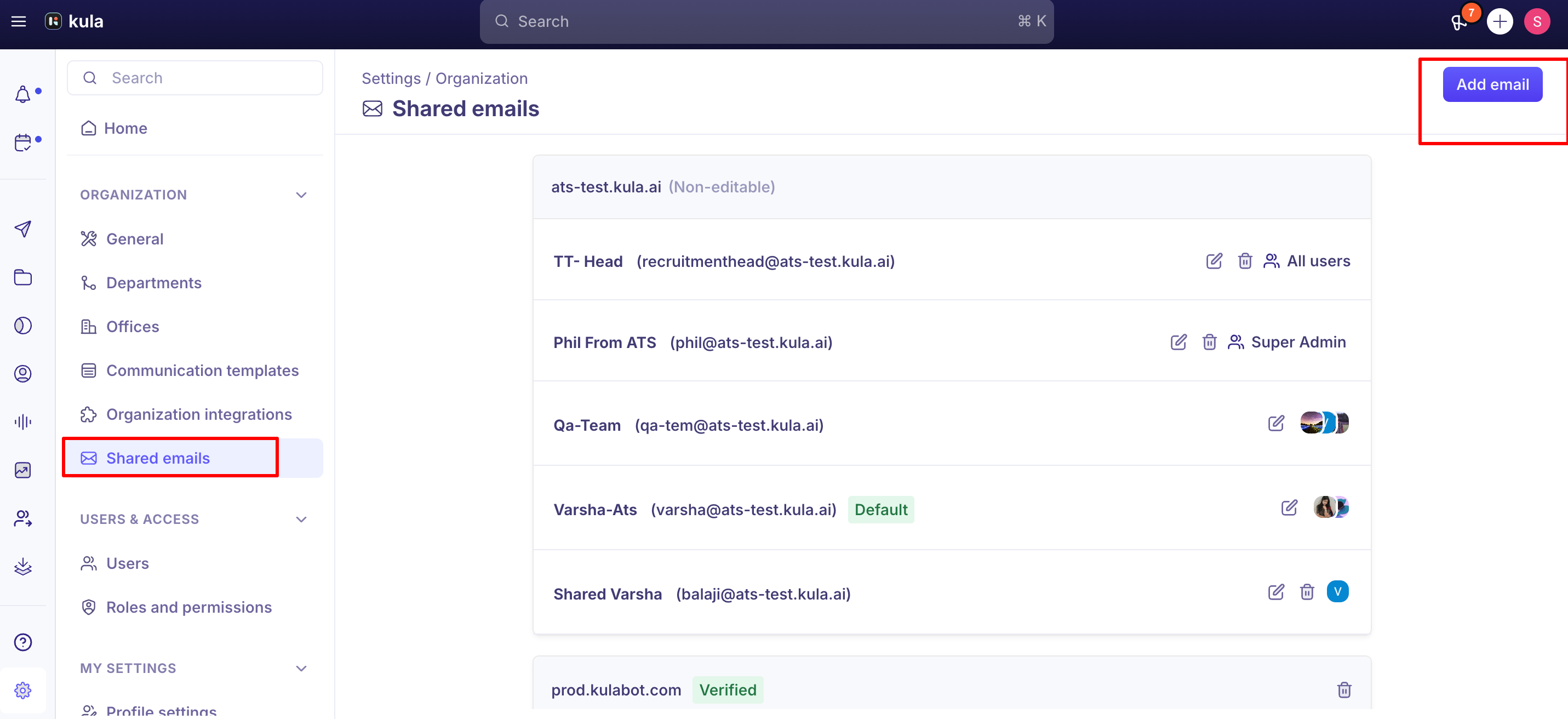
Where to find it: Settings → Organization → Shared emails.
Setting one up
A shared email is tied to your company's domain, and getting it working candidate-facing requires domain verification:
Add and verify your domain. Kula supports MX, TXT, and CNAME-based verification, with a guided flow you can hand off to your IT team. If your domain's MX records are already claimed by your primary mail provider (a common situation), you can skip MX entirely and verify using a forwarding rule instead — for example, adding the shared email on a dedicated subdomain like talent@kula.yourdomain.com, verified via a CNAME record.
Set up email forwarding so replies sent to your shared address are routed to Kula. Both Google Workspace and Microsoft-based forwarding are supported.
Decide who can use it. Share the address with specific users, specific roles, or the entire organization.
Optionally set it as the default for candidate-facing communication. If no shared email is set as default, Kula falls back to a Kula-hosted address in the form talent@yourcompany.kula.ai rather than the generic no-reply address.
Where shared emails can be used
Once configured and shared with you, a shared email appears as an option in the "From" dropdown almost anywhere Kula sends a candidate-facing email:
Email activity
Ad-hoc emails
Rejection emails
Offer emails
Flow emails to candidates
Assessment emails (used automatically if a shared email is set as default)
Application submission emails (used automatically if set as default)
Referral emails (used automatically if set as default)
The one exception is calendar invites, which go out from the scheduler's connected calendar (or a shared calendar, if you use one) rather than a shared email.
Good to know
A shared email can't be set as your default sender until its forwarding rule is actually working. This is by design — Kula won't let a candidate-facing default point at an address that can't reliably receive replies. If you're trying to use a "do-not-reply"-style address as a shared email, keep in mind that this kind of address inherently doesn't support forwarding, so it can be added and used for sending, but not set as a default.
You can delete a shared email yourself. In Settings → Organization → Shared emails, click the bin icon next to the address. You can't delete the default shared email — make another address the default first
CC and BCC fields require selecting an existing Kula user — you can't freetext an outside email address. If your team relies on shared inboxes partly for looping in non-Kula-user stakeholders (HR, a hiring manager without a seat) on candidate threads, that's not currently possible directly from the email composer.
Missing from your From options? A shared email only appears for the users, roles or groups it's shared with. Ask an admin to check who it's assigned to.
FAQ
How do I set up a shared email for my team? Go to Settings → Organization → Shared emails, verify
Our domain's MX records are already used by our primary email provider — can we still set up a shared email? Yes — you can skip the MX route and verify using a forwarding rule instead, typically on a dedicated subdomain.
Why can't I set our do-not-reply address as the default shared email? A shared email needs a working forwarding rule to be eligible as a default, and "do-not-reply" addresses structurally can't forward replies — so they can be used for sending but not set as default.
I should have access to a shared email based on my role, but I don't see it in the From dropdown — why? Check with your admin that the address is shared with your role. If it still doesn't appear, contact support.
How do I delete a shared email we no longer use? Go to Settings → Organization → Shared emails and click the bin icon next to the address. If it's your default, make another address the default first.
Need help?
For connecting your own individual mailbox (separate from a shared team address), see "Connecting your email and calendar." For how email replies sync and get tracked generally, see "Email sync and tracking." For anything else, reach out to us at support@kula.ai or use the in-app chat.