Branding, theme and custom styles
Last updated: August 17, 2026
Your Kula-hosted career page is styled through a single Theme, built in the Career Page Builder. This covers what you can control — colors, fonts, buttons, and section-level styling — and what you currently can't.
Who can do this: Super Admin, Admin
Where to find it: Settings → Career page → Career Page Builder → Themes tab → Selected Theme Details → Add Styles and Sections.
What you can style
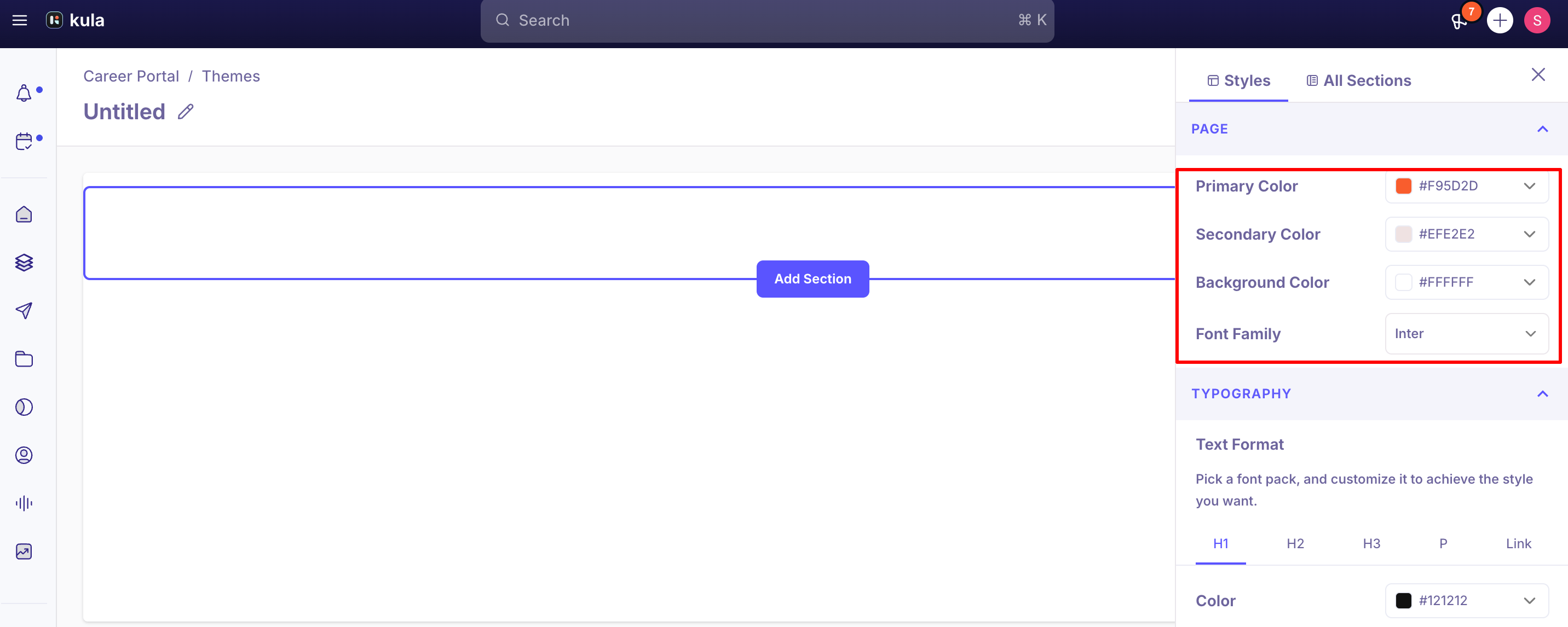
Colors. Set a Primary color, Secondary color, and Background color. These cascade across the page — buttons, links, and accents generally follow the Primary/Secondary colors you set, rather than being colored individually block by block. Both solid hex colors and gradients are supported for backgrounds.
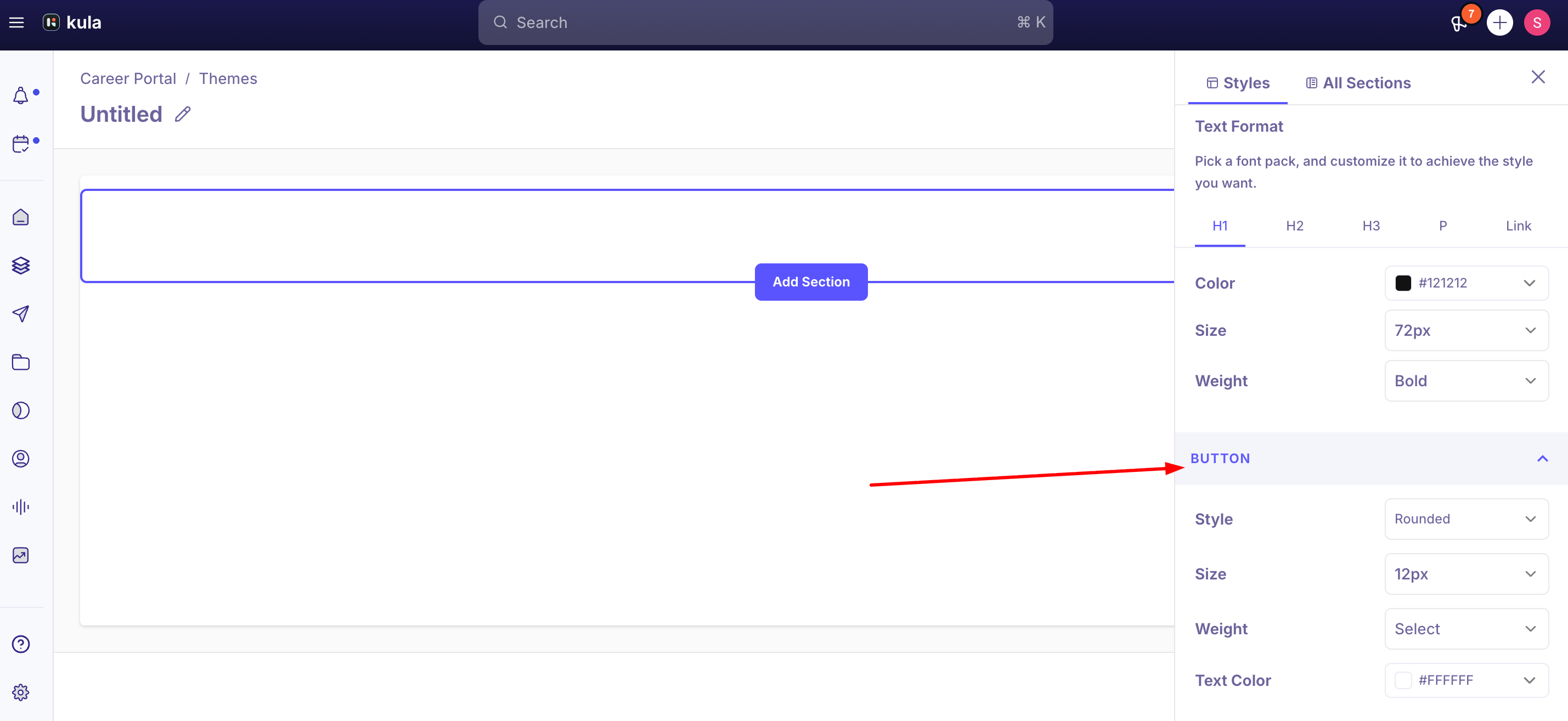
Buttons. Configure button style, size, weight, and color separately from the page's general color palette.
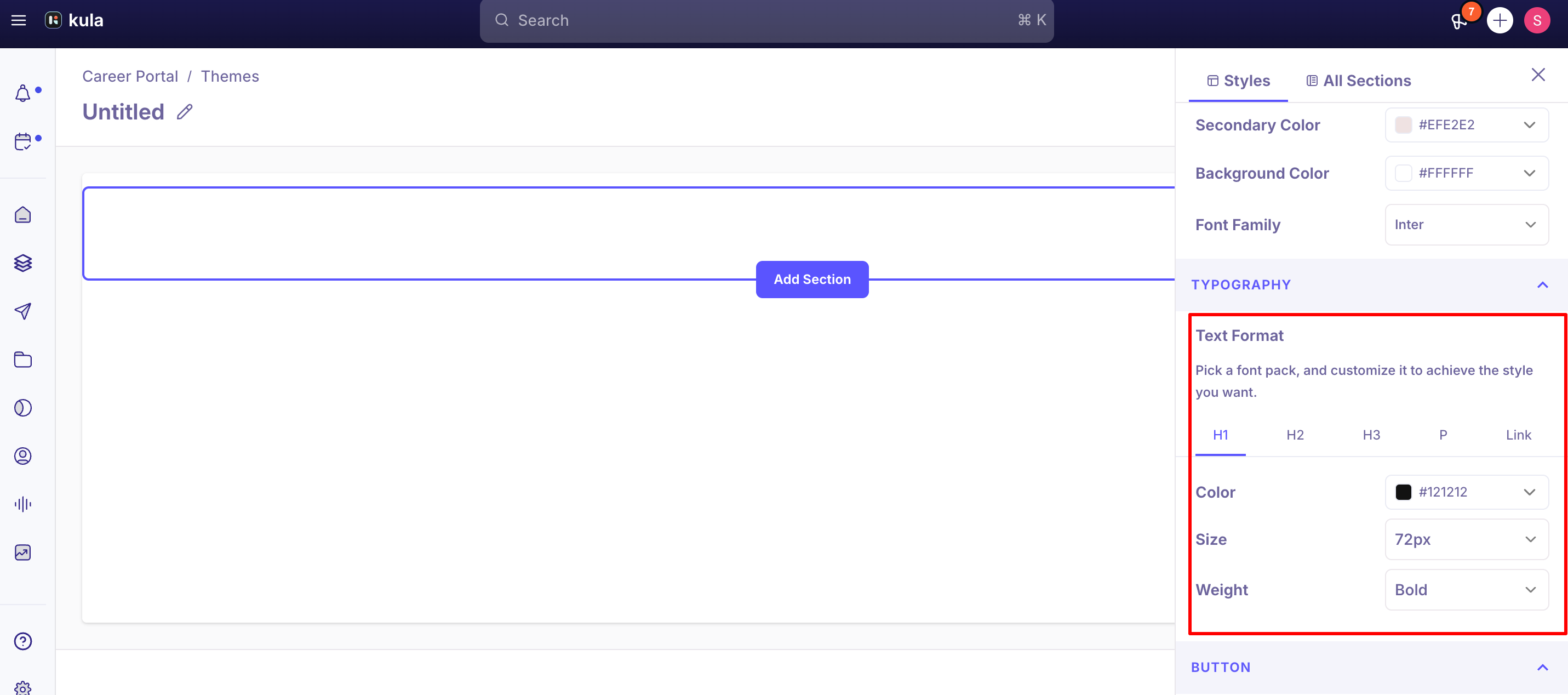
Fonts. Set a font family for the page. The font source can be either a public CSS stylesheet URL (the standard way to use a free Google Fonts font) or a direct font file URL — both are now accepted. If you're using a paid or otherwise non-Google font, you'll need to host the font file yourself and point Kula at that hosted file or its stylesheet. Once added, a custom font can be edited or deleted from the builder, and invalid font URLs now return a clearer error instead of failing silently.
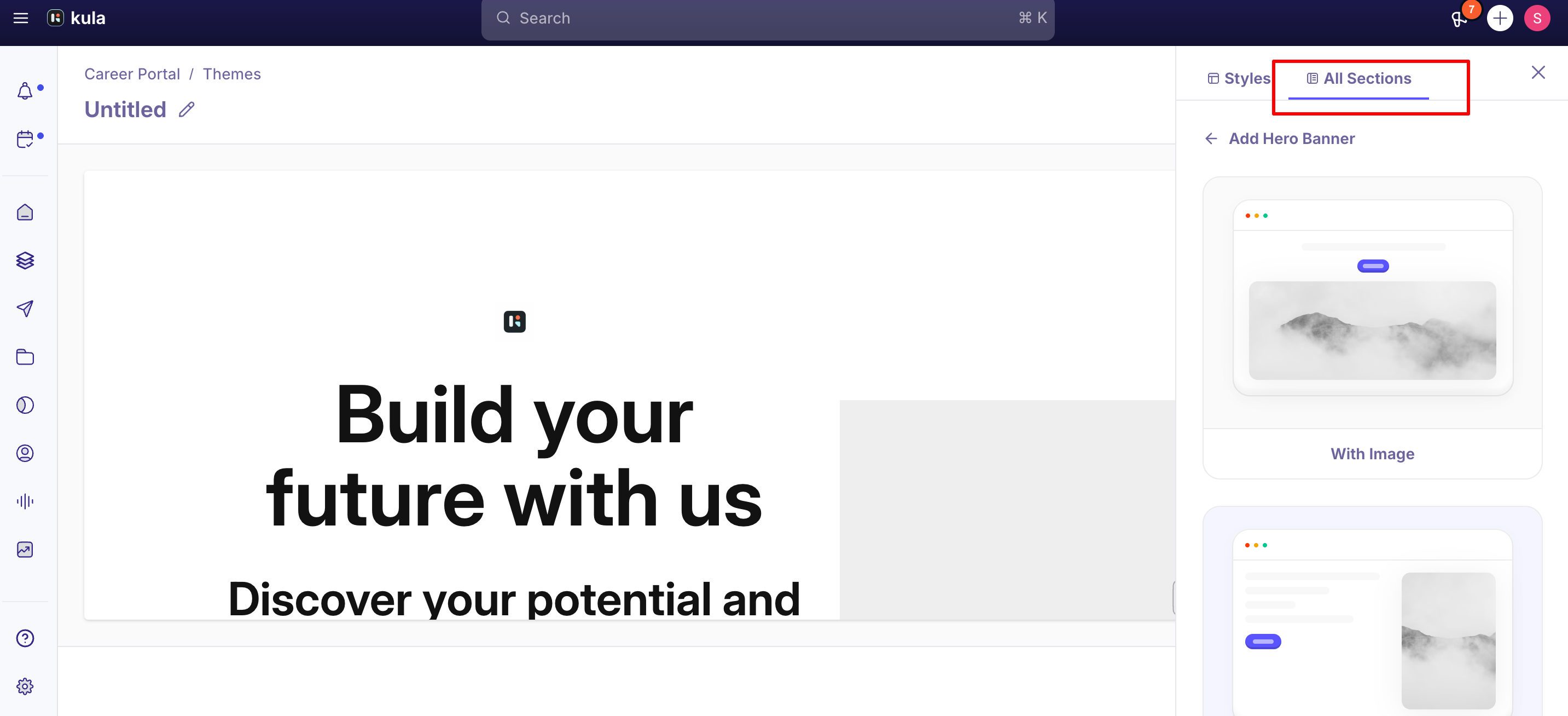
Sections. Add, remove, and reorder: Navigation, Hero Banner, Story, Open Jobs, Image Gallery, Testimonials, Team, FAQ, and Footer. Each section has its own background and layout options, and most support a "Replace" option to swap in a different layout variant. Padding within each section block is independently adjustable.
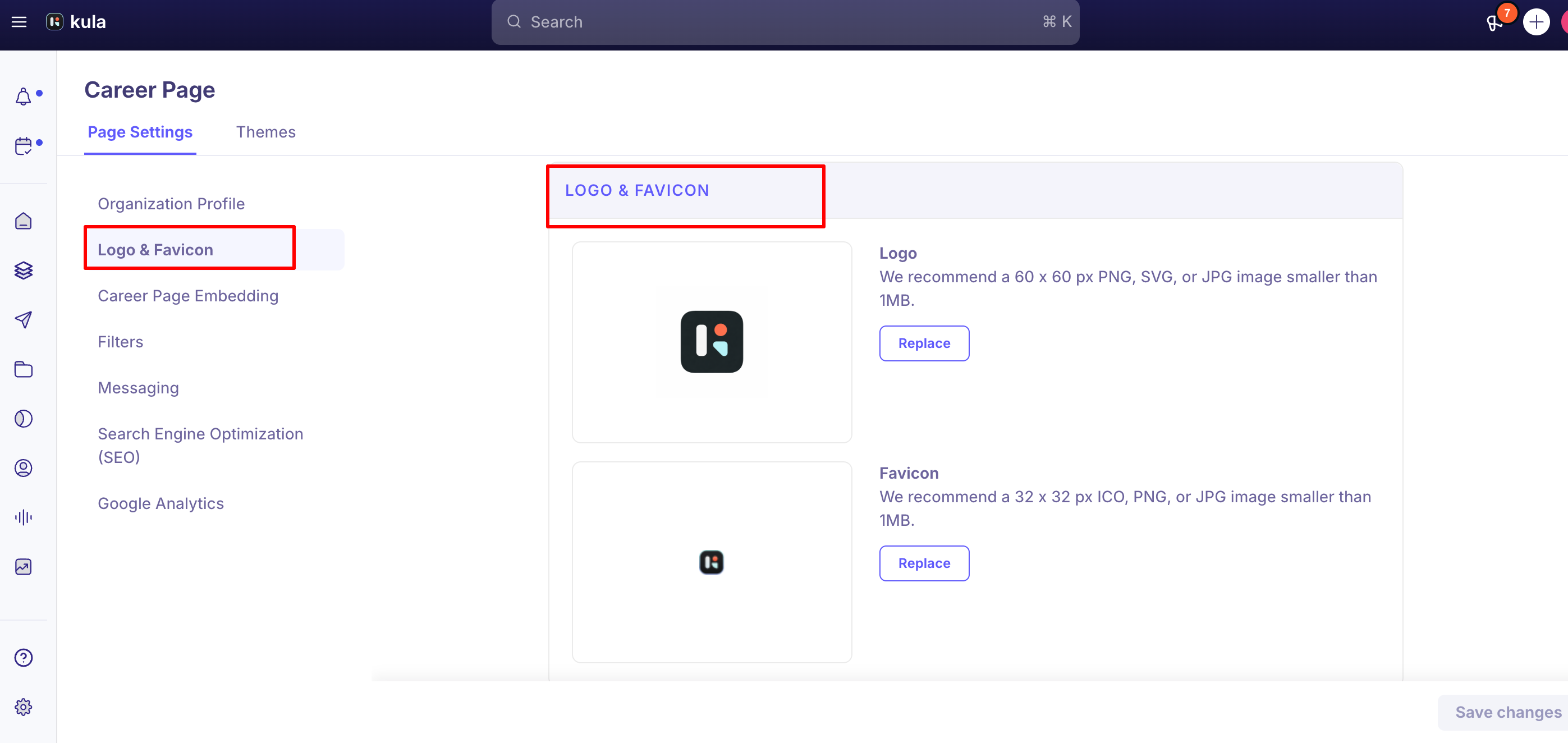
Logo and favicon. Upload one logo and one favicon; both apply site-wide.
Good to know
Only one theme per account. A Kula account can have a single Careers Page with a single theme — you can't run two differently-branded Kula-hosted career pages (for example, for two sub-brands) under one account. If your organization needs genuinely separate branded sites, the supported path is to build them yourself and pull each brand's jobs in via the Job Board API, filtered by department — not something the Theme Builder itself supports.
Only one font family per page. You can't currently mix two different font families (for example, one for headings and a different one for body text) — the theme applies a single font family throughout.
Colors sometimes don't match between the builder/preview and the published page. This has been reported more than once — a mismatch between the hero banner's configured theme and how it renders live, and separately, a header that looked different in the themes portal than on the published page. If what you see in the builder doesn't match what's live, republishing after re-saving the affected section is worth trying, and it's worth flagging to support if it persists.
Rich text pasted into a job description can carry its own color formatting onto the career page, overriding your theme's text color for that content — for example, pasted text sometimes displays in a different color than the rest of the page. Paste as plain text or clear formatting if this happens.
The color picker has known usability rough edges — typing a hex code directly can lose focus partway through, dragging the color selector doesn't always work, and typing several characters can trigger an autofill that jumps focus away mid-entry. These are open, known issues rather than something wrong with your setup; entering a complete hex value and clicking away tends to be more reliable than typing character-by-character.
There's no self-serve custom CSS. If the Theme Builder's color, font, and section options don't get you the exact look you need, deeper CSS-level customization isn't currently available as a setting — it's an open backlog item, not a shipped feature.
Multiple logos aren't supported. The header/hero area displays a single company logo; if your organization needs to represent more than one brand or entity on the same page, that's a known, currently open limitation.
FAQ
Where do I change my career page's colors? Settings → Career page → Career Page Builder → Themes tab → Selected Theme Details → Add Styles and Sections. Primary, Secondary, and Background colors are set there and apply across the page.
Can I use my own font instead of a Google Font? Yes — provide either a public CSS stylesheet URL or a direct font file URL. Paid or otherwise non-Google fonts need to be hosted somewhere accessible first; free Google Fonts work without any extra hosting.
Can I remove the "Made with Kula" branding from my career page? This has been done for at least one customer, but as a specific request rather than a documented self-serve setting. Contact support to ask whether this is available for your account.
Can we have two different career pages with different branding under one Kula account? Not through the Theme Builder — a Kula account supports a single Careers Page and theme. If you need genuinely separate branded sites (for example, for two sub-brands), the supported approach is to build them yourself and pull each brand's jobs in via the Job Board API, filtered by department.
Is there a way to write custom CSS for more control over the design? Not currently — styling is limited to what the Theme Builder exposes (colors, fonts, buttons, section layout options). Deeper CSS customization is on the backlog but not available today.
Need help?
If a color, font, or section isn't rendering the way you configured it, contact Kula support with your theme name and a link to the affected page.