Setting up your Kula hosted career page URL
Last updated: September 26, 2026
Build and publish a branded, Kula-hosted page where candidates can browse and apply to your open roles.
Who can do this: Requires Super Admin or Admin permissions.
Where to find it: Settings → Sourcing → Career Page Builder (or search "Career Page Builder" in Settings).
Step 1: Set your organization profile
Under Organization Profile, confirm your organization name, your website URL (what your logo links to), and your career page URL.
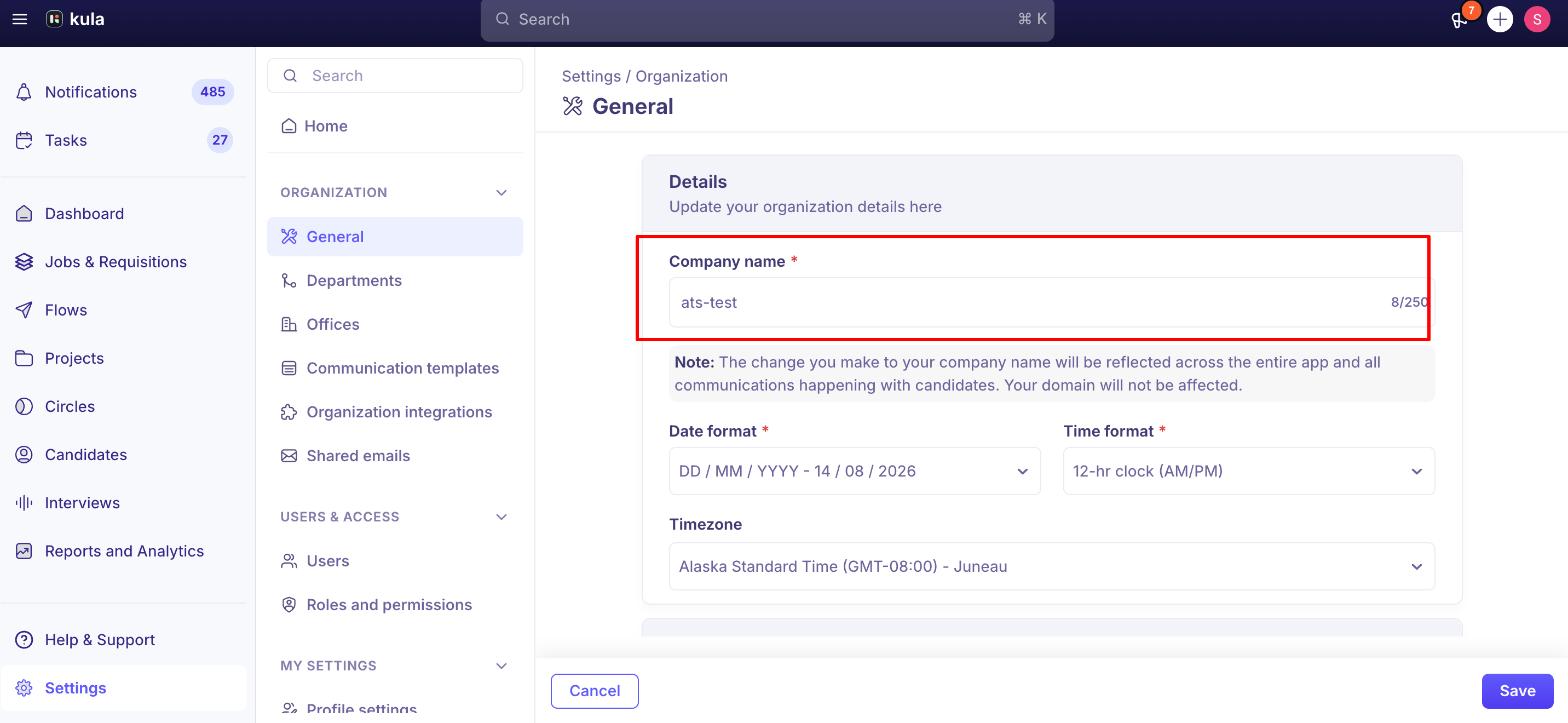
The career page URL is generated automatically from your organization name in the format https://careers.kula.ai/your-company-name — it isn't a field you type into directly, so review it here before sharing it or adding it to job board postings.
Step 2: Add your logo and favicon
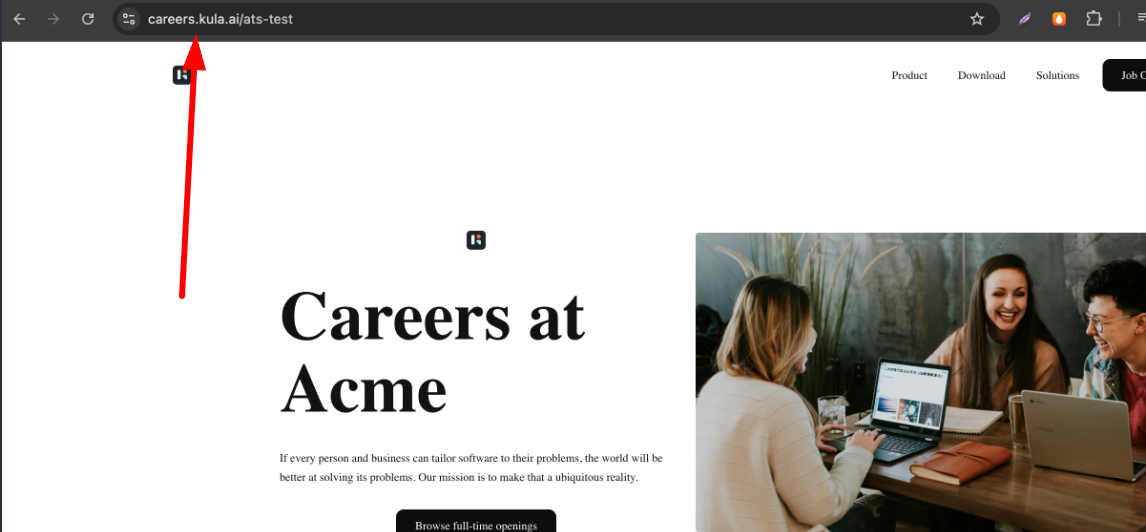
Under Logo & Favicon, upload a logo (recommended 60×60px, PNG/SVG/JPG) and a favicon (recommended 32×32px, ICO/PNG/JPG).
The logo appears in your page header and links to your website; the favicon shows in the browser tab.
Step 3: Build your theme
Go to the Themes tab and click New Theme.
Start from scratch or select a pre-designed template, then customize two areas
Styles — primary, secondary, and background colors; font family (including custom fonts via a public font CSS URL, such as a Google Fonts link); and button style, size, weight, and colors. These styles apply consistently across the whole page.
Sections — add and configure any of: Navigation, Hero Banner, Story, Open Jobs, Image Gallery, Testimonials, Team, FAQ, and Footer. Each section has its own show/hide toggles, background options, and — for most sections — a "Replace" option to swap in a different layout variant. The Open Jobs section automatically pulls in your currently open roles; you don't manage that list manually.
Step 4: Configure filters, messaging, and SEO
Beyond the theme, a few more settings finish the page:
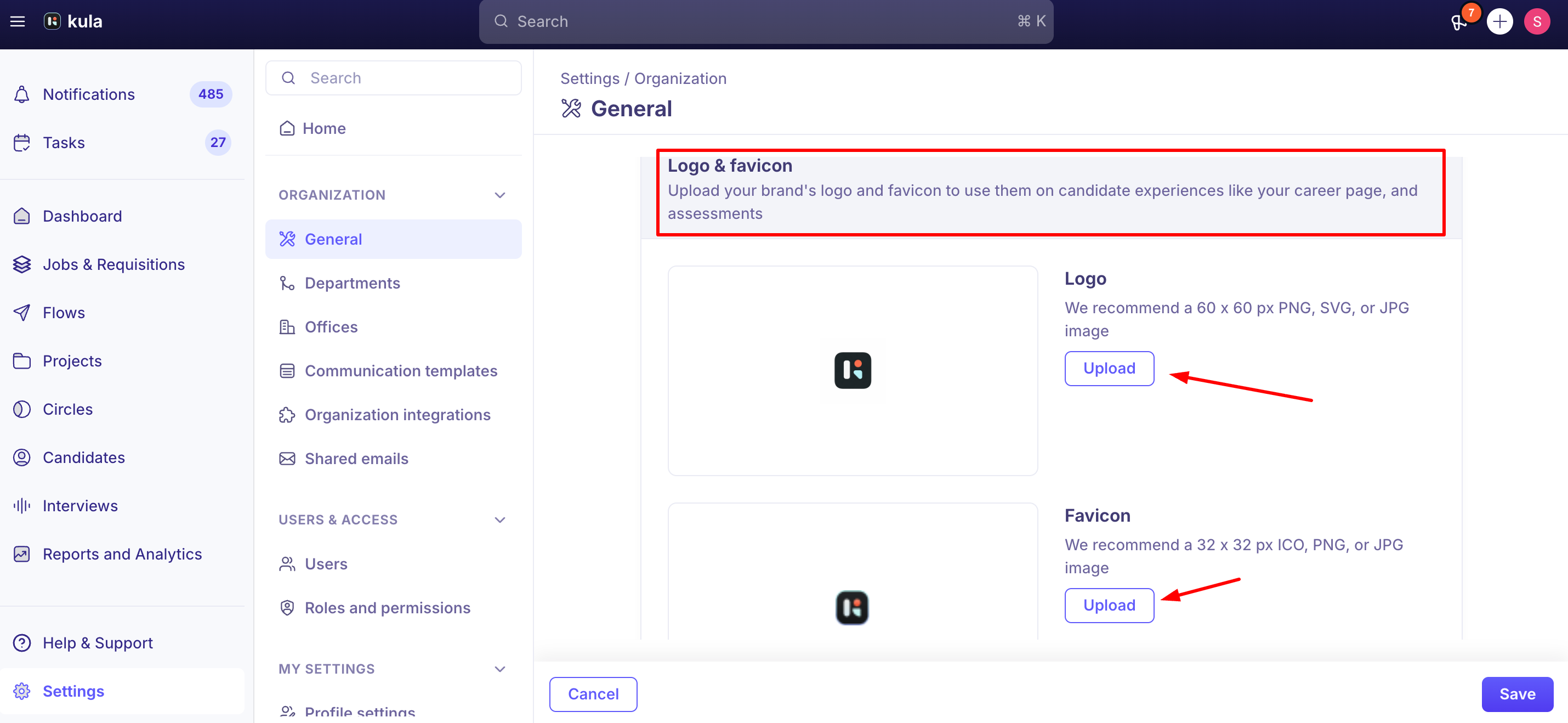
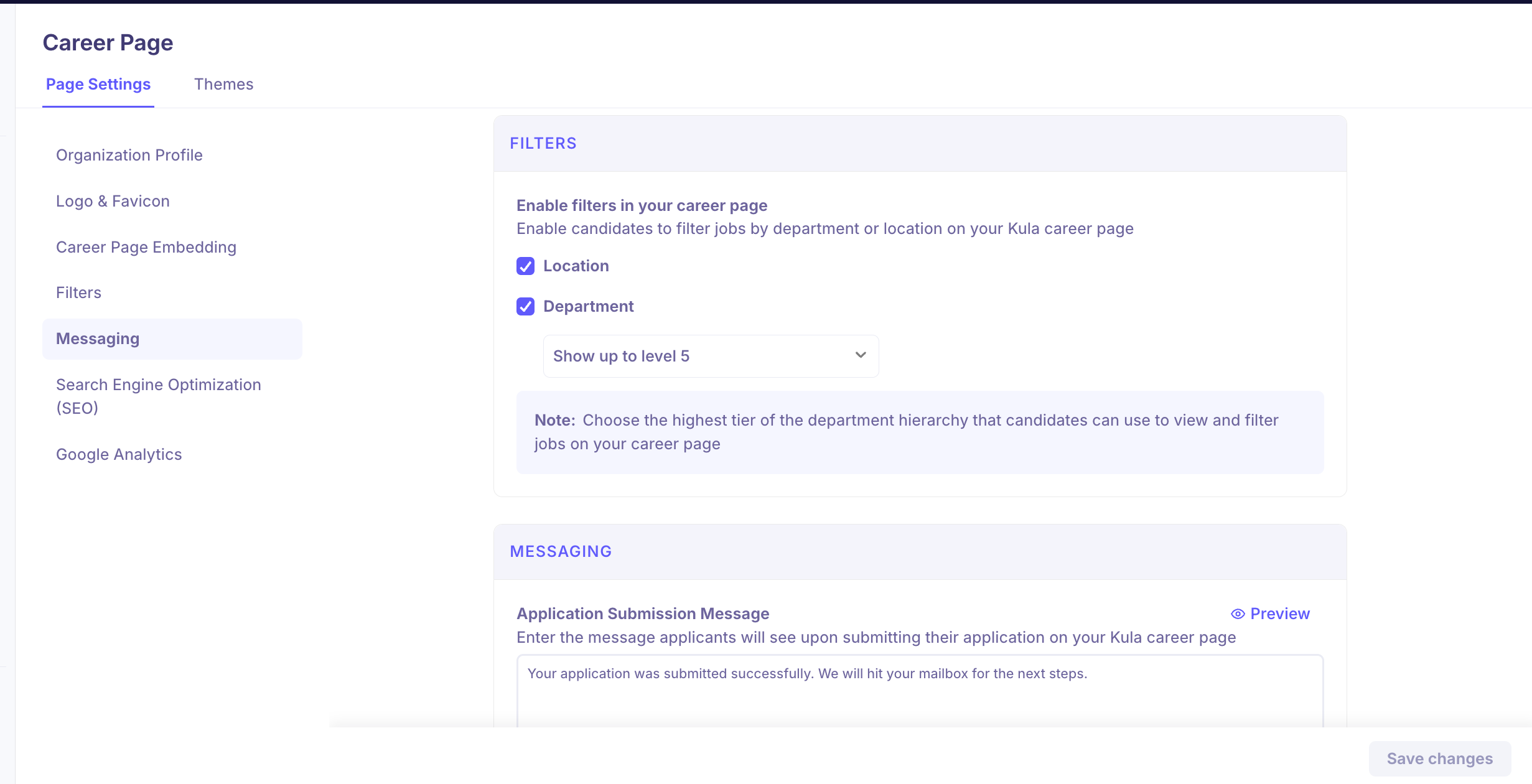
Filters — let candidates filter jobs by department, office, or both.
Messaging — the confirmation message candidates see after submitting an application.
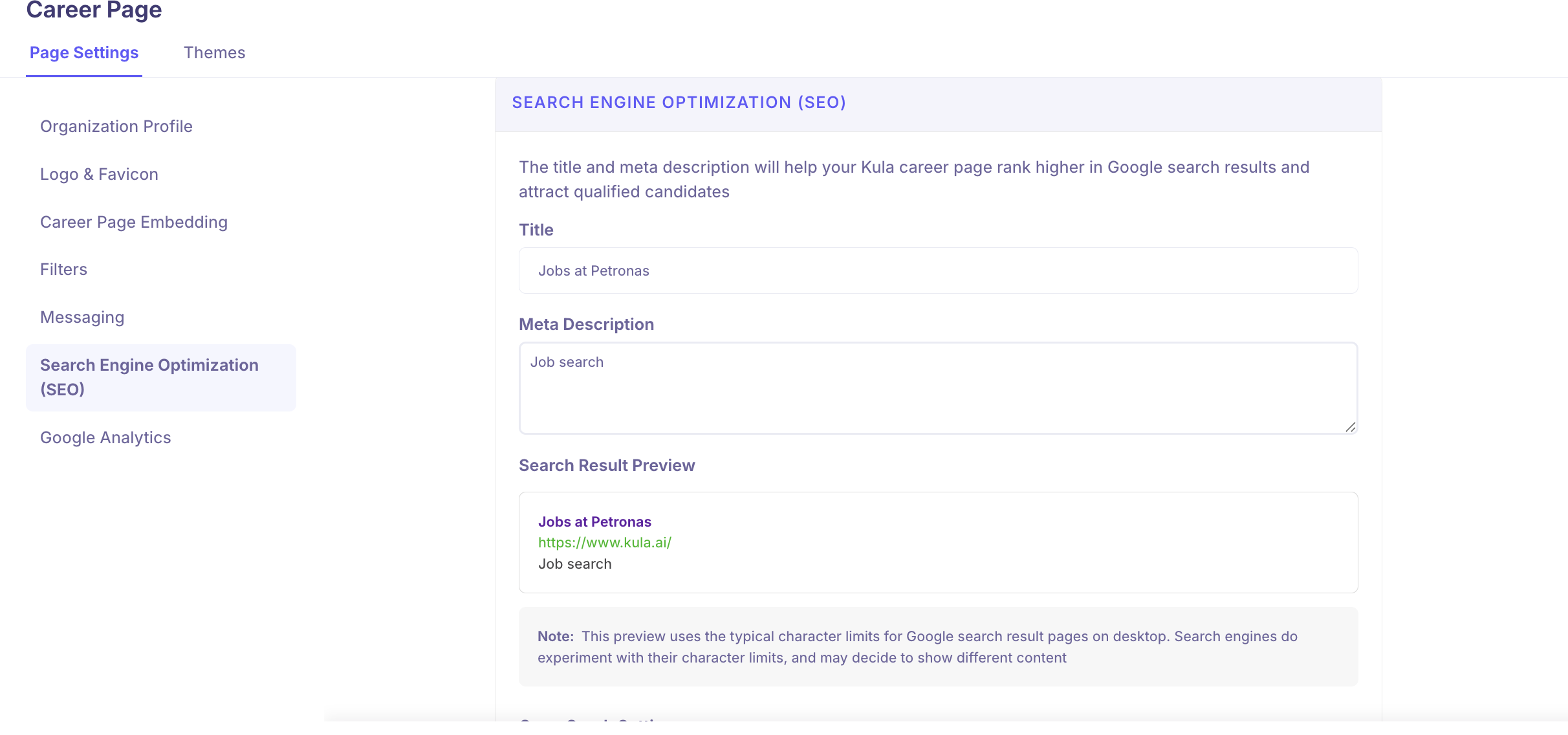
SEO — the page title and meta description shown in search results (aim for roughly 150–160 characters on the description).
Open Graph — the title, description, and image (recommended 1200×630px) shown when your page is shared on LinkedIn, Facebook, or X.
Google Analytics — connect a Measurement ID to track career page traffic.
Step 5: Preview and publish
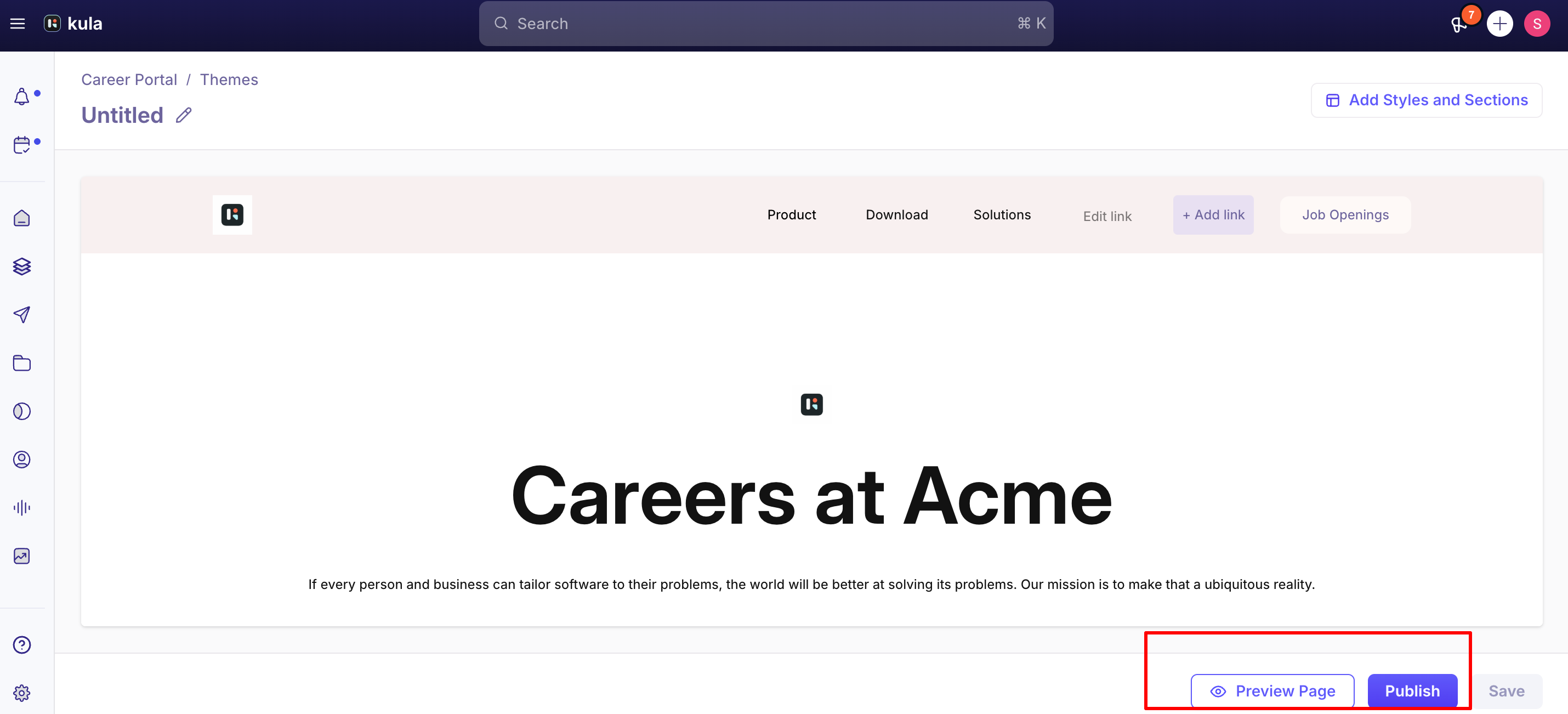
Click Preview Page to see your changes before they go live. Nothing candidates can see changes until you click Publish — edits saved in the builder aren't visible on your live page, and buttons or content you've configured won't appear to candidates, until you publish.
Your Career Page URL is generated automatically from your organisation name and follows the format https://careers.kula.ai/your-company-name. Review it here before you share it or add it to job-board postings.
Other career page settings
The remaining sections of the Career Page Builder let you finish the page:
Section | What you set |
|---|---|
Filters | Let candidates filter jobs by department, location, or both. For department filters, choose which department level candidates can browse by. |
Messaging | The confirmation message candidates see after they submit an application. |
SEO | The SEO title and meta description that show in search engine results (aim for ~150–160 characters for the description). |
Open Graph | The title, description, and image shown when your page is shared on LinkedIn, Facebook, or X. Recommended image: 1200 × 630 px (1.91:1). |
Google Analytics | Connect your Google Analytics Measurement ID to track traffic and candidate behaviour. |

Embedding instead of using the Kula-hosted page
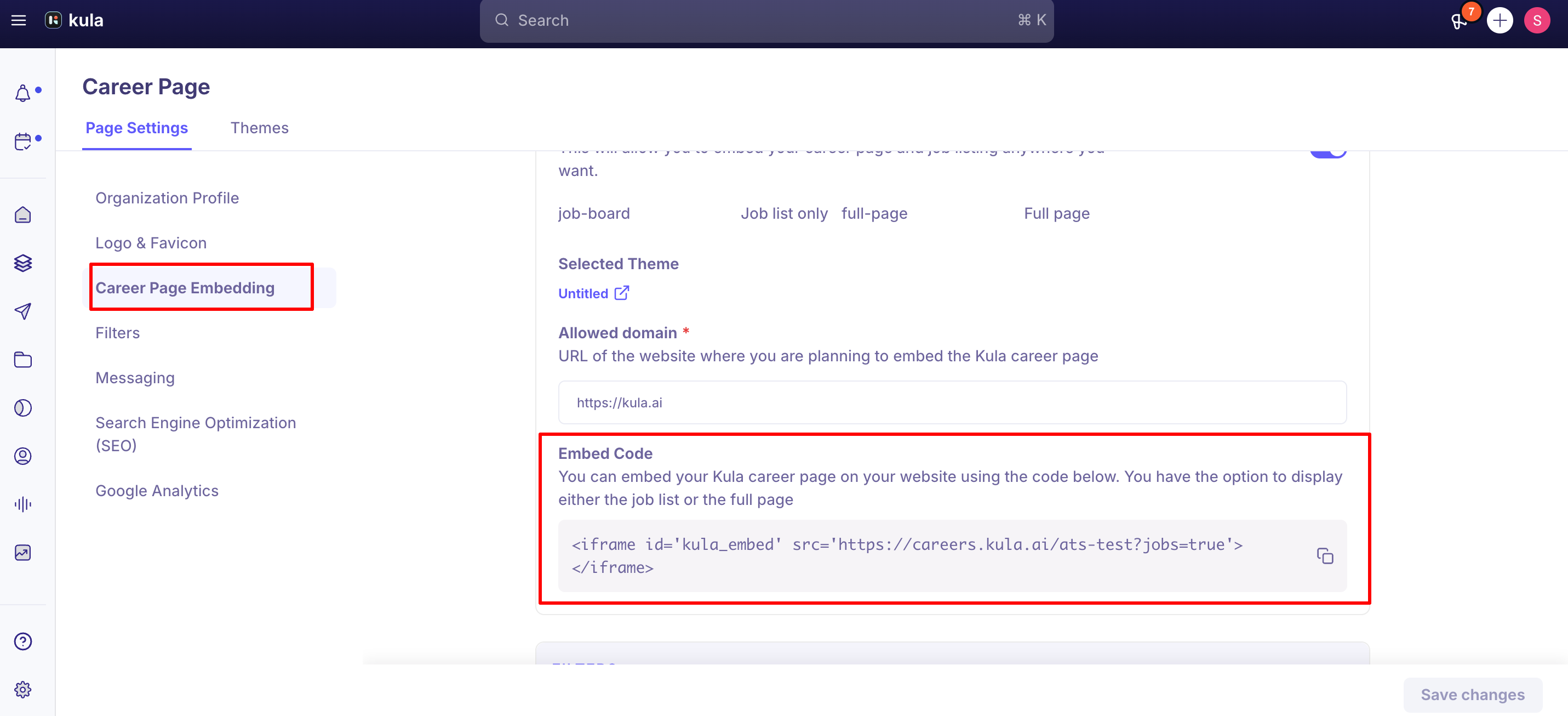
If you'd rather host your careers content on your own website instead of sending candidates to the careers.kula.ai page, use Career Page Embedding: copy the embed code, paste it into your site, and set the Allowed Domain to where you're embedding it.
You can embed just the job list or the full page with branding and filters. Job links inside an embed open in a new tab by default.
Not sure which option is right for you? Kula offers several ways to publish your open roles — this ready-made hosted page, listings or apply embedded on your own site, an RSS feed, and more. This article covers setting up the Kula-hosted career page. If you haven't chosen an approach yet, start with Careers Page Setup, which lays out every option and helps you pick.
Good to know
Custom fonts need a public CSS stylesheet URL, not a direct font file link. Free fonts available on Google Fonts work out of the box; paid or self-hosted fonts need to be hosted with their own CSS stylesheet, with that CSS URL entered as the font source.
The hero banner's theme doesn't carry over to the job description/application page. There's no separate way to configure that second page's look — its colors come from your overall theme configuration (Career Portal Theme → Selected Theme Details → Add Styles and Sections), not the hero banner's specific background image.
Some hero banner style options don't behave as expected. Cover and Fill image styles currently produce the same (stretched) result, Contain style adds more padding than intended, and image upload doesn't work on the background-image variant of the hero block. These are known, open issues.
FAQ
Where do I go to build my career page? Settings → Sourcing → Career Page Builder. Set your organization profile and logo first, then build a theme under the Themes tab.
Why isn't my career page showing my latest changes? Changes made in the builder don't go live until you click Publish. Use Preview Page to check your work first.
Can I use my own domain for the career page instead of careers.kula.ai? Not currently — the career page URL is auto-generated from your organization name on the careers.kula.ai domain.
Can I add more than one logo to the page? Not currently — the page supports a single logo.
Do I have to use the Kula-hosted career page, or can I host it myself? You can embed the job list or the full page on your own website instead, using the Career Page Embedding section — you'll just need to set the Allowed Domain for the embed to load correctly.
Need help?
If your career page isn't publishing correctly, a theme setting isn't behaving as expected, or you need help with embedding, contact Kula support.