Application View
Last updated: September 4, 2026
The Application View gives you a complete picture of a candidate's journey for one specific job — their current stage, resume, scorecards, conversations, files, and activity — all in one panel. This article covers every tab and control.
Who can do this: Recruiter, Hiring Manager, Admin, Super Admin, Organisation Member
Where to find it: Jobs → your job → Pipeline → click a candidate's card
Opening the Application View
Go to Jobs from the left navigation.
Click the job you want to manage.
Click Pipeline.
Click any candidate's card to open their Application View.
The panel slides in from the right, showing the candidate's name and current title at the top.
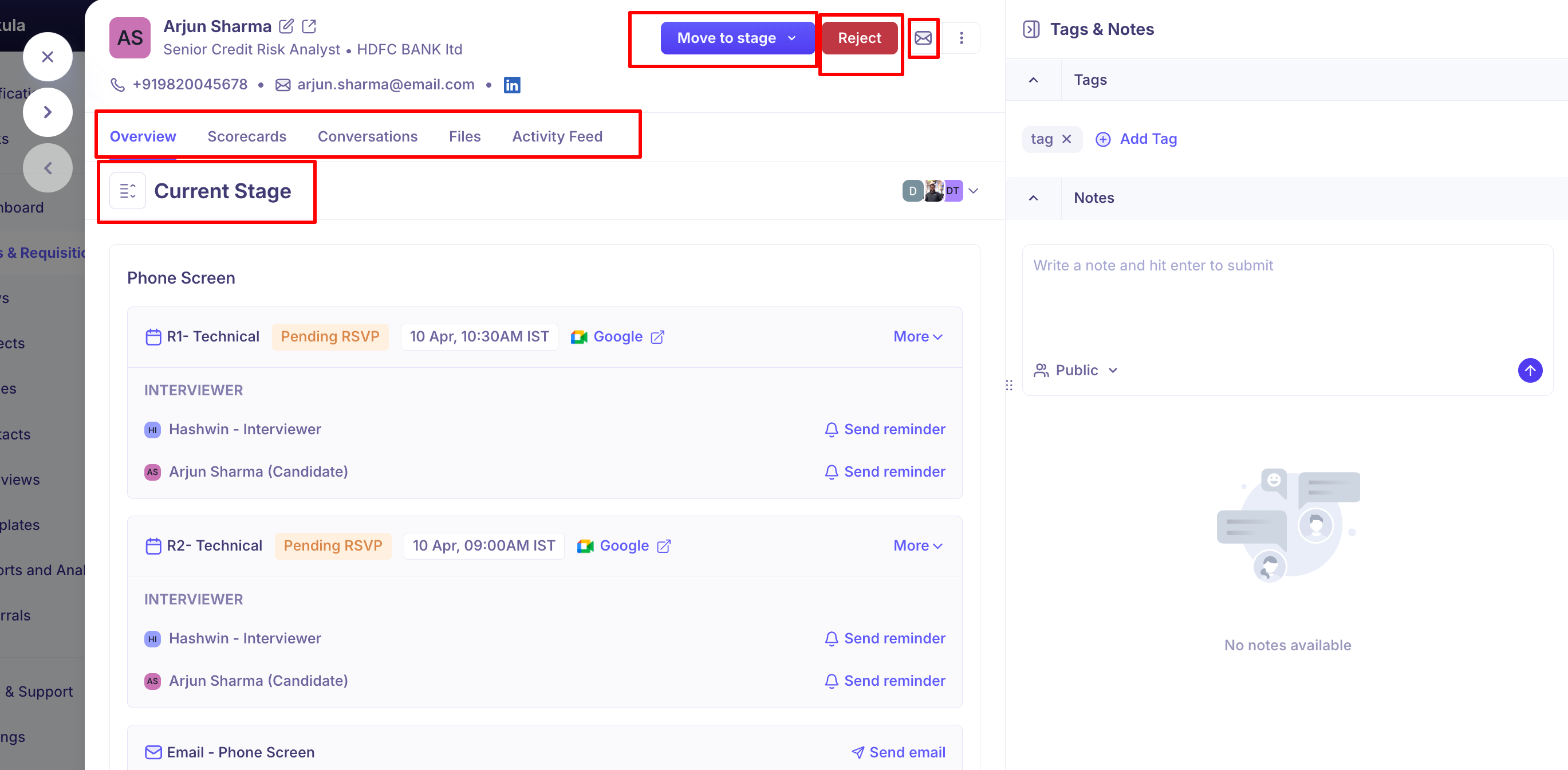
Header controls
Move to stage — move the candidate forward or backward through this job's pipeline. See below for what's in the list.
Reject — reject the candidate from this job.
Email icon — send an email directly to the candidate.
⋮ (More) — ad-hoc actions, covered below.
What's in the Move to stage list
The stages listed come straight from this job's own interview plan — they'll match whatever your team set up, not a fixed list. See Offer stages in your interview plan. If a job hasn't been customised, it starts from Kula's default plan: Prospect, Application Review, Phone Screen, Assessment, Face to Face, Offer, and Hired.
The ⋮ (More) menu
What you see here depends on your organisation's settings and integrations — not every item appears for every job or account.
Action | What it does |
|---|---|
Schedule interview (ad-hoc) | Schedule an interview outside the normal pipeline flow — with AI, manually, or by sending a self-schedule link. |
Send survey (ad-hoc) | Send a survey to the candidate or hiring team. |
Send assessment (ad-hoc) | Send an assessment outside the normal pipeline flow. |
Send review (ad-hoc) | Request a review of the candidate. |
Create offer / Edit offer | Create a new offer, or edit the existing one if there is one. |
Pause | Pause this candidate's application. |
Transfer to another job | Move the candidate's application to a different job. |
Add to additional job | Add the candidate to another job without removing them from this one. |
Add to project | Add the candidate to a project. |
Add to Flow | Enrol the candidate into an outreach flow. |
Add to HRIS | Push the candidate to your connected HRIS. Only appears once they're in a Hired-milestone stage. |
Review with Fraud detector | Run fraud detection on the candidate. Only appears if your organisation has this turned on. |
Anonymize candidate | Strip personal details for compliance. Only appears if your organisation has consent management turned on. |
Send HackerRank assessment / Send HackerRank interview | Send a HackerRank coding assessment, or start a live HackerRank interview. |
Send HackerEarth assessment | Send a HackerEarth assessment. |
Send CriteriaCorp assessment | Send a CriteriaCorp assessment. |
Send Hireflix assessment | Send a Hireflix one-way video interview. |
Send CodeInterview assessment | Send a CodeInterview assessment. |
Send Checkr / Certn / Zinc / SpringVerify assessment | Run a background check with whichever provider your organisation has connected. See Running a background check with Checkr and the related articles for each provider. |
Tabs in the Application View
The Application View has seven tabs across the top — Current job, Resume, Scorecard, Candidate info, Forms, Conversations, and Notes — plus a More dropdown holding two more: Files and Activity feed.
Tab | What it shows |
|---|---|
Current job | Where the candidate sits in this job's pipeline right now, and what's tied to that stage. |
Resume | Their resume, viewable and manageable right there. |
Scorecard | Every interview scorecard for this application, completed and pending. |
Candidate info | Personal details, source, credited to, experience, education, skills, and additional fields. |
Forms | Any forms the candidate filled in — application form, referral form, surveys. |
Conversations | Every email exchanged with the candidate for this job. |
Notes | Internal notes about the candidate. |
Files (under More) | Supporting documents beyond the resume. |
Activity feed (under More) | A full chronological log of everything that's happened on this application. |
Current job tab
Shows the candidate's current stage and what's tied to it:
For an interview stage — the interview/activity name (e.g. Interview – Phone Screen), its status (e.g. Interview ended), a link to the interview, interviewer scorecards with the rating given (e.g. Strong yes), and a View scorecard link.
For an assessment stage — the assessment name, a Send assessment button, and the reviewers assigned.
Click Show all stages to see the candidate's full history across every stage instead of just the current one; click Show current stage only to collapse it back.
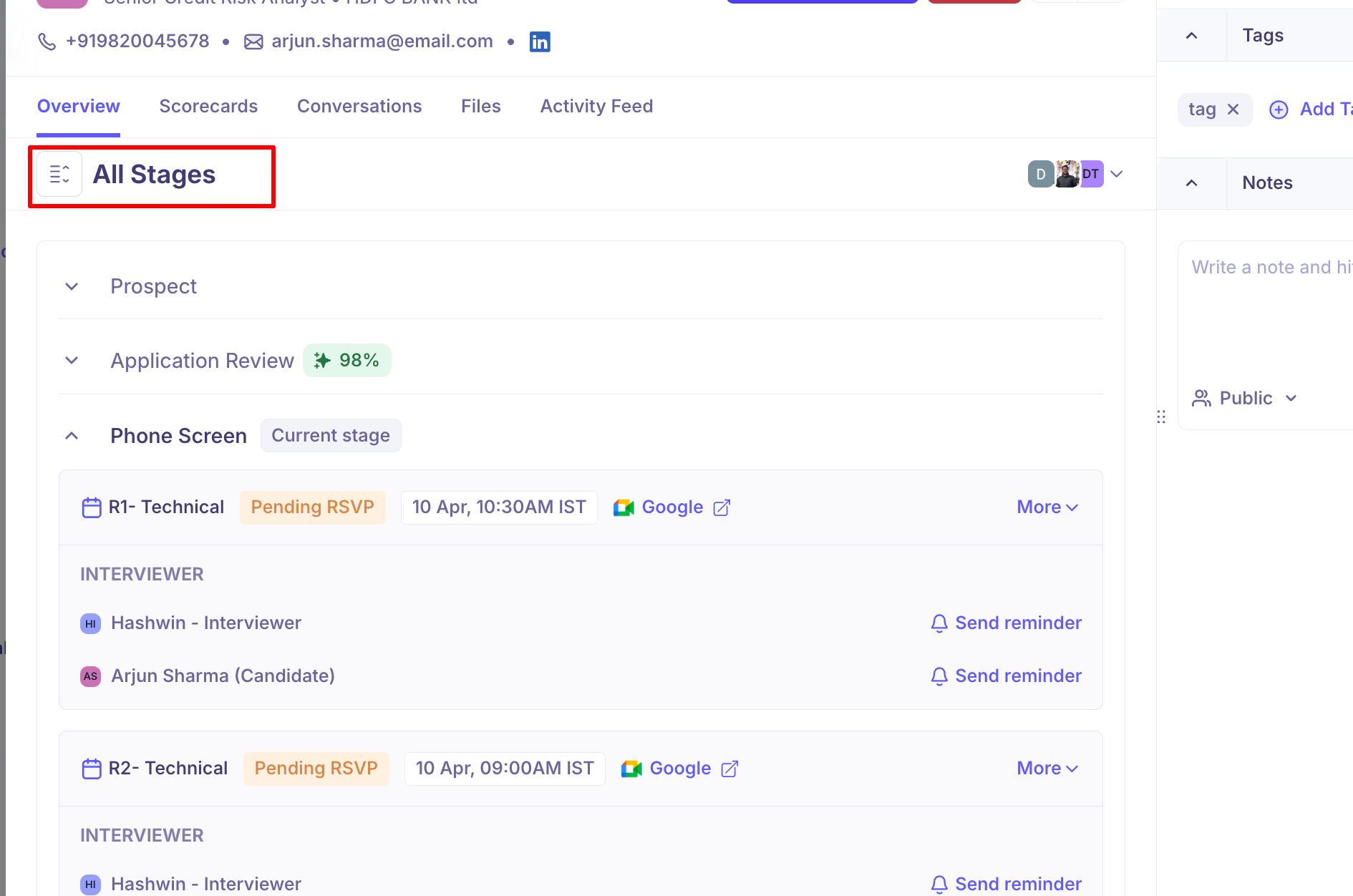
Hover over the hiring team avatars at the top of this tab to see who's on the job's hiring team — Hiring Manager, Recruiter, Coordinator, or External recruiter (agency), each tagged Primary if they are.
Resume tab
Search, replace, download, and print the candidate's resume right from the viewer. Click Update from resume to re-parse it and refresh the candidate's profile data.
If nothing's uploaded yet, drag a file in or click to browse. Kula accepts .pdf and .docx here.
Scorecard tab
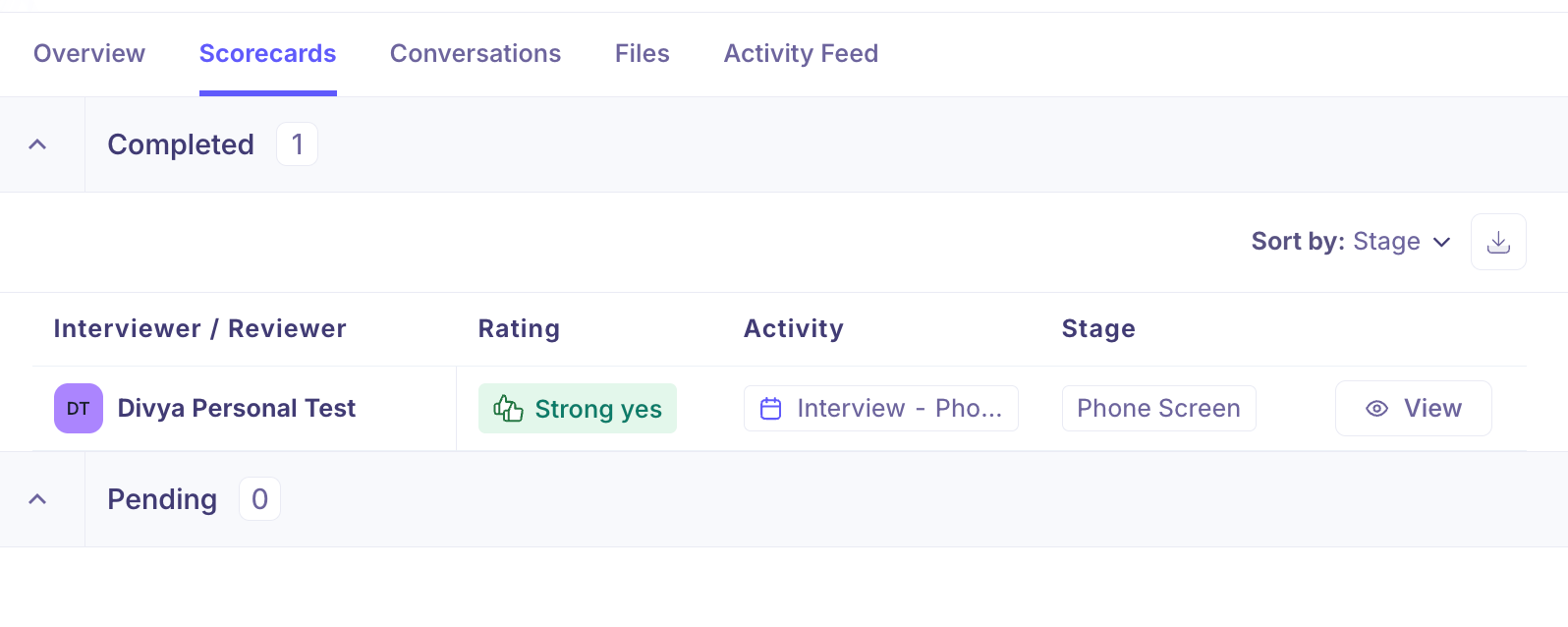
Two sections:
Completed — scorecards that have been filled in, showing the interviewer/reviewer, rating, activity, stage, and submission time. Click a rating to open the full scorecard, or download it as a PDF.
Pending — scorecards that have been assigned but not yet filled in.
Sort by Stage using the sort control at the top.
Candidate info tab
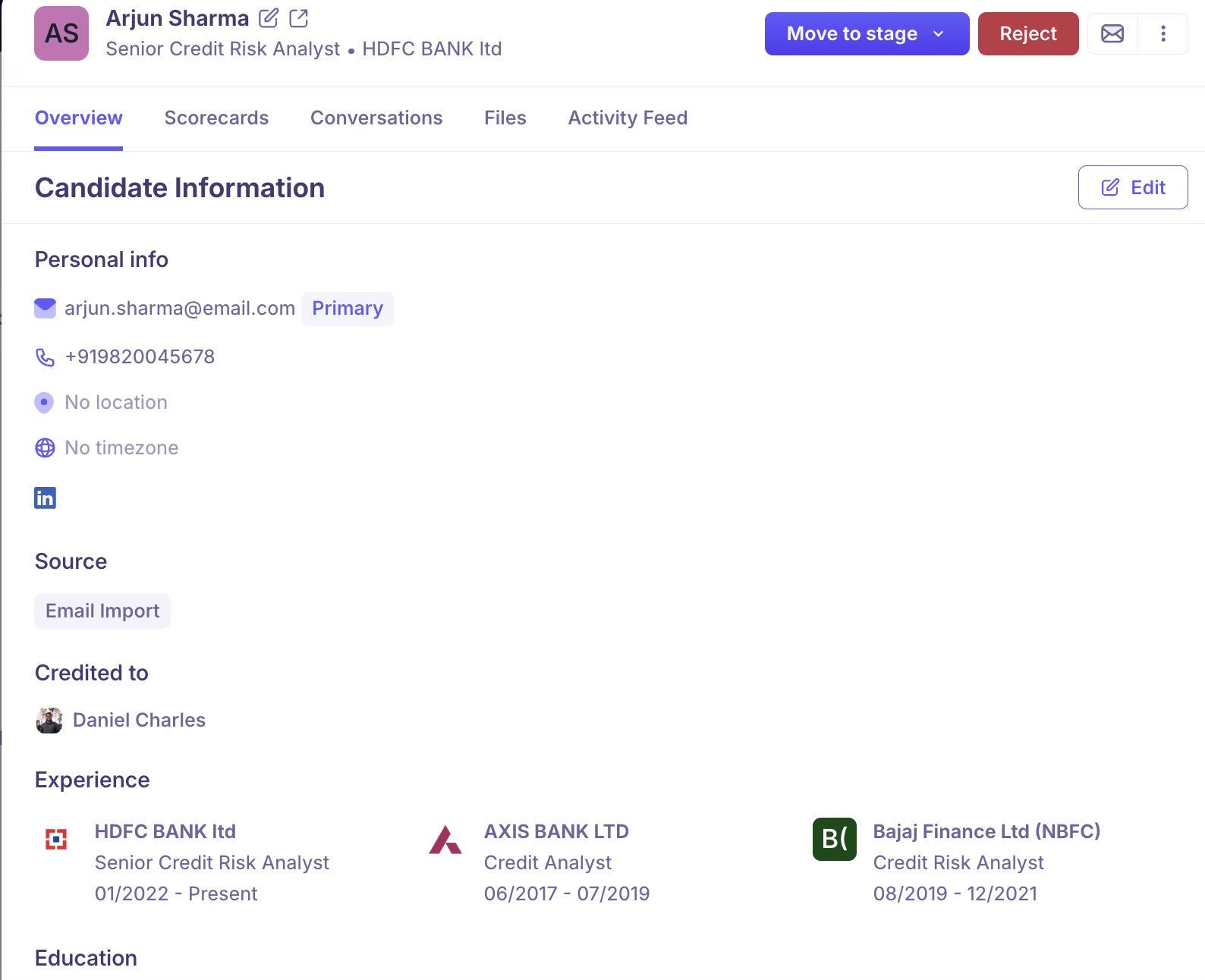
Personal info (email, phone, location, timezone, social links), Source, Credited to, Experience, Education, Skills, and Additional fields — any custom fields your team has configured, such as Work authorisation or Current CTC.
Forms tab
Any forms the candidate has filled in: Application form (from applying through a job post), Referral form (if referred by an employee), and any Surveys sent to them.
Conversations tab
Two sections: Scheduled (emails queued to send) and Conversation History (every email sent and received, with subject, sender, timestamp, and sending address). Click Reply on any thread to respond directly from Kula.
Notes tab
Write internal notes about the candidate — type your note and press Enter to submit. Notes are set to Public by default, meaning every team member with access to the job can see them. Use the dropdown next to Public to make a note Private before submitting.
Files tab (under More)
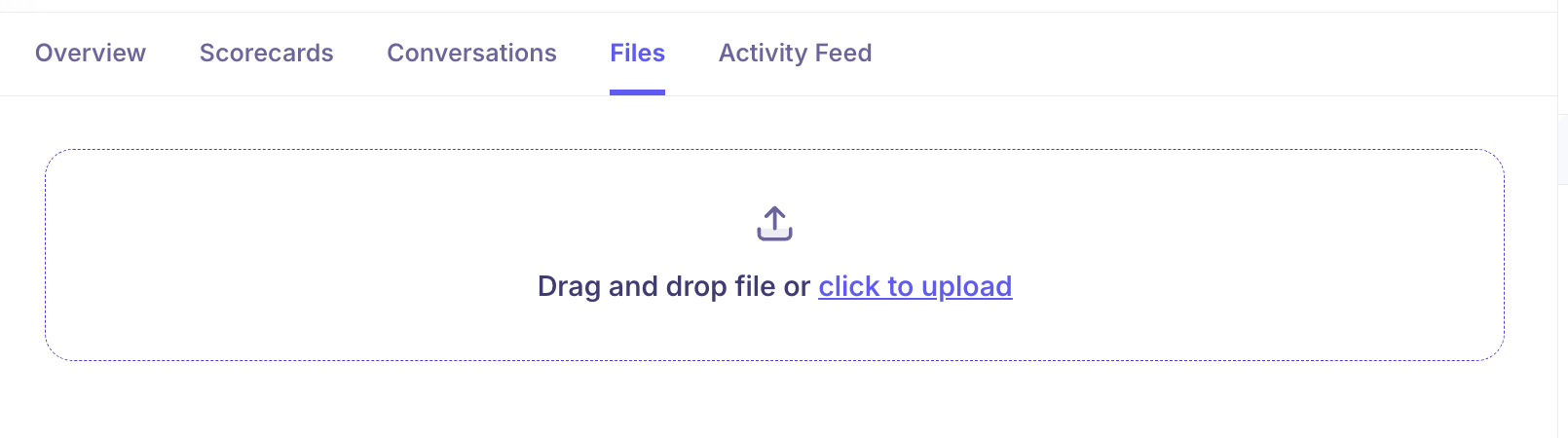
Upload documents beyond the resume — offer letters, assessment files, and anything else specific to this application. Drag a file in or click to upload; one file at a time.
Activity feed tab (under More)
A full chronological log of everything on this application — scorecard submissions, interview completions, stage moves, emails sent, AI scoring events, and the candidate being added to the pipeline. Each entry shows who did it and when.
Navigating between candidates
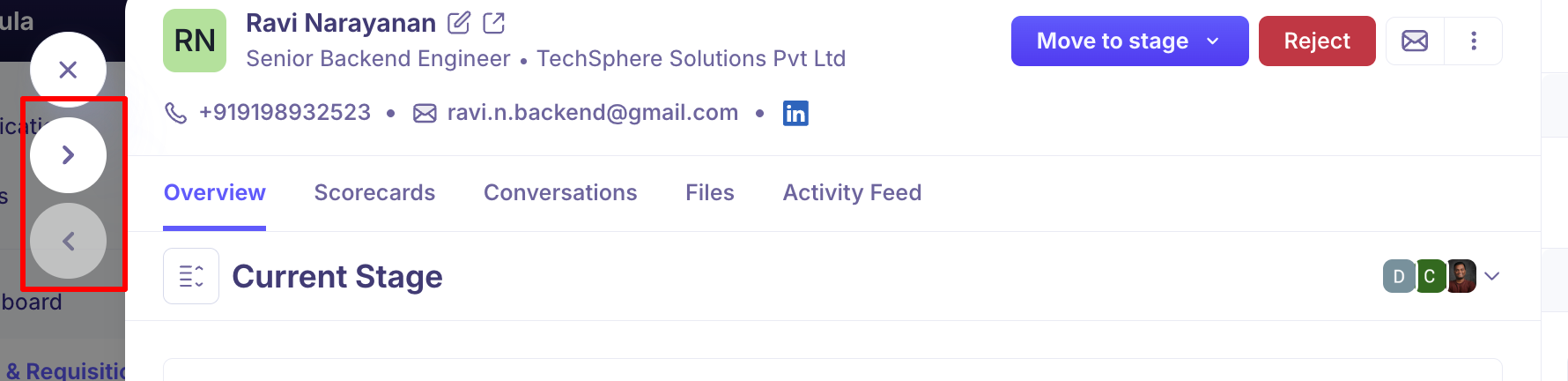
Use the arrows at the top-left of the panel to move to the previous or next candidate in the pipeline without closing it — or press the left/right arrow keys on your keyboard.
Good to know
There's no single "Overview" tab that bundles everything — resume, candidate info, and forms each have their own tab. Start with Current job for a quick summary.
Tags aren't part of the Application View. Tagging a candidate alongside their notes is a separate screen (Quick App Review), not something you'll find in this panel.
Several ⋮ menu items only appear once certain conditions are met — for example, Add to HRIS only shows once the candidate is in a Hired-milestone stage, and the assessment/background-check options only appear if your organisation has that specific integration connected.
Your account's exact layout may differ slightly from what's described here — this panel is being progressively updated, and some accounts see Candidate info laid out a little differently.
FAQ
Where's the Overview tab?
There isn't one — the Application View splits what you might expect from an "overview" across separate tabs: Current job (stage and status), Resume, Candidate info, and Forms. Start with Current job for a quick summary.
Can I add tags to a candidate from the Application View?
Not from this panel — tagging alongside notes lives in Quick App Review, a different screen. The Application View's Notes tab covers notes only.
Why don't I see Checkr, Zinc, SpringVerify, or HackerRank in the ⋮ menu?
These only appear once your organisation has that specific integration connected. Check your Integrations settings if you expect to see one and don't.
Need Help?
If you have questions or need assistance, reach out to us at support@kula.ai or use the in-app chat.