Configuring your availability
Last updated: August 17, 2026
Your working hours tell Kula when you're available to be scheduled for interviews. This article covers setting your regular weekly hours, overriding specific dates, and what happens when you turn availability off.
Who can do this: Organisation Member, Recruiter, Hiring Manager, Admin, Super Admin — anyone who can be scheduled for interviews sets their own.
Where to find it: Settings → My Settings → Working Hours.
Set your regular hours
Go to Settings → My Settings → Working Hours.
Turn on the days you're available — you can select multiple days at once rather than configuring each one separately — and set a start and end time for each.
Save.
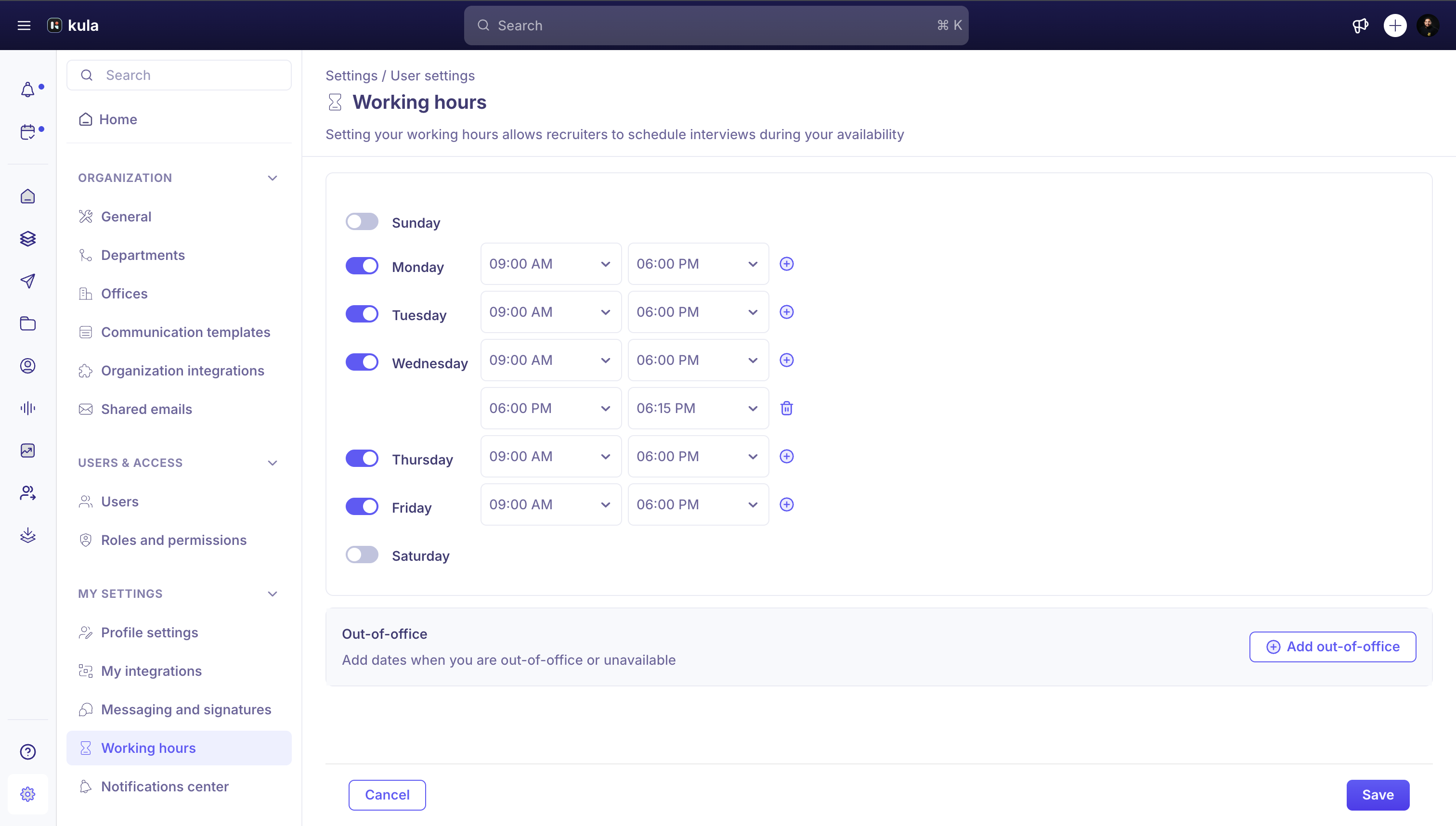
Override specific dates
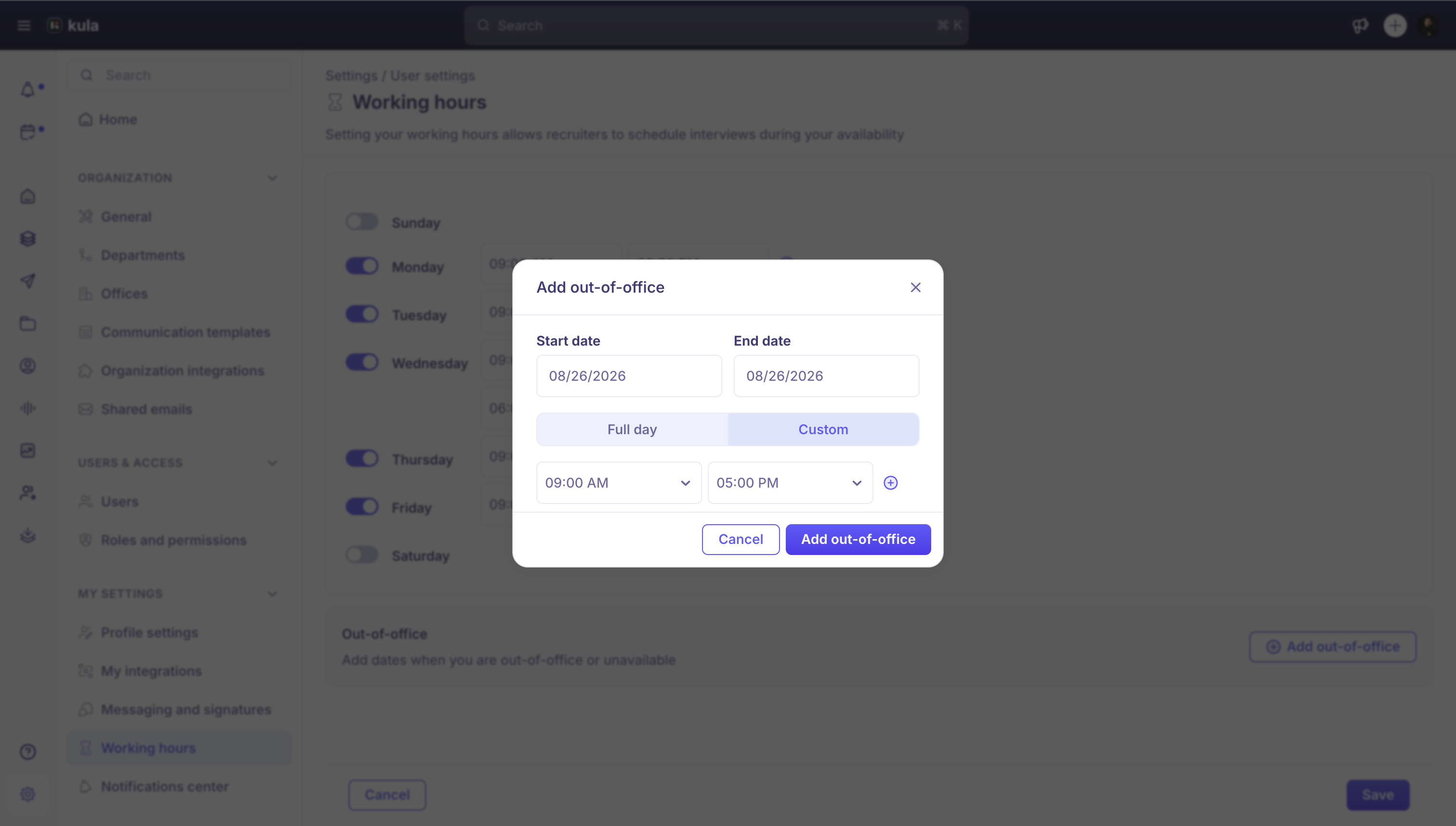
Add an Out of Office (OOO) override for a single day or a date range when your availability differs from your regular weekly hours — for a vacation, for example. This sits separately from your recurring weekly schedule, so it doesn't require changing your regular hours and changing them back.
Turn availability off entirely
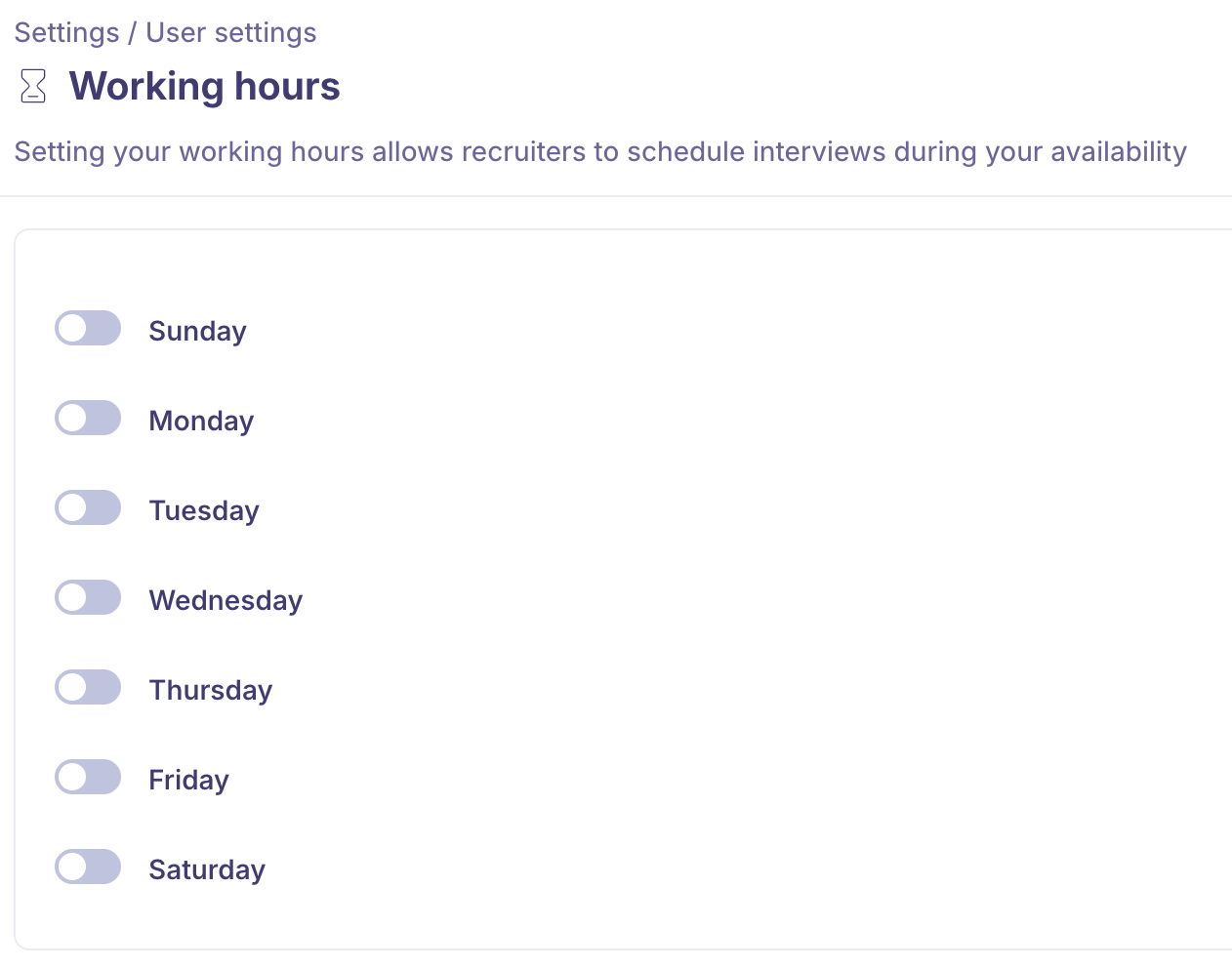
You can disable all your working hours if you don't want to be scheduled at all — Kula won't offer you up as an available interviewer while everything is off.
NOTE: This allows you to configure multiple personalised available time slots per day instead of the default 9 a.m.–6 p.m. You can also delete a personalised time slot by clicking on the "Delete" icon that appears when you hover over the respective section.NOTE: If you wish to override the above general available hours schedule, you can accomplish it under the "Date Override" section.
Good to know
Kula pauses your reminders outside your working hours — if working hours are off for you, you won't get Kula reminder notifications during that time.
You can add a one-off slot outside your regular working hours for a specific booking, without having to change your permanent settings.
Need help?
If you have questions or need assistance, reach out to us at support@kula.ai or use the in-app chat.