Configuring meeting rooms
Last updated: September 17, 2026
Meeting rooms let recruiters and interviewers book a physical or calendar-managed room alongside an interview, the same way they'd book an interviewer's time — Kula checks room availability and adds it to the invite.
Who can do this: Admin, Super Admin.
Where to find it: Settings → Interviews and scheduling → Meeting Room.
Turn on meeting rooms
Enable the org-wide setting to make meeting rooms available across interview scheduling. Once it's on, a meeting room field appears when booking interviews; when it's off, that field doesn't show at all.
Set Up Meeting Rooms in Kula
Navigate to Settings > Interviews and scheduling > Meeting rooms
Click Connect Google Workspace to sync your organisation's meeting room availability. Important notes to know:
Customers without Workspace enabled
If you haven’t already connected your Google Workspace, you’ll be prompted to do so when enabling meeting rooms.Customers with Workspace already enabled
You may need to re-authenticate your Google Workspace to fetch the latest meeting room information.
Both of these steps will appear automatically on the Meeting rooms settings page, so you can complete them as needed.
Toggle Enable meeting rooms for interviews to ON

Once enabled, Kula will automatically fetch available meeting rooms from your connected Google Workspace account. These rooms will be visible when scheduling interviews.
Connect your rooms
Meeting rooms are pulled in as calendar resources from your connected calendar — both Google Calendar and Microsoft/Outlook room resources are supported. Once connected, Kula calculates each room's availability the same way it does for an interviewer, so a room that's already booked won't be offered as a free option.
Scheduling an Interview with a Meeting Room
Go to the relevant Job
Open the candidate profile
Click Schedule interview
Choose either Manual or Self-schedule
Check the Book a meeting room box
Select a room from the dropdown list
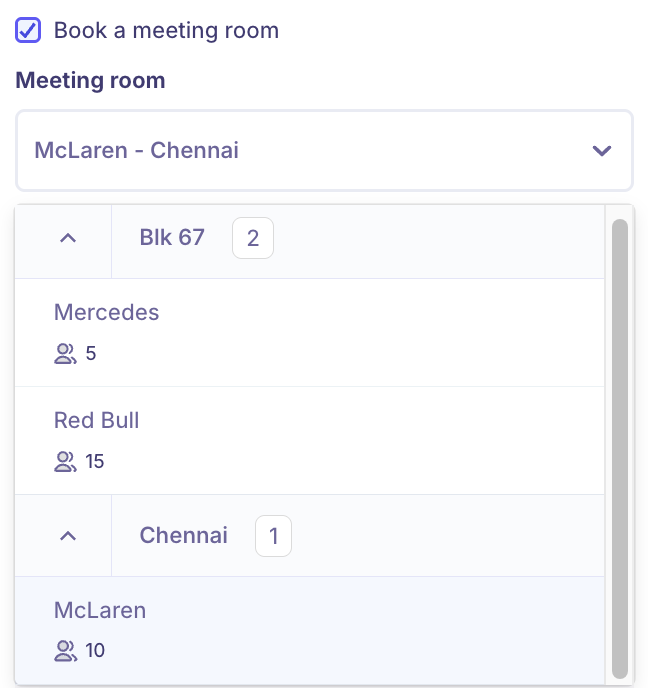
Once you select a meeting room from the dropdown, Kula will display the availability of that room by checking your connected Google Workspace calendar. This ensures you can pick a time that’s free for both the interviewer and the meeting room, avoiding double bookings or conflicts.
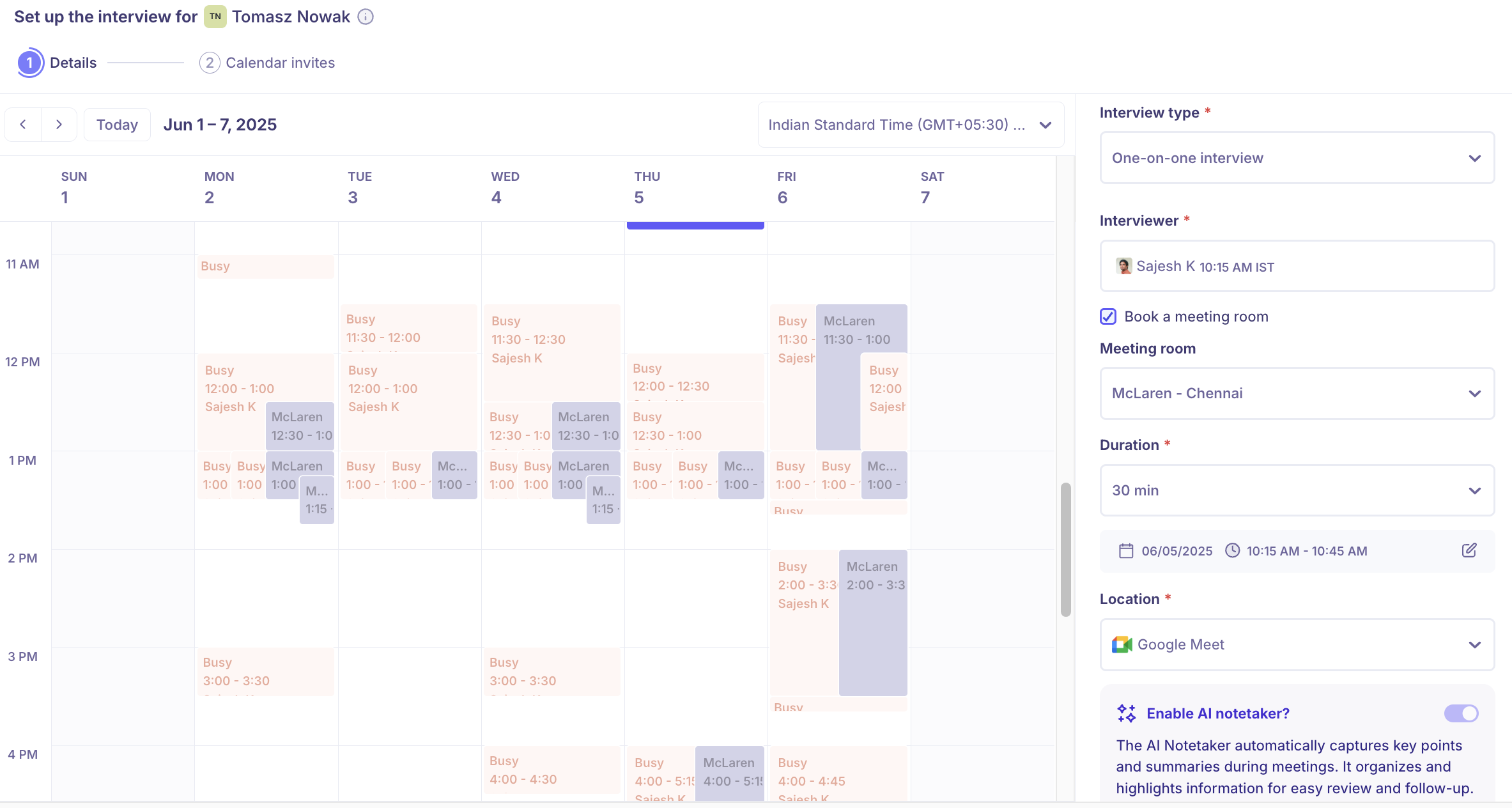
Once scheduled, the selected meeting room will appear as the location in the interview calendar invite.
Good to know
You'll only see rooms you have calendar access to. Meeting rooms you're not permitted to book on the underlying calendar are filtered out of the picker automatically.
Meeting rooms can be used with self-scheduling links too, not just recruiter-booked interviews.
Need help?
If you have questions or need assistance, reach out to us at support@kula.ai or use the in-app chat.