Connecting your email and calendar
Last updated: September 9, 2026
Connecting your email and calendar lets your team schedule interviews and email candidates directly from Kula. Do it early in setup — scheduling and candidate email don't work until it's connected. The important part is knowing who actually needs to connect, so you don't ask your whole company to do it.
Who can do this: Each user connects their own email and calendar. Admins can't connect them on someone's behalf.
Where to find it: Settings → My settings → My Integrations
What connecting gives you
Schedule interviews — Kula creates the interview on your calendar, as you.
Email candidates from Kula — send and receive candidate emails in one place.
Keep things in sync — changes made on the calendar flow back into Kula.
Who needs to connect
Not everyone has to connect.
People who schedule interviews or send emails — recruiters and coordinators — must connect their own calendar and mailbox. Kula acts as them, so without a connection they can't schedule or send.
People who are only booked for interviews — interviewers and organisation members — don't need to connect. Kula reads their availability through the scheduler's calendar, so an interviewer who never touches their settings can still be booked without being double-booked.
So on a 2,000-person team, only your recruiters and coordinators need to connect — not everyone.
There's one dependency: reading a non-connected person's availability relies on their Outlook/Gmail calendar sharing setting. "Share all" or "free/busy only" both work for scheduling; "no sharing" breaks availability lookup for that org. Most organisations use one of the first two.
How to connect
Each user connects their own account under Settings → My settings — there's no way for an admin to bulk-connect the team. Choose your provider:
Google (Gmail / Google Workspace)
Microsoft (Outlook / Microsoft 365) → Set up the Microsoft Outlook integration
For calendar-specific scheduling setup, see Connect your mailbox and calendar
If your integration disconnects
Kula tells you — you'll get an email and Slack notification with a reconnect link. Until you reconnect:
you can't send emails from Kula,
your self-scheduling links show "No slots available", and
any outreach flow you send from may pause.
Reconnect from the link in the notification, or under Settings → My settings → Integrations.
Set your regular hours
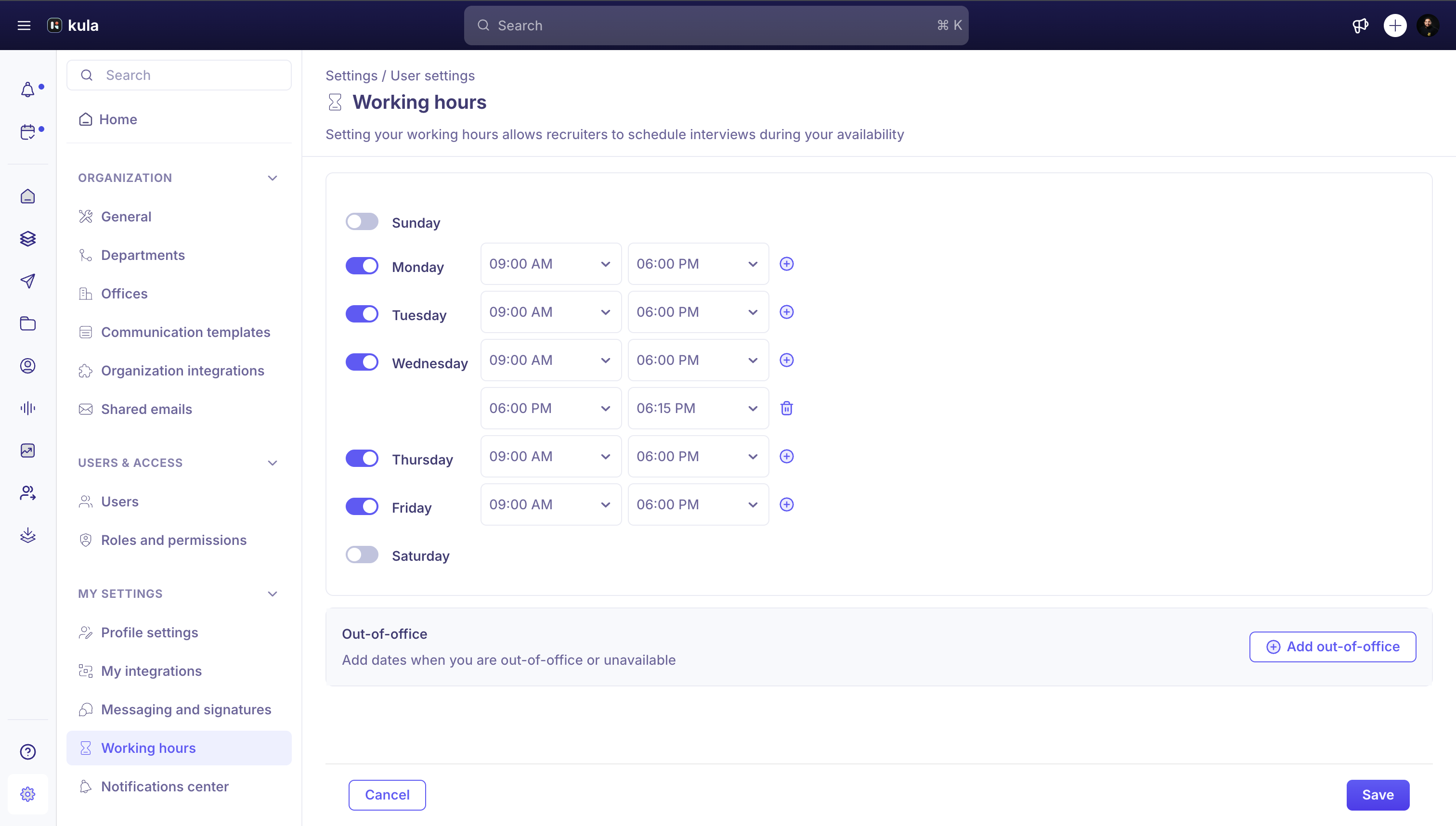
Go to Settings → My Settings → Working Hours.
Turn on the days you're available — you can select multiple days at once rather than configuring each one separately — and set a start and end time for each.
Save.
Override specific dates
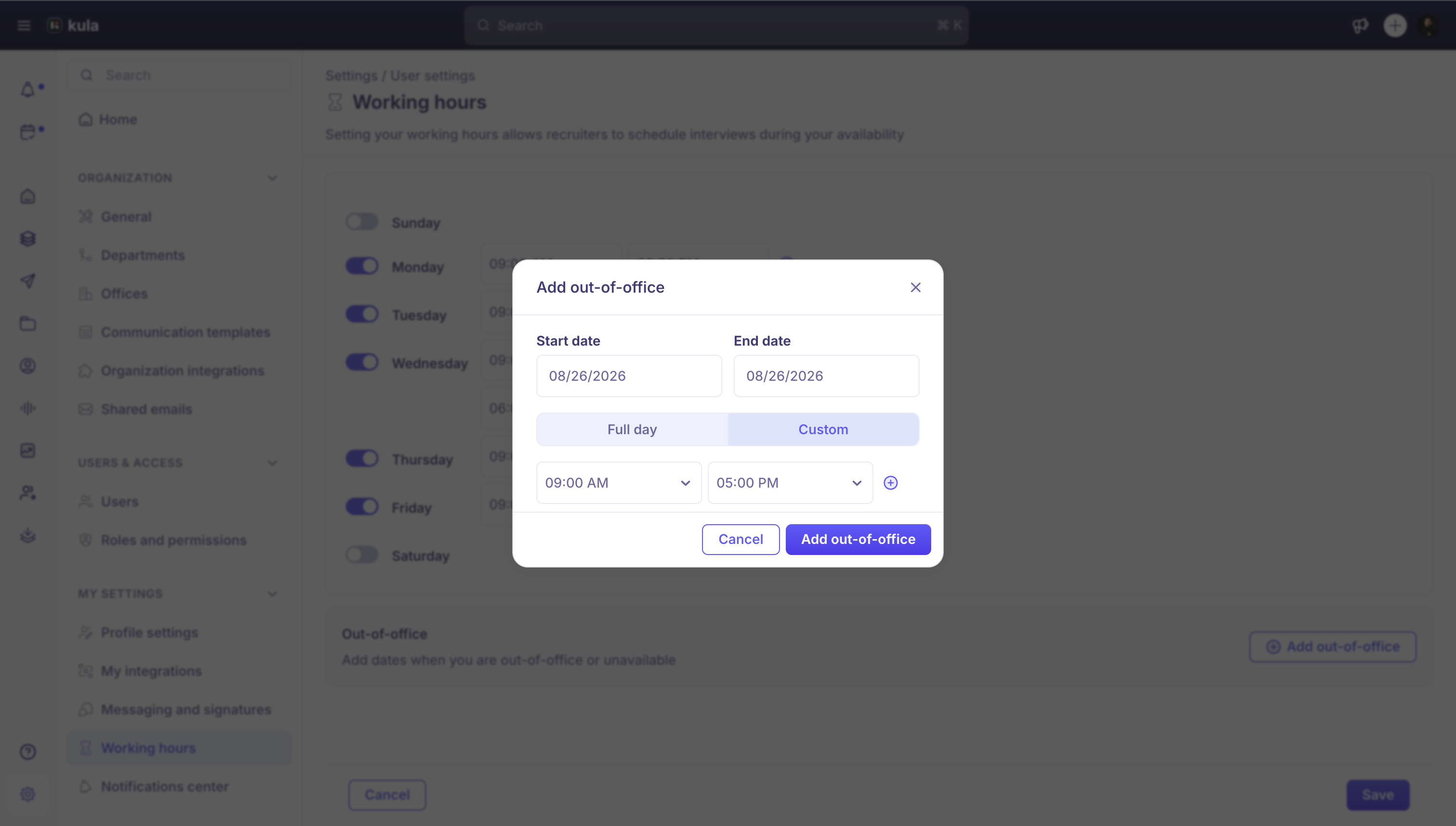
Add an Out of Office (OOO) override for a single day or a date range when your availability differs from your regular weekly hours — for a vacation, for example. This sits separately from your recurring weekly schedule, so it doesn't require changing your regular hours and changing them back.
Turn availability off entirely
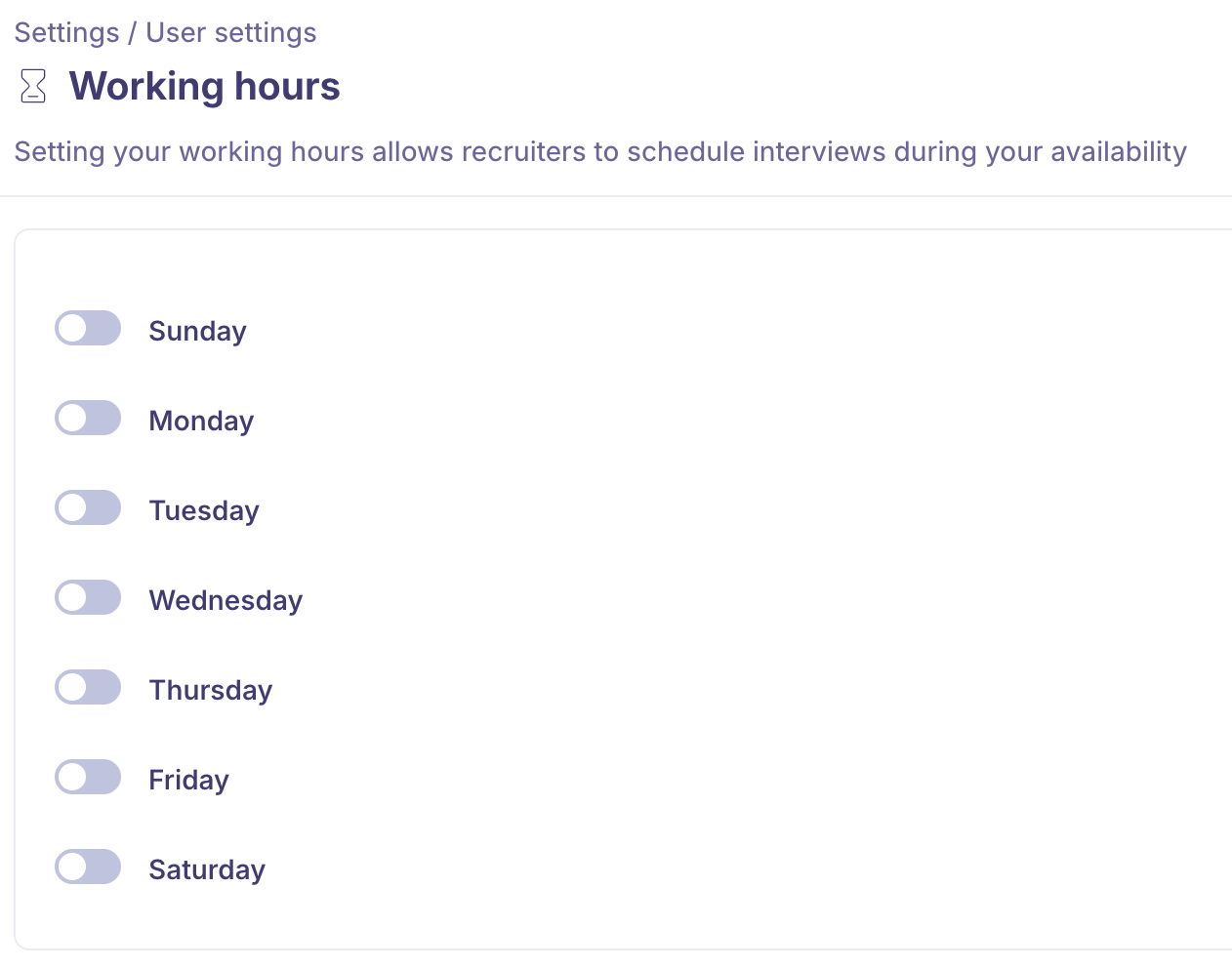
You can disable all your working hours if you don't want to be scheduled at all — Kula won't offer you up as an available interviewer while everything is off.
NOTE: This allows you to configure multiple personalised available time slots per day instead of the default 9 a.m.–6 p.m. You can also delete a personalised time slot by clicking on the "Delete" icon that appears when you hover over the respective section.NOTE: If you wish to override the above general available hours schedule, you can accomplish it under the "Date Override" section.
Good to know
Each user connects their own — there's no bulk connect for admins.
"Free/busy" sharing is enough to schedule around someone; only "no sharing" breaks it.
If you change your account email, reconnect your mailbox and calendar afterwards — they don't carry over to the new address automatically.
FAQ
Does everyone on our team need to connect their email and calendar? No. Only the people who schedule interviews or send email from Kula — usually recruiters and coordinators — need to connect. Interviewers who are simply booked for interviews don't need to; Kula reads their availability through the scheduler. See Who needs to connect above.
Can an admin connect everyone's calendars at once? No — there's no bulk connect. Each person connects their own account under Settings → My settings.
A recruiter can't see an interviewer's availability — why? That interviewer's organisation most likely has calendar sharing set to "no sharing". With "share all" or "free/busy only", their availability shows and scheduling works.
My emails stopped sending, or my self-scheduling link shows no slots — what happened? Your email or calendar integration has probably disconnected. Check for the notification with the reconnect link, or reconnect under Settings → My settings → Integrations.
Need help? If you have questions or need assistance, reach out to us at support@kula.ai or use the in-app chat.