Add users to Kula
Last updated: September 17, 2026
Add people to your Kula workspace so they can work on jobs, candidates, and offers. You can invite users one at a time, pull them in from Google Workspace, or keep Kula in sync with your whole directory automatically.
Who can do this: Super Admin, Admin
Where to find it: Settings → Users & Access → Users
Three ways to invite people
Pick the method that fits how many people you're adding and whether they're in your Google Workspace.
Method | Use it when |
|---|---|
Add manually | You're inviting one or a few people, or someone outside your Google Workspace (like an agency recruiter) |
From Google Workspace | You want to pick people from your connected Google directory |
Google Workspace provisioning | You want Kula to stay in sync with your whole directory automatically |
Invite someone manually
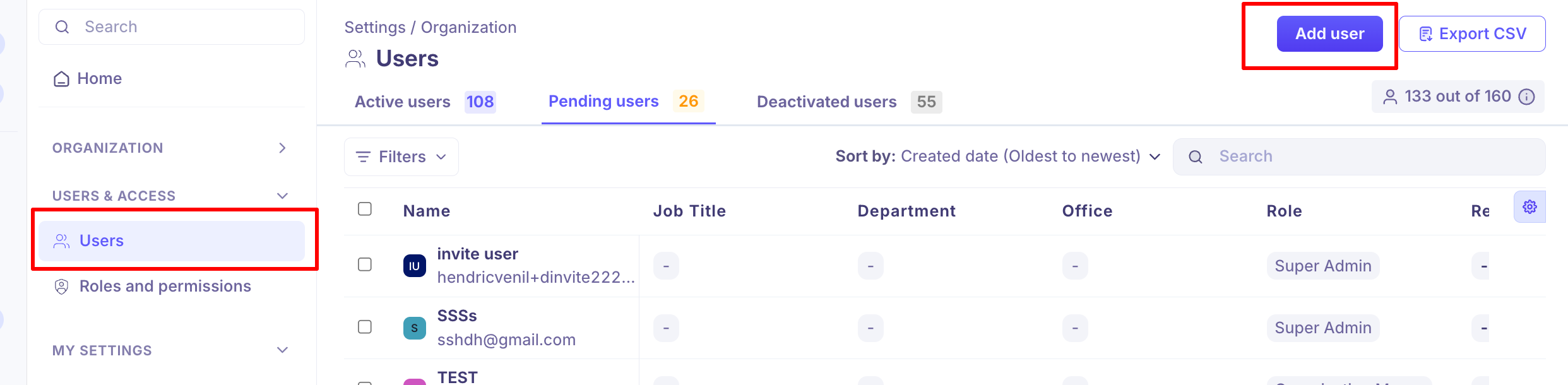
Go to Settings → Users & Access → Users
Click Add User.
Choose Add manually.
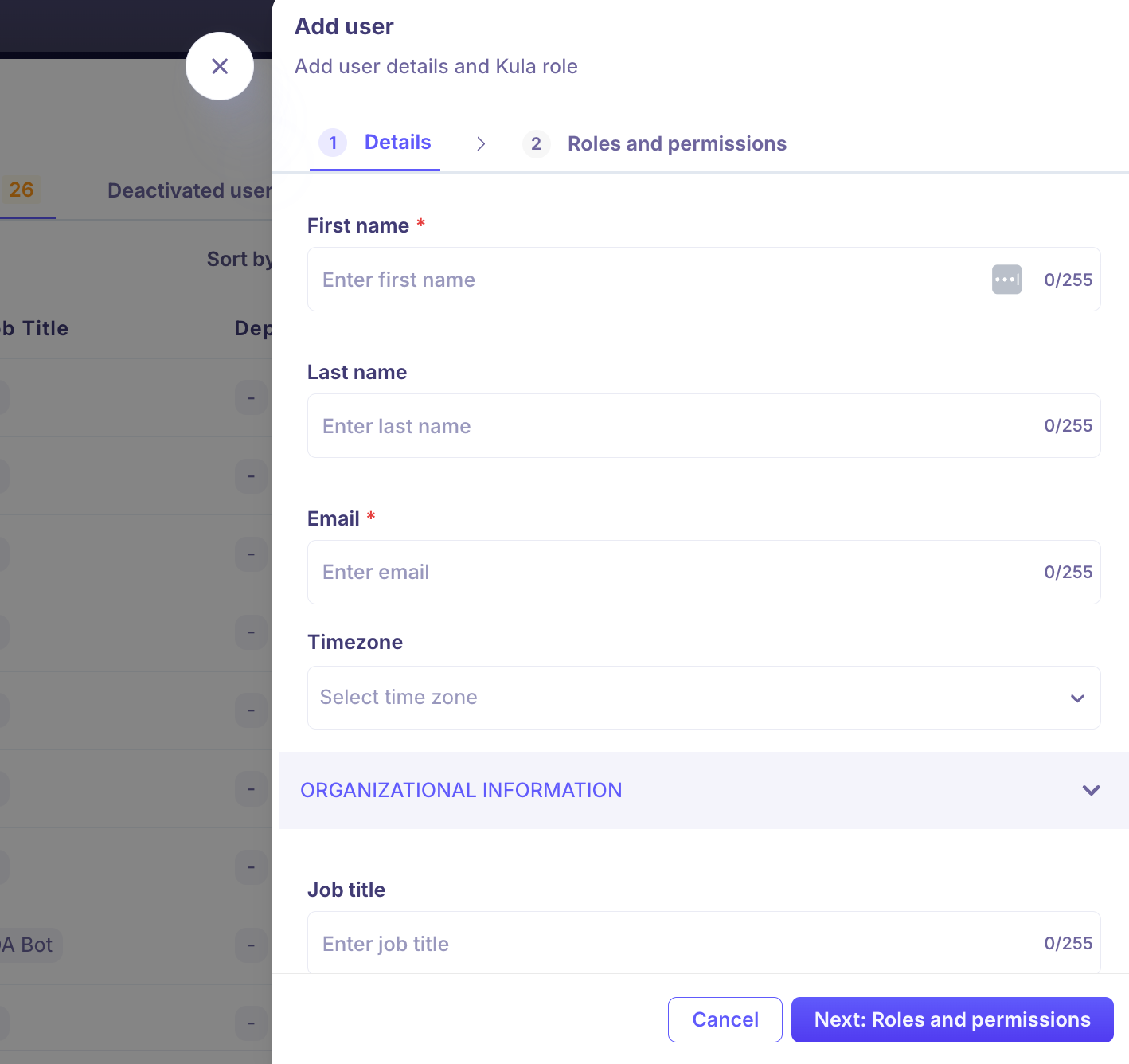
Enter the person's First name and Email. Both are required.
Add anything else you need — last name, time zone, and the fields under Organizational information (job title, reporting manager, department, office, ATS contact, interviewer pool).
Click Next: Roles and permissions.
Assign a role. See "User roles in Kula" for more info.
Click Create.
The person receives an email and becomes active once they open it and click Join. Until then, they show as Pending.
Invite people from Google Workspace

This method needs your Google Workspace integration connected first.
Go to Settings → Users & Access → Users.
Click Add User, then choose Google Workspace.
Kula lists your workspace users, each with a status tag. Select the people you want — one at a time or in bulk.
Click Send invitations.
Syncing your workspace only lists the users. No one is invited until you select them and send the invite.
Keep your Google Workspace in sync automatically
Turn on provisioning to have Kula add, remove, and update users to match your Google directory without inviting anyone by hand.
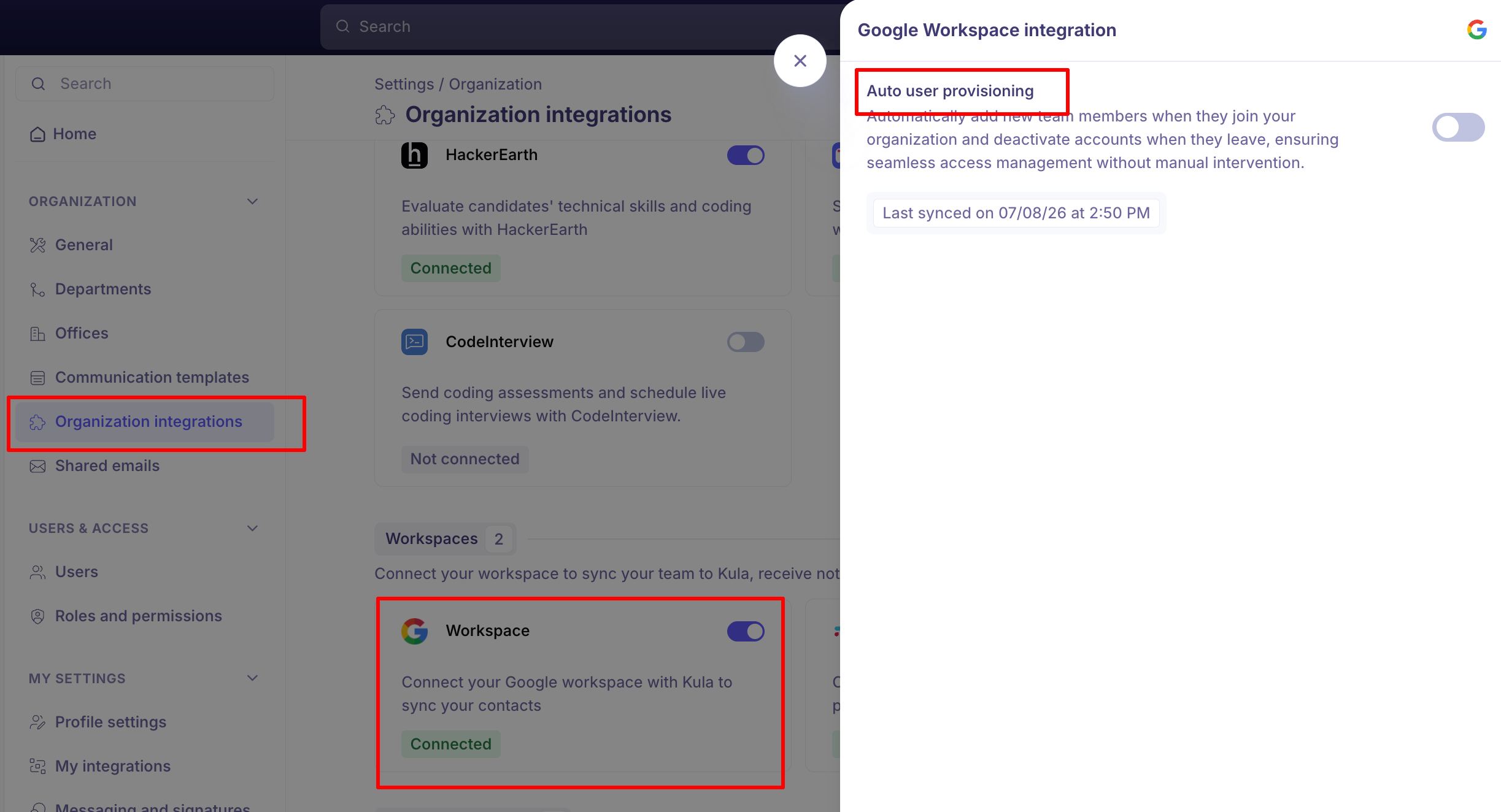
Go to Settings → Org Integrations.
Open Edit on your Google Workspace integration.
Turn on Provisioning.
Once it's on:
Every active Workspace user is added to Kula as an active user straight away — no invite email needed.
Kula checks your directory every 10 minutes: new people are added, removed people are deactivated, and name or email changes are updated automatically.
Enabling provisioning runs a one-time full sync. Re-enabling it runs a fresh sync.
What the status tags mean

Status | What it means |
|---|---|
Pending | Invited, but hasn't accepted yet. Takes up a seat. |
Activated | Active in Kula and able to sign in. |
Deactivated | Removed or inactive. Doesn't take up a seat. |
Imported | Brought into Kula through a sync or data import, but not on an active seat yet — so they can't sign in. This usually happens when the seat limit is full. |
Good to know
An invitation link is valid for 2 weeks. After that the person sees an expired-link message and needs a fresh invitation.
When you reach your seat limit, extra selections are disabled and a tooltip explains why. To add more people, free up a seat by deactivating a user who no longer needs access, or contact support to raise your limit.
The invite email is a required step — a person stays Pending until they click Join in it. The one exception is Google Workspace provisioning, which adds active workspace users automatically.
You can't deactivate your own account. Kula blocks self-deactivation so you don't lock yourself out by mistake.
When you run out of seats, the Add user button is disabled. The seat counter at the top right of the Users page shows how many you have used.
You cannot change the email address after you invite someone. Every other detail stays editable. If the address is wrong, deactivate the user and add them again with the correct one.
You cannot change your own role, even as a Super Admin. Ask another Super Admin or Admin to do it.
FAQ
Someone says their invitation link has expired. What do I do?
Invitation links last 2 weeks. Send them a fresh invitation from Settings → Users & Access → Users. I typed the wrong email address when I invited someone. Can I fix it?
No — the email address can't be changed after you invite someone. Deactivate that user and add them again with the right address.
Why is the Add User button greyed out?
You've used all your seats. Check the seat counter at the top right of the Users page, then deactivate someone who no longer needs access or contact support to raise your limit.
What does "Imported" mean on a user?
They were brought in through a sync or data import but aren't on an active seat, so they can't sign in yet. This usually happens when your seat limit is full.
Do people added by Google Workspace provisioning get an invite email?
No. Provisioning adds active Workspace users to Kula straight away, with no invite email.
Can I change my own role?
No, not even as a Super Admin. Ask another Super Admin or Admin to change it.
Need help? If you have questions or need assistance, reach out to us at support@kula.ai or use the in-app chat.