Tracking referrals
Last updated: September 25, 2026
Once a candidate has been referred, there are a few different places to check where they stand — depending on whether you're the person who referred them or someone managing referrals across the organization. This article covers both views, plus a few reasons the numbers you see in one place might not match another.
Who can do this: Any employee can track the candidates they've personally referred. Viewing a consolidated list of every referral across the organization is limited to Admin and Super Admin.
Where to find it: Employee-facing: Referrals → Referred candidates. Admin-facing: the same Referred candidates section, which expands to show all referrals org-wide for Admin/Super Admin rather than just your own.
What you see as the referrer
The Referred candidates tab lists every candidate you've personally referred, with one row per candidate showing:
Candidate name — who you referred.
Status — their current stage in the hiring process, updated automatically as the recruiting team moves them along.
Department — the department the job is tagged to.
Referral type — whether you referred them directly or they applied through a link you shared.
Date referred — when you submitted the referral.
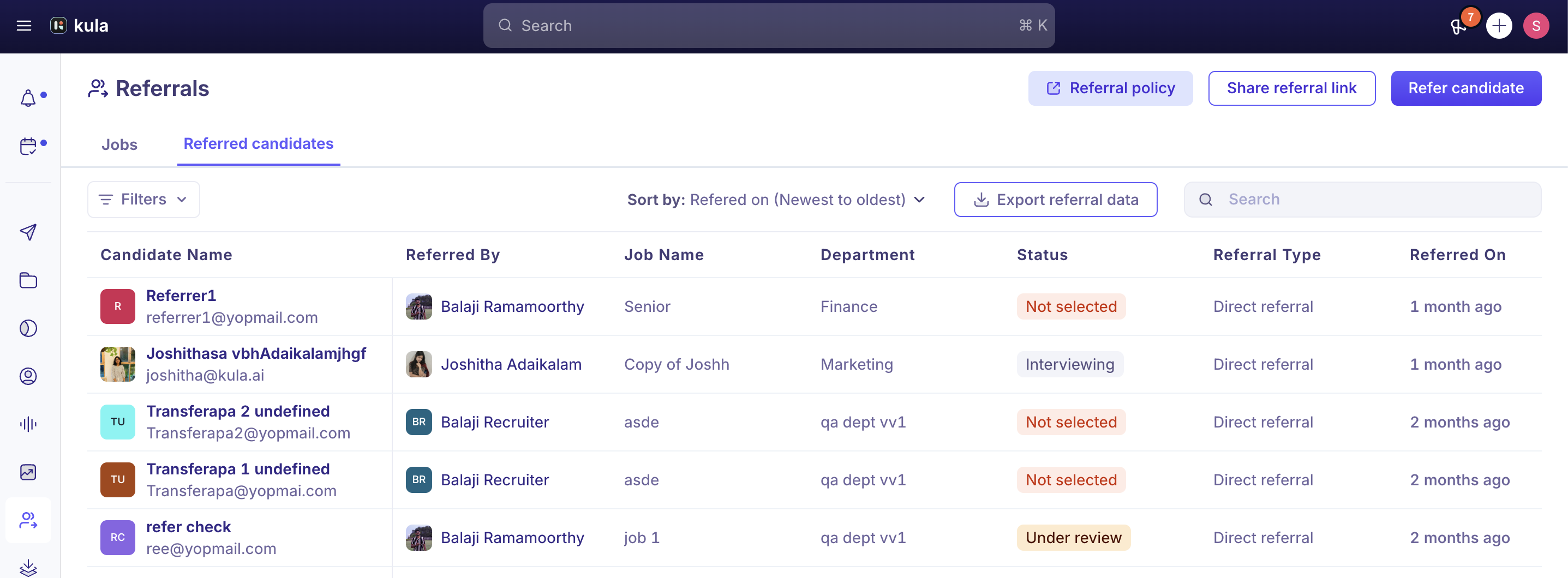
Clicking a candidate's status or stage takes you to their full candidate profile, so you can see more detail than the summary row shows.
What Admins and Super Admins see
Admins and Super Admins see an expanded version of the same section — a consolidated view of every referral across the organization, not just their own. On top of the same status and stage information, this view adds:
An Export referral data button, which downloads a summary of who referred how many candidates and their current status — useful for reporting on program activity without building a report from scratch.
A "Referred by" filter (along with other standard filters), so you can narrow the list down to a specific referrer.
Referrer attribution shown directly in the table, so it's clear at a glance who referred each candidate without opening individual profiles.
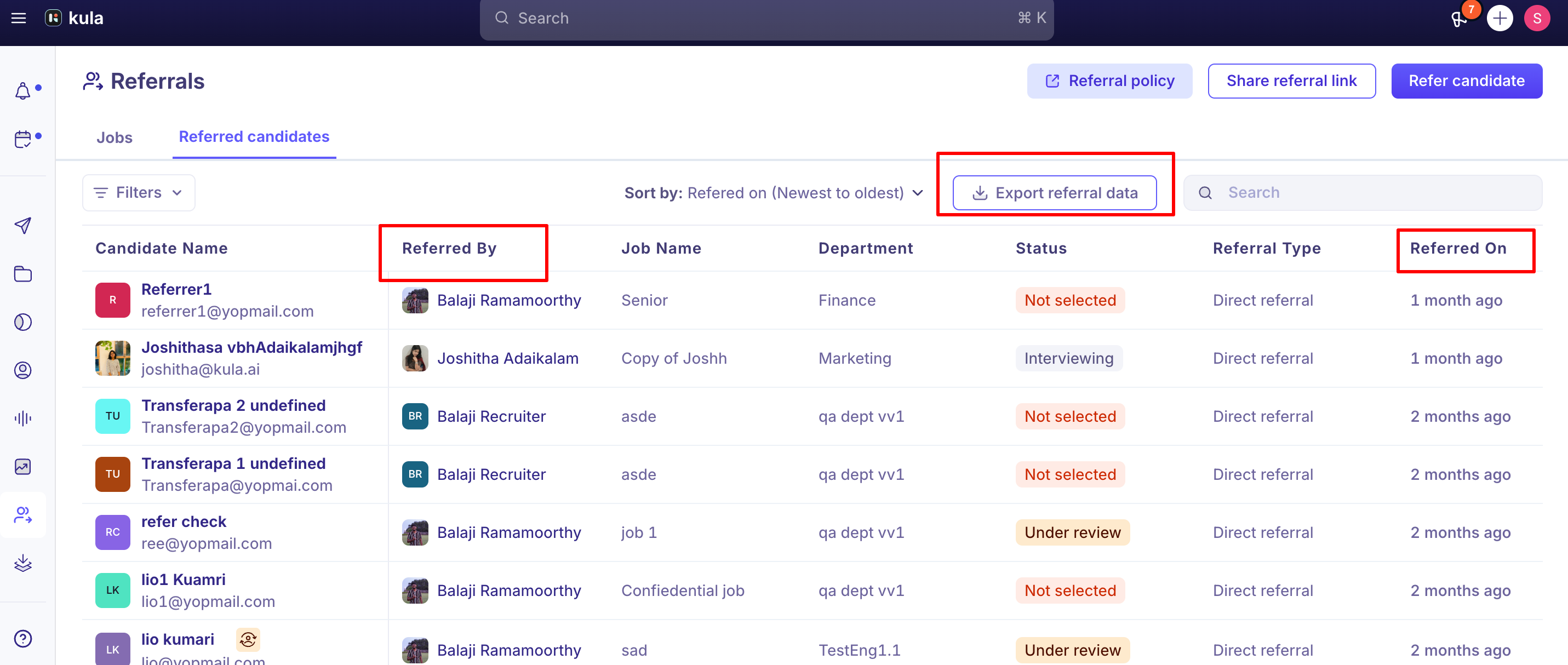
This consolidated view isn't limited by job status — referrals tied to archived or closed jobs still show up here, and there's currently no way to delete or clean up old entries from this list even once the role they were referred for is gone.
Other ways to track referrals
Outside the Referred candidates section, employee-referral candidates can also be found through standard filtering:
Contacts → Filters → Candidate Source → Employee Referral — shows every referred candidate across the organization, similar to the Admin consolidated view.
Jobs → Candidates → Filters → Candidate Source → Employee Referral — shows referred candidates for one specific job.
These existed before the consolidated Admin view shipped and still work as an alternate way to slice the same data, particularly if you want to combine the referral filter with other job- or pipeline-level filters.
Good to know
A candidate only appears in the Referred Candidates list if they came in through an actual referral flow — the referral form, a shared referral link, or the recruiter-added-referral path (see Referring a candidate).
If a candidate's Source was manually set to "Employee Referral" without going through one of those flows (or ticking Mark this candidate as referred by in the candidate's edit form) they won't show up in this list, even though they'll still appear as an Employee Referral elsewhere, such as in the Contacts source filter or in reports.If your referral counts don't match across different views, check how each candidate was actually added before assuming data is missing.
Recruiters can follow referrals on their own jobs. A recruiter on a job gets a New referred candidate notification when someone refers a candidate to it, and Referred candidates can be filtered by the job's Primary Recruiter or Primary Hiring Manager.
FAQ
Where do I check on the status of someone I referred? Referrals → Referred candidates. Your referrals are listed with their current status, and clicking through takes you to the full candidate profile.
Can I see referrals made by other employees, not just my own? Only if you're an Admin or Super Admin — that role sees a consolidated view of every referral across the organization, with an option to export the data and filter by who referred each candidate.
I referred someone but they're not showing up on my Referred candidates tab — why? Confirm the referral actually went through the referral flow (Refer, a referral link, or a recruiter logging it on your behalf) rather than being added and manually tagged as Employee Referral afterward — only referrals submitted through an actual referral flow appear in this list.
Can I export a summary of who's referred how many candidates? Yes, if you're an Admin or Super Admin — use the Export referral data button in the consolidated Referred candidates view.
If a job gets archived, do the referrals for it disappear from tracking? No — the consolidated Admin view still shows referrals tied to archived or closed jobs, and there's currently no way to remove old entries from that list.
Need help?
For how to actually refer someone and what happens when you do, see Referring a candidate. For the job-level setup and credit-attribution mechanics, see Setting up a referral. For anything else, reach out to us at support@kula.ai or use the in-app chat.