Setting Hiring Team Members on a Job
Last updated: April 10, 2026
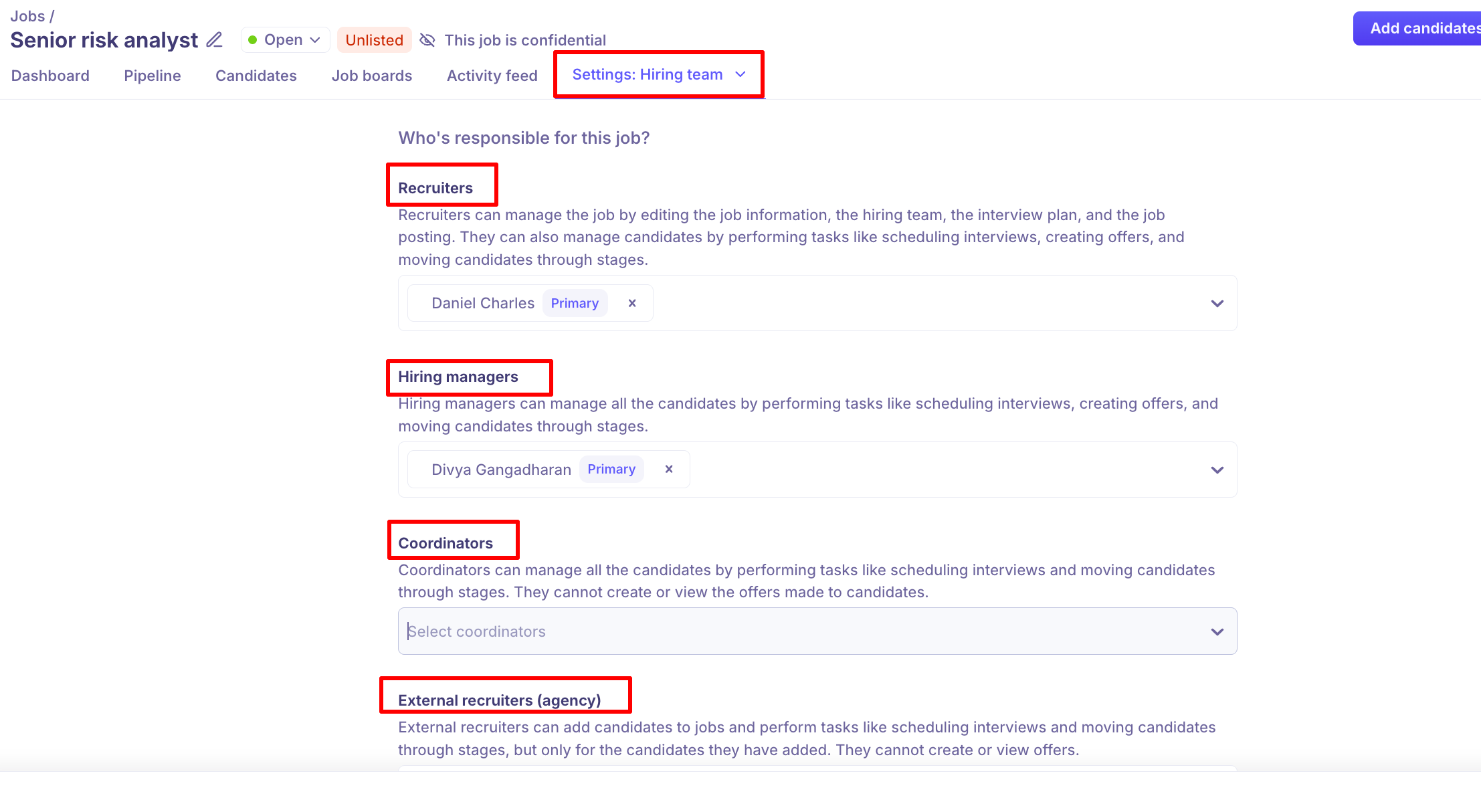
The hiring team defines who is responsible for filling a role. You can manage it from Job → Settings → Hiring Team.
Hiring Team Roles
Kula has four hiring team roles, each with different levels of access:
Recruiters
Recruiters can manage the job by editing the job information, the hiring team, the interview plan, and the job posting. They can also manage candidates by performing tasks like scheduling interviews, creating offers, and moving candidates through stages.
One recruiter can be marked as Primary — they appear as the main point of contact on the jobs list and in reports.
Hiring Managers
Hiring managers can manage all candidates by performing tasks like scheduling interviews, creating offers, and moving candidates through stages.
One hiring manager can be marked as Primary.
Coordinators
Coordinators can manage all candidates by performing tasks like scheduling interviews and moving candidates through stages. They cannot create or view offers made to candidates.
External Recruiters (Agency)
External recruiters can add candidates to the job and perform tasks like scheduling interviews and moving candidates through stages, but only for the candidates they have added. They cannot create or view offers.
This ensures agency partners only see their own candidates — not candidates sourced internally or by other agencies.
Who Can Be Added to a Hiring Team
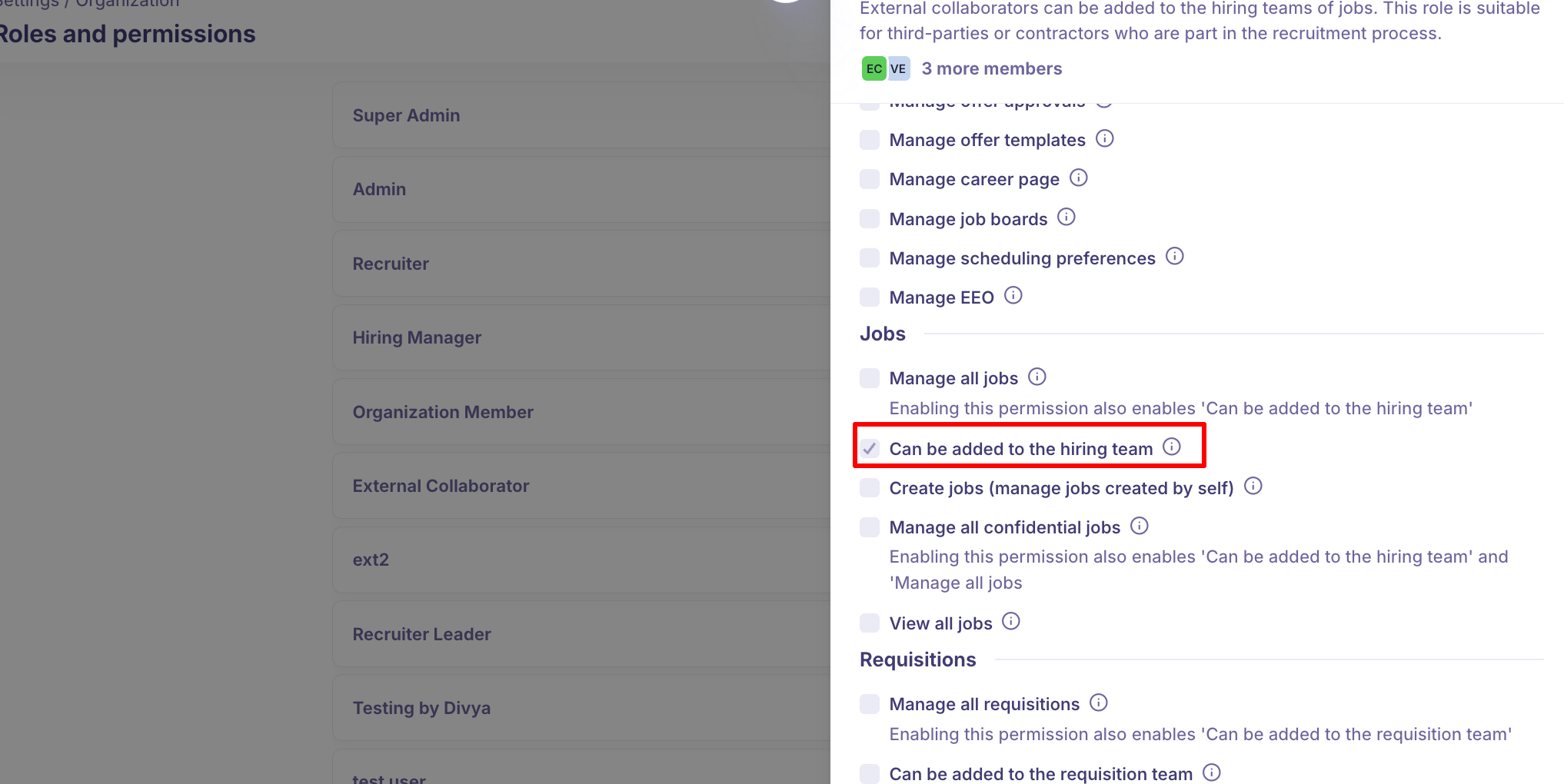
Not all users in Kula can be added to a hiring team. A user must have one of the following system roles:
Super Admin or Admin
Recruiter
Hiring Manager
External Collaborator
Any custom role that has the permission: Can be added to the hiring team
Users with the Organization role (or any role without the hiring team permission) cannot be added to a hiring team. If you're unable to find a user in the hiring team dropdown, check their role in Settings → Users and update it to an eligible role. Only Super Admins can change user roles.
How to Add Team Members
Open the job
Go to Settings → Hiring Team
Click the dropdown under the relevant role
Search for and select the team member
Click Save
Removing a Team Member
Go to Settings → Hiring Team
Click the × next to the person's name
Click Save
Adding External Recruiters (Agency Partners)
Before adding an agency recruiter to the hiring team, they must first have a Kula account:
Go to Settings → Users → Add User
Fill in their name and email, and assign the External Collaborator role
Send the invite — they'll receive an email to accept
Once they've joined, open the job → Settings → Hiring Team
Add them under External Recruiters (agency)
Click Save
FAQs
Q: A user isn't showing up in the hiring team dropdown — why? Their system role may not have permission to be added to a hiring team. Check their role in Settings → Users. They need to be assigned Recruiter, Hiring Manager, External Collaborator, Admin, Super Admin, or a custom role with the Can be added to the hiring team permission. Only Super Admins can change user roles.
Q: Can I add the same person in multiple roles on one job? No. Each team member holds one role per job.
Q: What's the difference between a Coordinator and a Hiring Manager? Both can schedule interviews and move candidates through stages, but only Hiring Managers can create and view offers.
Q: Can an agency recruiter see all candidates on the job? No. External recruiters can only see and manage candidates they personally added.
Q: Who gets notified about candidate activity on the job? Recruiters, Hiring Managers, and Coordinators receive notifications for all candidates. External recruiters are notified only for candidates they added.
Need Help?
If you have questions or need assistance with setup, feel free to reach out to us at support@kula.ai or use the in-app chat for assistance.