How to Move Candidates to another job
Last updated: March 10, 2026
Moving candidates lets you add a candidate from one job to another. There are two ways to do this.
Transfer to another Job
Add to Additional Job
Transfer to Another Job
The Transfer candidate lets you move a candidate from one job to another while keeping their history.
Use this when a candidate applies to the wrong role or when your team identifies a better fit during the hiring process. The transfer keeps interviews, scorecards, notes, and conversations intact.
Who can perform the transfer?
Admins, recruiters, hiring managers, and coordinators can transfer any candidate in a job. External recruiters can transfer candidates that they added.
Perform the transfer
You can access Transfer to another job from two places:
The Candidates tab in a job
The candidate’s job profile page
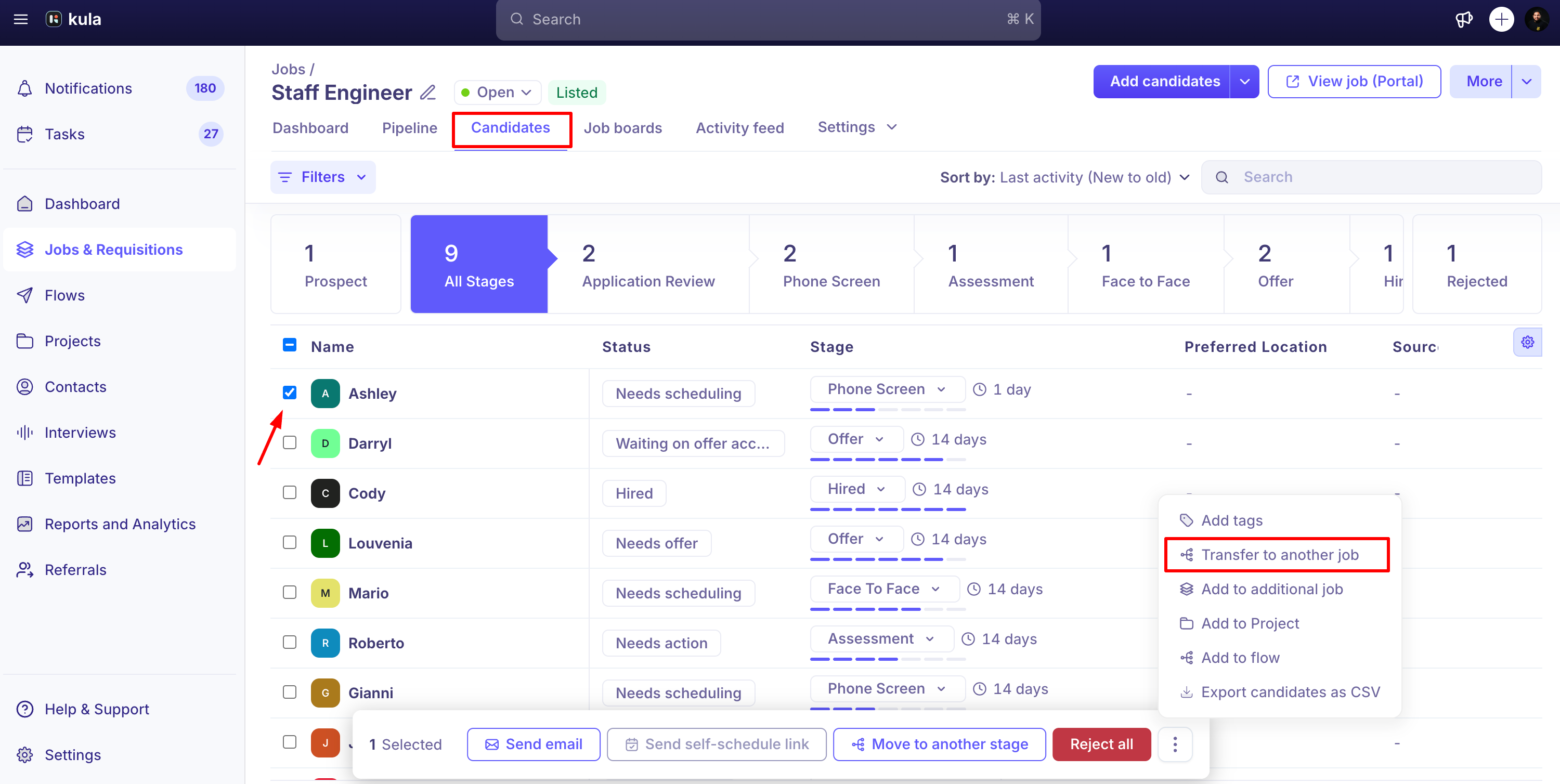
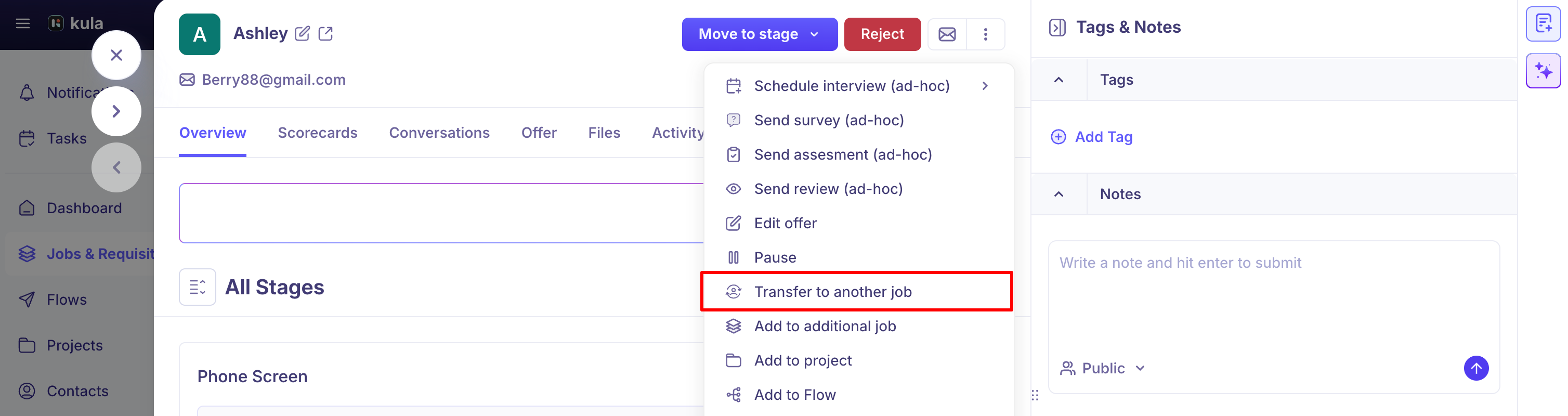
To Transfer a candidate:
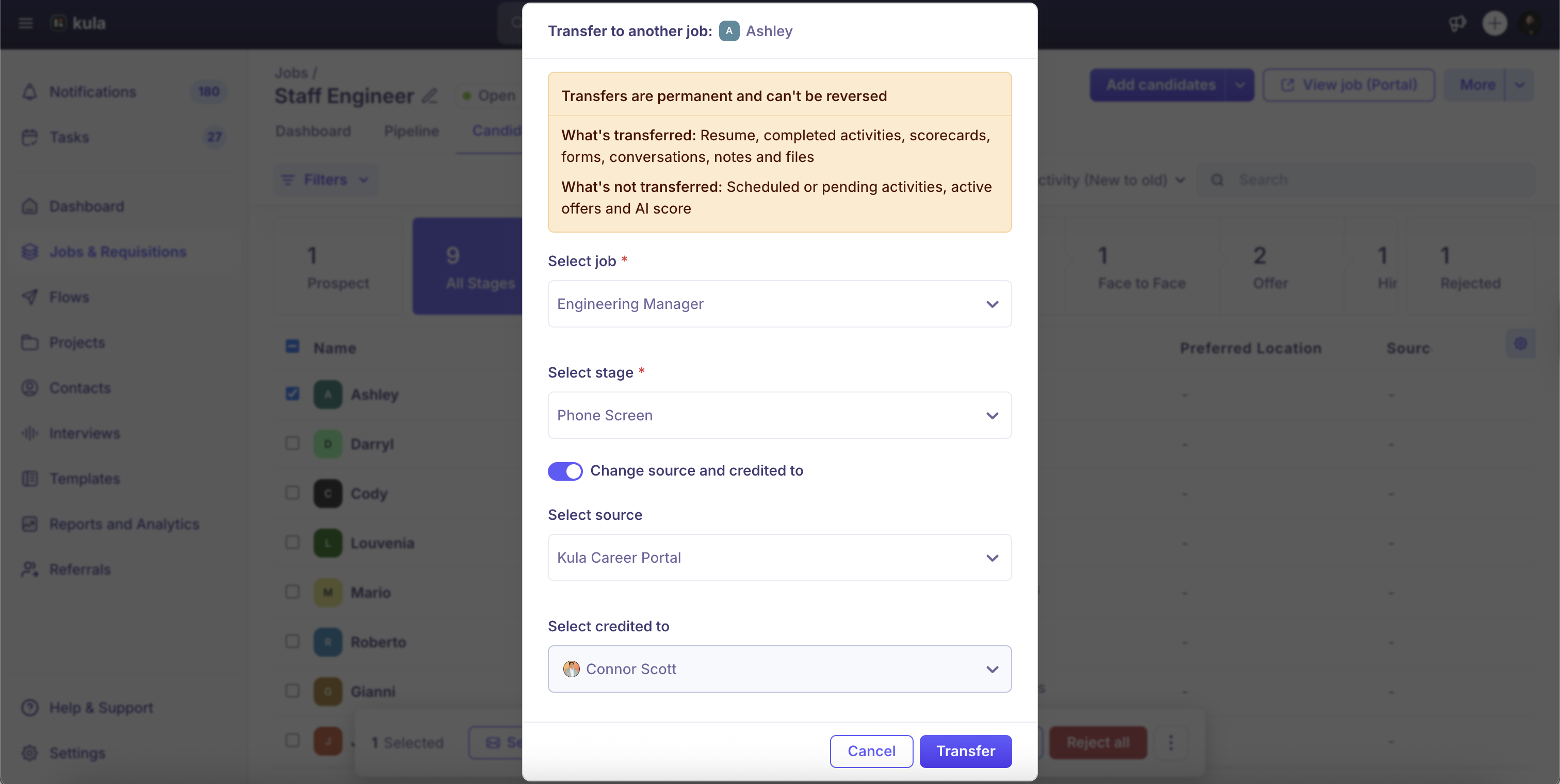
Click Select job, and choose the destination job. Jobs where the candidate already exists are marked and unavailable.
Click Select stage, and choose the stage where you want to place the candidate.
Toggle Change source and credited to if you want to update these fields for the new job.
Click Transfer.
Note: Transfers are permanent and cannot be undone.
After the transfer
The candidate’s application page in the original job is no longer accessible.
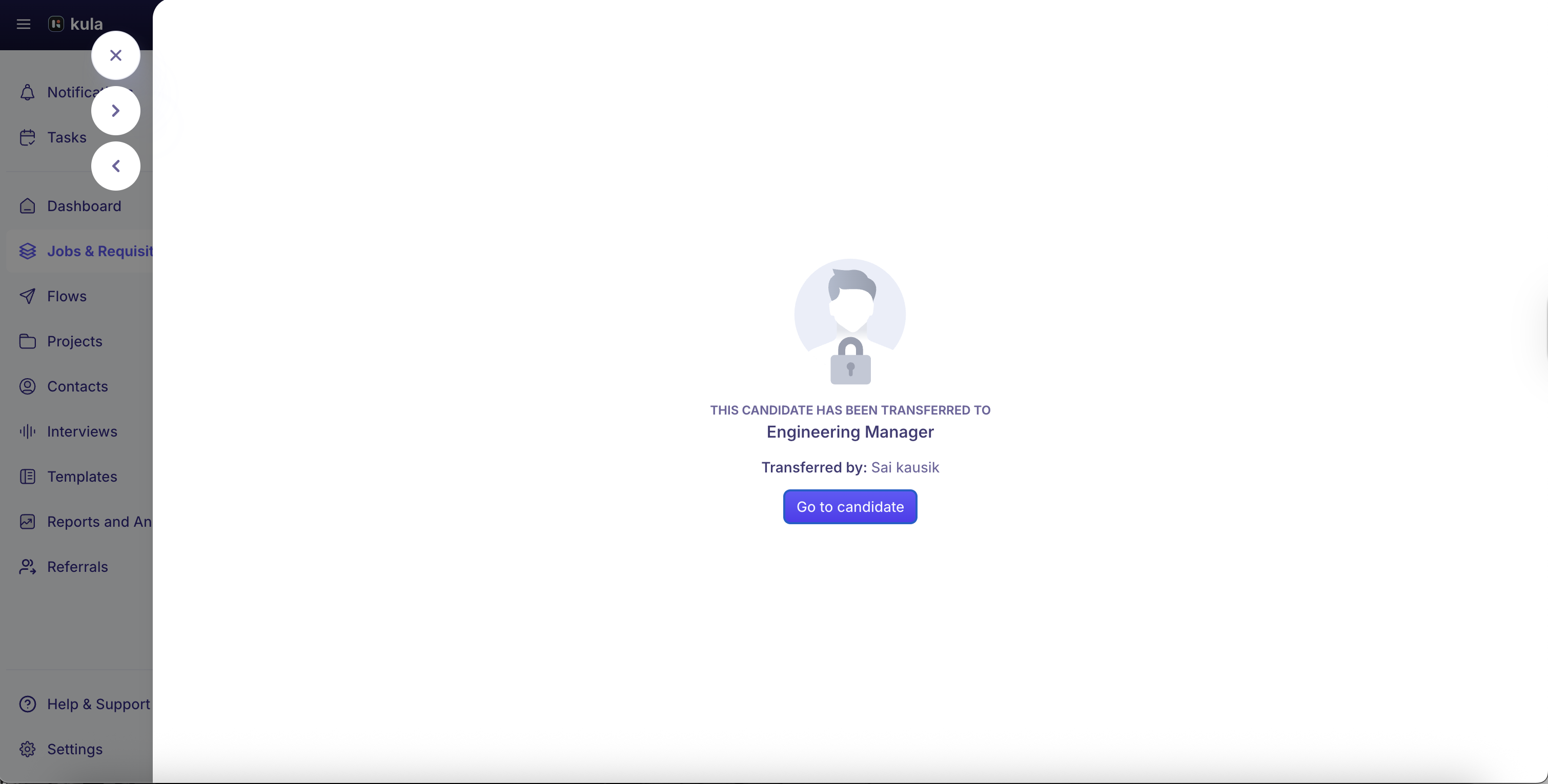
If someone opens it, they will see a message confirming the transfer and a link to the candidate’s new application.
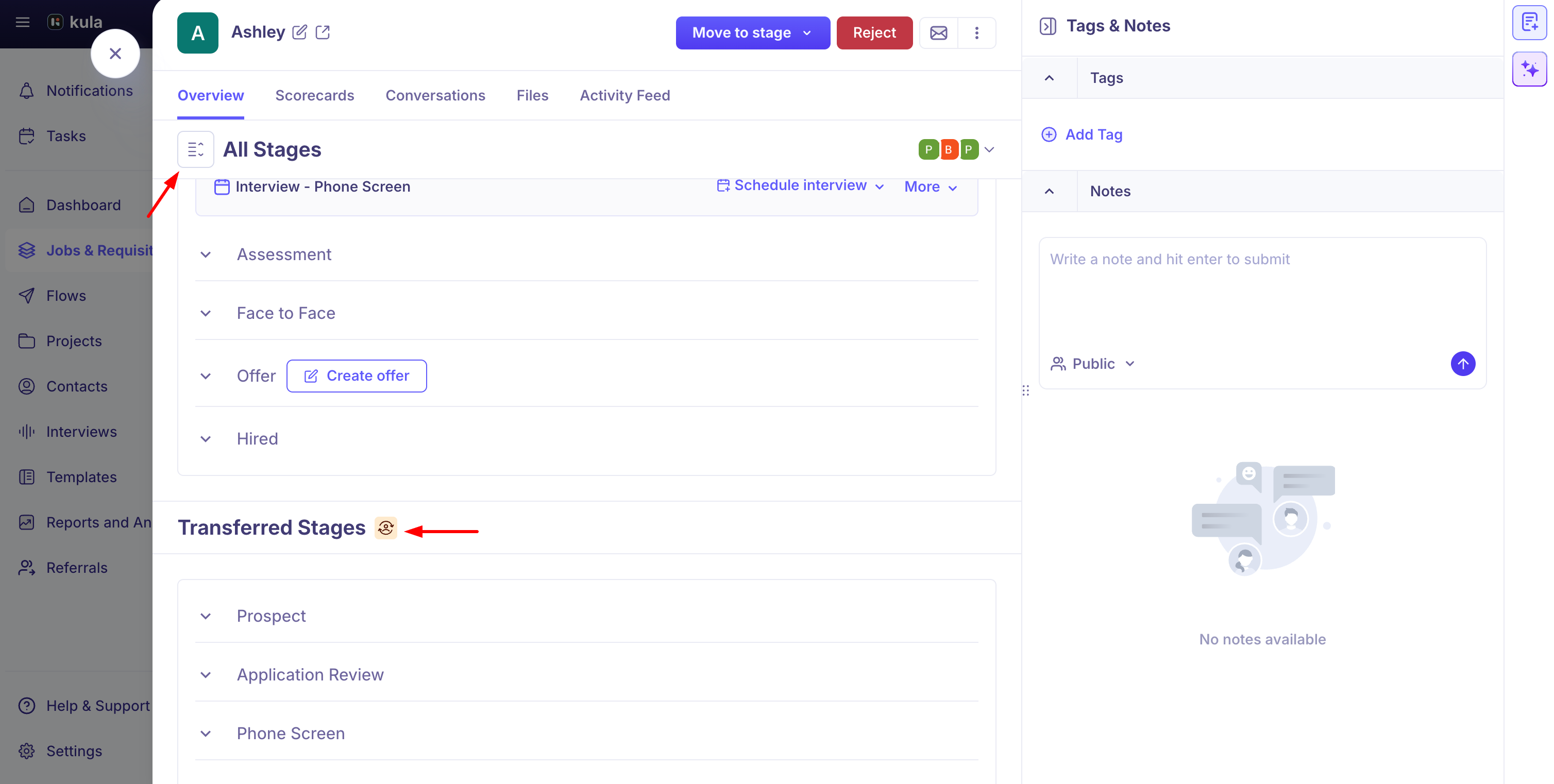
How to check if a candidate is transferred: Click on All Stages and scroll down to locate the Transferred Stages section.
What carries over
The following data moves to the new job with the candidate:
Resume
Candidate information
Scorecards — both completed and pending scorecards move to the Scorecards tab
Application form and referral form
Completed activities — finished and in-progress interviews, sent emails, sent reviews, and submitted assessments and surveys
Conversations
Notes — public and private
Files
Activity feed — existing activity remains, and a new transfer entry is added
Offer history and offer files
What does not carry over
The following data does not move to the new job:
Pending, scheduled, or in-progress emails, reviews, and assessments
AI score and explanation from the original job
Surveys not yet sent or currently in progress
Offers
Analytics
Reporting behaviour after the candidate is transferred
After the transfer:
The candidate counts as a new application in the destination job.
In the original job, the candidate appears as a pipeline drop-off at the stage they were in during the transfer.
Latency metrics—Time to hire, Time to offer, Time to close offer, and Time to reject—are calculated from the original application date, not the transfer date.
Add to Additional Job
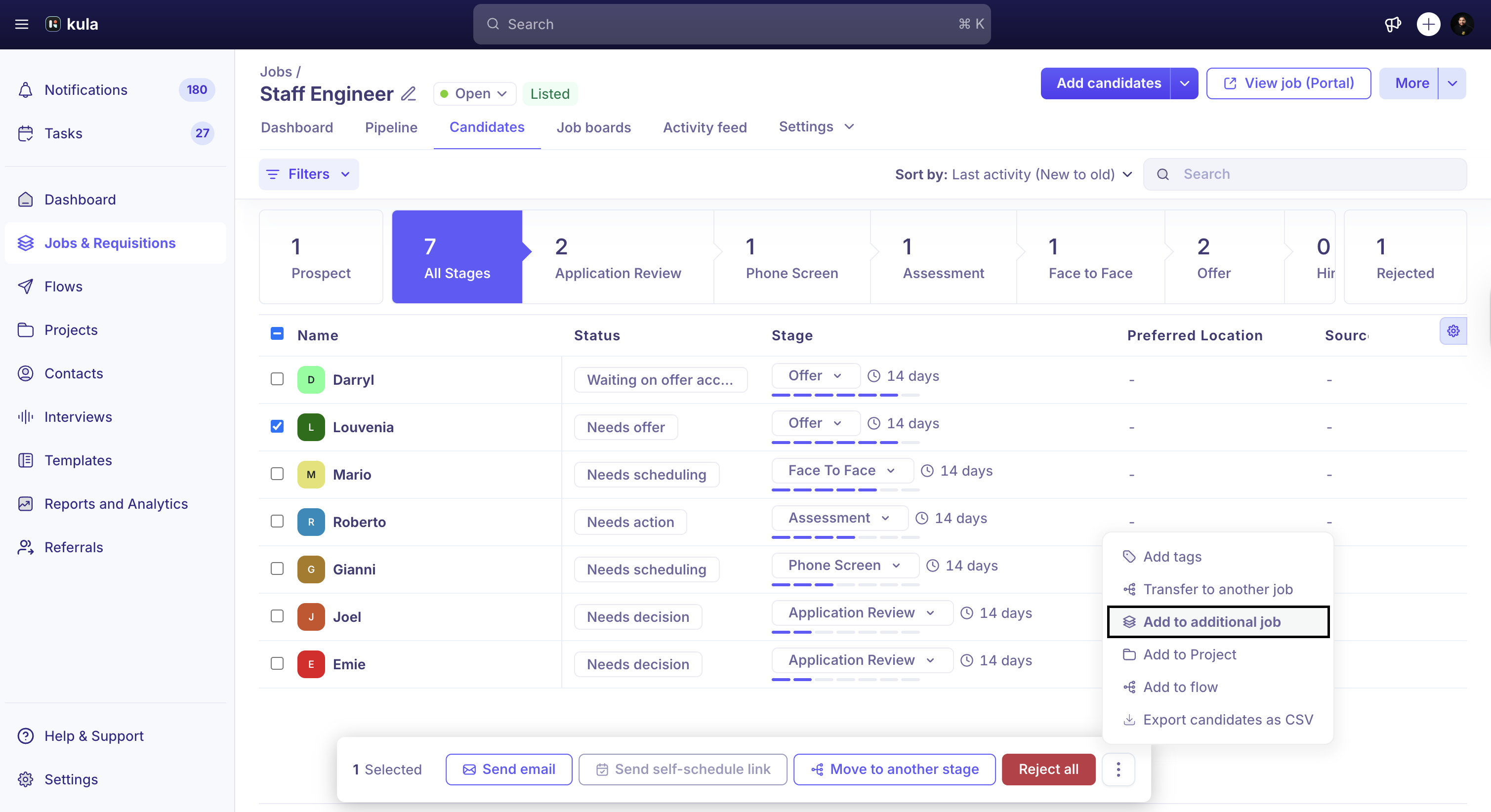
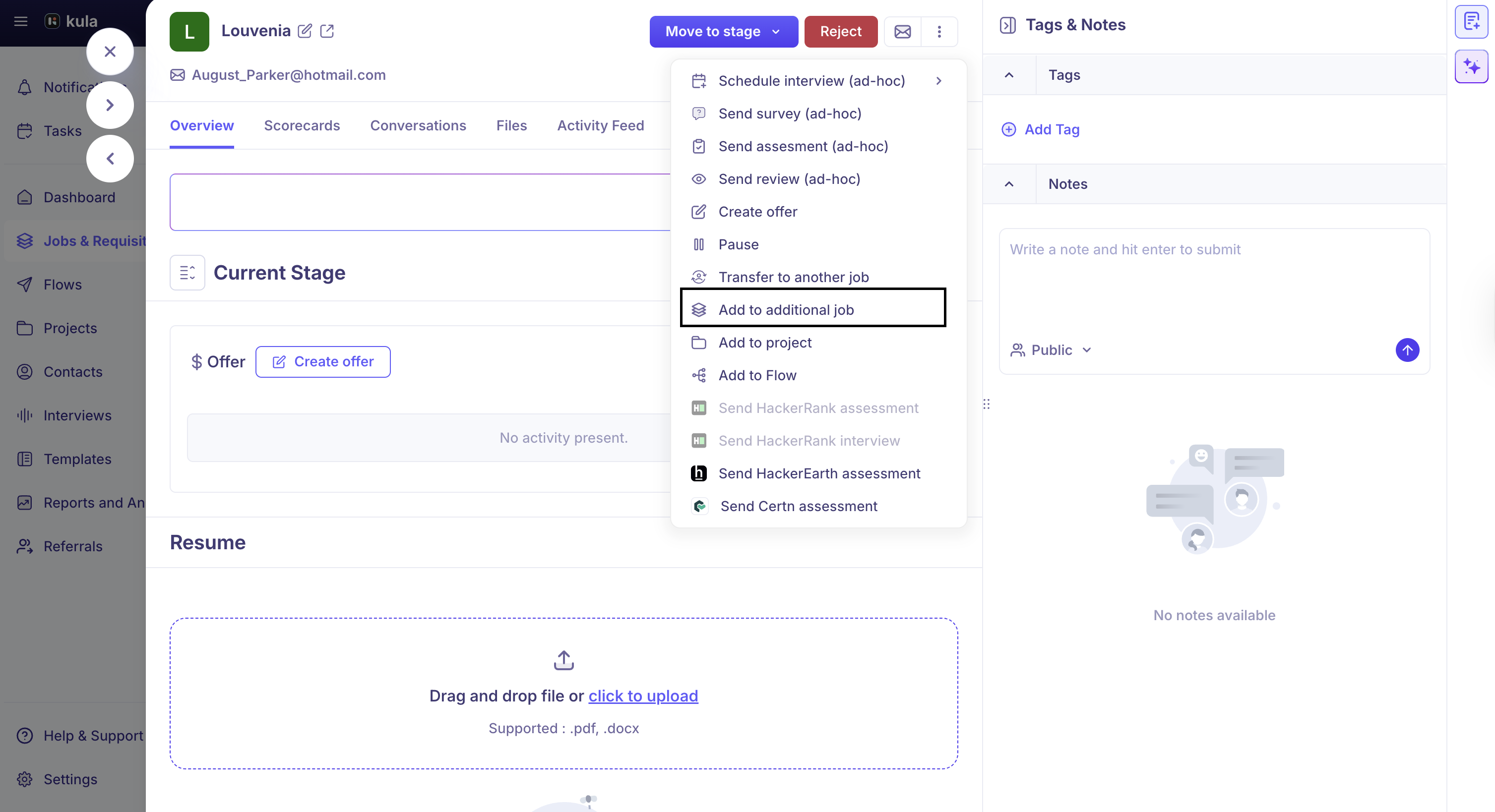
Adding a candidate to another job lets you include the candidate in multiple jobs without transferring their existing application data.
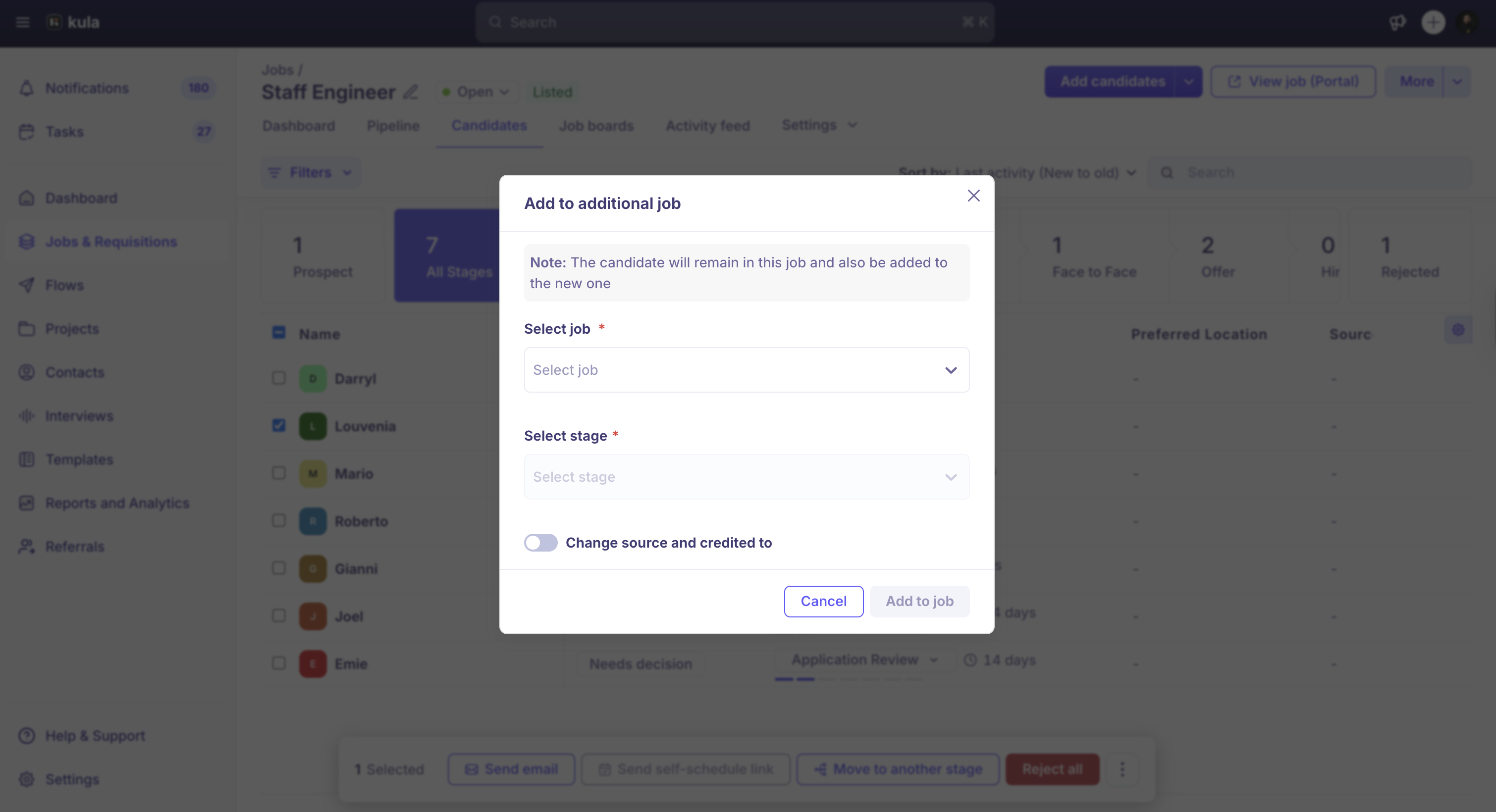
The new job does not inherit information such as the application form, scorecards, or other job-specific candidate details from the original job. The candidate is treated as a new application in the additional job.
Need Help?
If you have questions or need assistance with setup, feel free to reach out to us at support@kula.ai or use the in-app chat for assistance.