Linking scorecards to stages
Last updated: August 12, 2026
Attach a scorecard template to an interview activity, and control who can see submitted scorecards and how many are required.
Who can do this: Requires the same job-editing permissions used to configure the interview plan.
Where to find it: Job → Settings → Interview Plan → [stage] → edit activity → Scorecard tab. Scorecard visibility is a separate, account-wide setting under Settings → Interview & Scheduling → Scorecards.
Attaching a scorecard to an activity
Open the interview plan and go to the stage containing the activity you want to configure.
Edit the activity and go to its Scorecard tab.
Enable the scorecard and select a template.
Save. The selected template will now be shown to interviewers for interviews scheduled against that activity.
This applies to Interview activities directly, and also to Review and Assessment activities, which can have a scorecard/evaluation form attached the same way. See "Creating and editing an interview plan" for the full activity-creation flow.
Scorecard visibility
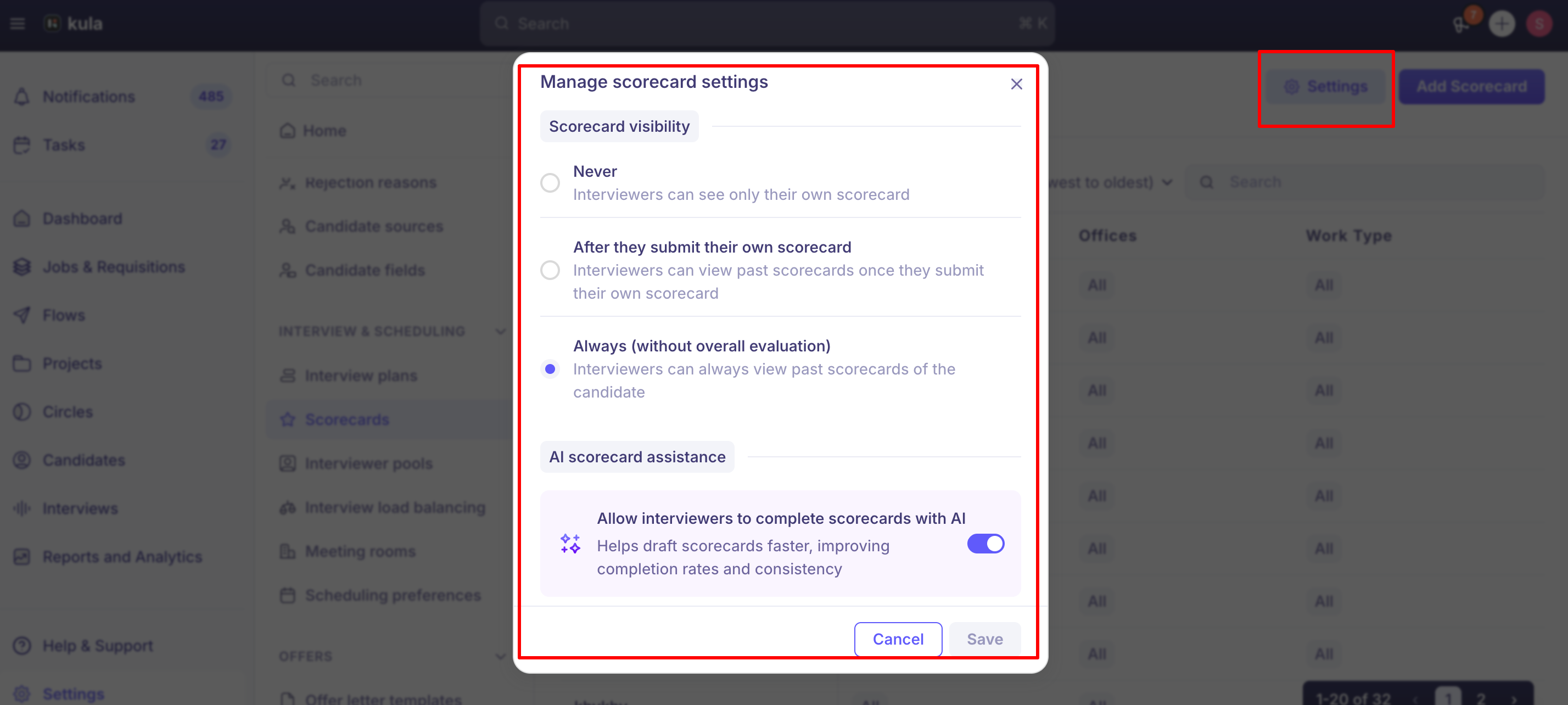
Under Settings → Interview & Scheduling → Scorecards, you can control whether interviewers on the same panel can see each other's scorecards:
Always — interviewers can see each other's scorecards at any time.
After submission — an interviewer can see others' scorecards only after submitting their own.
Default — each interviewer sees only their own scorecard.
This is an account-wide setting. Hiring Managers on a job always have full visibility into all scorecards submitted for that role, regardless of this setting.
Requiring a minimum number of scorecards
For Review and Assessment activities with two or more reviewers assigned, you can set a completion rule instead of requiring every reviewer to submit:
All (default) — every assigned reviewer must submit.
Any one — once the first reviewer submits, the remaining scorecards are automatically closed.
At least X — set a custom minimum; once that many scorecards are in, the rest close automatically.
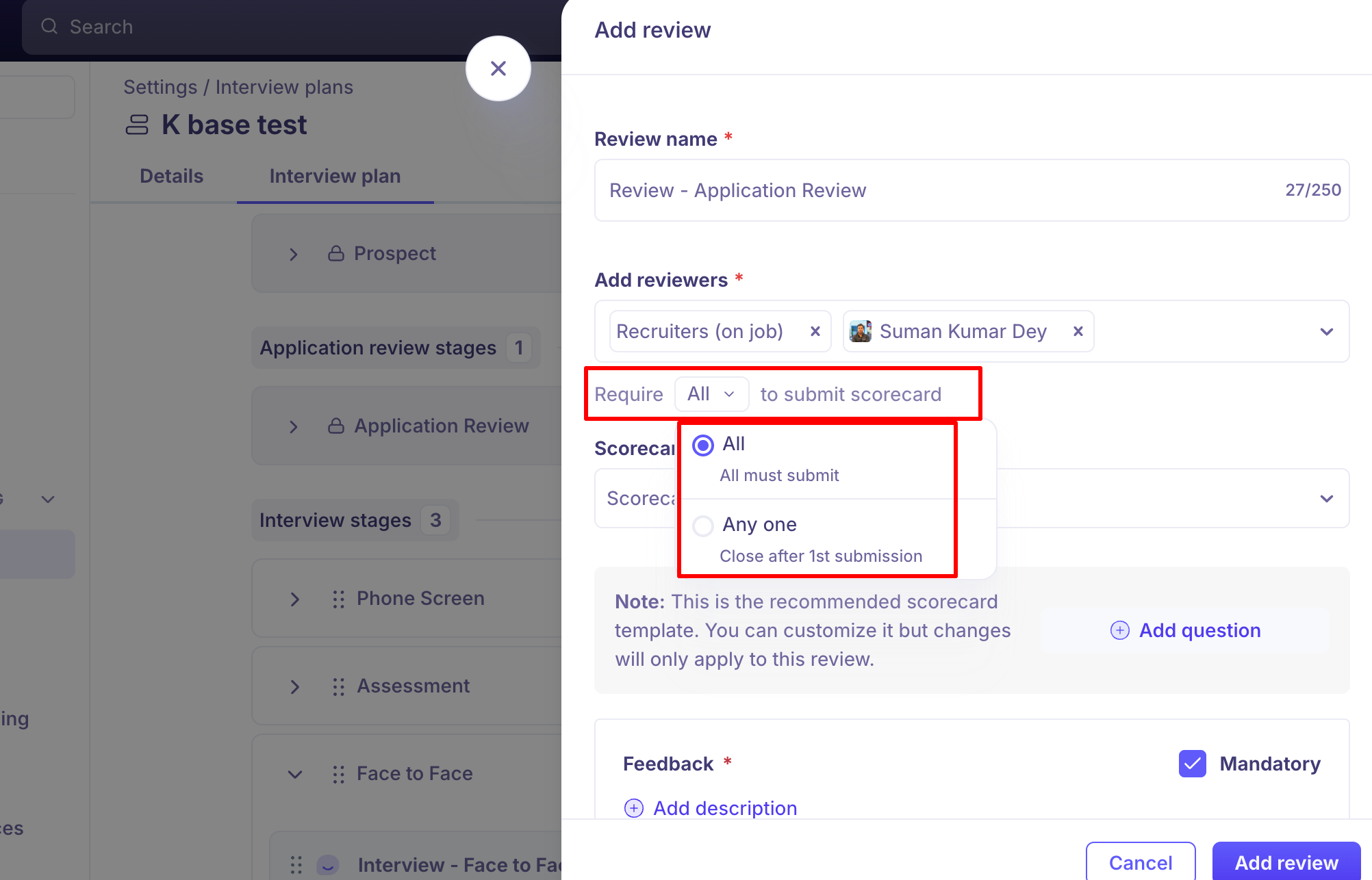
This isn't yet available for Interview activities — only Reviews and Assessments (including external third-party assessments with scorecards).
Good to know
When you first open an activity's Scorecard tab, it won't show a template as "selected" even if one already is. The dropdown itself just displays a generic "Scorecard template" placeholder rather than the name of the currently attached template — this is a known UI quirk, not a sign that your setup was lost. The correct template is shown once you interact with the section.
The "Overall evaluation" section can be confusing. It's part of the scorecard template configuration inside an activity, not a separate field the user is meant to fill in themselves — this labeling has been flagged internally as unclear and may be revised.
There's no way to clone a scorecard's question set from one stage to another today. If your scorecard questions are job-specific (rather than a shared template), you currently have to rebuild the attribute list manually for each round — cloning the stage itself is the closest workaround, and carries the scorecard config with it.
Scorecard visibility can't yet be split by round — for example, letting interviewers see feedback from earlier rounds while keeping same-round scorecards hidden until they submit their own. Only the three global options above are available today; this is a real, open feature request.
Once an interview is scheduled, its scorecard is locked to that point in time. Changing the scorecard attached to the activity afterward won't retroactively update interviews already on the calendar. See "What is an interview plan?" for the full explanation.
FAQ
How do I attach a scorecard to an interview stage? Job → Settings → Interview Plan → the stage → edit the activity → Scorecard tab → enable and select a template.
Why doesn't my Scorecard tab show the template I already selected? This is a known display quirk — the dropdown shows a generic placeholder rather than the current selection when you first open it. Your setup hasn't been lost.
Can I require only some reviewers to submit a scorecard, not all of them? Yes, for Review and Assessment activities — set a completion rule (All / Any one / At least X). This isn't yet available for Interview activities.
Can interviewers see each other's scorecards? Depends on your account's visibility setting: Always, After submission, or Default (own scorecard only). Hiring Managers always see everything, regardless of setting.
Can I let interviewers see previous rounds' scorecards but not same-round scorecards? Not currently — visibility settings apply globally, not per round. This has been requested but isn't built yet.
Can I reuse a scorecard's question list across multiple stages without rebuilding it? Not directly — there's no clone-attributes-across-stages feature yet. Cloning the whole stage is the closest current workaround.
Need help?
If a scorecard isn't attaching, saving, or displaying correctly on an activity, contact Kula support.