Stage types: Application Review, Interview Stages, Offer, Hired
Last updated: August 14, 2026
Every job's candidate pipeline is organized into four fixed categories — called milestones in Kula — that group the specific stages you create.
Who can do this: Anyone with pipeline access can see which milestone a stage belongs to. Adding or editing custom stages within a milestone requires the same job-editing permissions used to configure the interview plan.
Where to find it: Job → Settings → Interview Plan — stages are grouped and labeled by milestone here. The same milestone grouping shows up in the candidate pipeline itself and in Reports when you group results by stage.
The four milestones
Application Review (Kula's "Applied" milestone) — where a candidate lands once they apply or are added to the job. Candidates here show a status of "Under Review." AI scoring and quick application review apply to stages in this milestone.
Interview Stages — everything between Application Review and Offer. This is where most of your custom interview rounds live (phone screens, technical rounds, onsites). Candidates anywhere in this milestone show a status of "Interviewing," unless they've reached an Offered, Hired, or Rejected outcome.
Offer — once a candidate reaches this milestone, full offer details become visible, and offers can be sent or edited from any stage under it.
Hired — the final, successful-outcome milestone. Stages here show the HRIS banner and trigger any HRIS handoff actions your account has configured.
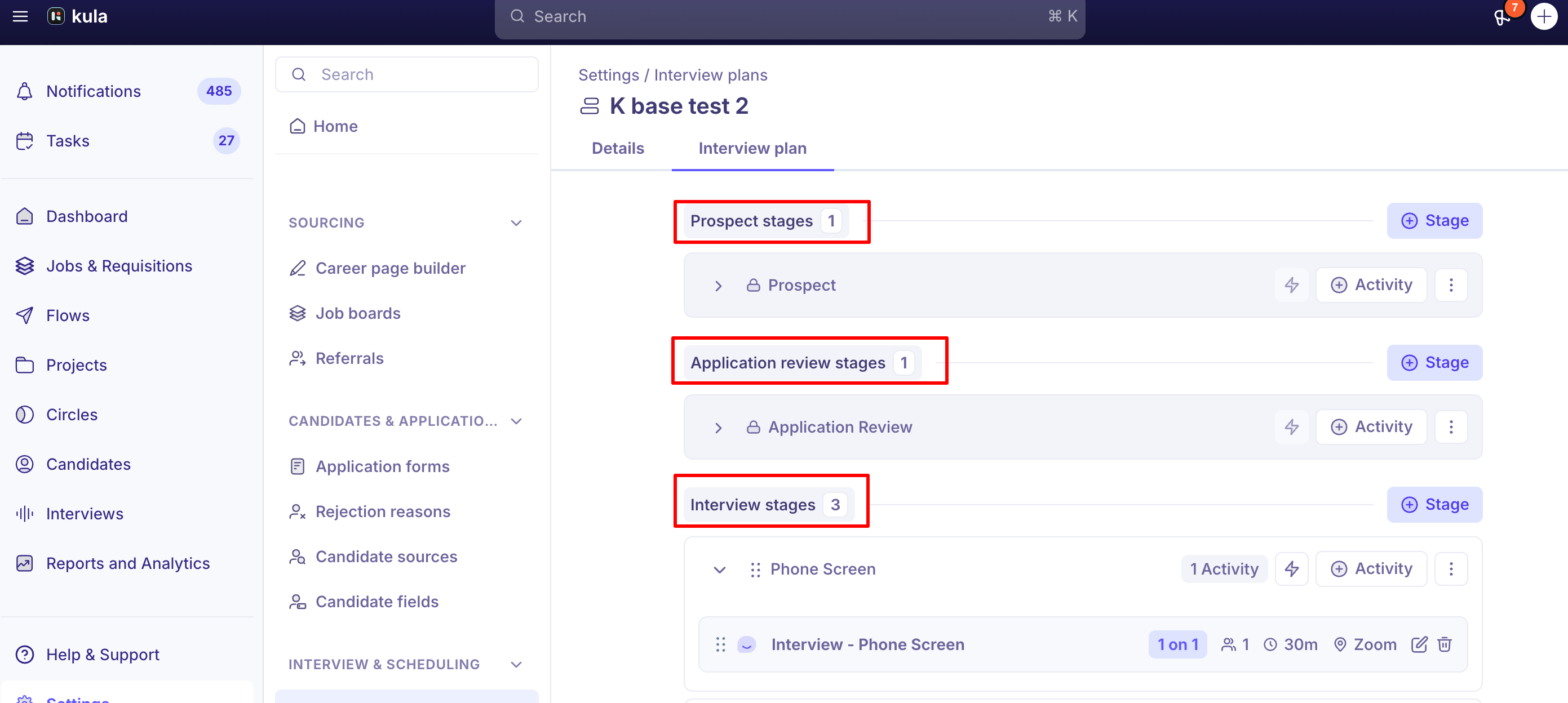
How stages nest inside milestones
You can add your own custom stages alongside the default one within any milestone (for example, adding "Recruiter Screen," "Technical Round," and "Final Interview" as three custom stages inside the Active Stages/Interview milestone).
A custom stage belongs to exactly one milestone, and it stays there — it can't be moved to a different milestone once created. You can reorder stages within a milestone, but not across milestones.
Why the milestone matters, not just the stage name
Certain behavior is tied to which milestone a stage sits in, regardless of what you name the stage itself:
Any stage under Offer shows full offer details and lets you send or edit an offer.
Any stage under Completed shows the HRIS banner and HRIS handoff actions.
Any stage under Application Review gets AI scoring and quick-review treatment.
Reporting
By default, Reports roll custom stages up to their milestone — so if you group results by stage without also breaking them down by job, you'll see the milestone-level split (Application Review / Active Stages / Offer / Completed) rather than every individual custom stage name. If you also group or filter by job, reports show the granular, job-specific stage names instead.
Good to know
At least one stage must always exist in each milestone. You can't remove every stage from a milestone.
Reordering only works within a milestone, not across milestones. If you want a custom stage to appear in a different position relative to another milestone's stages, you'd need to create it under the right milestone from the start.
A stage can't be remapped to a different milestone after creation. If you added a stage under the wrong milestone, you'll need to create a new one under the correct milestone rather than move the existing one.
"Offer Declined" isn't a built-in stage — it's a status. If you want to track declined offers as their own stage in your pipeline, add a custom stage under the Offer milestone and move candidates there manually when an offer is declined.
Adding custom stages under Application Review had a real, since-fixed bug that could block stage creation there with a "Stage creation failed" error. If you hit this, it should now be resolved — contact support if you still see it.
FAQ
What's the difference between a stage and a milestone? A milestone is one of the four fixed categories (Application Review, Active Stages, Offer, Completed) that every job's pipeline is built from. A stage is a specific step you create or use within one of those milestones — for example, "Technical Round" is a stage that lives inside the Active Stages milestone.
Can I rename or remove the default stage in a milestone? No — each milestone has one locked, default stage that stays in place. You can add your own custom stages around it.
Can I move a custom stage from one milestone to another after creating it? No — a stage's milestone is fixed once it's created. You'd need to create a new stage under the correct milestone instead.
Why do all my custom interview rounds show up as a single "Interview" line in reports? By default, reports group stages by milestone unless you also break results down by job — at which point you'll see each granular stage name.
How do I track an offer decline as its own pipeline stage? Create a custom stage under the Offer milestone (since "Offer Declined" is a status, not a built-in stage) and move candidates there when needed.
Can I reorder stages across different milestones? No — reordering is only supported within a single milestone.
Need help?
If you're having trouble adding a stage to a milestone, or a stage isn't behaving the way its milestone should, contact Kula support.