Applying an interview plan to a job
Last updated: September 11, 2026
Add an interview plan to a job using a saved template or by copying one from another job, and edit it once the job is published.
Who can do this: Requires the same job-editing permissions used to configure the interview plan.
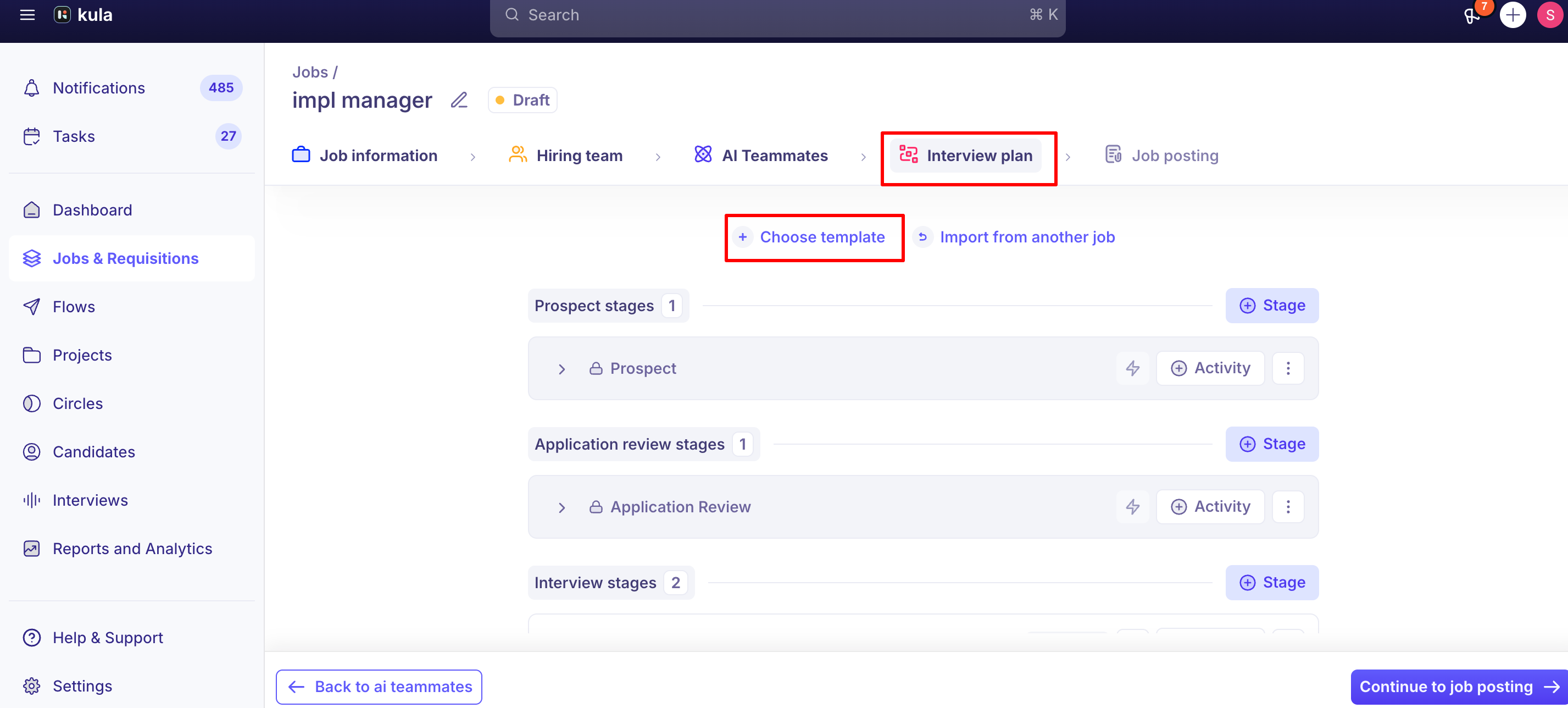
Where to find it: Job → Settings → Interview Plan, while creating or editing a job that hasn't been published yet.
The two setup options
Choose Template — select from your account's saved interview plan templates. This applies the template's stages, activities, and their configuration (including any attached scorecards and plan-level email/calendar/privacy defaults) to the job as a starting point.
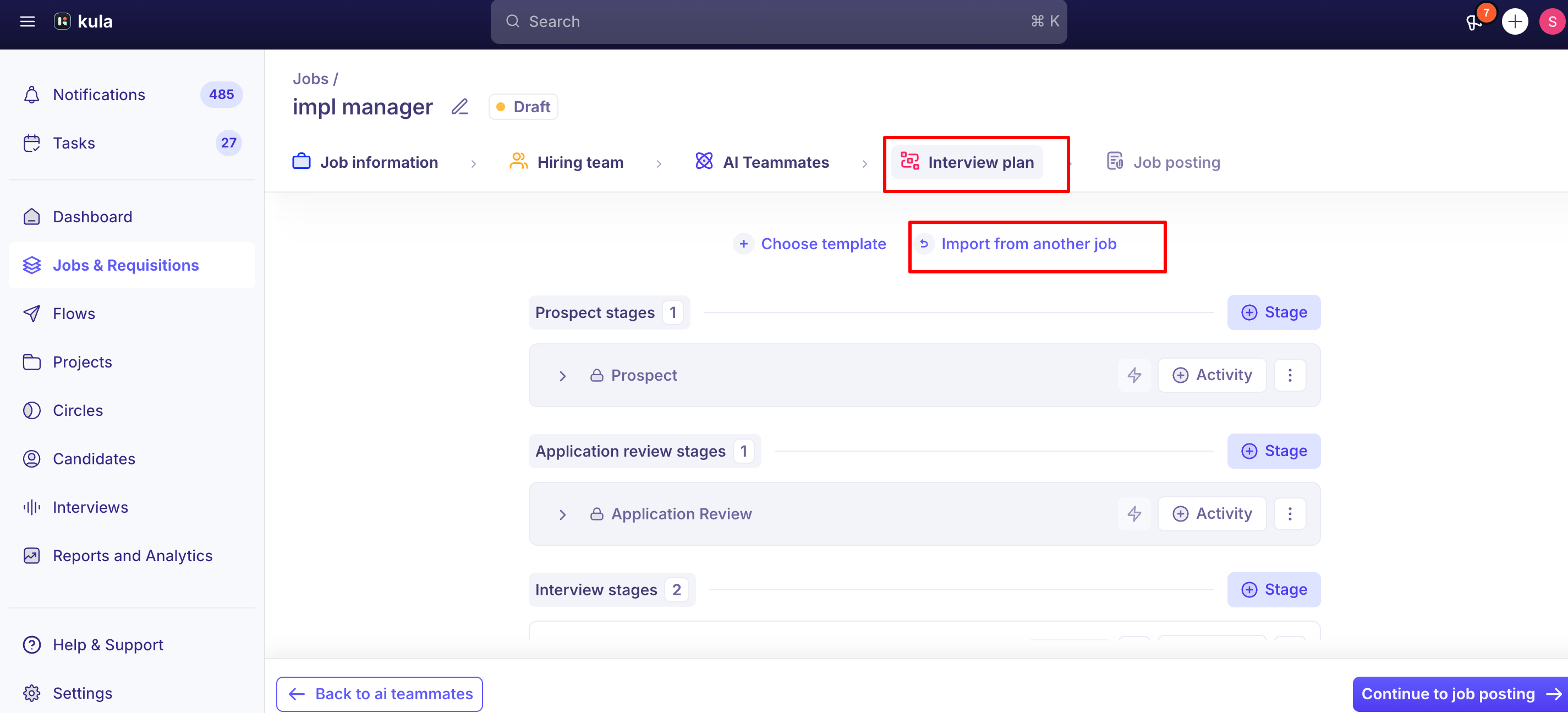
Import from another job — copy the interview plan directly from an existing job instead of a saved template. Useful when a similar role already has the right stages and activities set up but was never saved as a reusable template.
Both options copy the plan onto the job as a one-time snapshot — the job's plan isn't kept in sync with the template or source job afterward, so later changes to either won't carry over automatically.
Editing the interview plan after the job is published
Once a job is published, you can still open Job → Settings → Interview Plan and edit the plan that's already on it directly — add, edit, or remove stages and activities, change an activity's trigger or assigned users, or update its attached scorecard.
See "Creating and editing an interview plan" for the full activity-editing mechanics.
What you can't do after publishing is switch the job to a different template or re-import from a different job through the Choose Template / Import from another job flow — that selection step is only available pre-publish.
If a published job needs a substantially different plan, you'll need to manually rebuild the affected stages and activities, since switching wholesale would require remapping any candidates already sitting in the current plan's stages.
Good to know
Choose Template and Import from another job disappear once a job is published. Don't expect to find that same picker later — post-publish, editing happens stage by stage and activity by activity instead of by re-selecting a whole plan.
Applying a plan copies it once — it doesn't stay linked. If you edit the original template or source job's plan afterward, jobs that already had it applied won't pick up those changes. Each is independent from the moment it's applied.
FAQ
How do I add an interview plan to a new job? Job → Settings → Interview Plan, before publishing — choose either "Choose Template" to use a saved template, or "Import from another job" to copy an existing job's plan.
What's the difference between Choose Template and Import from another job? Choose Template applies one of your account's saved, reusable templates. Import from another job copies the live plan from a specific existing job, which is useful if the plan you want was never saved as a template.
Can I switch a published job to a different template or a different source job's plan? Not through the same picker — that option is only available before the job is published. After publishing, you edit the existing plan's stages and activities directly instead.
Can I still edit stages and activities after the job is live? Yes. Job → Settings → Interview Plan stays editable after publishing — you can add, edit, or remove stages and activities at any time.
If I update the template I originally used, will my published job's plan update too? No. Applying a template or importing from a job copies it at that point in time; later changes to the source don't propagate to jobs that already applied it.
Need help?
If a job's interview plan doesn't match what you selected, or you need to move a published job onto a substantially different plan, contact Kula support at support@kula.ai.