What is an interview plan?
Last updated: September 7, 2026
Build out the stages and activities that make up a job's interview plan, and configure who's involved at each step.
Who can do this: Requires job-editing permissions. Exactly who has this depends on your account's role setup — Admins and Super Admins have it by default; whether Recruiters or Hiring Managers can edit interview plans depends on your permission configuration. See "What is an interview plan?" for the concept overview.
Where to find it: Job → Settings → Interview Plan.
What an interview plan is made of
An interview plan has two levels:
Stages — these map to the actual pipeline stages a candidate moves through on the job (for example, Recruiter Phone Screen, Hiring Manager Screen, Technical Round, Offer).
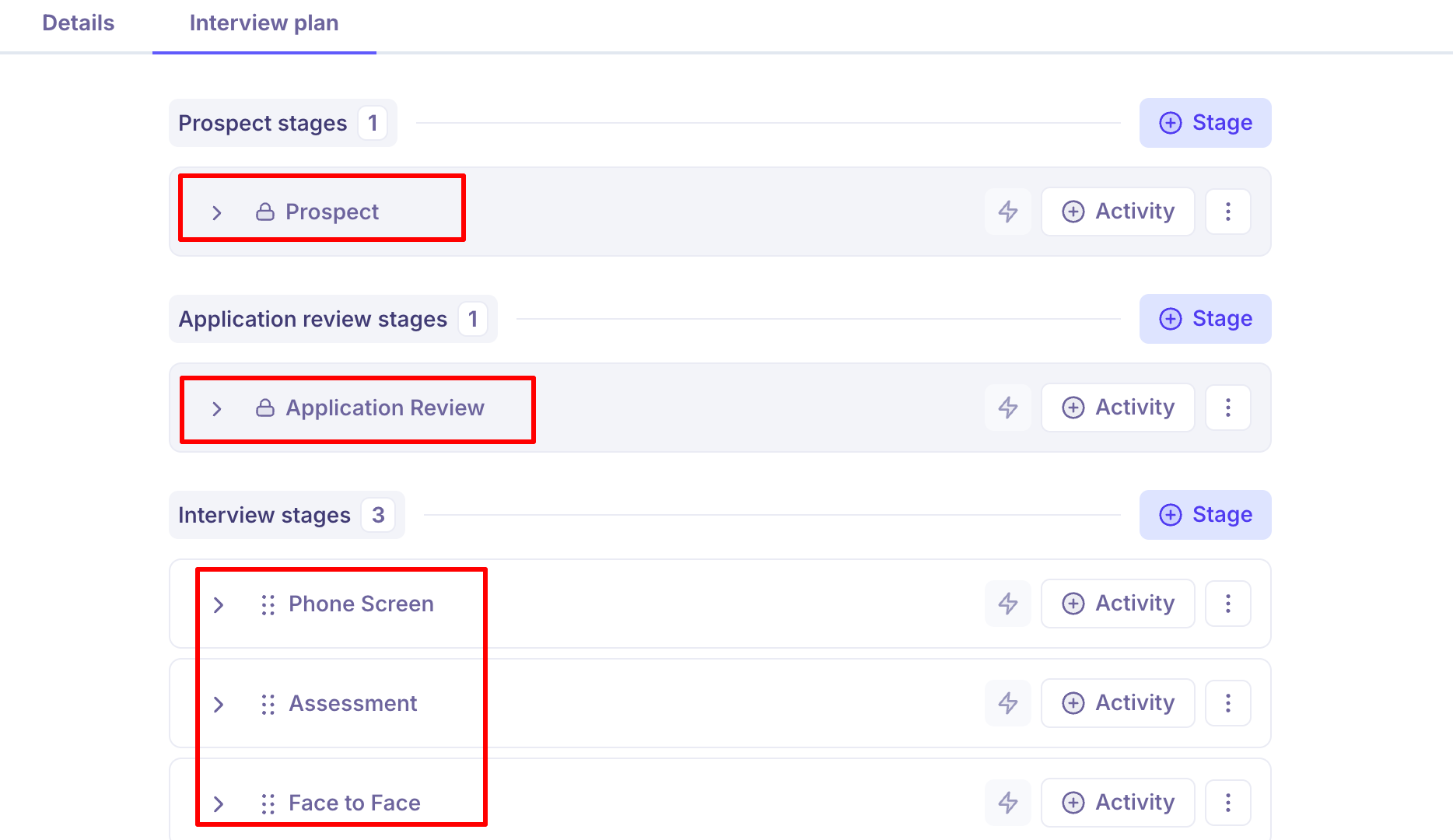
Activities — each stage can contain one or more activities: a live interview, a manually-triggered email (distinct from the automatic application-acknowledgment email), an assessment (candidates can upload responses, and multiple reviewers can be assigned), or a survey (which can be paired with a rejection template and sent in bulk).
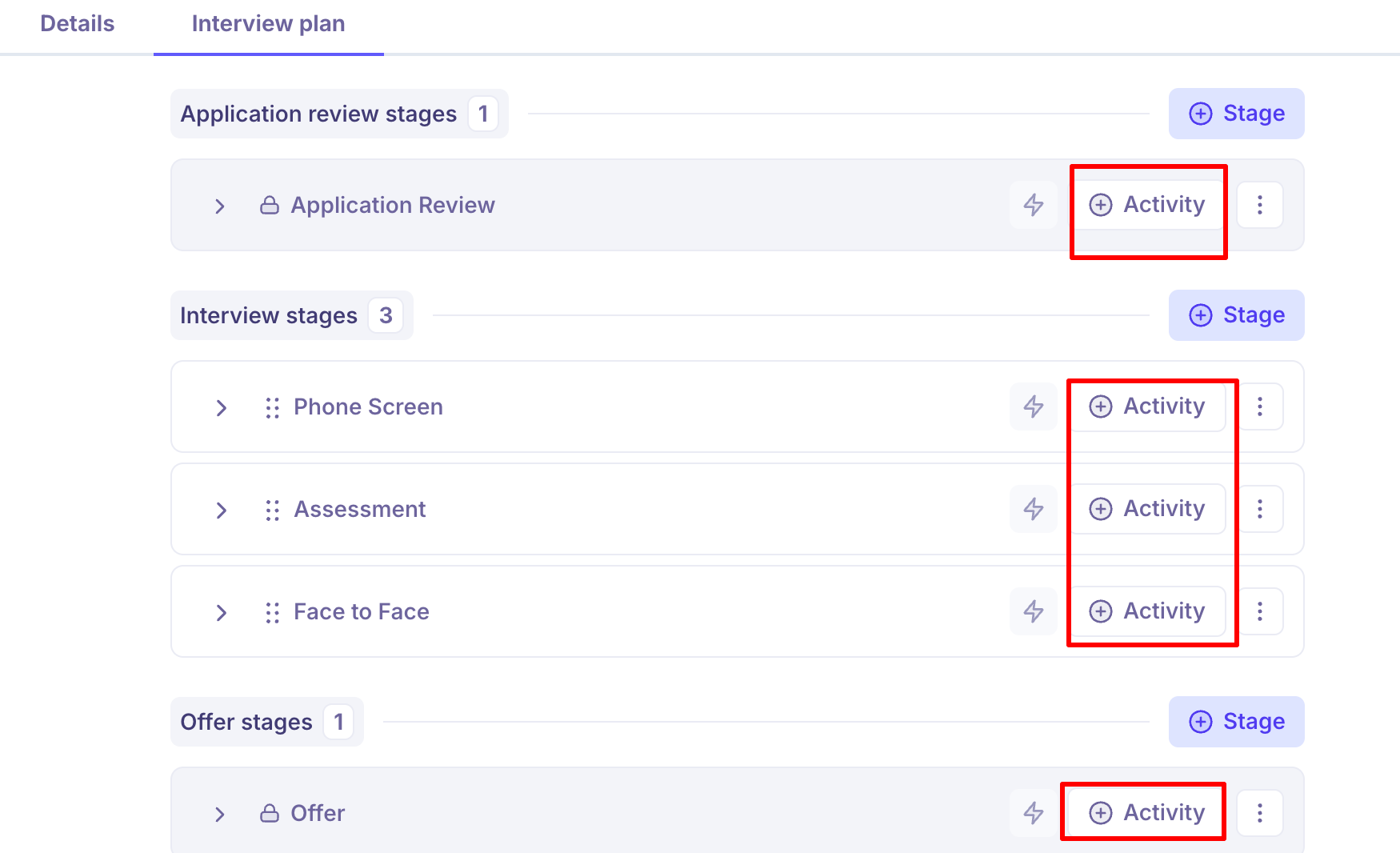
Scorecards and interview plan activities
Each interview activity can have a scorecard template attached: Interview Plan → stage → edit activity → Scorecard tab → enable and select a template.
When an interview is scheduled through the plan, its scorecard is attached automatically — the interviewer sees it via the interview link.
If an interview is scheduled ad hoc (added manually, outside the plan), the scorecard isn't auto-attached and has to be added by hand.
Templates and scoping
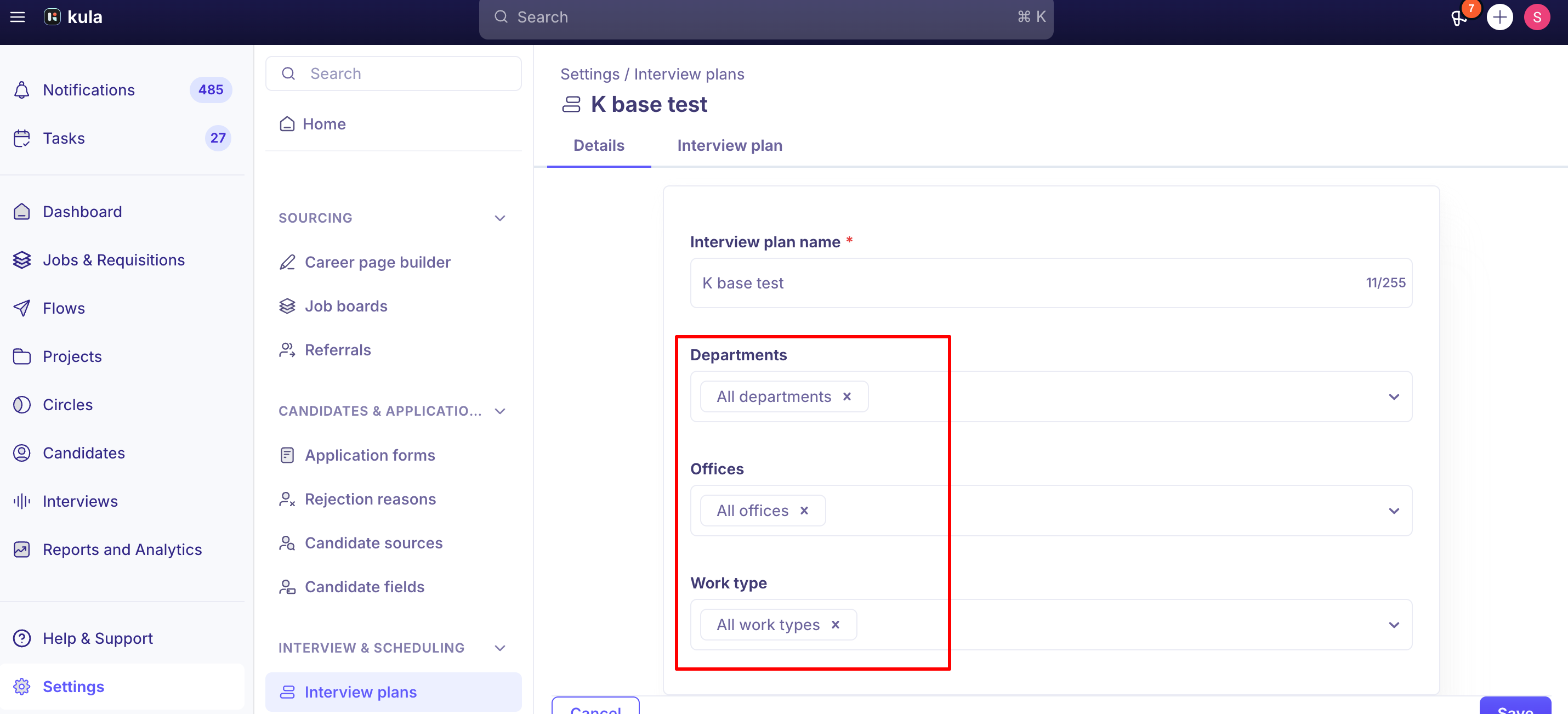
Interview plan templates can be scoped by department, office, and work type, so the right starting plan loads automatically depending on how a job is categorized. Your account can also have a default template that's used when nothing more specific applies.
Creating an interview plan
Go to the job and open Settings → Interview Plan.
Select an existing interview plan template to start from, or use your account's default template.
Select Add Stage and name it (for example, "Recruiter Phone Screen" or "Technical Round").
Inside the stage, select Add Activity and choose an activity type: Interview, Email, Assessment, Survey, or Review.
Configure the activity's details — for an interview activity, this includes the interview name, interviewers (or an Interviewer Pool), the self-schedule email template, and optionally a scorecard.
Repeat for each stage until the plan reflects your full hiring process.
The four milestones
Application Review (Kula's "Applied" milestone) — where a candidate lands once they apply or are added to the job. Candidates here show a status of "Under Review." AI scoring and quick application review apply to stages in this milestone.
Interview Stages — everything between Application Review and Offer. This is where most of your custom interview rounds live (phone screens, technical rounds, onsites). Candidates anywhere in this milestone show a status of "Interviewing," unless they've reached an Offered, Hired, or Rejected outcome.
Offer — once a candidate reaches this milestone, full offer details become visible, and offers can be sent or edited from any stage under it.
Hired — the final, successful-outcome milestone. Stages here show the HRIS banner and trigger any HRIS handoff actions your account has configured.
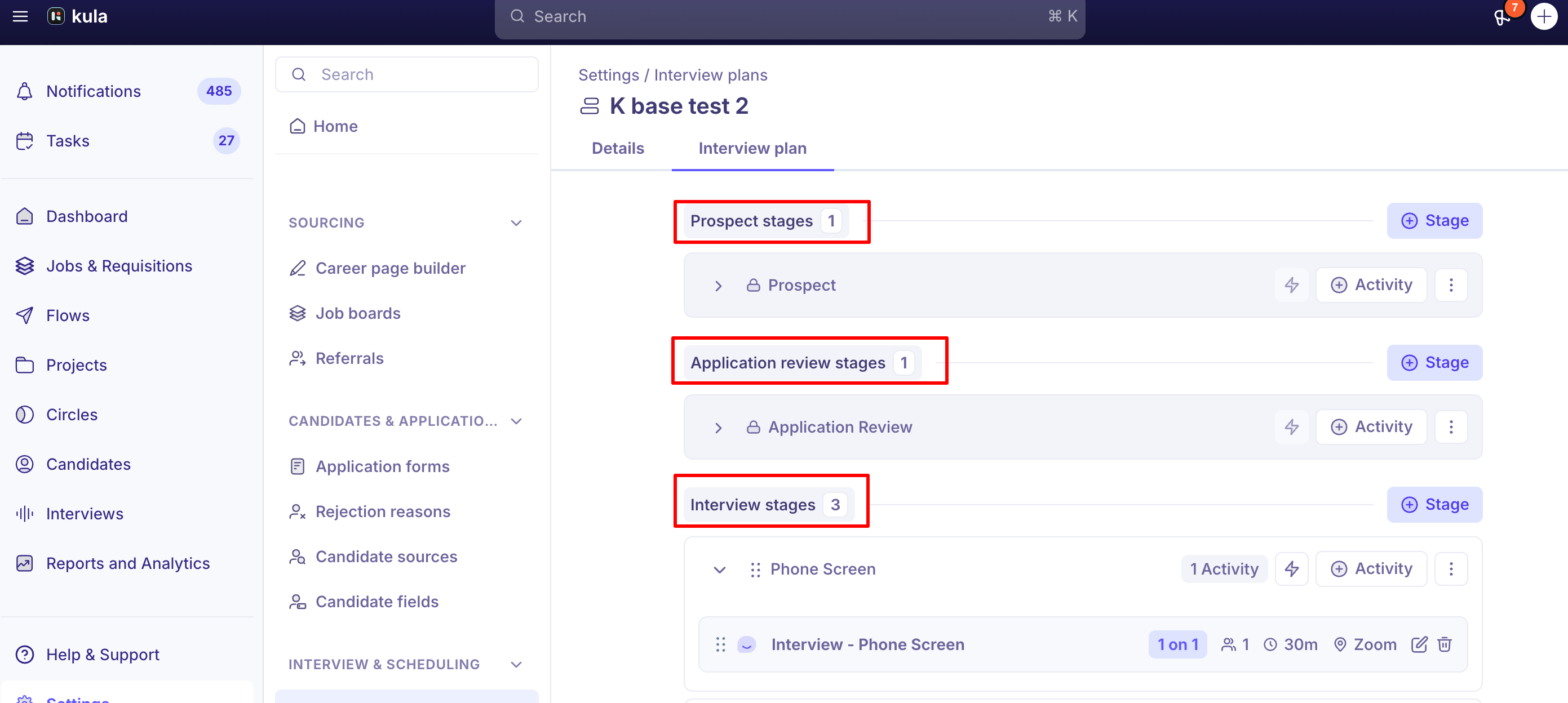
How stages nest inside milestones
You can add your own custom stages alongside the default one within any milestone (for example, adding "Recruiter Screen," "Technical Round," and "Final Interview" as three custom stages inside the Active Stages/Interview milestone).
A custom stage belongs to exactly one milestone, and it stays there — it can't be moved to a different milestone once created. You can reorder stages within a milestone, but not across milestones.
Why the milestone matters, not just the stage name
Certain behavior is tied to which milestone a stage sits in, regardless of what you name the stage itself:
Any stage under Offer shows full offer details and lets you send or edit an offer.
Any stage under Completed shows the HRIS banner and HRIS handoff actions.
Any stage under Application Review gets AI scoring and quick-review treatment.
Reporting
By default, Reports roll custom stages up to their milestone — so if you group results by stage without also breaking them down by job, you'll see the milestone-level split (Application Review / Active Stages / Offer / Completed) rather than every individual custom stage name. If you also group or filter by job, reports show the granular, job-specific stage names instead.
Activity types
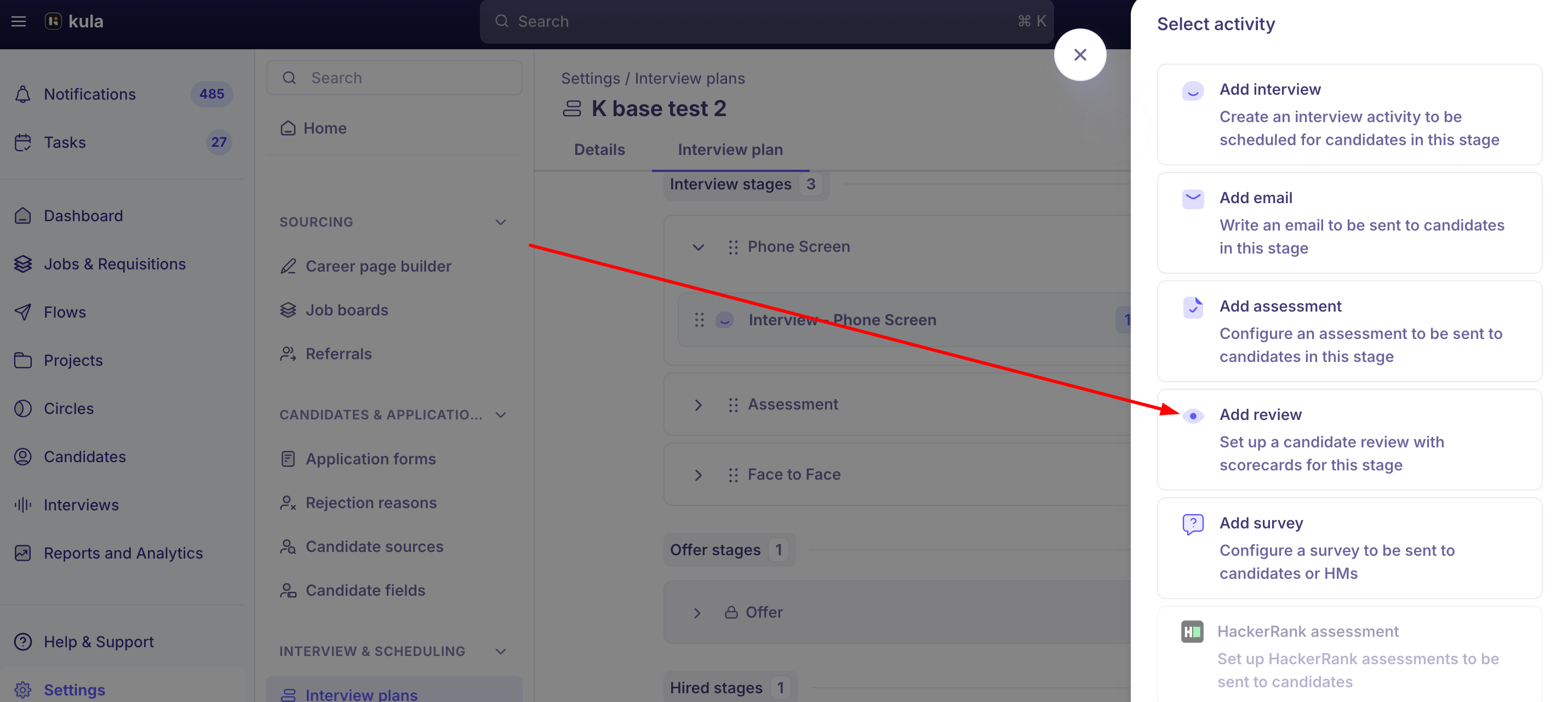
Each stage can hold one or more activities. Kula's official copy for the Add Activity picker describes them this way: Add interview — "Create an interview activity to be scheduled for candidates in this stage." Add email — "Write an email to be sent to candidates in this stage." Add assessment — "Configure an assessment to be sent to candidates in this stage." Add review — "Set up a candidate review with scorecards for this stage." Survey is the fifth type, added the same way.
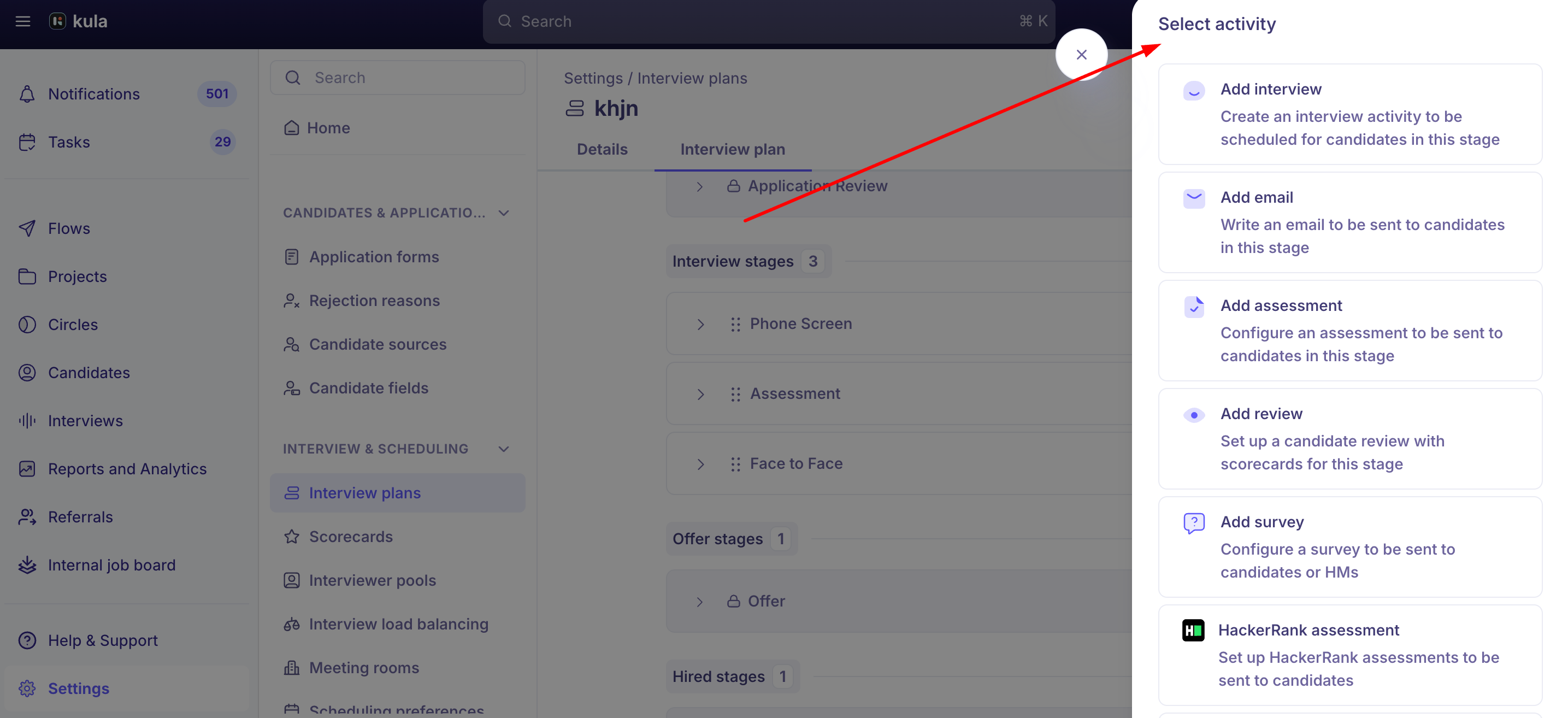
Interview. A live interview that gets scheduled with the candidate — either manually or via self-scheduling. After the interview happens, the interviewer submits their scorecard. This is the only activity type tied to actual calendar scheduling; everything else below runs independently of whether an interview is on the calendar.
Email. A one-off email sent to candidates in that stage — distinct from the automatic application-submission acknowledgment email, which isn't part of the interview plan at all. A common real use is collecting pre-offer documents (like payslips or signed offer letters) via an email activity at the Offer stage; anything a candidate uploads in response lands in their file section.
Assessment. Sends candidates a task to complete — they can upload responses (for example, a PDF), or the assessment can run through a connected third-party tool like HackerRank (see "Integrate third-party assessment tools" for that setup). Multiple reviewers can be assigned to evaluate the submission, each with their own scorecard.
Review. The activity to use when you want a scorecard without any interview or candidate meeting. You assign one or more reviewers, and they complete and submit a scorecard directly — no scheduling involved. This is the activity migration teams typically use to backfill evaluation records from a previous ATS, since it can capture a scorecard independent of whether an interview was ever scheduled in Kula.
Survey. Can be added at any or all stages, and — like Email, Assessment, and Review — is manually triggered rather than automatic. A survey can be paired with a rejection email template so candidates who don't move forward get a survey link in their rejection email, and surveys support bulk sending across multiple candidates at once.
Adding interviewers to an interview activity
You can assign specific named interviewers to an interview activity, or attach an Interviewer Pool instead:
Set up an Interviewer Pool with the interviewers who should rotate into that activity.
In the interview activity's configuration, select the pool instead of individual names.
When interviews are scheduled against that activity — especially through self-scheduling — Kula assigns interviewers automatically using round-robin distribution, working hours, and calendar availability.
Round-robin assignment currently only applies to interviewer scheduling. It's not yet available for Review Activity reviewer assignment — reviewers there are still assigned manually.
Using a placeholder email template
If you're still building out a plan and don't have final candidate-facing email copy ready, you can save an interview activity with a placeholder/dummy email template rather than leaving it blank.
A minimal template just needs the required merge fields, such as {interview.self_schedule_link} or {interview.candidate_availability_link}.
This placeholder email won't actually go to candidates unless self-scheduling or availability collection is triggered for that activity, so it's safe to use as a temporary stand-in while you finish setup.
Attaching a scorecard to an activity
Open the interview plan and go to the stage containing the activity you want to configure.
Edit the activity and go to its Scorecard tab.
Enable the scorecard and select a template.
Save. The selected template will now be shown to interviewers for interviews scheduled against that activity.
This applies to Interview activities directly, and also to Review and Assessment activities, which can have a scorecard/evaluation form attached the same way. See "Creating and editing an interview plan" for the full activity-creation flow.
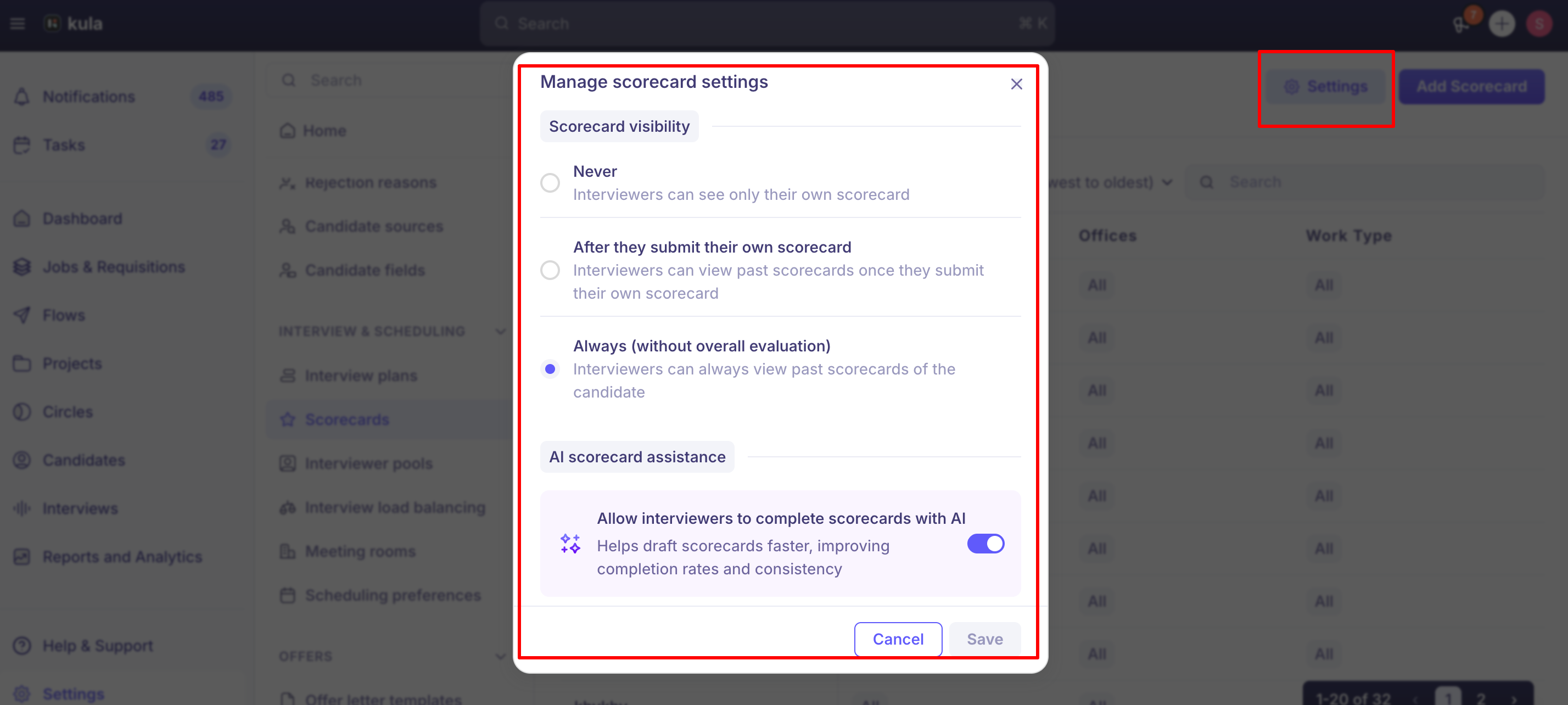
Scorecard visibility
Under Settings → Interview & Scheduling → Scorecards, you can control whether interviewers on the same panel can see each other's scorecards:
Always — interviewers can see each other's scorecards at any time.
After submission — an interviewer can see others' scorecards only after submitting their own.
Default — each interviewer sees only their own scorecard.
This is an account-wide setting. Hiring Managers on a job always have full visibility into all scorecards submitted for that role, regardless of this setting.
Requiring a minimum number of scorecards
For Review and Assessment activities with two or more reviewers assigned, you can set a completion rule instead of requiring every reviewer to submit:
All (default) — every assigned reviewer must submit.
Any one — once the first reviewer submits, the remaining scorecards are automatically closed.
At least X — set a custom minimum; once that many scorecards are in, the rest close automatically.
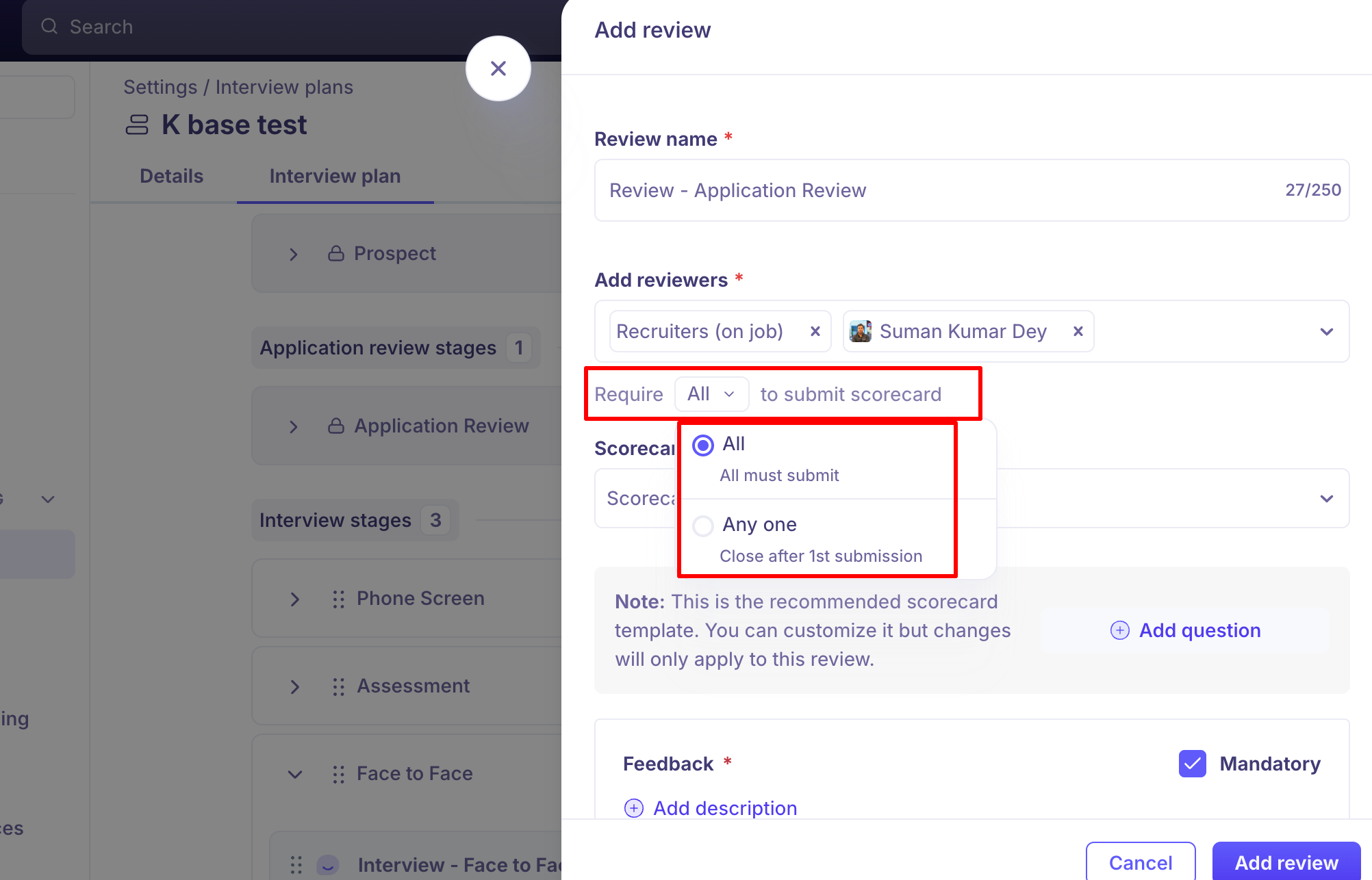
This isn't yet available for Interview activities — only Reviews and Assessments (including external third-party assessments with scorecards).
Adding a scorecard without scheduling an interview
If you need to capture an evaluation without an interview being scheduled in Kula — for example, migrating historical evaluation records from a previous ATS — use a Review Activity instead of an Interview activity. It sends a scorecard/review request directly to reviewers, independent of interview scheduling.
Editing an existing plan
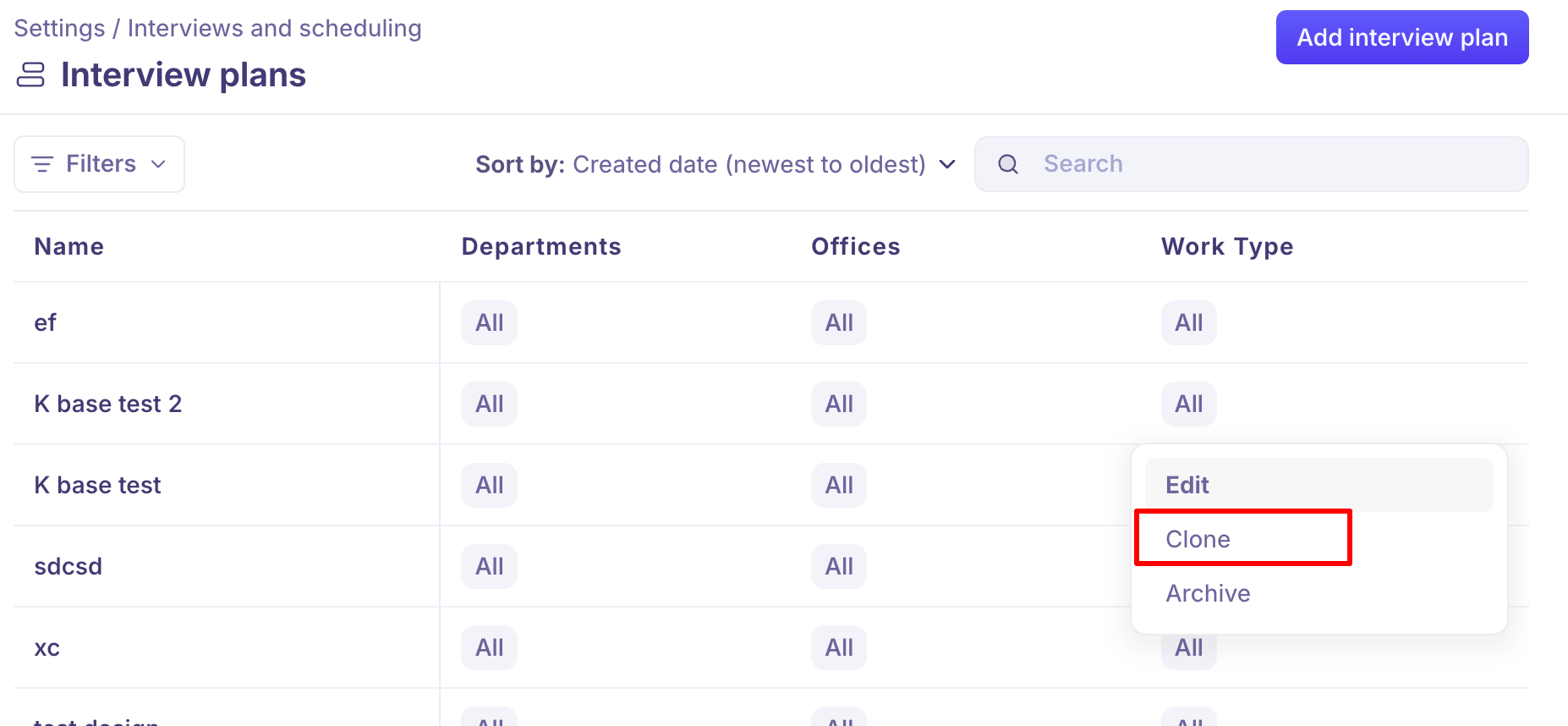
You can edit stages and activities directly within the Interview Plan settings for a job. Existing plans can also be cloned or archived, but not permanently deleted — see Good to know.
Two ways to reuse a plan
Clone a template and re-use the same by making minor changes
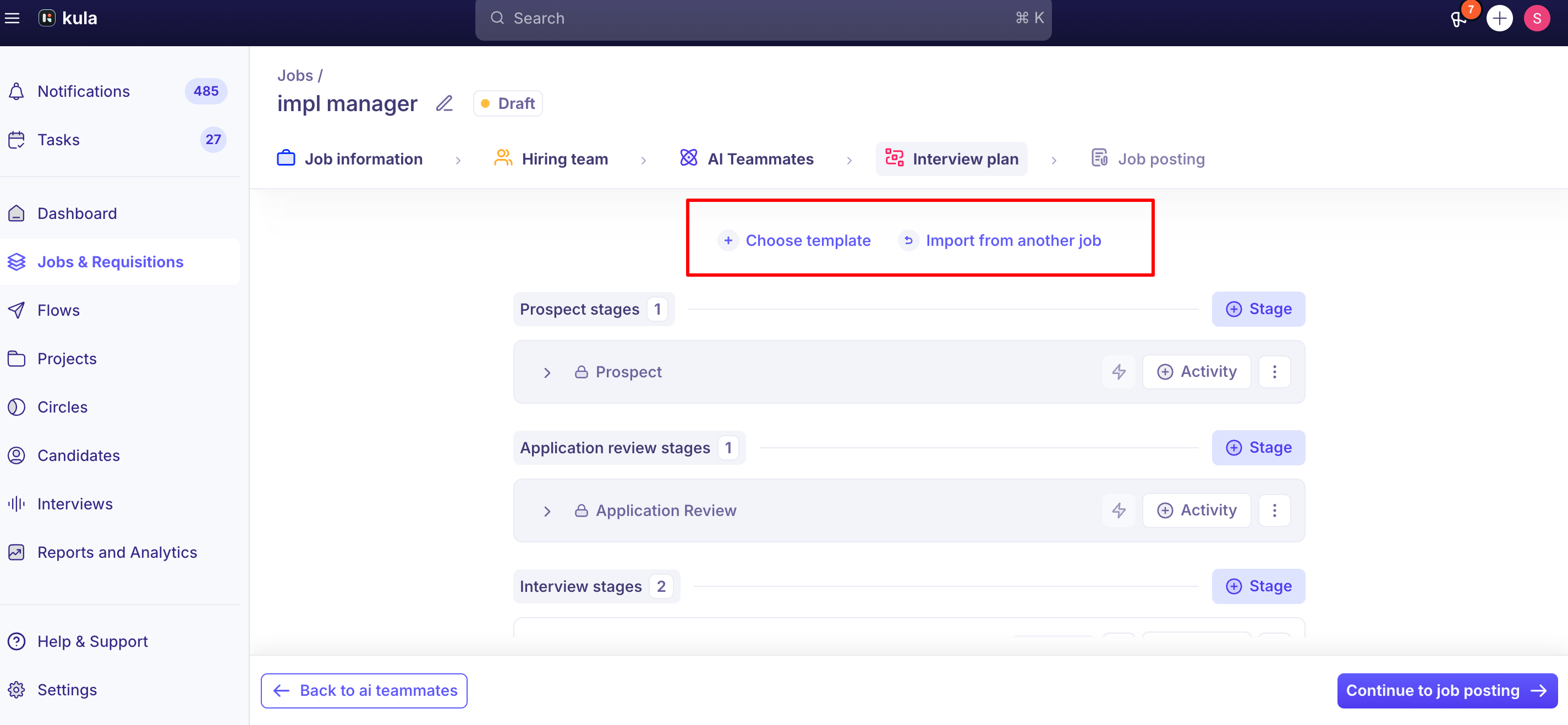
Within a job, you can choose from existing interview plans by selecting "choose template" or import an interview plan from another job too
Good to know
A stage's scheduling option only becomes available once a candidate is actually in that stage. If you've configured an activity for a stage but a candidate hasn't been moved there yet, the schedule option won't show up on their profile — this is expected, not a bug.
There's no way to permanently delete an interview plan. You can Edit, Clone, or Archive a plan, but not delete it outright.
Stages and activities can't be reordered by drag-and-drop today. If you need a different order, you'll need to work around this when building the plan out (for example, creating stages in the order you want them to appear).
There's no per-activity enable/disable toggle. If you want to temporarily stop using an activity without removing it, there isn't a built-in toggle for that yet.
Duplicate interview plan names are currently allowed without warning. Worth double-checking your plan list before creating a new one with a similar name, since Kula won't flag it for you.
There's no direct way to switch which named interview plan a job uses mid-pipeline. A job's plan is edited in place rather than swapped for a different named plan.
Round-robin assignment isn't available for Review Activity reviewers, only for interviewer scheduling via Interviewer Pools. This has been logged as a feature request.
FAQ
How do I create a new interview plan for a job? Go to Job → Settings → Interview Plan, start from a template or your account's default, then add stages and activities.
How do I add an activity to a stage? Open the stage in the Interview Plan settings and select Add Activity, then choose the activity type (Interview, Email, Assessment, Survey, or Review).
Can I save an interview activity before I have final email copy ready? Yes — use a placeholder template with just the required merge fields. It won't be sent to candidates unless self-scheduling or availability collection is actually triggered.
How do I assign interviewers to an activity? Either add specific named interviewers, or set up an Interviewer Pool and attach it to the activity for automatic round-robin assignment based on availability and workload.
Can reviewer assignment on a Review Activity be round-robin too? Not currently — round-robin only applies to interviewer scheduling. Reviewer assignment on Review Activities is manual.
How do I add a scorecard without scheduling an actual interview? Use a Review Activity — it sends a scorecard/review request to reviewers independent of interview scheduling.
Can I delete an interview plan I no longer need? No — you can Edit, Clone, or Archive a plan, but there's no permanent delete option.
Can I reorder the stages or activities in a plan? Not via drag-and-drop today — you'll need to build the plan in the order you want it to appear.
Why don't I see the Schedule Interview option for a candidate? Either the stage doesn't have an activity configured, or the candidate hasn't been moved into that stage yet — the option only appears once both are true.
Need help?
If you're having trouble setting up or editing an interview plan, contact Kula support.