Configuring Custom fields
Last updated: July 30, 2026
Custom fields let you capture information about jobs, candidates, offers, and requisitions that Kula doesn't track by default. You control the field name, the type of data it collects, and whether it's required.
Use custom fields to track details specific to your organisation, such as internal requisition codes, region-specific candidate information, or extra offer terms. Once you add a field, Kula generates a token for it, so you can pull its value into offer letter templates and other documents.
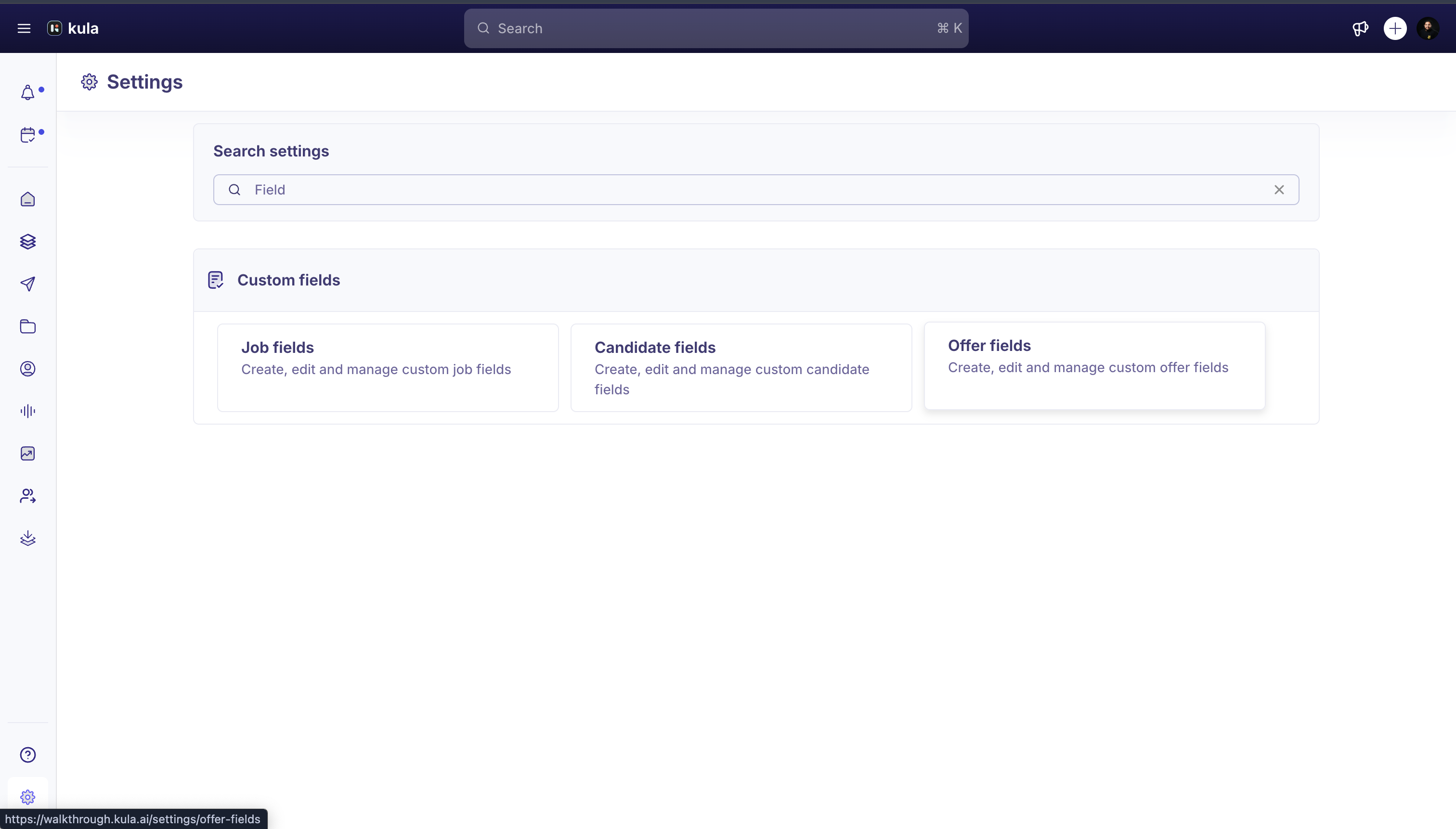
Path: Settings > Custom fields > Job/Candidate/Offer/Requisition
Where custom fields live
Kula manages custom fields separately for each record type. Each type has its own settings page, but every page uses the same Add custom field modal.
Job Fields, at /settings/job-fields
Candidate Fields, at /settings/candidate-fields
Offer Fields, at /settings/offer-fields
Requisition Fields, at /settings/requisition-fields
Configuring a custom field
Step 1: Open the fields page for your record type
To configure a custom field:
Go to Settings.
Select Job Fields, Candidate Fields, Offer Fields, or Requisition Fields, depending on which record type you want to add a field to.
Step 2: Add the field
Click Add custom field to open the field modal.
Note: This button is labeled Add field on Requisition Fields and Add custom offer field on Offer Fields.
Fill in the following:
Enter a Field name (up to 255 characters).
Select a Field type. The following types are available:
Short Text
Long Text
Yes/No
Single Select
Multi Select
Number
Date
URL
Rich Text
Note: You can't change a field's type after you create the field, so confirm the type before you save.
Add a Description to explain the field to anyone filling it in.
Review the Token. Kula generates this automatically from the field name and namespaces it to the record type, for example {{job_cf.token_name}} for a job field or {{candidate_cf.token_name}} for a candidate field. Tokens can't exceed 100 characters.
Add a Placeholder to show example text inside the field.
Turn on Required field if the field must be completed before the record can be saved.
Save the field to add it to your list.
Using custom field tokens
Every custom field gets a namespaced token that separates it from Kula's default fields. Job custom fields use the {{job_cf.XXX}} prefix, while built-in job fields, like Department and Office, use {{job.XXX}}. Candidate custom fields follow the same pattern with {{candidate_cf.XXX}}, separate from default candidate tokens like {{contact.XXX}}.
Insert these tokens into offer letter templates or other documents that pull data from Kula, and the token resolves to the value entered on the record.
Need help?
If you have questions or need assistance, reach out to us at support@kula.ai or use the in-app chat.