Using filters across the platform
Last updated: September 23, 2026
Filters let you narrow any list in Kula — Jobs, Candidates, Contacts, and Reports — down to exactly the records you need, without scrolling through everything. This article covers how filters work in general and where to find them; for the full set of filters on a specific page, see that page's own article.
Who can do this: Super Admin, Admin, Recruiter, Hiring Manager, Organisation Member — anyone with access to a given list can filter it. What you see depends on what you already have access to.
Where to find it: the filter bar at the top of Jobs, Candidates (inside a job), Contacts, and Reports.
How filters work
Open the filter bar at the top of the list.
Click a filter field and choose one or more values.
Click Apply.
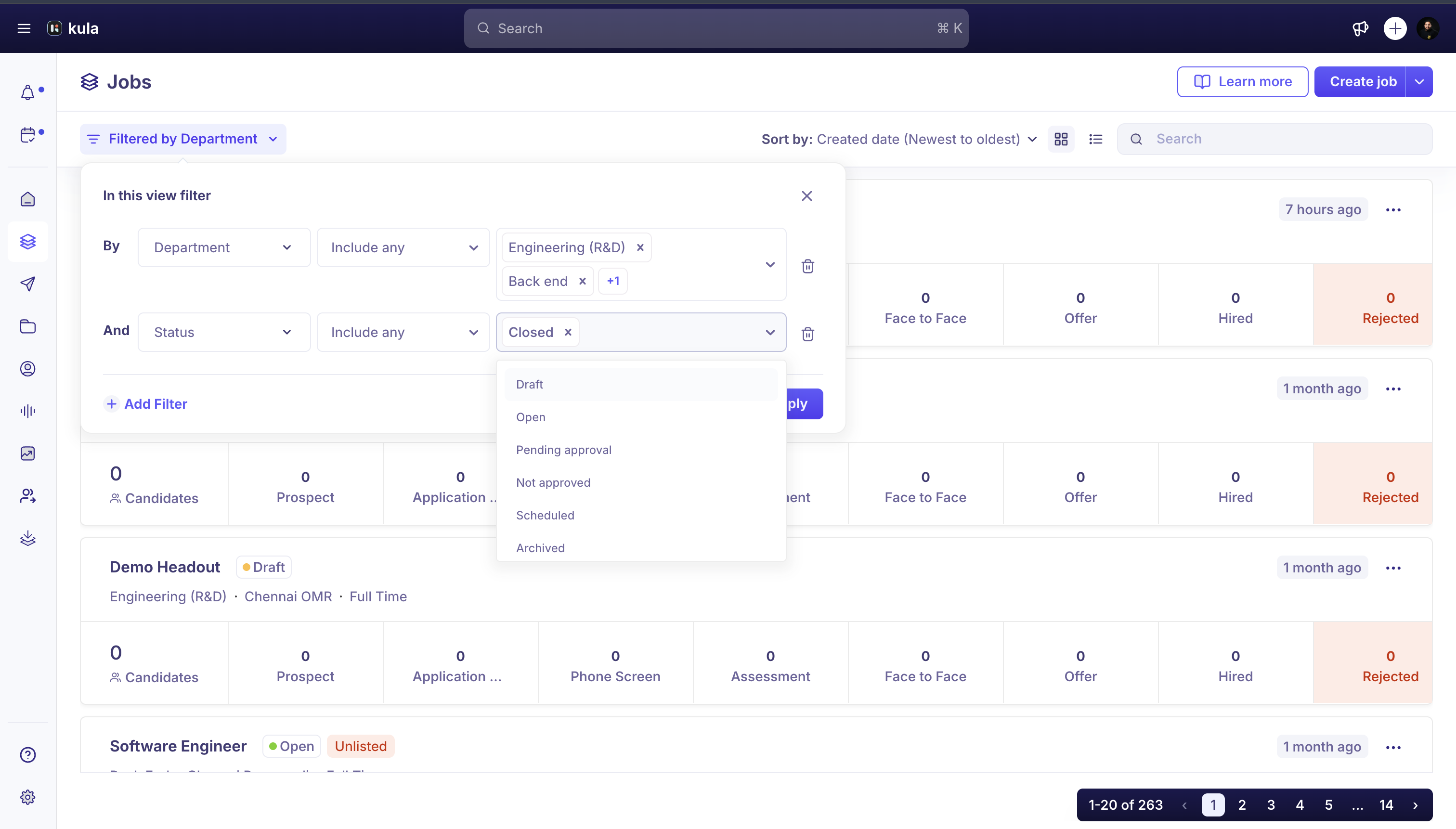
Adding a second filter narrows the list further — filters stack rather than replace each other. To go back to the full list, remove each active filter, or click Clear all in the filter panel.
Where filters show up
Jobs list: Status, User, Department, Office, Primary recruiter, Primary hiring manager, EEOC data collection, Job posting visibility (Listed/Unlisted), Work type, Workplace (Remote/Office/Hybrid), Job post (Internal/External), Confidential, and your job custom fields. See Jobs list view explained.
Candidates (inside a job): Stage, source, credited to, years of experience, and the job's own knockout questions and application form answers
Contacts: Skills, location, title, current company, past company, industry, institution, and job name
Reports (Default & Custom): Source, credited to, interview type, interview duration, rejection reason, rejection type, rejection stage, flow, requisition type, requisition status, and work type
Job picker in candidate workflows (Add to Job, Bulk Add to Job): Job status, department, location, and "open jobs only" — helps you tell similarly-named jobs apart
Skills and location filters on Contacts currently support the Is and Is not operators.
Filtering in reports
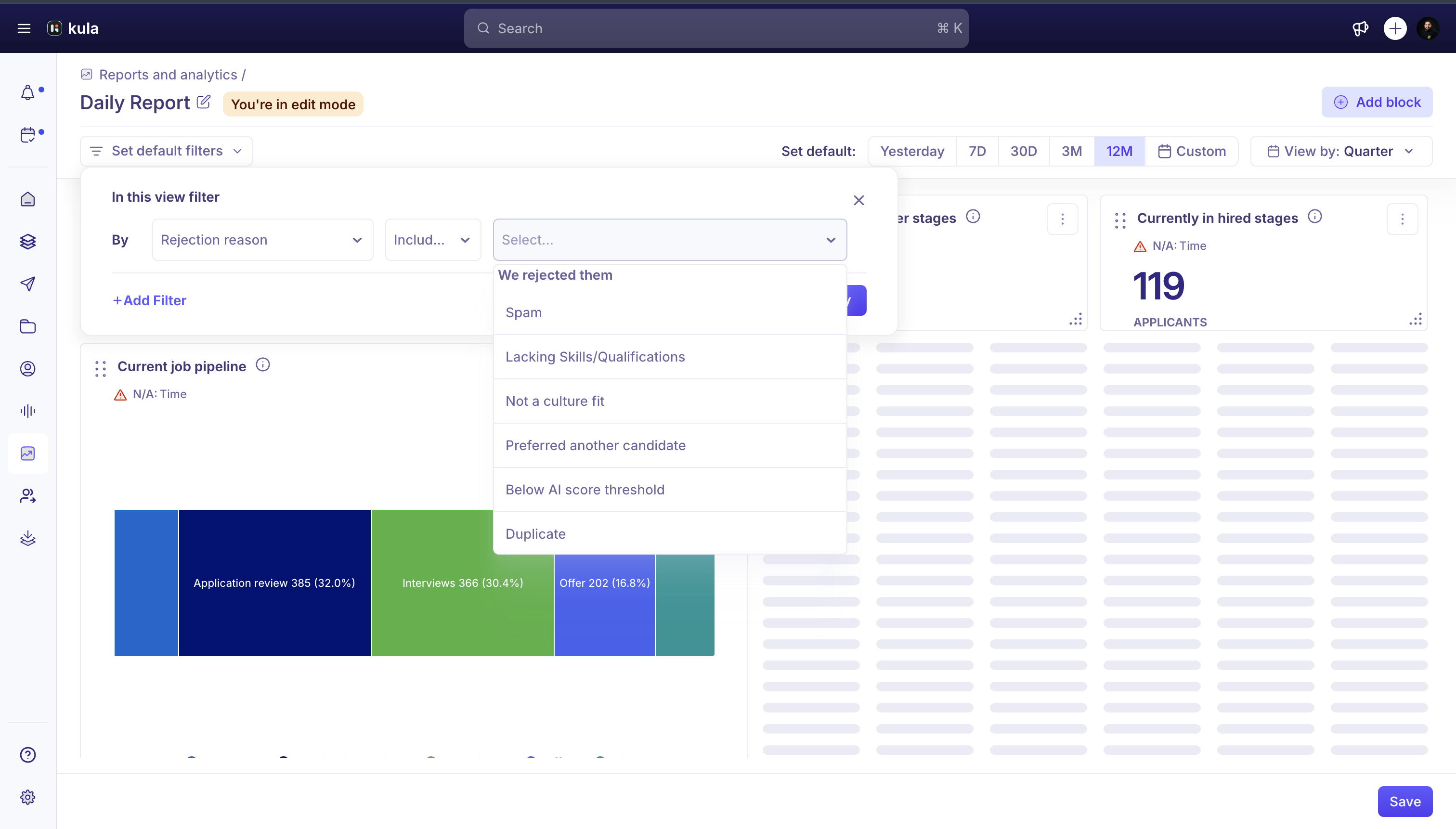
Default Reports only show the filters that apply to that specific report. Custom Reports let you combine more filters across a wider set of fields, since you're building the report yourself.
Not every filter applies to every block in a Custom Report — a rejection-reason filter, for example, has nothing to say about a report block that only counts open jobs. When that happens, Kula shows N/A on that block instead of silently dropping the filter or applying it incorrectly.
Good to know
Some filters are saved for you. Filters you apply on the Jobs list and on a job's Candidates list stay applied the next time you open that page, on any browser, because they're saved to your Kula account.
Once a candidate is rejected, they only appear under the Rejected stage — never under All Stages — no matter how they were rejected (AI auto-rejection, manual rejection, or any other method). Filter by Rejected directly if you're looking for them.
In Custom Reports, a filter that doesn't apply to a given visualisation shows N/A rather than being applied incorrectly or ignored without explanation.
FAQ
We rejected a bunch of applicants for fraud — shouldn't they show up when I filter on All Stages?
No. Once a candidate is rejected, they move out of the general stage list and only appear under the Rejected status, regardless of why they were rejected. Filter by Rejected (or the specific rejection reason in Reports) to see them.
Need help?
If you have questions or need assistance, reach out to us at support@kula.ai or use the in-app chat.