Creating and applying tags
Last updated: July 30, 2026
Tags let you label contacts and candidates with your own keywords — for quick triage, categorising by skill or status, or flagging who to follow up with. This article covers how to create a tag and where to apply one.
Who can do this: Super Admin, Admin, Recruiter, Hiring Manager — anyone with edit access to Contacts or a job's Candidates view.
Where to find it: Contacts (tag a contact), or Jobs → a job → Candidates → a candidate's application (tag an application).
Kula has two separate places you tag someone, and they behave differently — see Good to know below before you rely on either.
Tag a contact
Go to Contacts.
Open the contact, or select multiple contacts to tag them all in one action.
Click Add tags.
Select an existing tag, or type a new name and press Enter to create it.
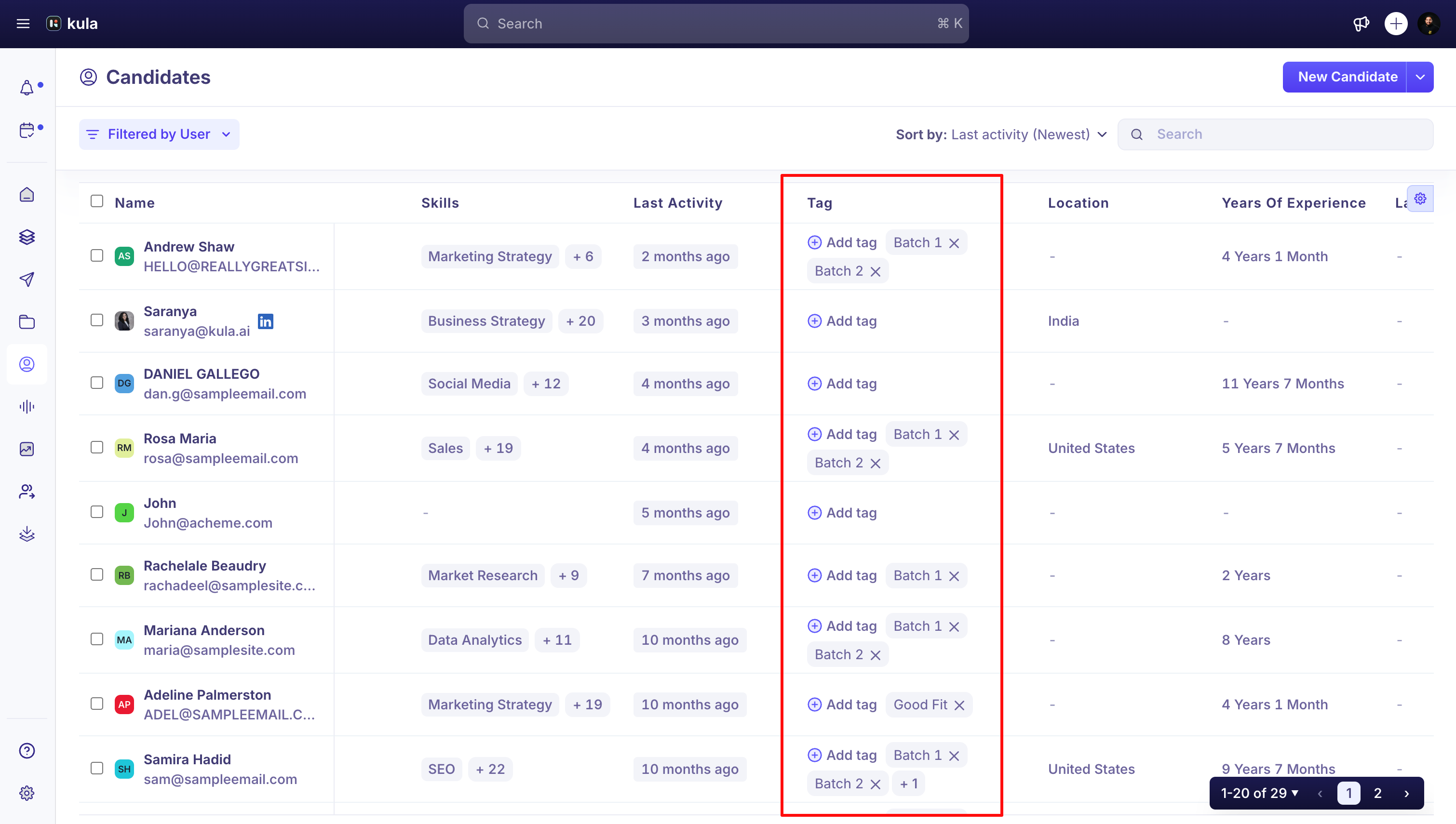
A tag added here stays on the contact's record — it shows up no matter which job you view them from.
Tag a candidate's application
Open the job, go to Candidates, and open the candidate's application.
In the right-hand panel, find Tags.
Click Add tags, then select an existing tag or type a new name and press Enter to create one.
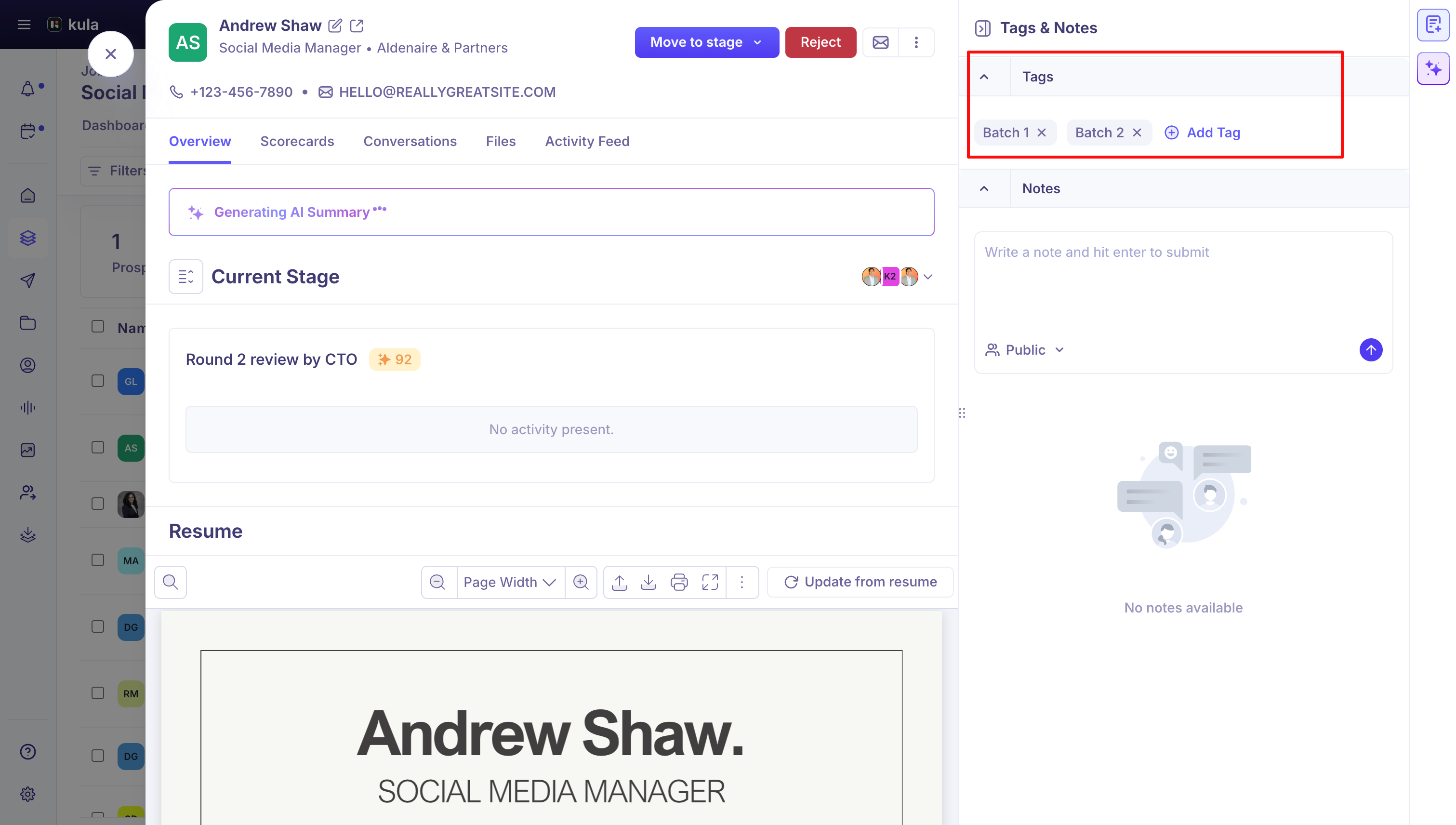
A tag added here applies to this application only — it won't show up on the same person's applications to other jobs.
Good to know
Tags added on a candidate's application are scoped to that specific application, not the candidate overall — tagging someone on one job's application doesn't affect their tags on another job they've applied to.
There's no dedicated tags-management page yet. Tags are created inline, the first time you type a new name into an Add tags field — there's no single list where you can review, rename, merge, or retire every tag your organisation has created.
Bulk tagging (select several people, apply a tag to all of them at once) is available on Contacts.
FAQ
Where can I find and edit the list of all my existing tags?
There isn't a centralized tags list yet — tags live wherever you apply them (Contacts or a candidate's application), and there's currently no single page to review, rename, merge, or delete every tag across your account. This is on the roadmap. For more, see Tag a contact and Tag a candidate's application above.
When a candidate applies to more than one job, do their tags carry over to every application? No. A tag you add on a candidate's application applies to that application only — it doesn't appear on their applications to other jobs. For more, see Tag a candidate's application.
Need help?
If you have questions or need assistance, reach out to us at support@kula.ai or use the in-app chat.