Creating scorecard templates
Last updated: October 28, 2026
A scorecard template is the feedback form your interviewers fill in after an interview. You build it once, scope it to the departments, offices and work types it applies to, and Kula offers it when someone sets up an interview plan.
Who can do this: Super Admin, Admin — and anyone on a custom role with the Manage scorecards permission
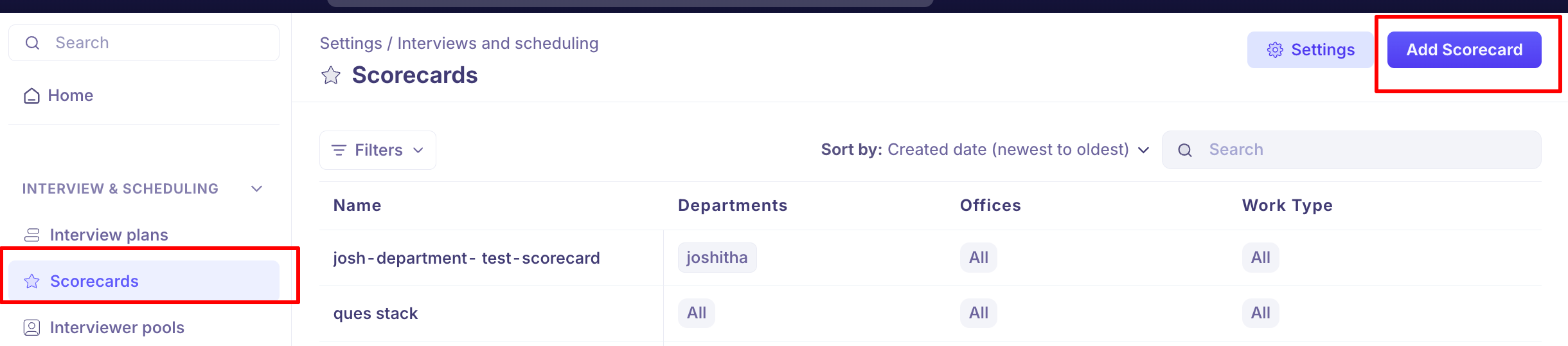
Where to find it: Settings → Interview & Scheduling → Scorecards
What a template is made of
Every template has three parts, and only the first is up to you to design:
Questions — what each interviewer is asked to assess. You choose the types and the order.
Feedback — a free-text box for written comments. You decide whether it's mandatory.
Overall evaluation — a fixed four-point recommendation: Strong yes, Yes, No, Strong no. This is always present and can't be changed or removed.
Because the overall evaluation is standard across every template, ratings stay comparable between interviews and jobs.
Create a template
Go to Settings → Interview & Scheduling → Scorecards.
Click Add scorecard.
Enter a Name. Interviewers don't see this — it's how your team finds the template when building an interview plan, so name it after the interview it belongs to ("Engineering — system design", not "Template 3").
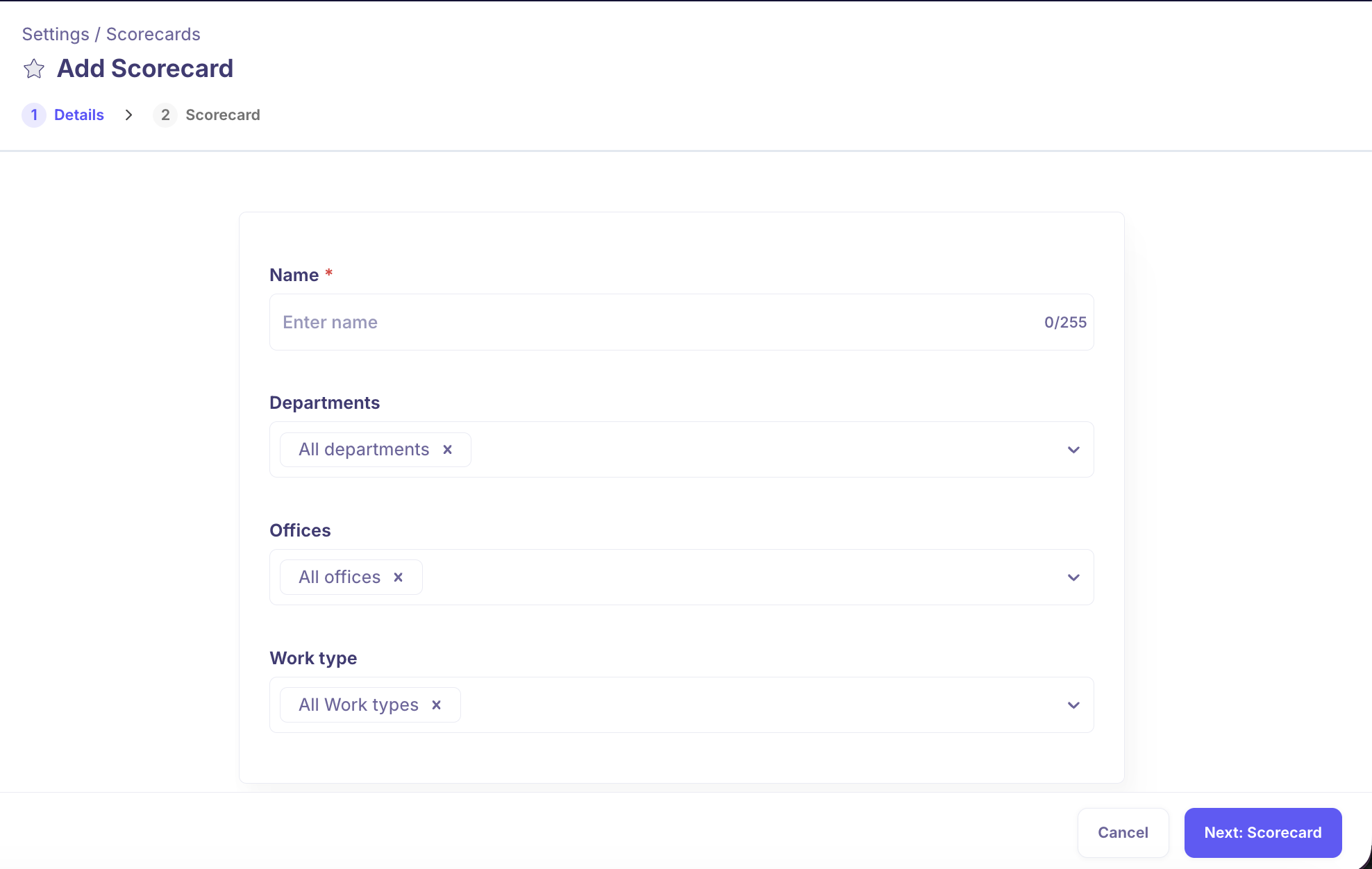
Set the scope with Departments, Offices and Work type. Leave them on the "All" option to make the template available everywhere.
Click Next: Scorecard, then add your questions (below)
Decide whether Feedback is mandatory.
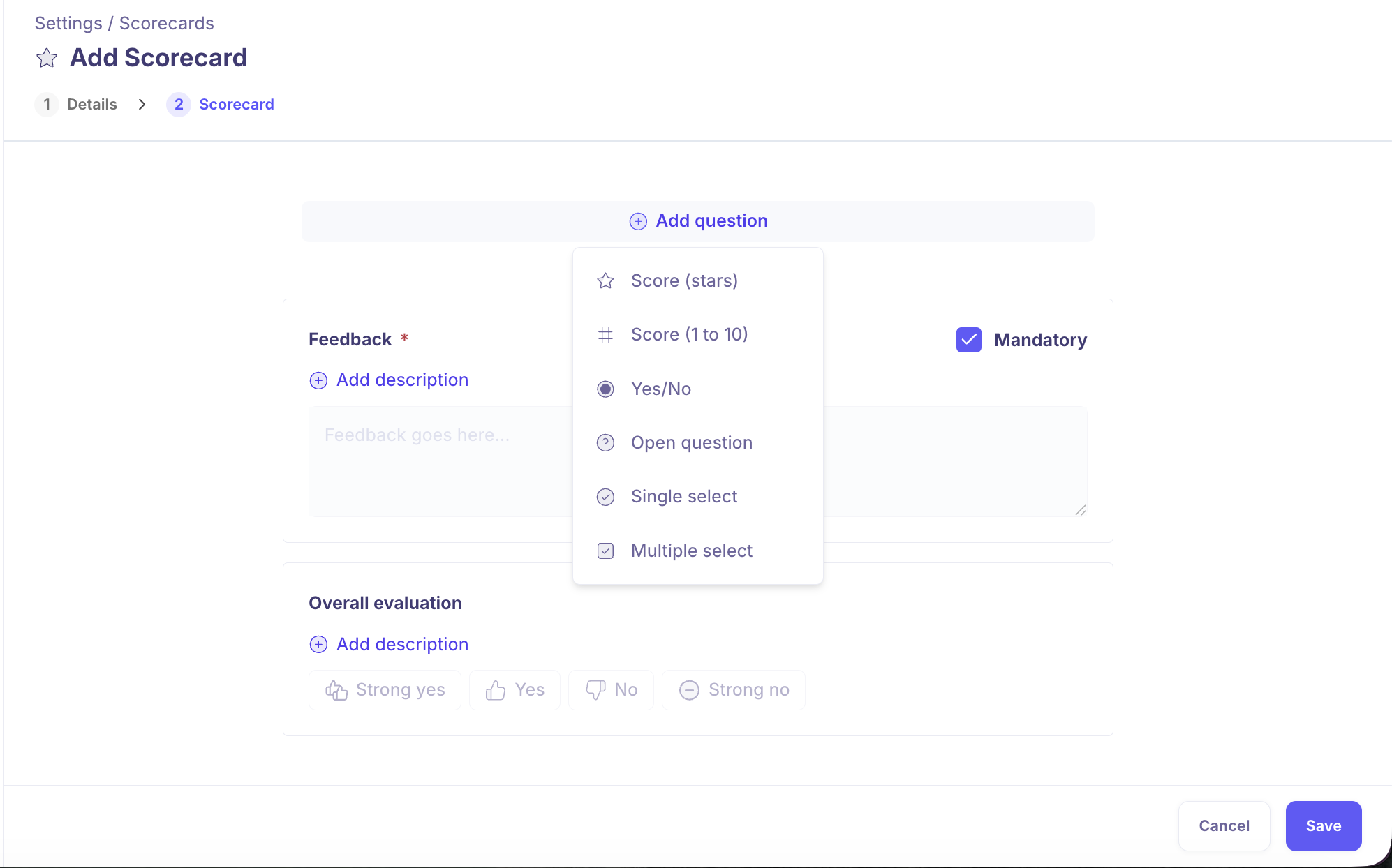
Save.
Scoping a template
The three scope fields control where a template can be used, not who can see the results.
Selecting All departments (or all offices, or all work types) makes it broadly available. Picking specific values narrows it.
The "All" option and specific values are mutually exclusive — choosing All clears your specific selections, and choosing a specific value clears All.
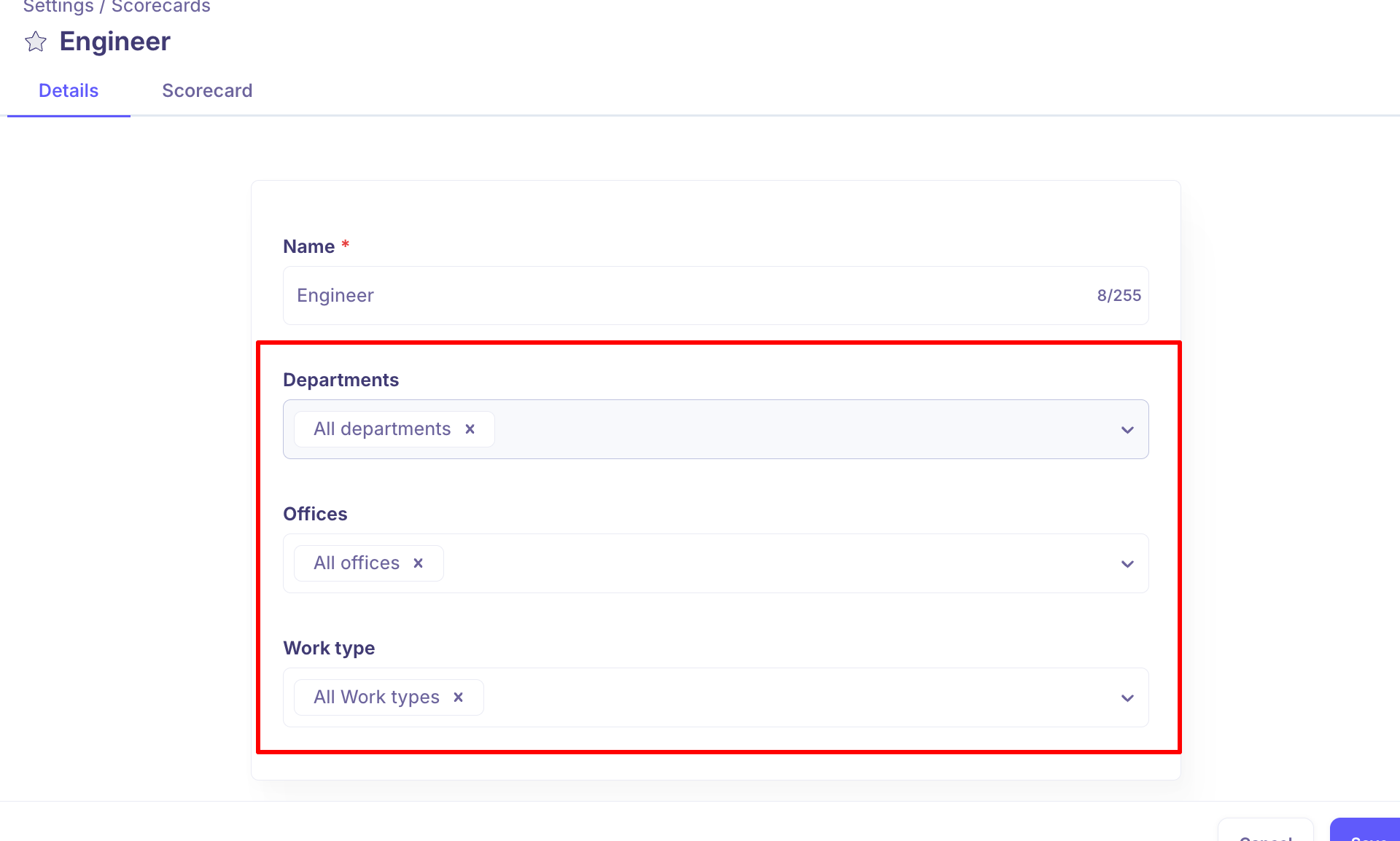
Scope generously to begin with. A template that's too narrowly scoped won't appear when someone builds an interview plan, and that's a confusing thing to debug.
Add questions
Each question has a type. Pick the one that matches how you want the answer to come back.
Question type | What the interviewer sees | Use it for |
|---|---|---|
Score (stars) | A star rating against a named thing you're measuring | Rating a skill or competency at a glance |
Score (1 to 10) | A 1–10 scale | Finer-grained scoring than stars |
Yes/No | A yes or no answer | A clear pass/fail check |
Open question | A free-text box | Anything needing explanation |
Single select | A list where one option can be chosen | Picking a level or band |
Multiple select | A list where several options can be chosen | Ticking off which skills were demonstrated |
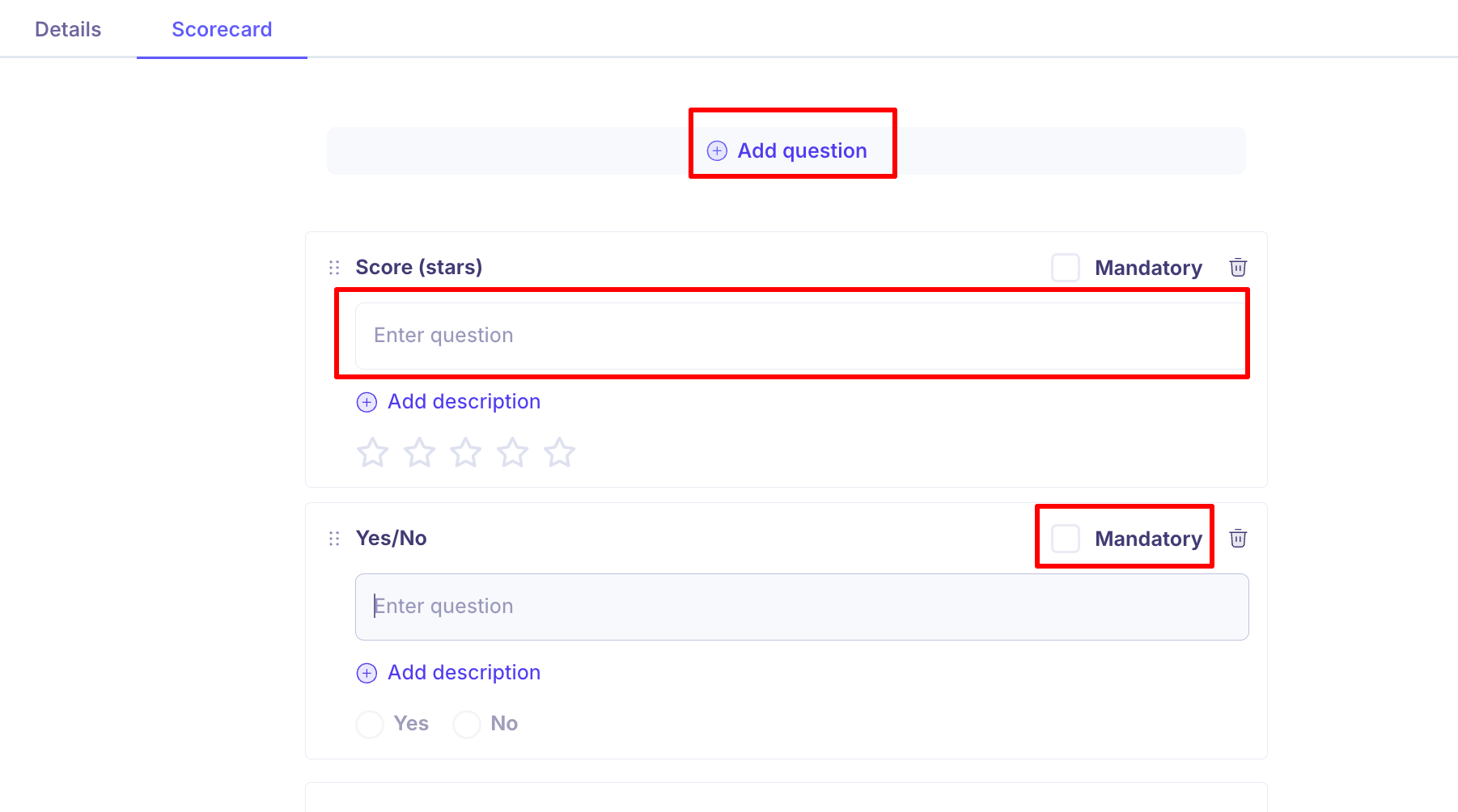
For each question you write the prompt — for the scored types this is "what are you measuring?", for the others it's the question itself. You can add a description to explain what a good answer looks like. The description is guidance for the interviewer and is not treated as the question, so the question itself always goes in the prompt. Mark a question mandatory so it must be answered before the scorecard can be submitted.
Drag the handle on a question to reorder it. The order here is the order interviewers see.
Manage existing templates
The Scorecards page lists your templates with their name, departments, offices and work type, so you can see at a glance where each one applies. Use the search and filters to find one, and click a template to edit it.
Editing a template changes it for future interviews. Scorecards already submitted keep the questions they were filled in against.
Good to know
The overall evaluation is fixed. Strong yes / Yes / No / Strong no appears on every scorecard and can't be edited, removed or renamed.
Template names are limited to 255 characters.
Marking Feedback mandatory means the interviewer can't submit without writing something. Individual questions can be made mandatory separately.
Scope is about availability, not visibility. Who can read a submitted scorecard is controlled separately — see Scorecard visibility and permissions
Recruiters can't create or edit templates. This needs the Manage scorecards permission, which sits on Super Admin and Admin.
FAQ
Where does a template actually get used? When someone builds an interview plan on a job, they pick which scorecard each interview uses. The template has to be in scope for that job's department, office and work type to appear in the list.
Can I change the Strong yes / Yes / No / Strong no options? No. The overall evaluation is the same on every scorecard so that ratings can be compared across interviews and jobs. Use your own questions for anything you want to measure differently.
Do my changes affect scorecards people have already filled in? No. Submitted scorecards keep the questions as they were at the time. Edits apply to future interviews.
Where do I type my question, in "Open question" or "Description"? Type the question in the Open question field. The Description is for supporting guidance for the interviewer, such as what to probe for, extra context or what a strong answer looks like. It isn't shown as the scorecard question. If your questions are grouped by theme, put the short question in Open question and the theme details in Description.
I've already scheduled interviews. Can I update the scorecard for them? Editing a template changes future interviews. Interviews already scheduled keep the scorecard they were given when they were scheduled. To change the scorecard on a scheduled interview, open the interview, click More, then Edit interview, and open the Scorecard tab. Scorecards that haven't been submitted yet pick up the new version.
Can I save a scorecard from an interview plan as a template? There's no Save as template option in the interview plan. To reuse a scorecard, create it as a template under Settings → Interview & Scheduling → Scorecards, then pick it in the plan.
Need help?
If you have questions or need assistance, reach out to us at support@kula.ai or use the in-app chat.