Overview & Navigating the Reports Page
Last updated: March 25, 2026
Reports & Analytics is your central hub for understanding how your hiring is performing — from live pipeline snapshots to long-term funnel trends. Whether you're a recruiter reviewing your own metrics, a hiring manager tracking open roles, or a TA leader looking at org-wide data, everything starts here.
To access it, go to the left sidebar in Kula and click Reports and Analytics.
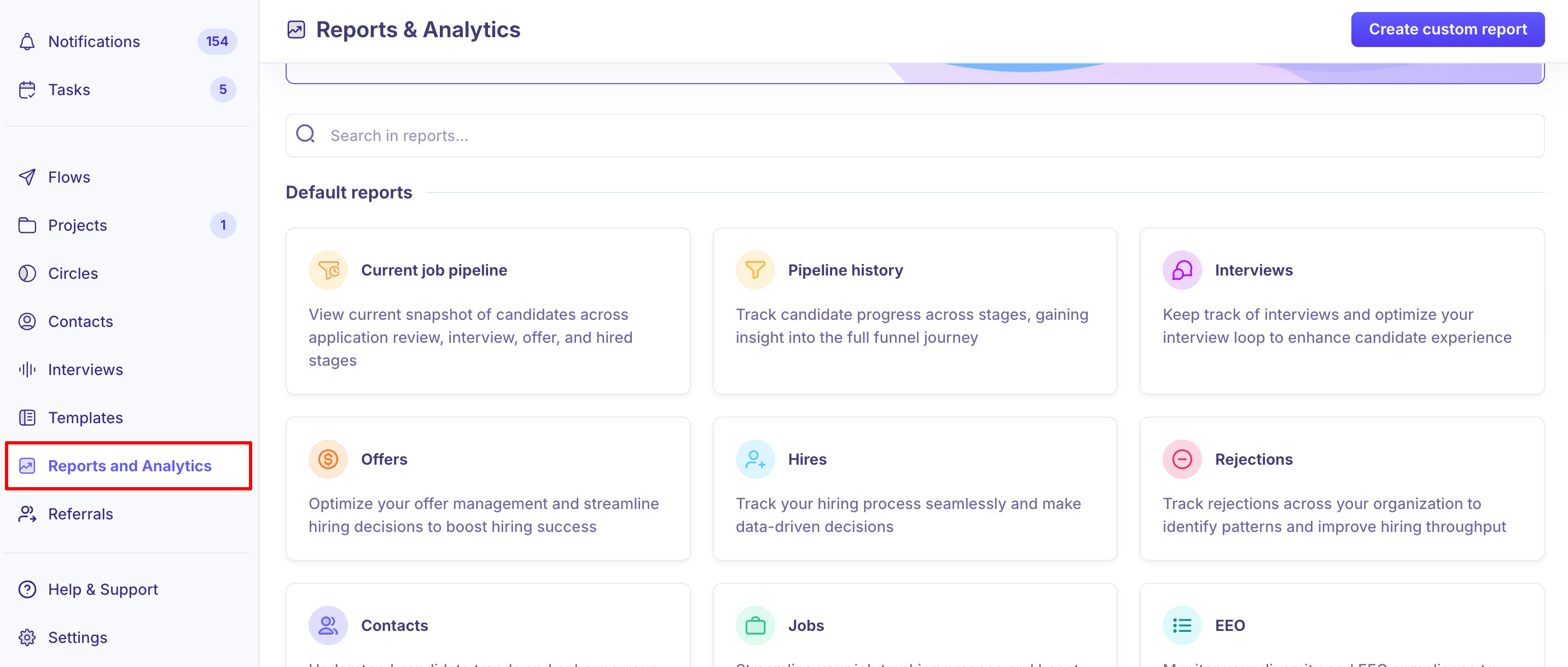
What you will find on the Reports page
The Reports & Analytics page is organized into three main areas:
Conversational analytics banner (Beta): At the top of the page, you'll see the Conversational analytics banner. Click Start conversation to ask Kula's AI questions about your hiring data in plain language — no report-building required. This is a Beta feature.
Search bar: Use the "Search in reports..." bar to quickly find any default or custom report by name. This is especially useful once you have multiple custom reports saved.
Default reports: A grid of pre-built reports covering the most common hiring metrics — pipeline, interviews, offers, hires, rejections, and more. These are available to all users and require no setup. Click any card to open the report.
Custom reports: Scroll below the default reports to find reports your team has created and saved. Custom reports can be shared with everyone, specific users, or kept private to you.
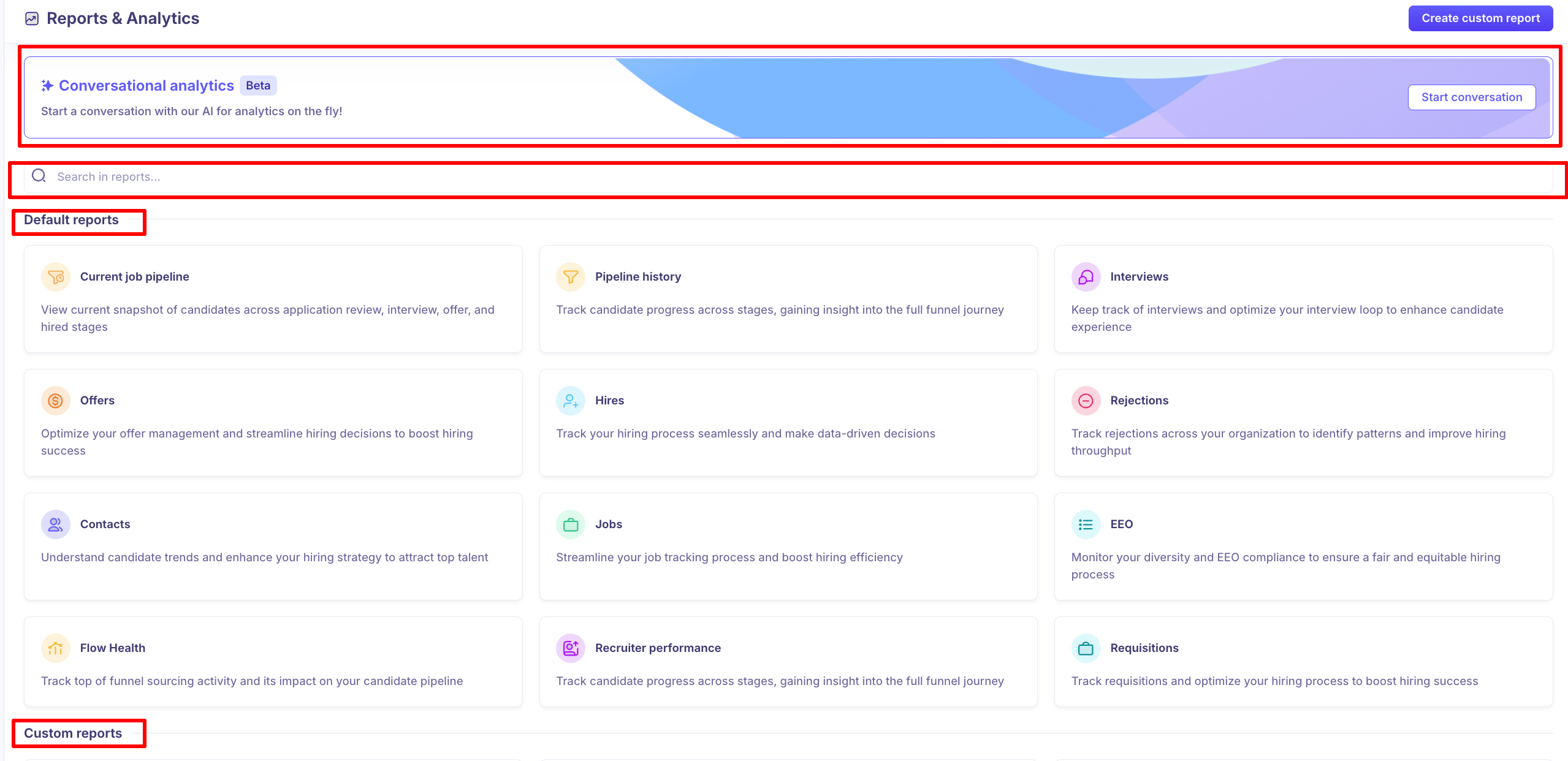
Key actions on the Reports page
Create custom report: Click the Create custom report button in the top-right corner to start building a report from scratch. You'll be prompted to give it a name and an optional description before being taken to the report editor.
Open a report: Click any report card — default or custom — to open it. Default reports open in view mode. Custom reports open in view mode if shared with you, or in edit mode if you own them.
Sharing and visibility
Custom reports have three visibility settings, accessible from the Shared with dropdown inside any custom report:
Only me: Visible only to you. This is the default when you first create a report.
Everyone: View-only access for all users in your Kula workspace.
Selected users: Grant view-only or edit access to specific team members.
Default reports are visible to all users and cannot be modified.
Need Help?
If you have questions or need assistance with setup, feel free to reach out to us at support@kula.ai or use the in-app chat for assistance.