Candidate pipeline view (all jobs)
Last updated: August 24, 2026
Kula gives you two different ways to see candidates beyond a single job's Pipeline tab: a stage-by-stage report that rolls up pipeline counts across multiple or all jobs, and a separate account-wide candidate directory.
This article covers both, and when to use which.
Who can do this: Viewing the Current Job Pipeline and Pipeline History reports is available to Admin and Super Admin only. Access to the Contacts page is governed by a separate permission and isn't tied to which jobs you're on the hiring team for — see Good to know below for an important caveat on this.
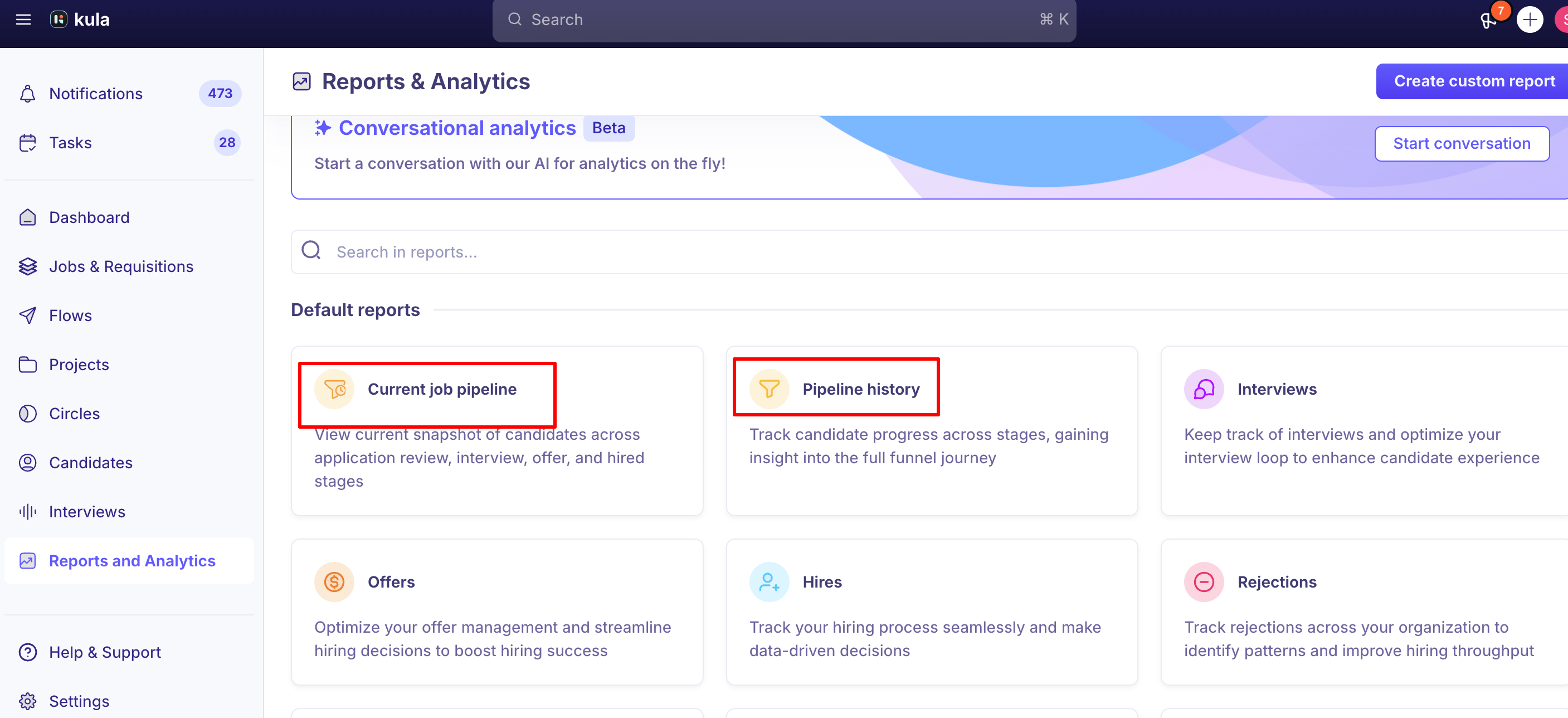
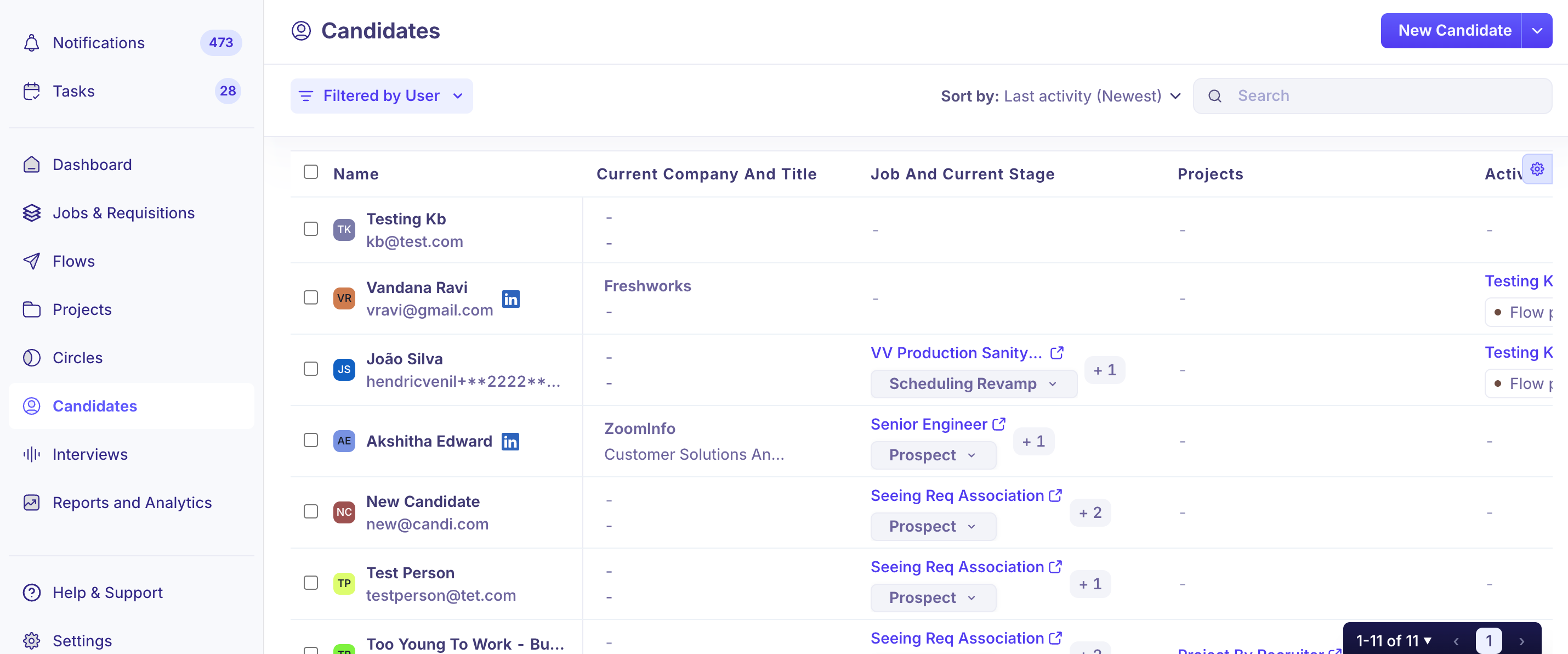
Where to find it: Reports & Analytics › Current Job Pipeline (and Pipeline History) for the stage-based, cross-job view. The Contacts item in the main navigation for the full candidate directory.
The Current Job Pipeline and Pipeline History reports
These are the closest thing to a true "all jobs" pipeline view in Kula. Both live under Reports & Analytics and show candidate counts broken down by stage, aggregated across whichever jobs you select (including all of them at once):
Current Job Pipeline shows a live snapshot — how many candidates are in each stage right now, across the selected jobs, as a chart or table.
Pipeline History shows a cumulative view — how many candidates have passed through each stage over a given period, useful for historical trend and funnel analysis.
Both can be filtered down to specific jobs or left open to show every job at once, and both can be added as blocks inside a custom report.
Stage names: actual vs. generic
If every job you're viewing uses the exact same set of stages, both reports now show the real stage names directly (for example, "Phone Screen," "Onsite," "Offer").
If the jobs you're viewing use different stages from one another, the reports fall back to generic milestone labels (like "Screening" or "Interview") so the data stays comparable across jobs with different processes.
The Prospect stage is included in the Current Job Pipeline chart and table the same way — shown by its real name when it's consistent across jobs, or grouped under "Prospect" when it isn't.
The Contacts page
Contacts is a separate, account-wide list of every candidate in your account — not organized by pipeline stage, and not scoped to a specific job.
It's the place to search for a candidate by name, email, or other details when you're not sure which job (if any) they're currently attached to, or when you want to see someone's full history across every job they've applied to or been added to.
Because Contacts isn't stage-based, it won't show you a pipeline-style breakdown — for that, use the Current Job Pipeline or Pipeline History report instead. Think of Contacts as "find any candidate," and the pipeline reports as "see where candidates stand across jobs."
Good to know
Contacts visibility is not scoped to job permissions, and this can't currently be restricted. Even when a Hiring Manager's job access is correctly limited to the jobs they're assigned to, they can still search for and view any candidate's profile and resume account-wide through the Contacts page. Kula support confirmed this directly to a customer on the same day this article was drafted, and it's now logged as an open feature request to restrict Contacts visibility to a user's assigned jobs. If a customer asks whether they can lock this down today, the honest answer is no.
Department filtering isn't available yet on these reports. Adding "Top-level department" as a filter and breakdown option for Current Job Pipeline, Pipeline History, and several other reports is a requested, on-hold enhancement — not something you can do today.
Report access is Admin and Super Admin only. Recruiters and Hiring Managers don't have access to Reports & Analytics by default, including the Current Job Pipeline and Pipeline History reports.
Pipeline counts and other reporting surfaces can occasionally disagree, and a mismatch between an "Application Review" stage count and other reports has been under active investigation as of this writing — if a customer reports numbers that don't add up between reports, that's a known area to double-check rather than assume user error.
If a candidate doesn't appear in a job's Pipeline tab, check Contacts. A candidate can exist in your account as a Contact without currently being attached to the job you're looking at — searching Contacts directly is the fastest way to confirm whether they exist in the system at all.
FAQ
Where can I see all my candidates across every job in one place? For a stage-by-stage breakdown across jobs, use the Current Job Pipeline or Pipeline History report under Reports & Analytics (Admin/Super Admin only). For a plain, searchable list of every candidate regardless of stage, use the Contacts page.
Why does the pipeline report show generic labels like "Screening" instead of my actual stage names? The reports only show your real stage names when every job you're viewing uses the identical set of stages. If the jobs have different stage setups, Kula shows a generic milestone label instead so the data stays comparable.
I can't find a candidate in a job's Pipeline tab — where else should I look? Check the Contacts page. They may exist in your account without currently being attached to that specific job.
Can I restrict a Hiring Manager so they can only see candidates for the jobs they're on? Job-level visibility can be restricted to a Hiring Manager's assigned jobs. However, the separate Contacts page is not scoped to job permissions, so a Hiring Manager can still find any candidate's profile and resume there — this can't currently be restricted, though it's an open feature request.
Can I filter the pipeline reports by department? Not yet — this has been requested but isn't built.
Need help?
If you have questions or need assistance, reach out to us at support@kula.ai or use the in-app chat.