Internal Job Board for Employees
Last updated: April 16, 2026
Kula's internal job board lets you share open roles directly with your employees — for them to apply to, refer candidates for, or both. This is separate from your public career page and is only visible to people inside your organization.
When setting up a job post, you control exactly what employees can do with each role: apply, refer, or both.
How to Enable the Internal Job Board for a Job
Open the job from the Jobs list.
Go to Settings: Job post tab.
Set Job post visibility to Listed.
Under Where do you want to list this job post?, check Internal job board.
Choose how employees can interact with the role:
Setting | What employees see |
Allow employees to apply | An Apply button on the internal board |
Allow employees to refer | A Share and Refer button on the internal board |
Allow both | Apply, Share, and Refer buttons on the internal board |
Click Save.
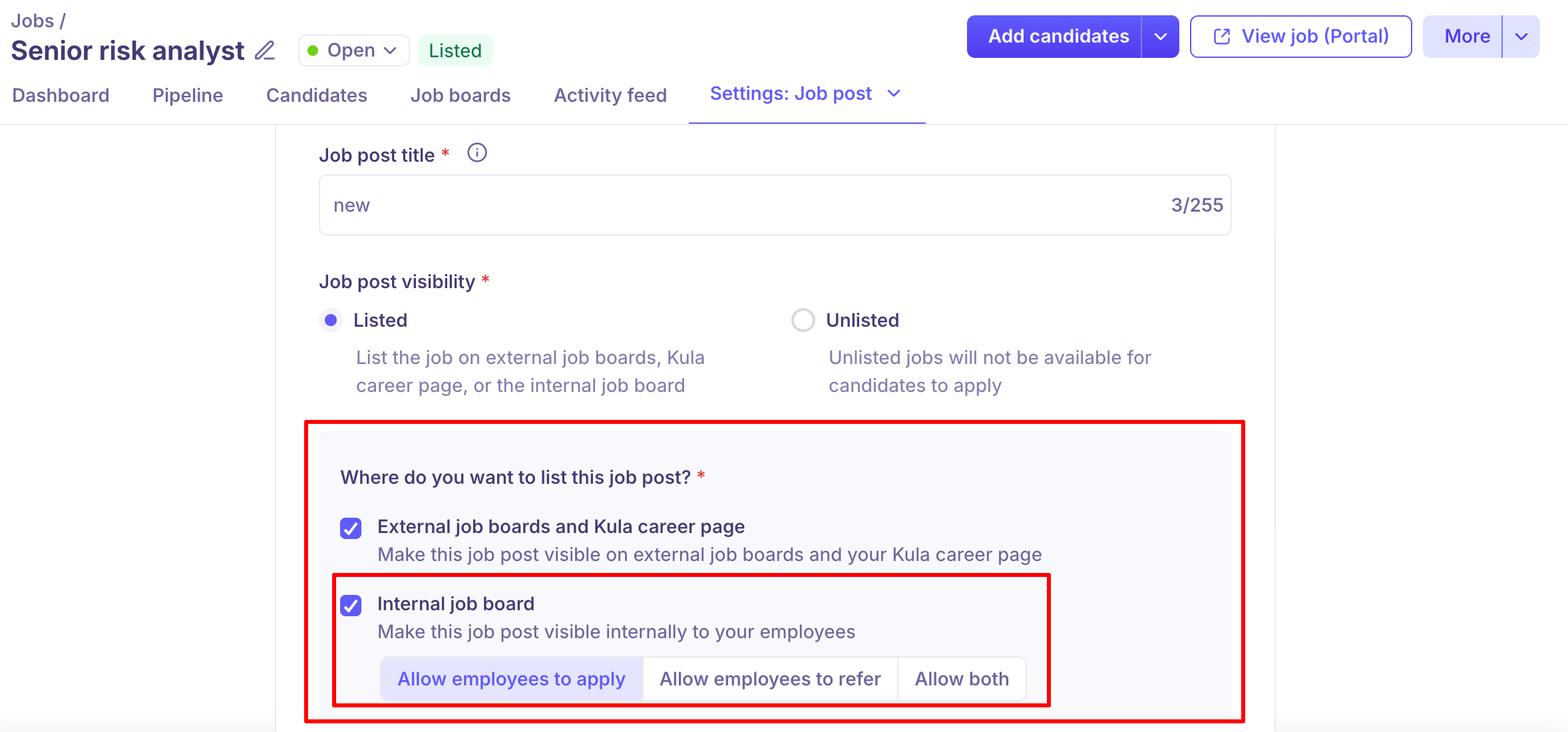
You can enable both External job boards and Kula career page and Internal job board at the same time — a role can be publicly listed externally while also showing on the internal board.
What Employees See on the Internal Job Board
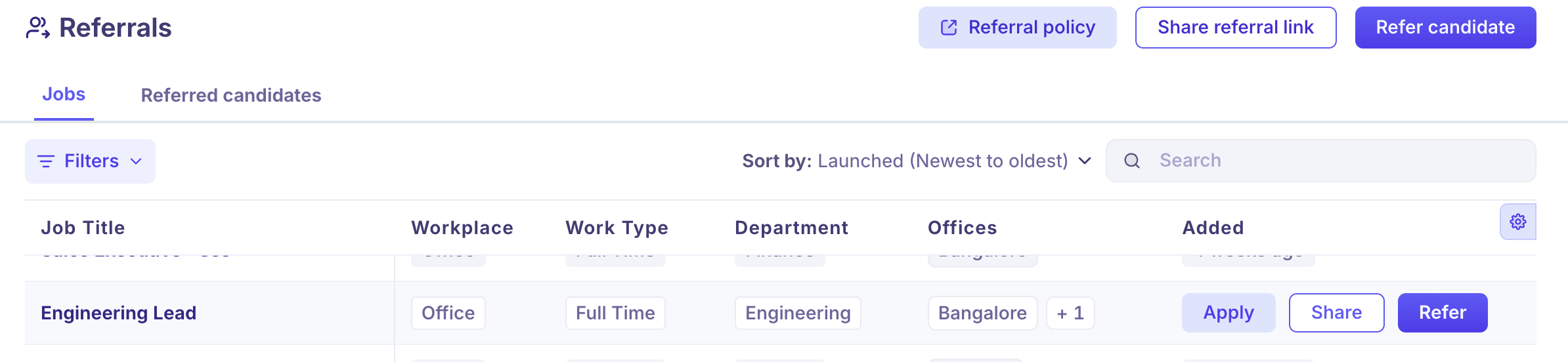
Employees access the internal board via the Referrals section in Kula. The Jobs tab shows all roles that have been enabled for the internal board.
Each job displays: Job Title, Workplace, Work Type, Department, and Office.
The action buttons available depend on what the recruiter configured for that role:
Apply only → Employee sees only the Apply button
Refer only → Employee sees Share and Refer buttons
Both → Employee sees Apply, Share, and Refer buttons
Referral Actions Explained
Apply
The employee can apply directly to the role as a candidate. This is useful for internal mobility — allowing existing team members to move into new roles.
Refer
The employee can submit an external candidate for the role. Clicking Refer opens a form to enter the referred candidate's details.
Share
The employee gets a shareable referral link they can send to their network. Candidates who apply via this link are tracked as referrals from that employee.
FAQs
Q: Can I list a role internally without showing it on the public career page?
Yes. When setting visibility to Listed, uncheck External job boards and Kula career page and only check Internal job board. The role will appear on the internal board but not on your public careers page.
Q: Can employees see a role to refer but not apply themselves?
Yes. Set the internal job board option to Allow employees to refer. Employees will see the Share and Refer buttons but not an Apply button.
Q: A job is marked as Unlisted — can candidates still apply to it?
Yes, with a caveat. Unlisted jobs do not appear on the public career page or internal job board. However, a direct application link (available under Jobs → Job Posts) can still be used to apply. If this link is shared — for example, through sourcing or referrals — candidates can still submit applications via that link. If you want to fully restrict applications, do not share the direct link, or raise a feature request with support.
Q: A job is set to Unlisted but it still appears on the career page. Why?
This can happen if there is another active job posting with the same title that is set to Listed. Use the department, office, and work type filters in the Jobs list to identify any duplicate postings with the same name. Review each one to confirm which is listed vs. unlisted.
Q: I want to share a role externally via a referral link without it appearing on the public career page. How?
Set the job as Confidential. This generates a shareable link that can be distributed to a referral network without the role appearing on your public career page.
Need Help?
If you have questions or need assistance with setup, feel free to reach out to us at support@kula.ai or use the in-app chat for assistance.