Embedding Kula Job Boards in an External Careers Page
Last updated: April 16, 2026
If you have an existing company website with its own careers section, you can surface your Kula job postings there — either by embedding the Kula career portal directly, or by using the Kula Job Board API to build a fully custom integration.
This article covers both approaches.
Option 1: Embed the Kula Career Portal (iframe / Direct Link)
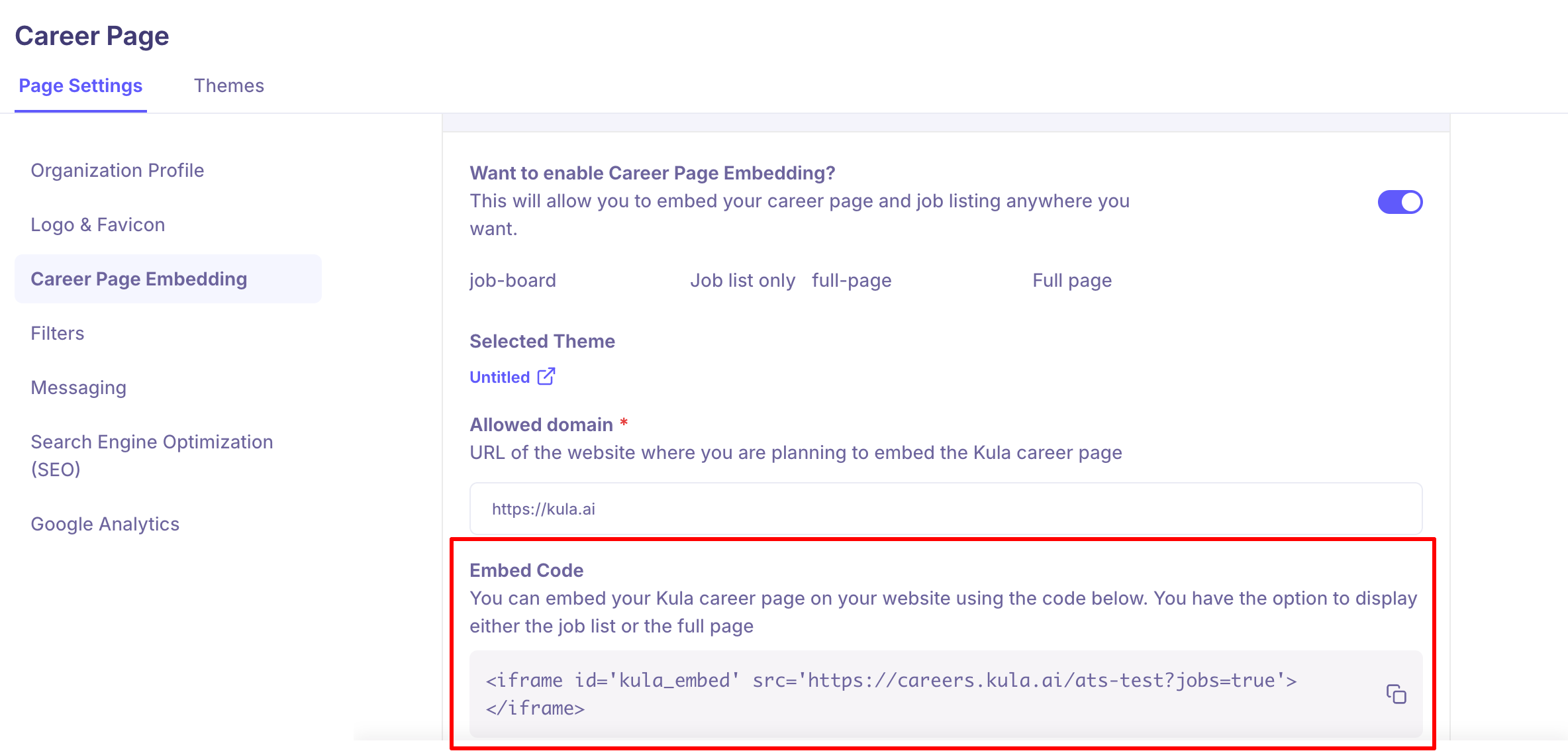
The simplest way to show Kula jobs on your website is to embed your Kula career portal URL directly. This can be done via an iframe or by redirecting to the careers page URL.
How to get your career portal URL:
Go to Settings → Career page and Job boards → Career page.
Copy your unique Kula career page URL (e.g.,
https://careers.kula.ai/yourcompany).
You can then:
Embed it in your website using an
<iframe>tagRedirect your
/careerspage to this URLLink to it from your website's careers section
The career portal only shows jobs that are set to Listed → External job boards and Kula career page. Make sure jobs are published with the correct visibility setting.
Advantages: Simple setup, no development work, always in sync with Kula automatically.
Option 2: Kula Job Board API
For teams that want full control over how jobs are displayed on their website — custom design, filtering, layout — Kula provides a Job Board API.
API documentation:https://developers.kula.ai/docs/jobboards-api/list-all-published-job-posts
The API returns all currently published job posts from your Kula account, which your development team can use to:
Dynamically populate a custom careers page
Filter by department, office, or work type
Keep job listings automatically in sync without manual updates
If your website is not using the Kula embed or API, job listings on your site will not update automatically when you publish or close roles in Kula. Manual updates to a separately maintained page will go out of sync.
Posting a Job to External Job Boards from Within Kula
Once job boards are configured in Settings, you can distribute individual jobs to those boards from the Job boards tab within each job.
Create Campaigns
Open the job you want to post.
Click Job boards in the job's top navigation bar.
Click Create campaigns in the left panel.
Find the job board you want to use and toggle it on.
Confirm in the dialog — Kula creates a campaign and queues the job for distribution.
You can enable multiple boards for the same job independently.
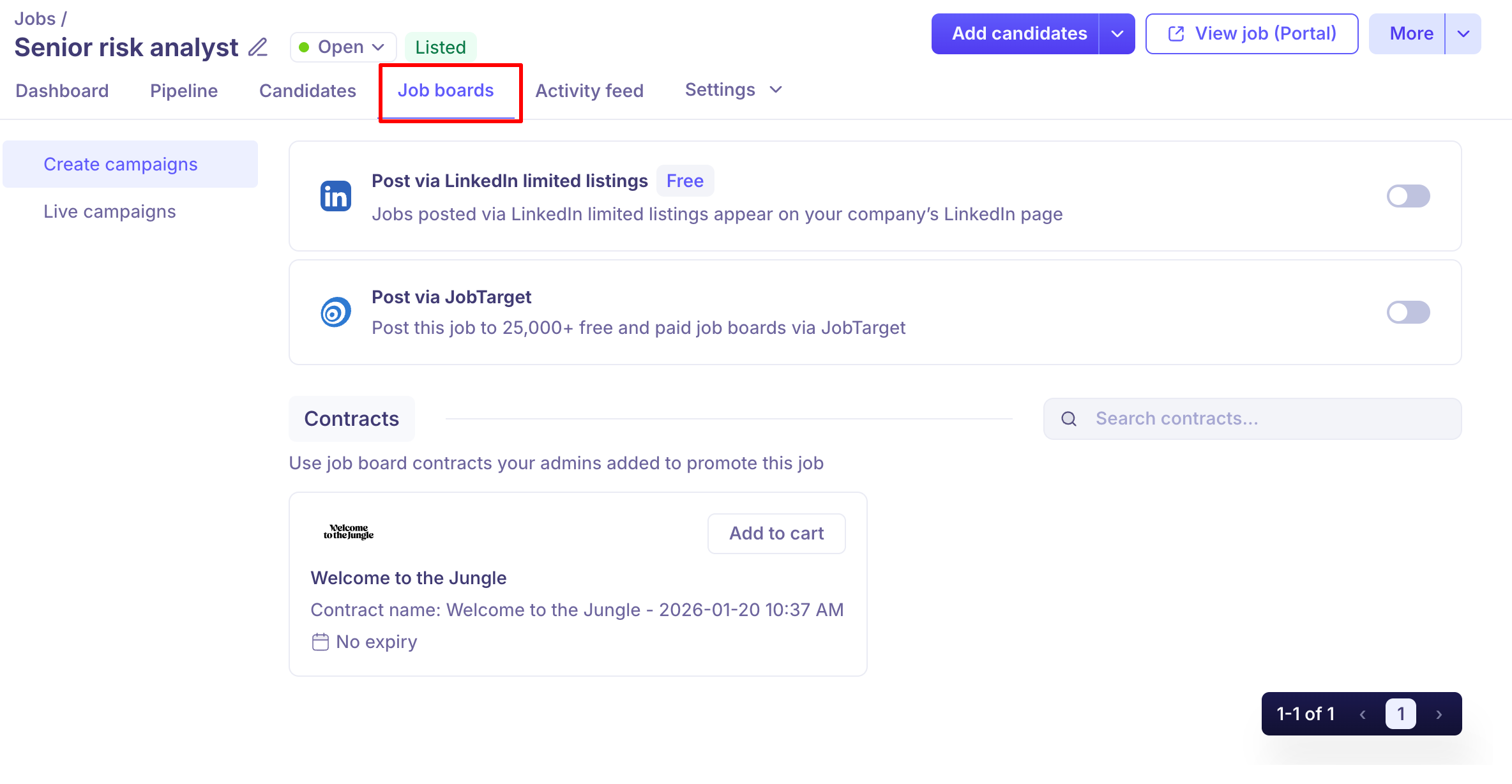
Refer the below article to enable Job boards
https://support.kula.ai/articles/3545493142-how-to-enable-job-boards
To disable a job board for a specific job:
Go to the Job boards tab on the job.
Click Create campaigns.
Turn off the toggle for the active board.
Confirm — the campaign ends and the job is removed from that board.
Live Campaigns
The Live campaigns section in the Job boards tab shows all active, expired, and draft campaigns for the job.
Active / Expired campaigns — Campaigns currently running or that have ended. View status and performance data.
Drafts — Campaigns started but not yet published. Click into a draft to complete setup and publish it. Once published, it moves to Active / Expired.
If No live campaigns yet appears, go to Create campaigns to start posting the job.
FAQs
Q: A job is live on our Kula career page but not showing on our company website. Why?
The most common reason is that your company website is not directly synced with Kula. If jobs on your website are managed manually or maintained in a separate CMS, they will not update automatically when you publish in Kula. To keep your site in sync, use the Kula Job Board API or embed your Kula career portal URL.
Q: A job posted in Kula is appearing on LinkedIn but not on our careers website. Is there a bug?
Not necessarily. LinkedIn may be scraping your Kula career page automatically (via job wrapping), which is why it appears there. Your company website, however, may be pulling jobs from a different source — a manual page, an internal database, or an API that hasn't been updated. Check with your web team to confirm how jobs are being sourced for the website.
Q: How do I post a job to LinkedIn, Indeed, or other boards from Kula?
Job boards must first be configured in Settings → Career page and Job boards → Job boards. Once set up, go to the Job boards tab on any individual job, click Create campaigns, and toggle on the boards you want to post to.
Q: I toggled off a job board in the Job boards tab. Will the job be removed from that board immediately?
Turning off the toggle ends the campaign and removes the job from distribution on that board. Timing may vary slightly depending on the board's indexing cycle.
Q: Can I post to multiple job boards at once?
Yes. In the Create campaigns view, each board has its own toggle. Enable as many as needed — each creates an independent campaign that can be managed separately.
Need Help?
If you have questions or need assistance with setup, feel free to reach out to us at support@kula.ai or use the in-app chat for assistance.