Custom Application Form Questions
Last updated: April 16, 2026
Kula lets you build custom application forms with the exact fields you need — from standard personal info to role-specific custom questions. Forms can be created as reusable templates and applied across jobs, or customized per job for specific requirements.
Every Kula account includes a default application form that is automatically applied to new job postings. You can customize this form or create new ones from scratch.
Where Application Forms Live
There are two places you work with application forms:
Global Settings (
Settings → Jobs & Applications → Application Forms) — Create and manage reusable form templates. Templates can be linked to specific departments, offices, or work types so they auto-apply to matching jobs.Job-level settings (
Job → Settings: Job post → Application form) — View, select, and customize the form for a specific job. Changes here apply only to that job, not the template.
Creating a New Application Form Template
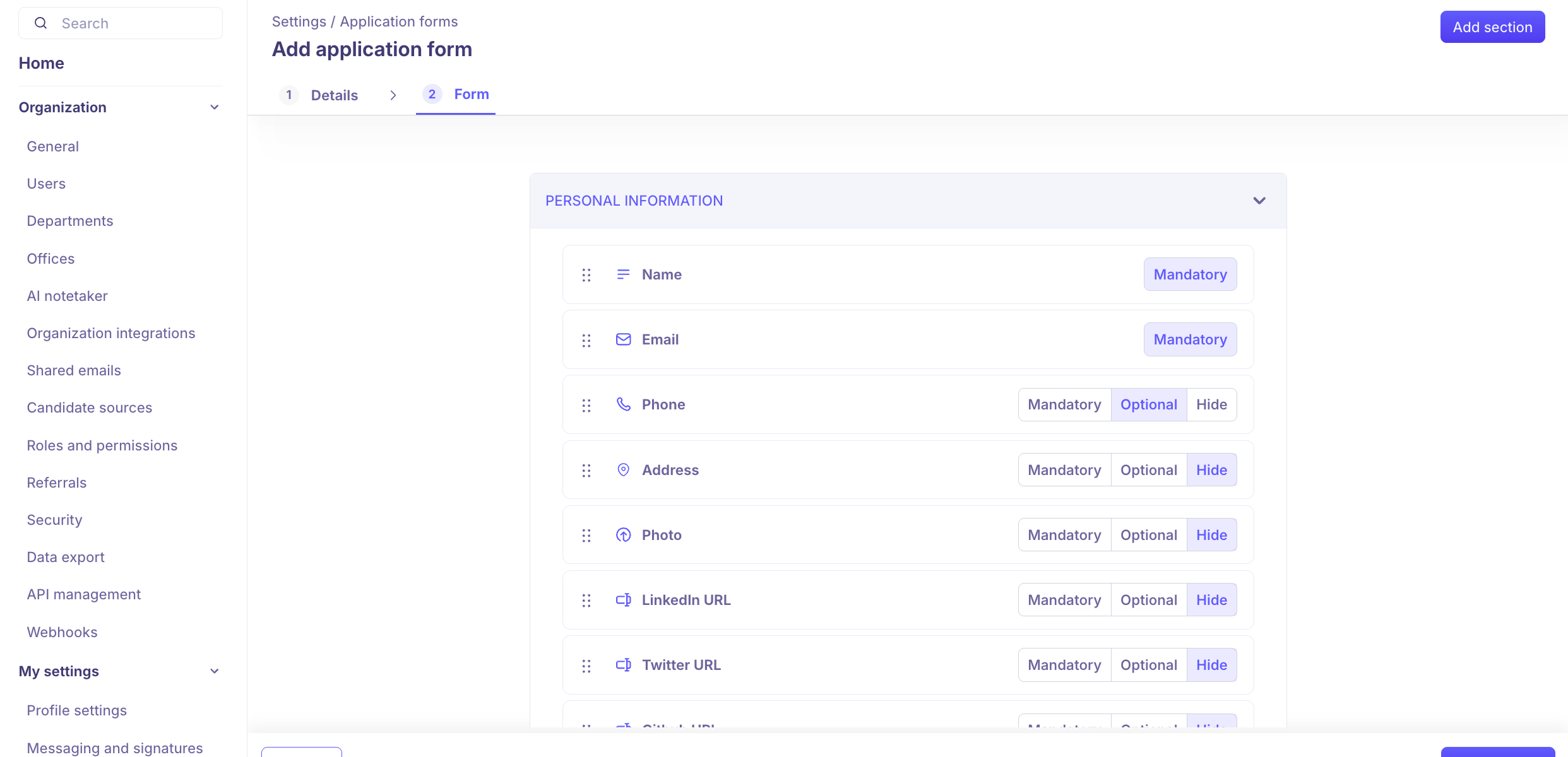
Step 1: Navigate to Application Forms
Go to Settings.
Click Jobs & Applications.
Click Application Forms.
Click Add application form.
Step 2: Add Form Details
Fill in the basic details:
Name — A clear name for the form (e.g., "Engineering Roles Form", "US Hiring Form")
Departments — Which departments this form should auto-apply to
Offices — Which office locations
Work Type — Full-time, Part-time, Contract, etc.
Click Next to open the form builder.
Step 3: Customize the Form
The form builder has two default sections: Personal Info and Profile. You can edit these or add new sections.
To add a new section:
Click Add Section.
Enter a section name.
Add fields to the section.
To add a field:
Click Add Field.
Enter a Field Name.
Choose a Field Type:
Field Type | Use for |
Short Text | Single-line text responses |
Long Text | Multi-line answers, open-ended questions |
Yes/No | Binary questions, consent fields |
Single Select | One choice from a list |
Multi Select | Multiple choices from a list |
Number | Numeric inputs (years of experience, etc.) |
Date | Date selection |
URL | Portfolio links, GitHub, LinkedIn, etc. |
Currency | Salary expectations |
Check Required to make the field mandatory.
Click Add.
To reorder fields: Drag and drop fields within a section.
To set field visibility per candidate: Each field can be set to Mandatory, Optional, or Hidden.
Click Create form when done.
Custom sections and fields can be deleted. However, the default Personal Information and Profile sections are part of every form and cannot be removed.
Customizing the Default Application Form
The default form can be edited but has some restrictions:
The Department, Office, and Work Type fields are locked — they map to all available categories automatically.
You can reorder fields within sections, set each field as Mandatory/Optional/Hidden, and add new custom sections and fields.
To edit: go to Settings → Application Forms → Default Form → Form section.
Assigning a Form to a Job
When creating or editing a job:
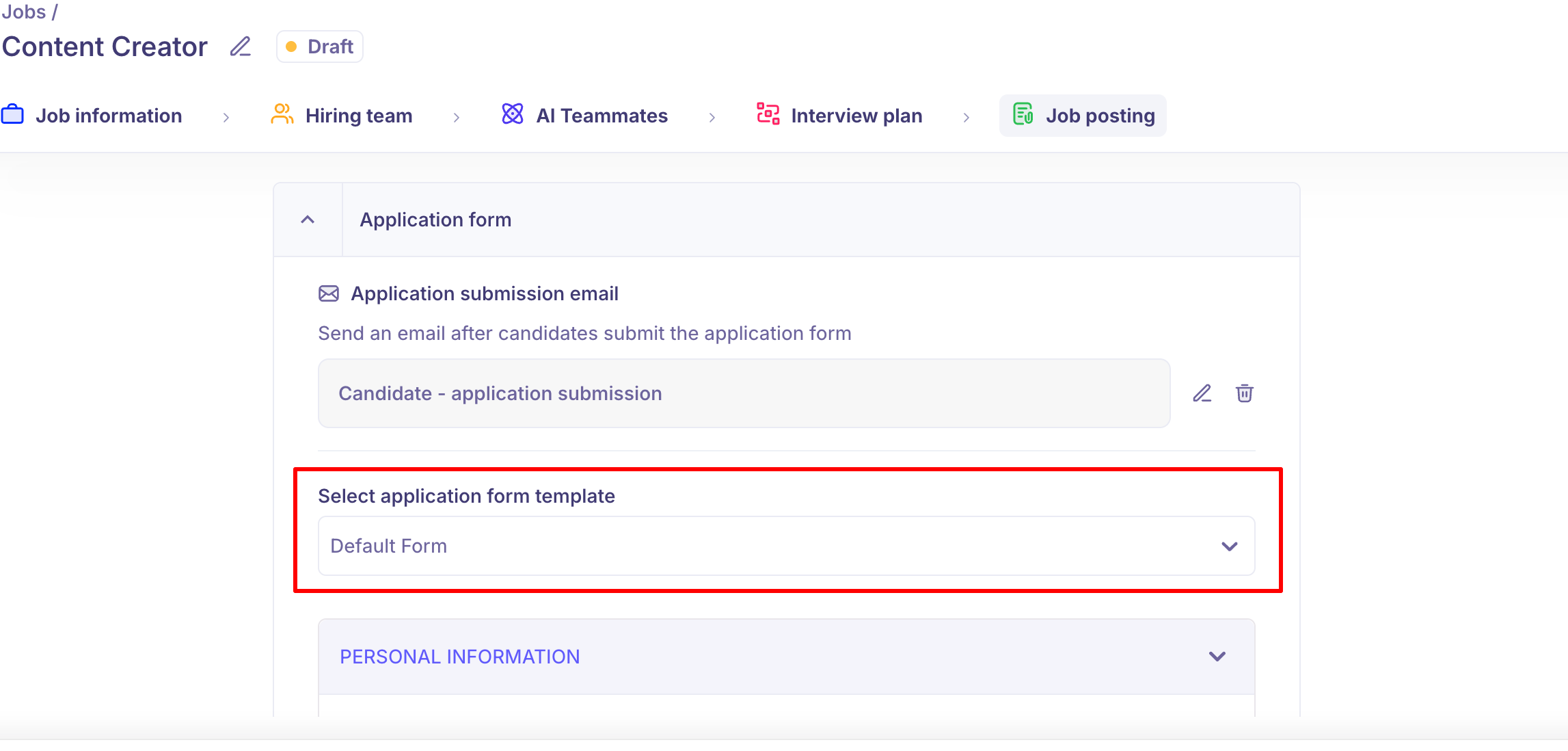
Go to the job's Settings: Job post tab.
Scroll to the Application form section.
Click the Select Application Form template dropdown.
Choose the form you want to use.
Click Save.
You can also customize the form at the job level without changing the template — mark fields as required, optional, or hidden just for that specific job.
Cloning a Form
To reuse a form structure with minor changes:
Go to Settings → Application Forms.
Hover over the form you want to copy.
Click the … (ellipsis) icon → Clone.
Update the name and make your changes.
Click Clone.
Deleting a Form
Go to Settings → Application Forms.
Hover over the form → click … → Delete.
Type DELETE in the confirmation modal.
Click Yes, Delete.
You cannot delete a form that is currently assigned to an active job.
Application Submission Email
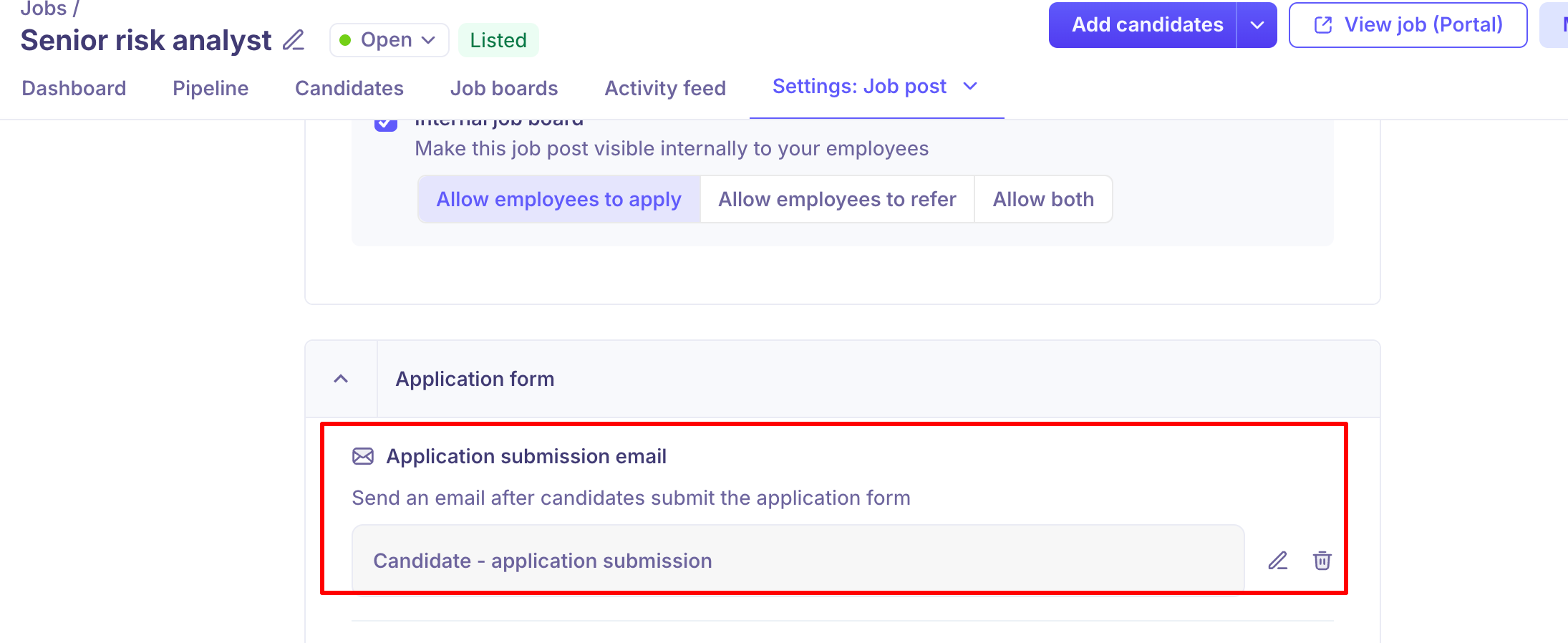
You can configure an automatic confirmation email that is sent to candidates when they submit an application.
In the Settings: Job post tab → Application form section:
Enable the Application submission email option.
Select an email template from your templates library.
The template should acknowledge receipt of the application and outline next steps for the candidate.
FAQs
Q: I need a consent/GDPR field in my application form. How do I add it?
Kula doesn't have a dedicated consent field, but you can create one using a custom Yes/No field. Set the field name to your consent question and add the full consent text in the field description. Candidates confirm agreement by selecting "Yes." The custom field description supports up to 500 characters.
Q: Will changes to a form template affect jobs already using it?
No. Changes to a global template only apply to new jobs that select that template going forward. Existing jobs are not affected.
Q: Can I customize the form for one specific job without changing the template?
Yes. Go to the job's Settings: Job post → Application form and make changes there. These changes apply only to that job and do not affect the template or other jobs using it.
Q: Can I reorder sections in the form?
Fields can be reordered within a section by dragging and dropping. Fields cannot be moved between sections.
Q: Can I preview the application form before publishing the job?
Yes. Use the preview option in the job post settings to review how the form appears to candidates before the job goes live.
Q: Can I delete an application form that's currently in use?
No. You must remove the form from all active jobs before it can be deleted from Settings.
Q: What happens to existing candidate responses if I update the form?
Updating the form does not remove or change existing candidate responses. New or changed fields apply only to future applicants.
Q: Can I create different forms for different departments or offices?
Yes. When creating a form template, assign it to specific departments, offices, or work types. Kula will auto-apply the matching template when a new job is created with those attributes.
Need Help?
If you have questions or need assistance with setup, feel free to reach out to us at support@kula.ai or use the in-app chat for assistance.