Creating and Publishing a Job Post
Last updated: April 16, 2026
A job post is the candidate-facing version of your job — it controls the title candidates see, where the role is listed (career page, job boards, internal board), the application form, and confirmation emails. This article walks you through creating a job post from scratch and publishing it.
Prerequisites
You must have one of the following roles to create a job post:
Super Admin
Admin
Recruiter
Step 1: Access the Job Post Settings
Navigate to Jobs in the left sidebar and open the relevant job.
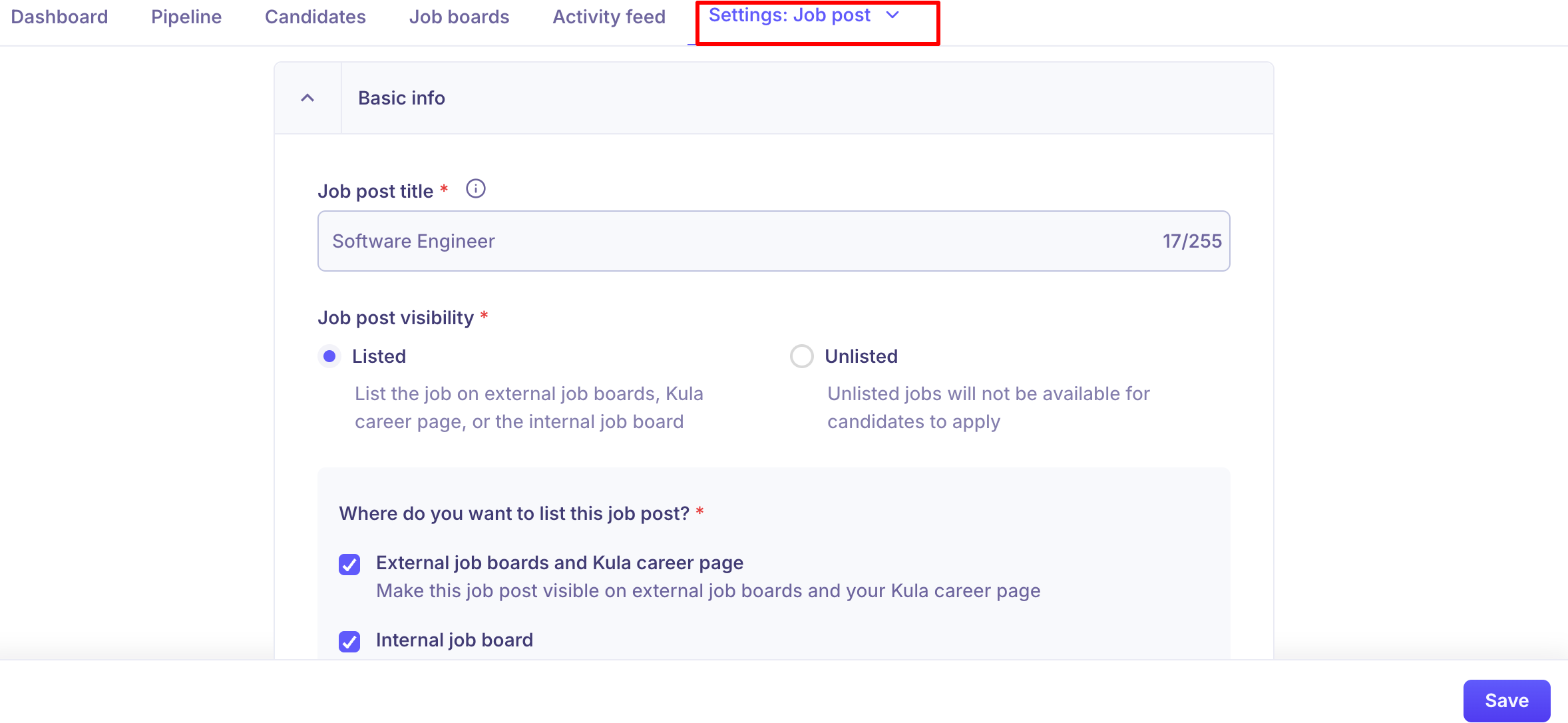
Click on Settings: Job post tab at the top of the job page.
Expand the Basic info section.
Step 2: Set the Job Post Title
Enter the Job Post Title — this is the title that appears on your public career page and any external job boards.
This can differ from the internal job title. Use a candidate-friendly title (e.g., "Senior Software Engineer" instead of an internal code name). Maximum 255 characters.
Step 3: Set Job Post Visibility
Choose how this job post should be visible to candidates:
Option | Description |
Listed | The job is publicly visible on external job boards, your Kula career page, or the internal job board |
Unlisted | The job will not be available for candidates to apply — use this for roles not yet ready to go live |
Step 4: Choose Where to List the Job Post
When Listed is selected, choose where the job should appear:
External job boards and Kula career page
Makes the job post visible on external job boards (e.g., LinkedIn, Indeed) and your public Kula career page. Use this for all standard external hiring.
Internal job board
Makes the job post visible only to your employees. When enabled, select how employees can engage:
Allow employees to apply — Employees can apply directly to the role
Allow employees to refer — Employees can share the role and refer candidates
Allow both — Employees can apply and refer
You can select both options at the same time — listing a job externally while also enabling it on the internal board for employee referrals.
Step 5: Configure Application Settings
Confirmation Email Template
Select the email template sent to candidates upon application submission. This email should acknowledge receipt and outline next steps.
Application Form
Choose the application form that candidates will fill out. Make sure the form captures all the information needed to evaluate candidates.
💡 It is recommended to create Application Form templates in Global Settings so they can auto-apply based on Department, Office, and Work Type.
Auto-Rejection Rules
Set up knockout questions to automatically reject candidates based on specific form responses.
Note: Auto-rejection is supported only for these field types: Yes/No, Number, Date, Single Choice, Multi Choice.
EEOC Questions
EEOC (Equal Employment Opportunity Commission) questions are enabled by default. These collect demographic data for compliance and diversity tracking.
Step 6: Save or Publish the Job
Once all settings are configured:
Click Save to keep the job as a draft (it will remain Unlisted and not visible to candidates).
Click Launch Job to publish it.
If job approval is enabled in your account, the job will only go live after it has been approved. You can choose to launch immediately or schedule the launch for a specific time.
Need Help?
If you have questions or need assistance with setup, feel free to reach out to us at support@kula.ai or use the in-app chat for assistance.