Attaching Files and Notes
Last updated: April 21, 2026
You can attach documents to a candidate's profile and leave internal notes for your hiring team. Both are available directly from the candidate profile view.
Attaching files
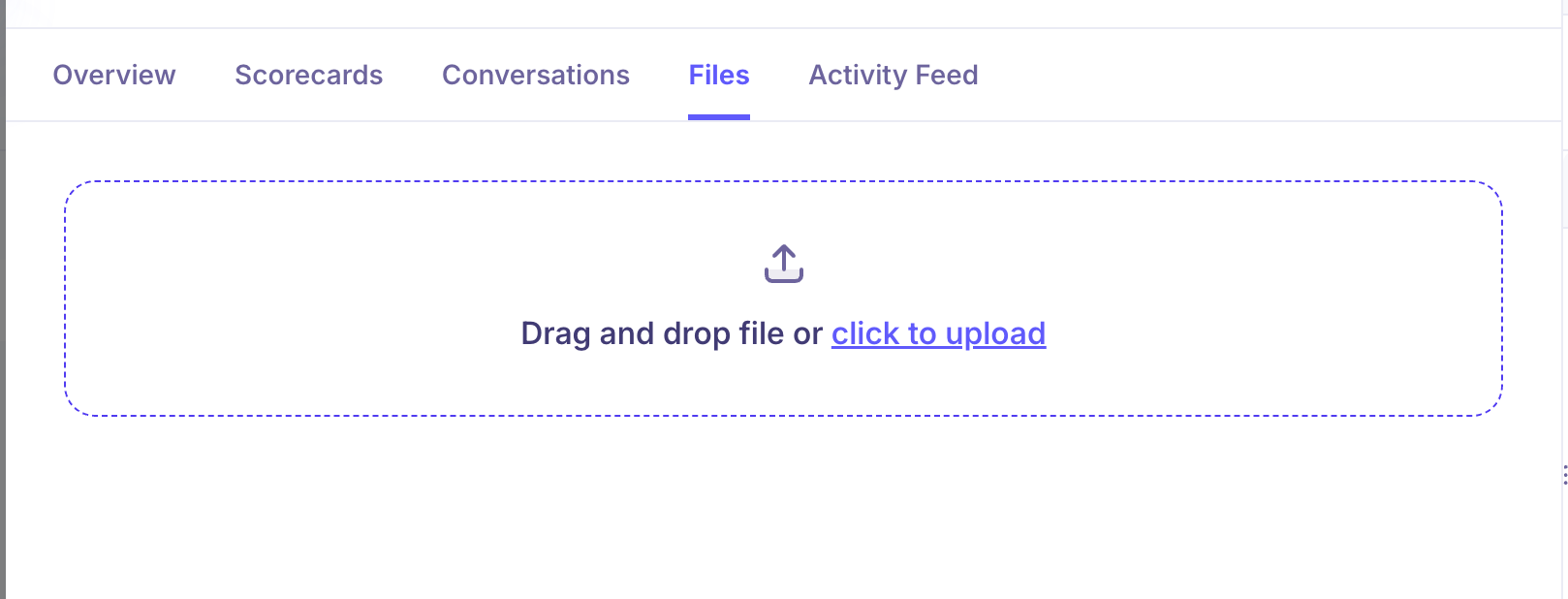
The Files tab lets you upload any documents related to a candidate — resumes, cover letters, portfolios, work samples, or other supporting materials.
How to upload a file
Open the candidate's profile.
Click the Files tab.
Either:
Drag and drop a file into the upload area, or
Click click to upload to browse and select a file from your device.
The file will be attached to the candidate's profile and visible to all team members with access to the job.
Supported file types
Common document formats are supported, including PDF, Word documents, and image files. There is no strict limit on the number of files you can attach per candidate.
Managing uploaded files
Once uploaded, files are listed in the Files tab. You can view or download them at any time. To remove a file, hover over it and use the delete option if available.
Adding notes
Notes are internal comments visible to your hiring team. They appear in the Tags & Notes panel on the right side of every candidate profile.
How to add a note
Open the candidate's profile.
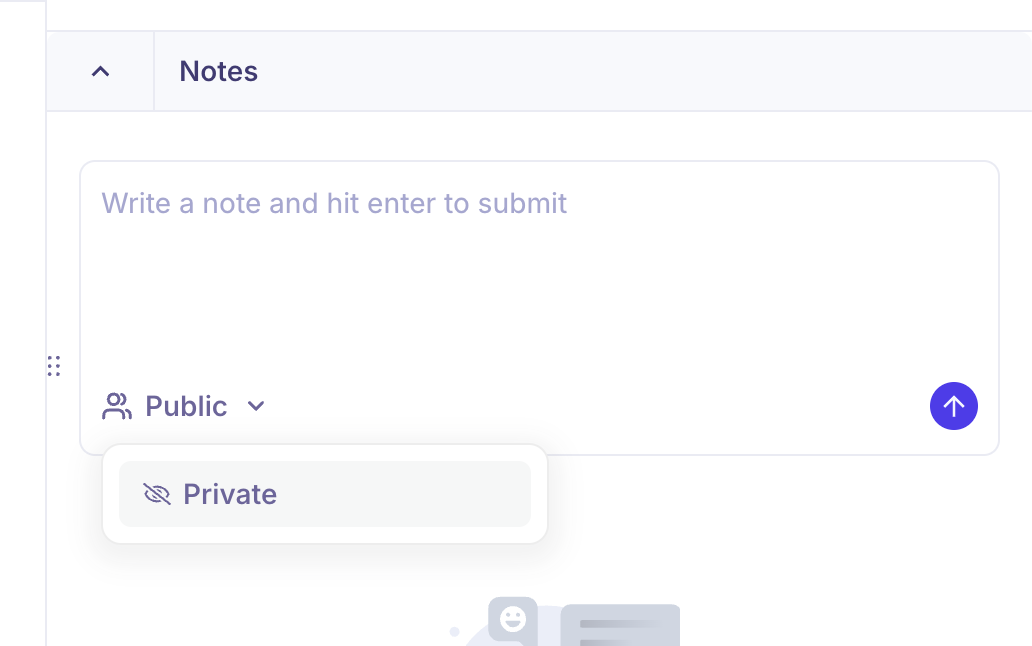
In the Notes section of the right panel, click the text field that reads "Write a note and hit enter to submit."
Type your note.
Press Enter to save it.
The note will be saved immediately and timestamped.
Note visibility
By default, notes are set to Public, meaning all team members with access to the job can see them. To change this:
Click the Public dropdown beneath the note input field.
Select the appropriate visibility level.
Editing and deleting notes
Saved notes can be edited or deleted. Hover over a note to reveal the edit and delete options.
Difference between files and notes
Files | Notes |
Attached documents (PDFs, Word files, etc.) | Free-text internal comments |
Found under the Files tab | Found in the Tags & Notes panel |
Shared with all team members with job access | Can be set to Public or restricted visibility |
Frequently asked questions
I tagged a team member in a note using @, but they say they can't see it. Why?
Tagging someone with @ in a note does not automatically grant them access. The team member needs to have access to the job (be listed on the interview plan or be a team member on the job) to view the note. Also check that the note visibility is set to Public. If they have job access and the note is public, contact support.
Can I attach files to a note?
No — files and notes are separate in Kula. Files are uploaded via the Files tab, while notes are text-only comments in the Tags & Notes panel. You can reference a file in a note, but you can't embed an attachment within the note itself.
Is there a file size limit for uploads?
Kula supports common document formats. While there is no hard file size listed in-app, very large files may fail to upload. If you're experiencing issues uploading a specific file, try compressing it or reach out to support@kula.ai.
Who can see the files I upload to a candidate profile?
All team members with access to the job can view uploaded files. There is no per-file visibility setting — files are visible to everyone with job-level access.
Can I delete a note after saving it?
Currently, there is no option to delete a note; however, you can edit the note.
Need Help?
If you have questions or need assistance, reach out to us at support@kula.ai or use the in-app chat.