Creating a Candidate Manually
Last updated: April 21, 2026
You can add candidates directly to a job in Kula without needing them to apply through a job post. This is useful for sourced candidates, referrals, or anyone you want to add to your pipeline outside of an application form.
How to create a candidate manually
Go to Jobs and open the relevant job.
Click the Candidates tab.
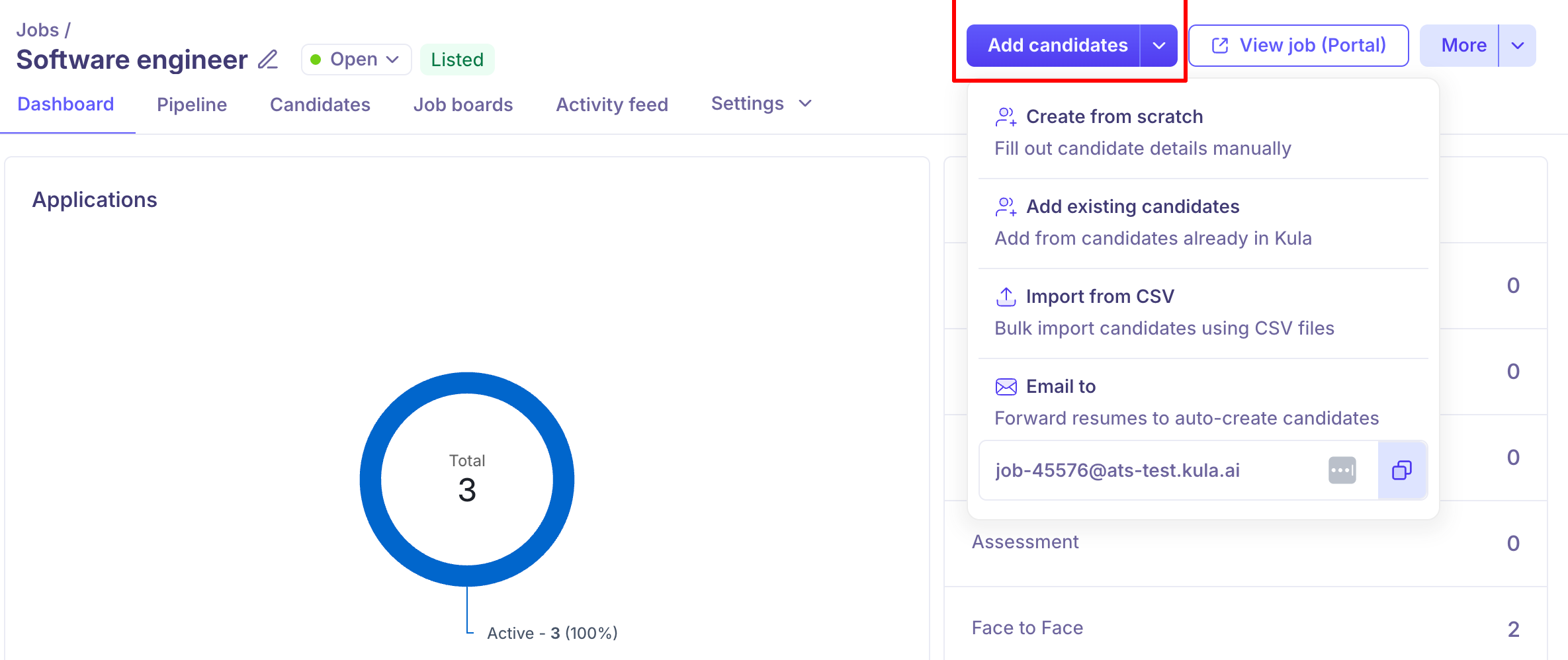
Click Add candidates in the top right corner.
Select Create from scratch from the dropdown.
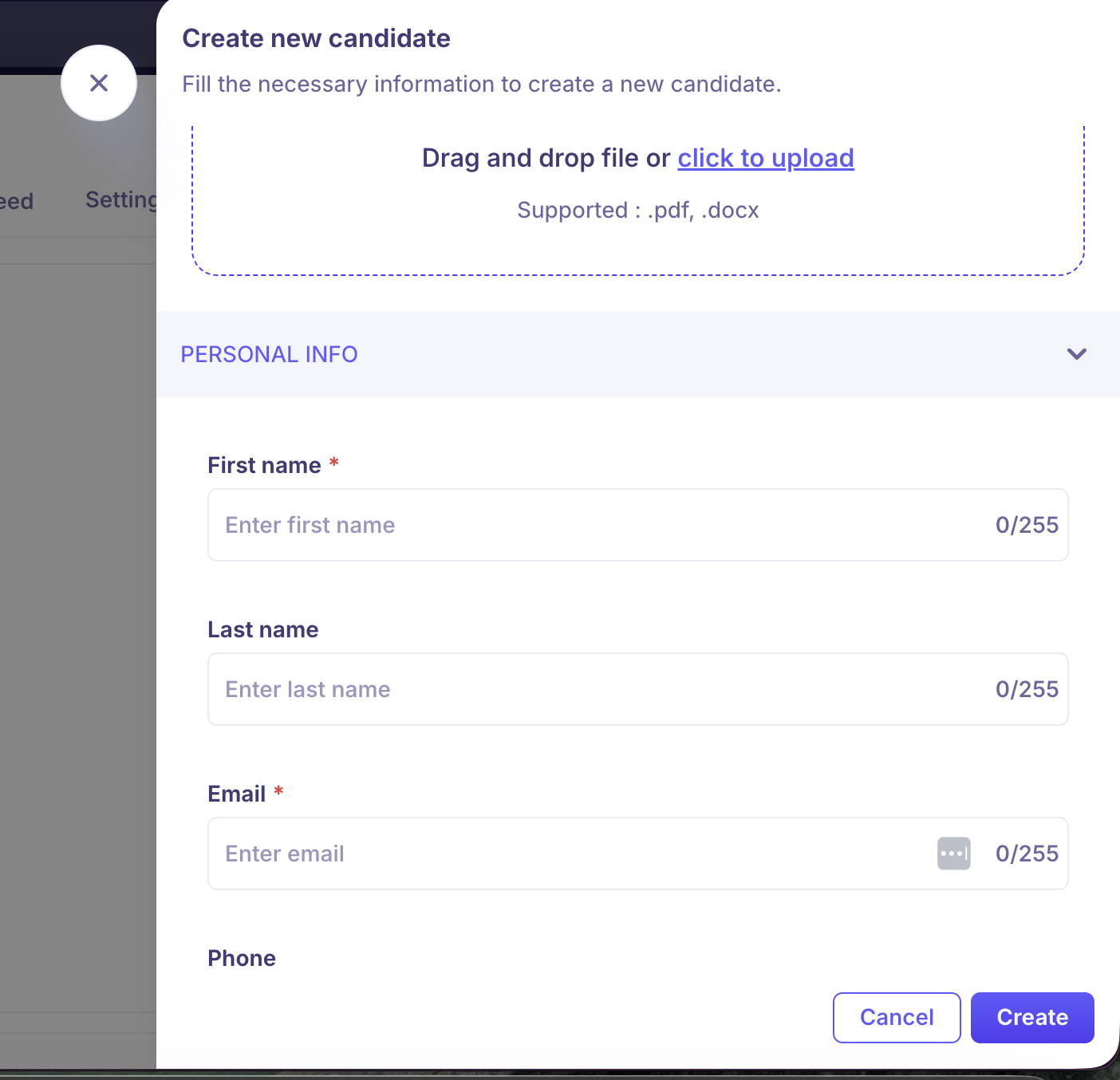
Fill in the candidate's details in the form that appears:
First name and Last name (required)
Email address
Phone number
Current company and Current role
LinkedIn URL or other profile links
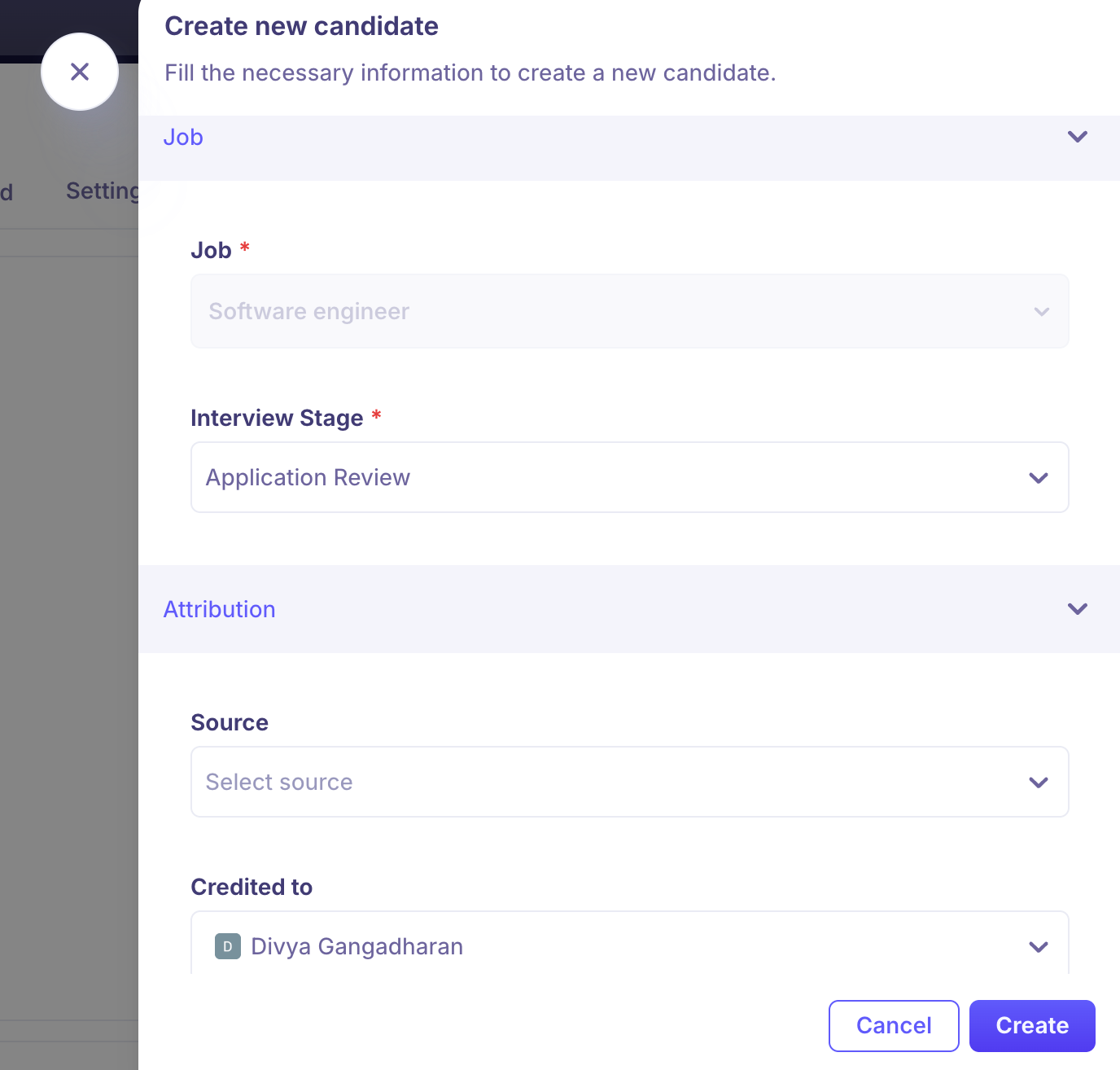
Source — where the candidate came from (e.g. LinkedIn, Referral, Job board)
Click Save to create the profile.
The candidate will be added to the job at the selected stage of your pipeline.
Other ways to add candidates
In addition to creating from scratch, the Add candidates menu also offers:
Option | What it does |
Add existing candidates | Adds a candidate who already exists in your Kula account to this job. |
Import from CSV | Bulk-imports multiple candidates using a CSV file. |
Email to | Displays a unique job email address. Forward any resume to this address and Kula will automatically create a candidate profile. |
After creating a candidate
Once created, the candidate profile will be available under the Candidates tab. You can:
Move them to a specific stage using Move to stage.
Edit their details from the profile header.
Add notes, tags, and files from the profile.
Frequently asked questions
I created a candidate but they don't appear in the candidates list. Where did they go?
Newly created candidates are placed at the first active stage of the pipeline. If your pipeline view is filtered to a specific stage, switch to All Stages to find them. If they still don't appear after a refresh, contact support.
Can I add a candidate without an email address?
Yes. Email is not a required field when creating a candidate from scratch. However, without an email address you won't be able to send them communications (interview invites, assessments, etc.) directly from Kula.
What happens if the candidate already exists in Kula from a previous application?
Kula will flag potential duplicates. Use Add existing candidates instead of Create from scratch to link the same candidate to this job without creating a duplicate profile. If a duplicate was already created, you can merge profiles from the candidate's three-dot menu.
Can I set what stage a manually created candidate starts in?
By default, candidates are added to the first stage of the pipeline. Once created, you can immediately use Move to stage from their profile to place them in the right stage.
The email forwarding (Email to) option created a candidate but some fields are empty. Is this normal?
Yes. When a resume is forwarded, Kula parses available information from the document. If certain fields (like phone number or LinkedIn URL) are not present in the resume, they will be left blank. You can fill these in manually from the candidate's profile.
Need Help?
If you have questions or need assistance, reach out to us at support@kula.ai or use the in-app chat.