What's on a Candidate Profile?
Last updated: April 21, 2026
The candidate profile is the central place to view and manage everything related to a candidate — their personal details, interview progress, communications, and files — all from a single view.
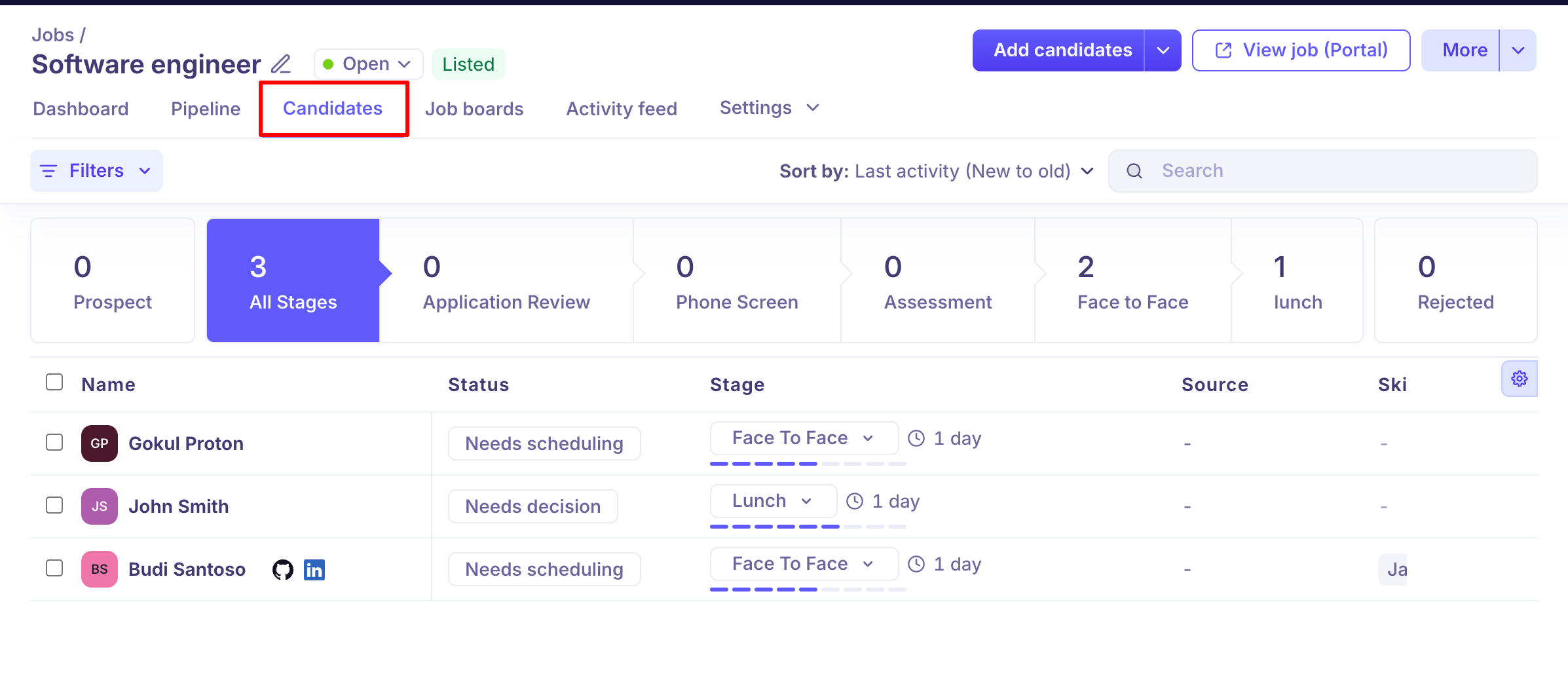
To open a candidate profile, go to a job → Candidates tab → click on any candidate's name.
Profile header
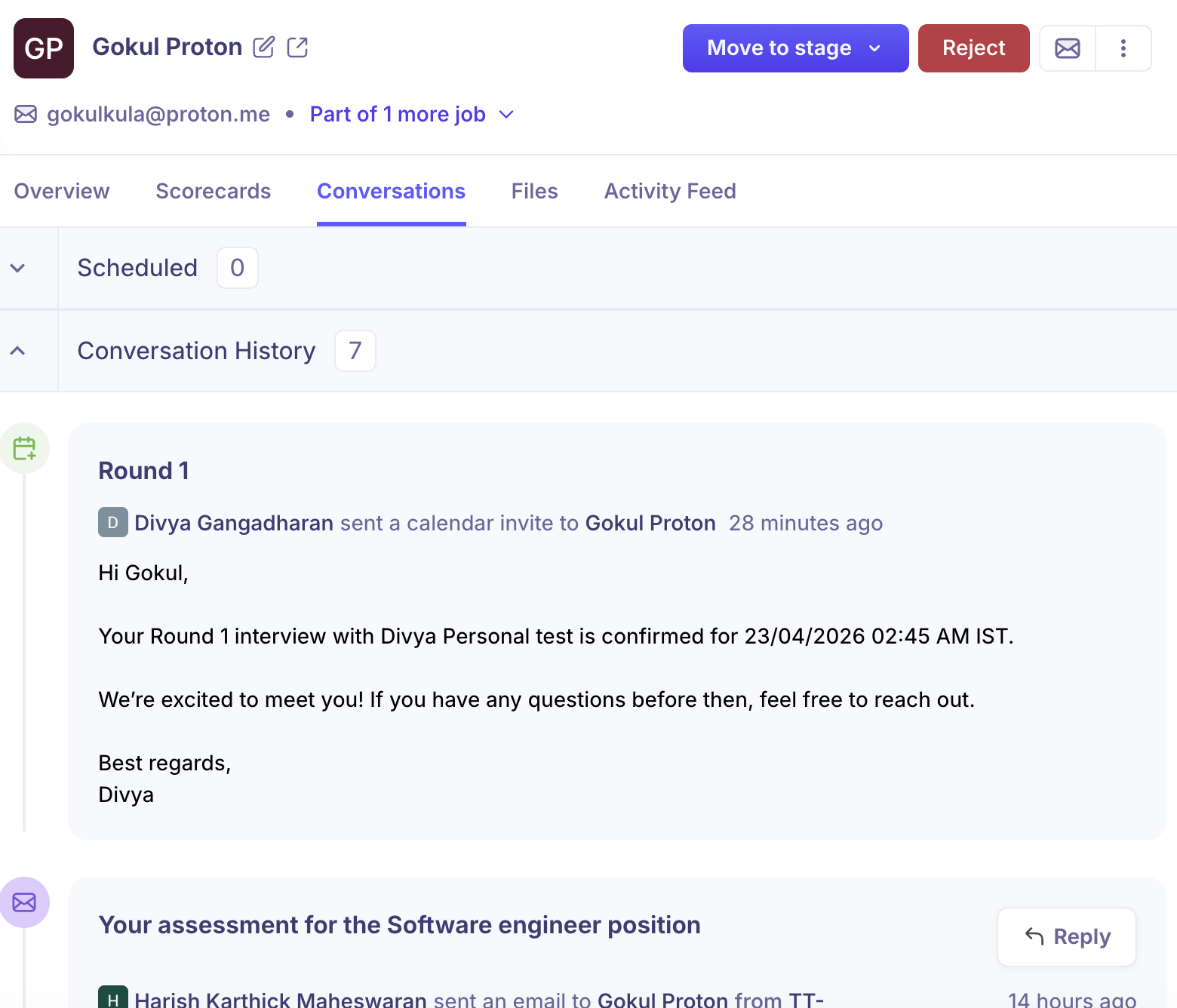
At the top of every candidate profile, you'll see:
Candidate name — with quick-edit (pencil icon) and open-in-new-tab options.
Email address — the primary email associated with the candidate.
Part of X more job(s) — indicates if the candidate is being considered for other open roles. Click to expand and see which jobs.
Move to stage — advances the candidate to the next or a specific stage in the pipeline.
Reject — marks the candidate as rejected and optionally sends a rejection email.
Email icon — compose and send an email directly to the candidate.
Three-dot menu (⋯) — additional actions such as merge, anonymise, or delete.

Tabs on the candidate profile
The candidate profile is organised into five tabs:
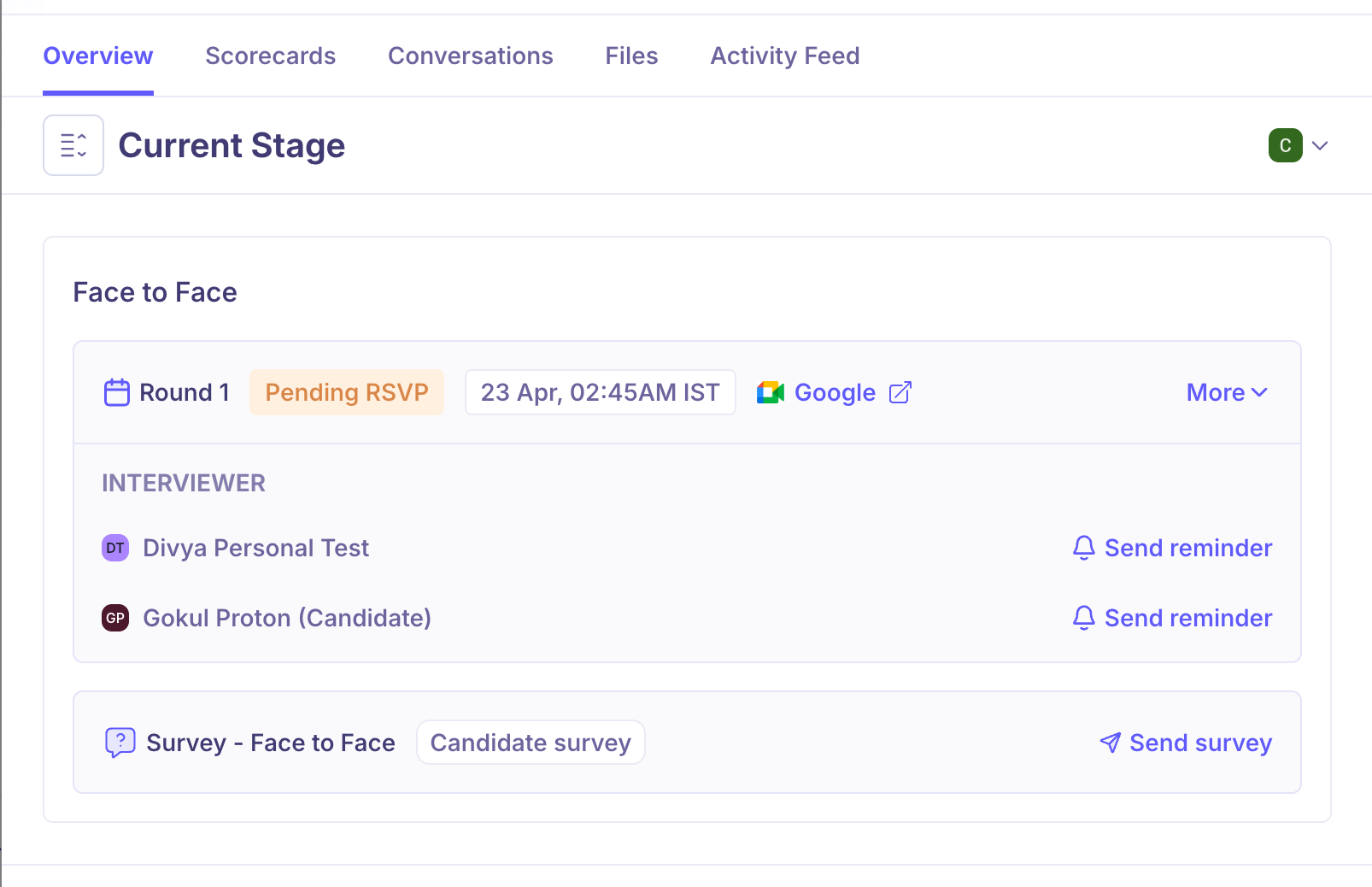
Overview
The default view when you open a profile. It shows:
Current Stage — the stage the candidate is currently in, along with any scheduled interviews, interviewers assigned, and pending RSVPs.
Survey links — any candidate surveys attached to the current stage (e.g. Survey – Face to Face).
Resume — the candidate's uploaded resume, if available.
Application details — answers to application form questions, if the candidate applied through a job post.
Scorecards
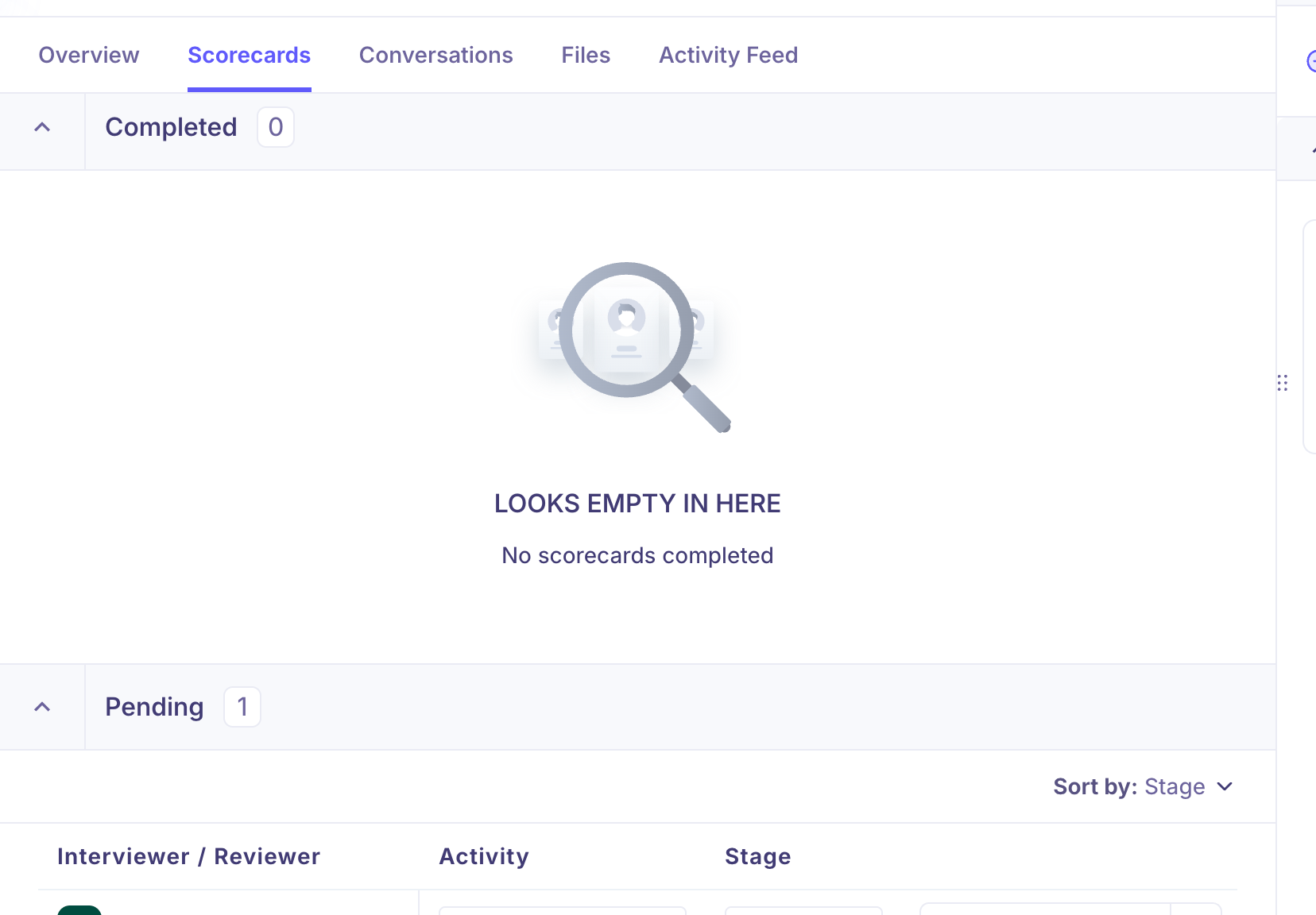
Shows all interview scorecards associated with the candidate for the current job.
Completed — scorecards that have been submitted by interviewers.
Pending — scorecards that have been assigned but not yet submitted, listed with the interviewer/reviewer name, activity, and stage.
If no scorecards have been completed yet, this section will show "No scorecards completed."
Conversations
A full history of all communications with the candidate. This tab is split into:
Scheduled — upcoming emails or messages that are queued to be sent.
Conversation History — a chronological log of all emails and calendar invites sent to the candidate, including the sender, timestamp, and message content.
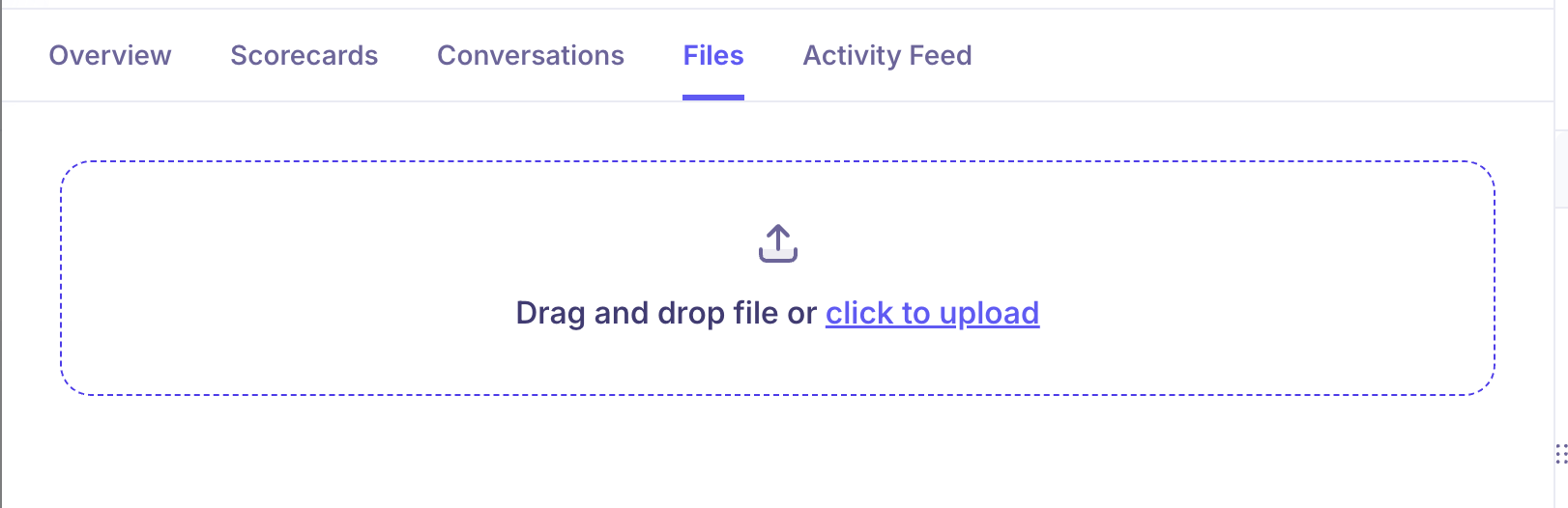
Files
Upload and manage documents related to the candidate — resumes, cover letters, portfolios, or any other supporting material. Files can be added by dragging and dropping or clicking click to upload.
Activity Feed
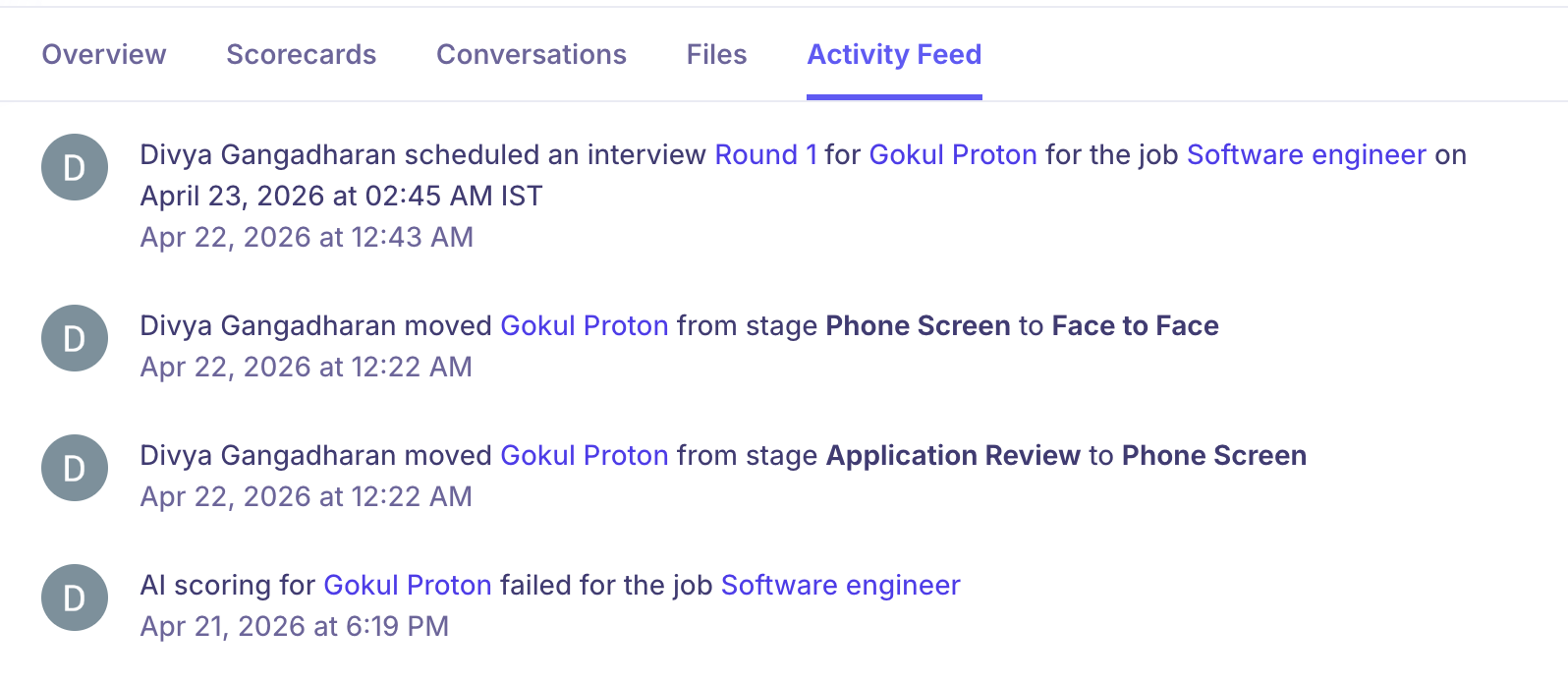
A timestamped log of every action taken on this candidate's profile, including:
Stage movements (e.g. moved from Phone Screen to Face to Face)
Interviews scheduled
Assessments sent
AI scoring events
Any other system or manual actions
Application Intelligence panel
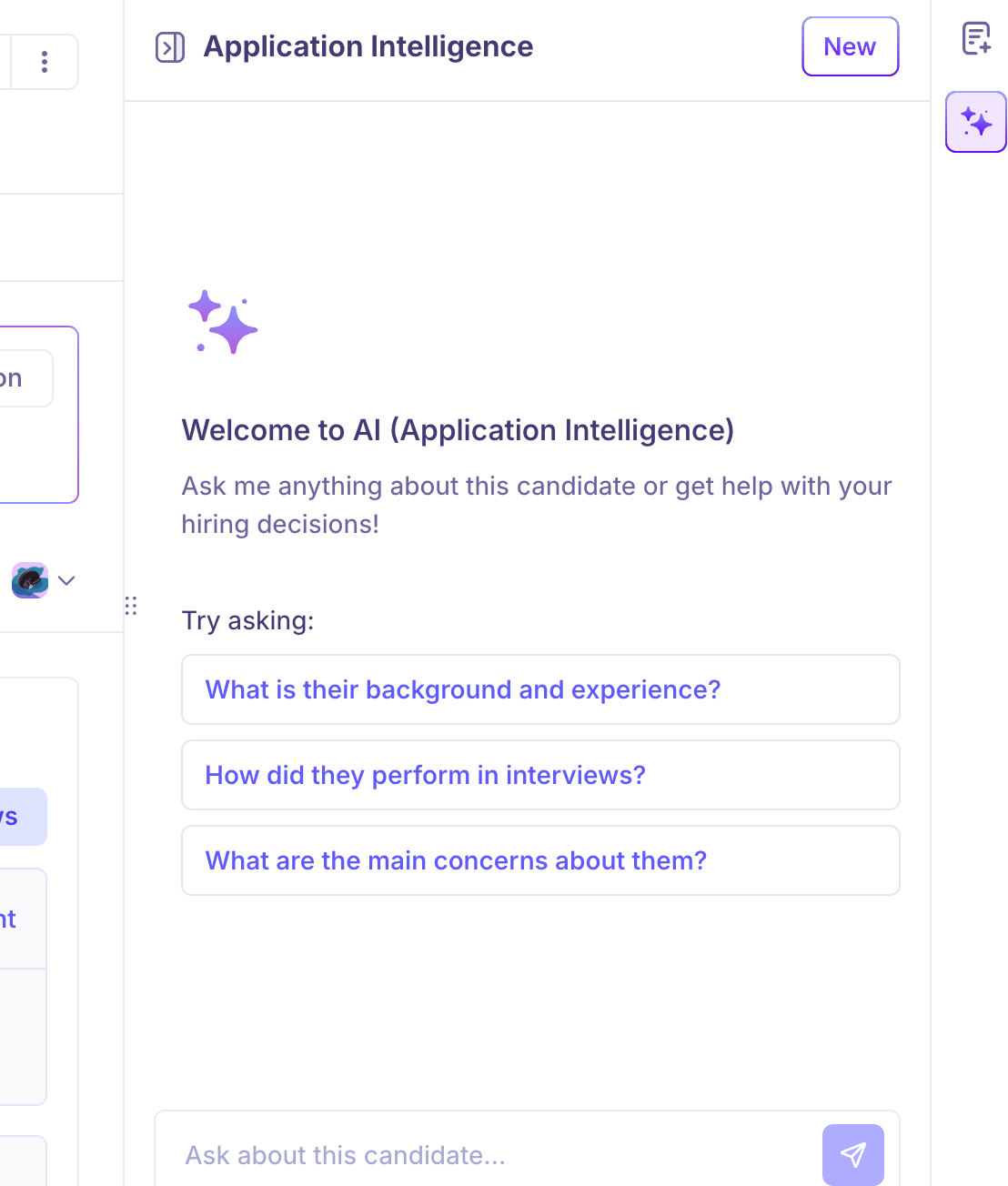
On the right side of the candidate profile, you'll find the Application Intelligence panel — Kula's AI assistant for hiring decisions. It gives you a quick narrative summary of the candidate and lets you ask free-form questions about them.
AI summary
At the top of the panel, Kula automatically generates a short summary of the candidate's status — for example, when they applied, what role they applied for, their current stage, and any recent stage movements. This updates as the candidate progresses through the pipeline.
Ask a question
Click Ask a question (from the summary card) or type directly into the chat input at the bottom of the panel to ask anything about the candidate. The AI draws on their resume, application answers, scorecard feedback, and activity history to respond.
Example prompts you can try:
What is their background and experience?
How did they perform in interviews?
What are the main concerns about them?
New chat
Click the New button at the top right of the panel to start a fresh conversation with the AI, clearing the previous thread.
Note: Application Intelligence is powered by AI and draws on data available in the candidate's profile. Always use your own judgment alongside AI-generated insights when making hiring decisions.
Tags & Notes panel
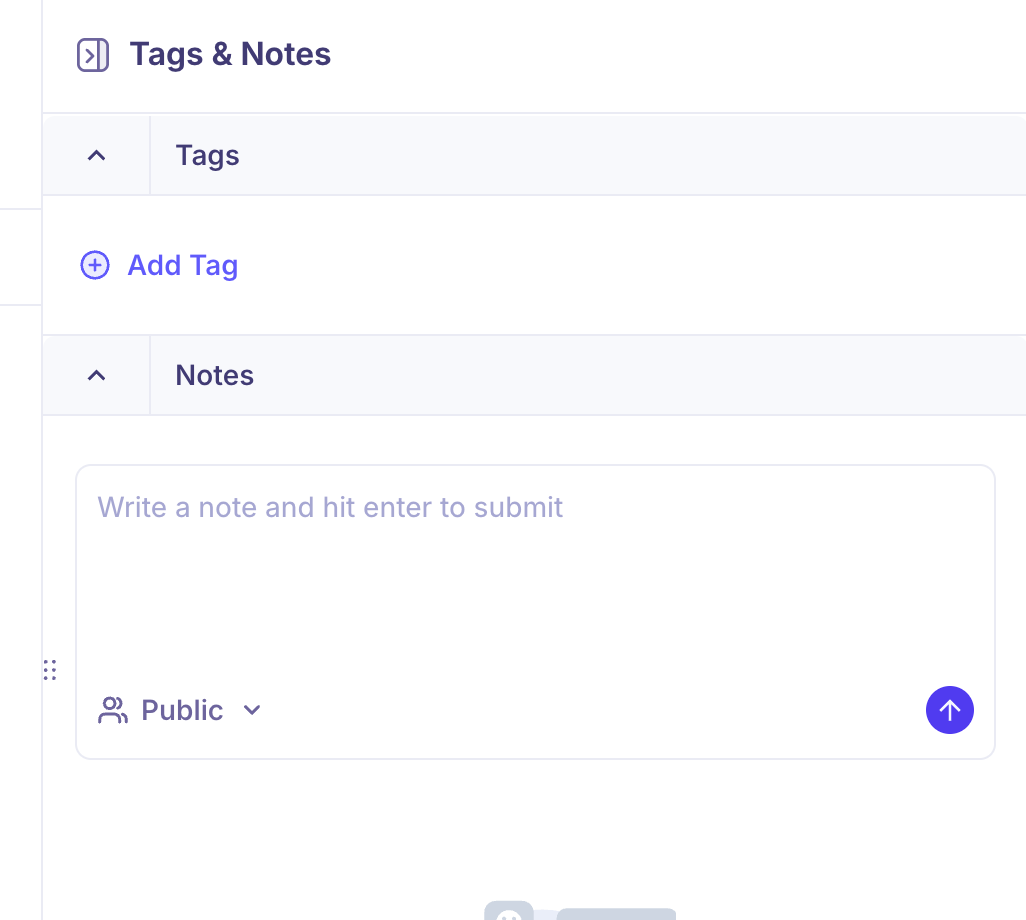
On the right side of every candidate profile, you'll find the Tags & Notes panel:
Tags — labels you can attach to the candidate for filtering and organisation. Click + Add Tag to apply one.
Notes — free-text notes visible to your hiring team. Type in the field and press Enter to save. Notes are set to Public by default but can be changed to restrict visibility.
Need Help?
If you have questions or need assistance, reach out to us at support@kula.ai or use the in-app chat.