Candidate Activity Timeline
Last updated: April 21, 2026
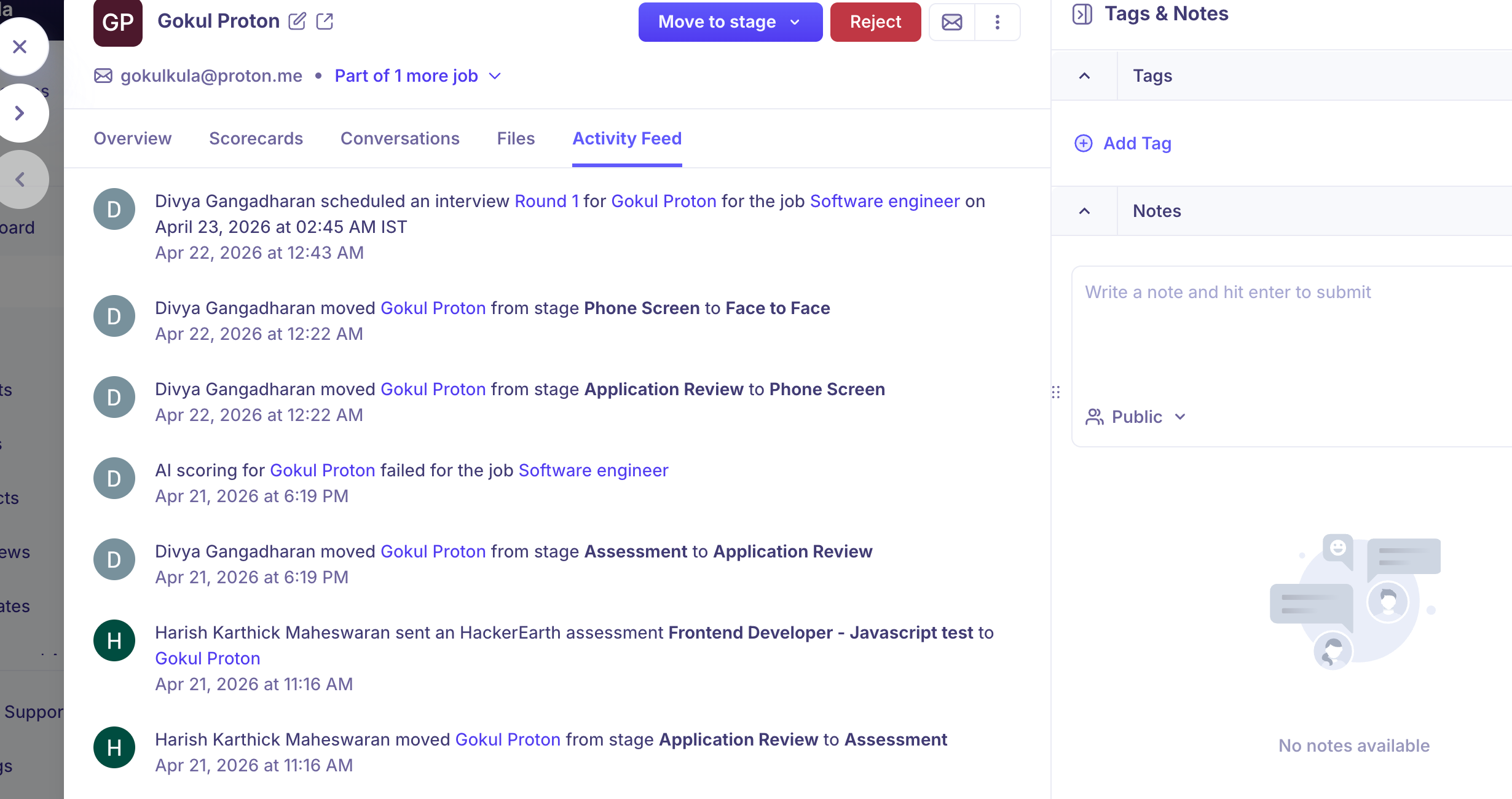
The Activity Feed tab on a candidate's profile gives you a complete, timestamped history of every action taken on that candidate — across all team members and automated events. It's the single source of truth for understanding what's happened in a candidate's journey.
How to access the activity feed
Open a candidate's profile from any job's Candidates tab.
Click the Activity Feed tab.
What's recorded in the activity feed
Every entry in the activity feed shows the actor (person or system), the action taken, and the date and time.
Examples of events you'll see:
Event type | Example |
Stage movement | Divya Gangadharan moved Gokul from stage Phone Screen to Face to Face |
Interview scheduled | Divya Gangadharan scheduled an interview Round 1 for Gokul for the job Software engineer on April 23, 2026 at 02:45 AM IST |
Assessment sent | Harish sent a HackerEarth assessment Frontend Developer – Javascript test to Gokul Proton |
Email sent | Tracked under the Conversations tab but also reflected in activity |
Understanding the timeline
Events are listed in reverse chronological order — the most recent activity appears at the top.
Each event includes a relative or absolute timestamp (e.g. "5 minutes ago" or "Apr 22, 2026 at 12:43 AM").
Actions taken by automations or the system (e.g. AI scoring) are clearly labelled.
Actions taken by team members show the member's name and avatar.
How the activity feed differs from Conversations
Activity Feed | Conversations tab |
Logs all actions on the profile | Logs only email and calendar communications |
Includes stage moves, assessments, AI events | Includes email content and calendar invites |
Read-only — cannot be edited or deleted | Allows replies to email threads |
Tips
Use the activity feed to audit what happened and when during a candidate's process.
If a stage movement or interview appears unexpectedly, the activity feed will show exactly who made the change.
The feed covers the candidate's history within the current job — check the "Part of X more job(s)" link on the profile header to view activity across other jobs.
Frequently asked questions
The activity feed shows "AI scoring failed" — what does that mean?
Kula uses AI to score candidates against job criteria. If scoring fails, it typically means the candidate's resume or profile didn't have enough parseable data, or there was a temporary issue with the AI service. It doesn't affect the candidate's standing in the pipeline. You can continue evaluating the candidate manually. If scoring failures are recurring, contact support.
A stage movement appears in the activity feed that I didn't do. How do I find out who moved them?
Each entry in the activity feed shows the name of the person who performed the action. If it shows another team member's name, they made the change. If it shows a system action, it was triggered by an automation or flow. Check your Flows settings if you didn't expect an automated move.
The activity feed only shows recent events — can I see the full history back to when the candidate first applied?
Yes. The activity feed shows the complete history for the candidate in this job, from the moment they were added. Scroll down to see older events. The oldest entries will be at the bottom of the list.
Can I export or share the activity feed?
There is no direct export option for the activity feed from the candidate profile. For audit or reporting purposes, activity data may be available through Kula's reporting features or via data export. Contact your admin or support@kula.ai for options.
Need Help?
If you have questions or need assistance, reach out to us at support@kula.ai or use the in-app chat.