Handing off to your HRIS
Last updated: September 25, 2026
Once a candidate is Hired, Kula can push them into your connected HRIS as a new employee — and, for many platforms, send onboarding documents at the same time. Exactly what that looks like depends on which HRIS you're connected to.
Who can do this: Any user with access to the candidate's application, once your organisation has an HRIS connected under Settings → Integrations.
Where to find it: On the candidate's profile at the Hired stage, the Add to HRIS section — click Add to HRIS and pick your connected system from the dropdown.
Pushing a hire to Rippling
Once a candidate is marked hired, you can push them straight into Rippling as a new employee. This article covers connecting Rippling and sending a hire across.
Connect Rippling
Go to Settings → Organisation → Integrations → Rippling.
Click Connect and authorise Kula from your Rippling account — this has to be granted by a Rippling account administrator.
Optionally turn on Sync Rippling users with Kula to keep your Rippling employees and Kula users in sync.
Choose whether to Send candidate documents to Rippling — this includes the resume and signed offer letter with every hire you push. It's on by default.
Push a hired candidate to Rippling
The candidate must already be marked Hired before you can push them
Open the candidate's application.
On the Add to HRIS card, click Add to Rippling.
Kula sends their name, email, job title, phone number, start date, salary, signing bonus, currency, equity, and employment type — all pulled straight from their offer.
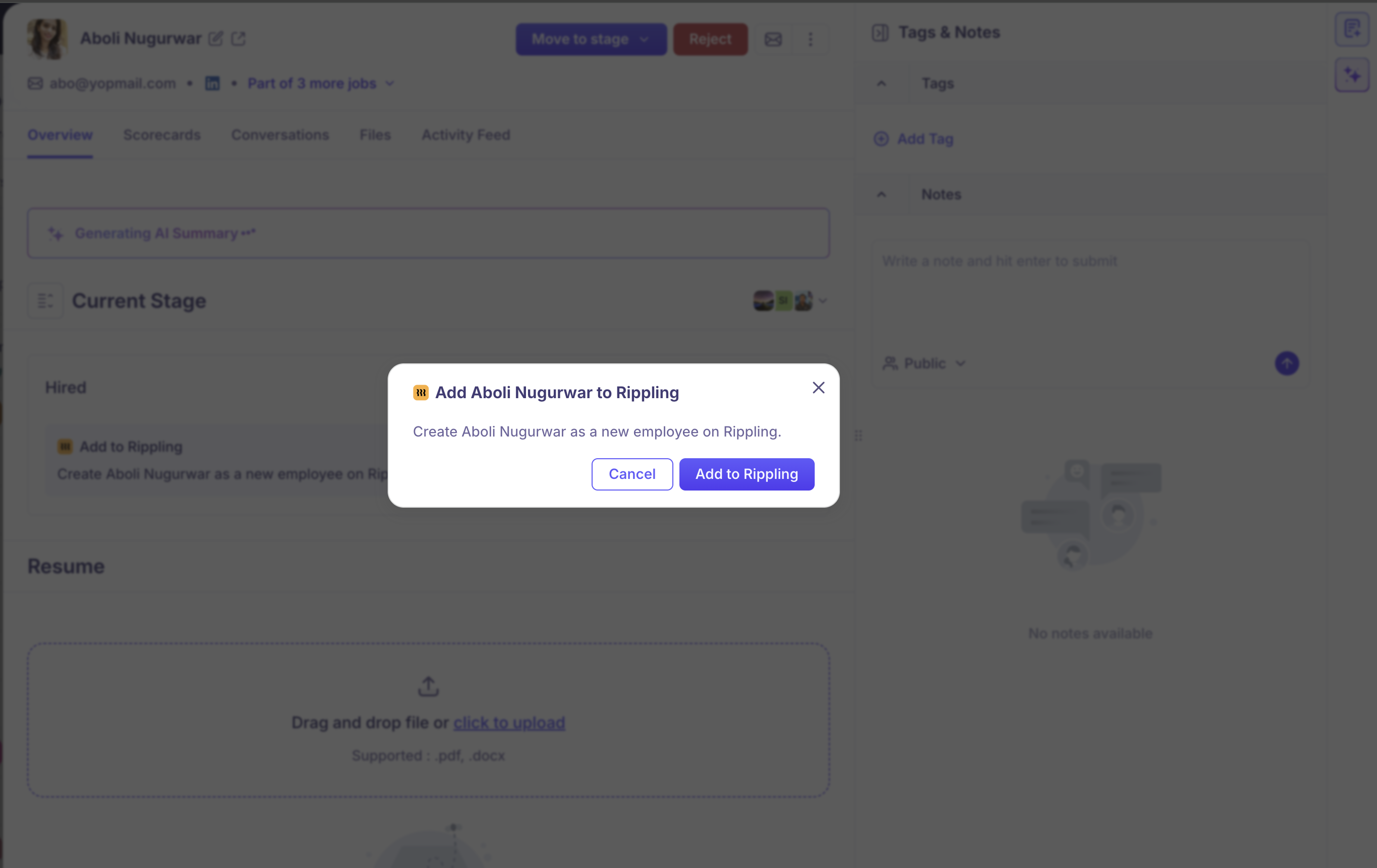
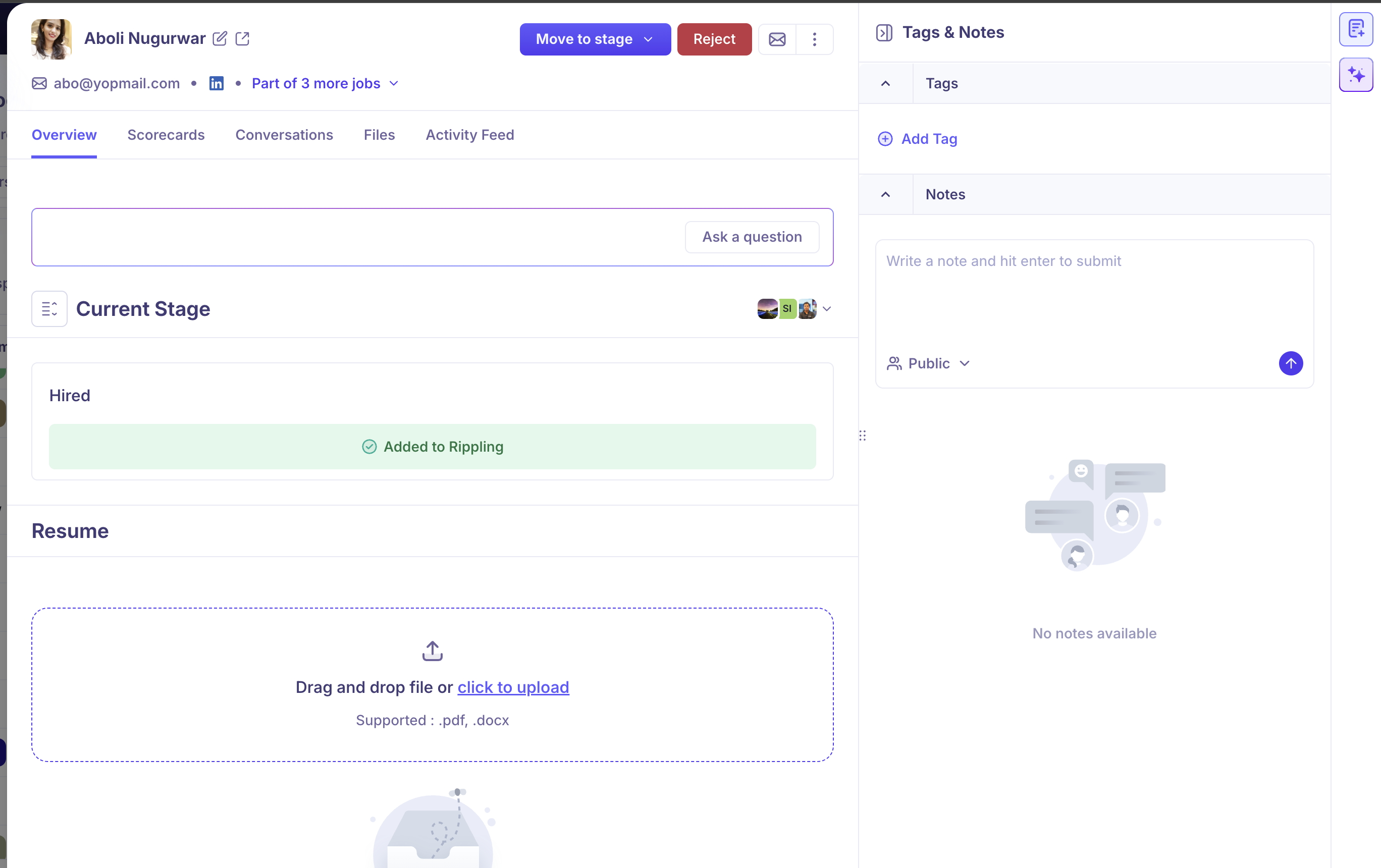
If a push fails, the card shows the error and you can Retry.
Good to know
Rippling's field mapping is fixed — unlike Kombo-based HRIS systems, there's no field-mapping screen for Rippling. Kula always sends the same set of fields.
Pushing to Rippling is manual — nothing is sent automatically when a candidate is marked hired.
Pushing a hire to BambooHR and other HRIS systems
Kula can send a hired candidate to BambooHR and a range of other HRIS systems through our Kombo integration. This article covers connecting one and pushing a hire across.
Which HRIS systems are supported
BambooHR, along with providers like HiBob, Workday, Personio, ADP Workforce Now, Deel, and TriNet, connect to Kula through our Kombo integration. Exactly which ones are available to your organisation depends on your Kombo connection — check Settings → Organisation → Integrations for the full list you can connect. Rippling and Darwinbox connect natively instead.
Connect an HRIS system
Go to Settings → Organisation → Integrations.
Find your HRIS system and click Connect, then authorise Kula from your HRIS account.
Kula opens a Map fields screen automatically the first time you connect.
The Organisation Integrations settings page, showing BambooHR connected alongside other available HRIS options.
Push a hired candidate
The candidate must already be marked Hired before you can push them.
Open the candidate's application.
On the Add to HRIS card, click Add to your HRIS system.
Kula opens a form pre-filled from your field mapping — check it over and submit.
The employee creation form for a connected HRIS system, pre-filled with the candidate's mapped details before submission.
Most systems create the employee record straight away; a few, like TriNet, process it in the background, so the card may show as pending for a short while.
Good to know
Kombo-connected HRIS systems use the field mapping you set up, unlike Rippling, which always sends a fixed set of fields.
Pushing a hire is a manual action for every provider; nothing sends automatically when a candidate is marked hired.
Some systems, including BambooHR, Workday, and Personio, also support attaching documents to the push alongside the mapped fields.
Mapping Kula fields to your HRIS
For HRIS systems like BambooHR, you can control exactly which Kula field fills each field on the other side. This article covers setting up and editing that mapping.
Who can do this: Super Admin, Admin
Where to find it: Settings → Organisation → Integrations → your HRIS system → Map fields
When you'll see the mapping screen
Kula opens the Map fields screen automatically the first time you connect a Kombo-based HRIS system, like BambooHR. You can also come back and edit it any time from the integration's settings.
Map a field
Go to Settings → Organisation → Integrations → your HRIS system, and open Map fields.
For each field on your HRIS side, choose the matching Kula field from the dropdown — or leave it as Not mapped.
Kula fields are drawn from the candidate, offer, job, and requisition, including any custom fields you've added, shown with a "– Custom" label.
Click Save.
The field mapping screen, with a column of HRIS field names and a column of dropdowns for the matching Kula field.
What gets mapped automatically
When you first connect, Kula pre-fills common fields for you — for example first name, last name, work email, start date, job title, and salary, pulled from the candidate's contact and their offer. Fields Kula has no equivalent data for, like date of birth or nationality, are left unmapped for you to fill in if your HRIS needs them.
Good to know
Field mapping is only available for Kombo-connected HRIS systems, like BambooHR. Rippling always sends a fixed set of fields and has no mapping screen.
Mapping is set per HRIS integration, so if you connect more than one, each has its own mapping.
FAQ
Can I map a custom field to my HRIS?
Yes — custom fields on the candidate, offer, job, or requisition show up in the Kula fields dropdown, labelled “– Custom” so you can tell them apart from standard fields.
Why can't I find a field mapping screen for Rippling?
Rippling doesn't use configurable field mapping — it always sends the same fixed set of fields from the offer and candidate.
Is BambooHR connected the same way as Rippling?
No — BambooHR connects through our Kombo integration, along with most other HRIS systems, while Rippling (and Darwinbox) connect natively. The main practical difference is that Kombo-connected systems let you customise field mapping; Rippling doesn't.
Why don't I see my HRIS system in the integrations list?
The HRIS systems available to connect depend on your organisation's Kombo connection. If yours isn't listed, contact support to check whether it can be added.
Why can't I push a candidate to Rippling yet?
The Add to HRIS card only appears once a candidate is in a Hired-milestone stage.
Can I choose which fields get sent to Rippling?
No — Rippling uses a fixed set of fields, including name, email, job title, salary, start date, and other information from the offer. If you need to customise field mapping, that's only available for Kombo-connected HRIS systems like BambooHR.
Need help?
If you have questions or need assistance, reach out to us at support@kula.ai or use the in-app chat.