Setting up e-signature
Last updated: November 4, 2026
Kula can send offers for e-signature through DocuSign, Adobe Sign and PandaDoc, and generate them in SpotDraft. The flow is the same for each: connect the provider, decide whether someone from your company also signs and in what order, send the approved offer, then follow the signing from the offer. This article covers connecting each provider, company signers, sending, and what "declined" and "voided" mean.
Who can do this: Super Admins and Admins connect providers and set the default signing details. Recruiters and Hiring Managers with access to the candidate's offer send it and follow the signing.
Where to find it: connect: Settings → Organization → Organization integrations → your provider. Send: the candidate's application → Current job tab → Offer → Send offer → Send with Docusign / Send with Adobe Sign / Send with PandaDoc / Generate with SpotDraft.
Connect a provider
An admin connects each provider once, under Settings → Organization → Organization integrations. The steps are in each provider's setup article:
Provider | What you need | Setup guide |
|---|---|---|
DocuSign | Click Connect and sign in to DocuSign | |
Adobe Sign | A Client ID and Client Secret from the Adobe Developer Console, then sign in to Adobe | |
PandaDoc | A paid PandaDoc account and an API key from PandaDoc's Dev Center | |
SpotDraft | See the setup guide |
Set up a company signer
Some offers need a signature from someone at your company as well as the candidate. Set the defaults once; recruiters can still change them on each offer when they send it.
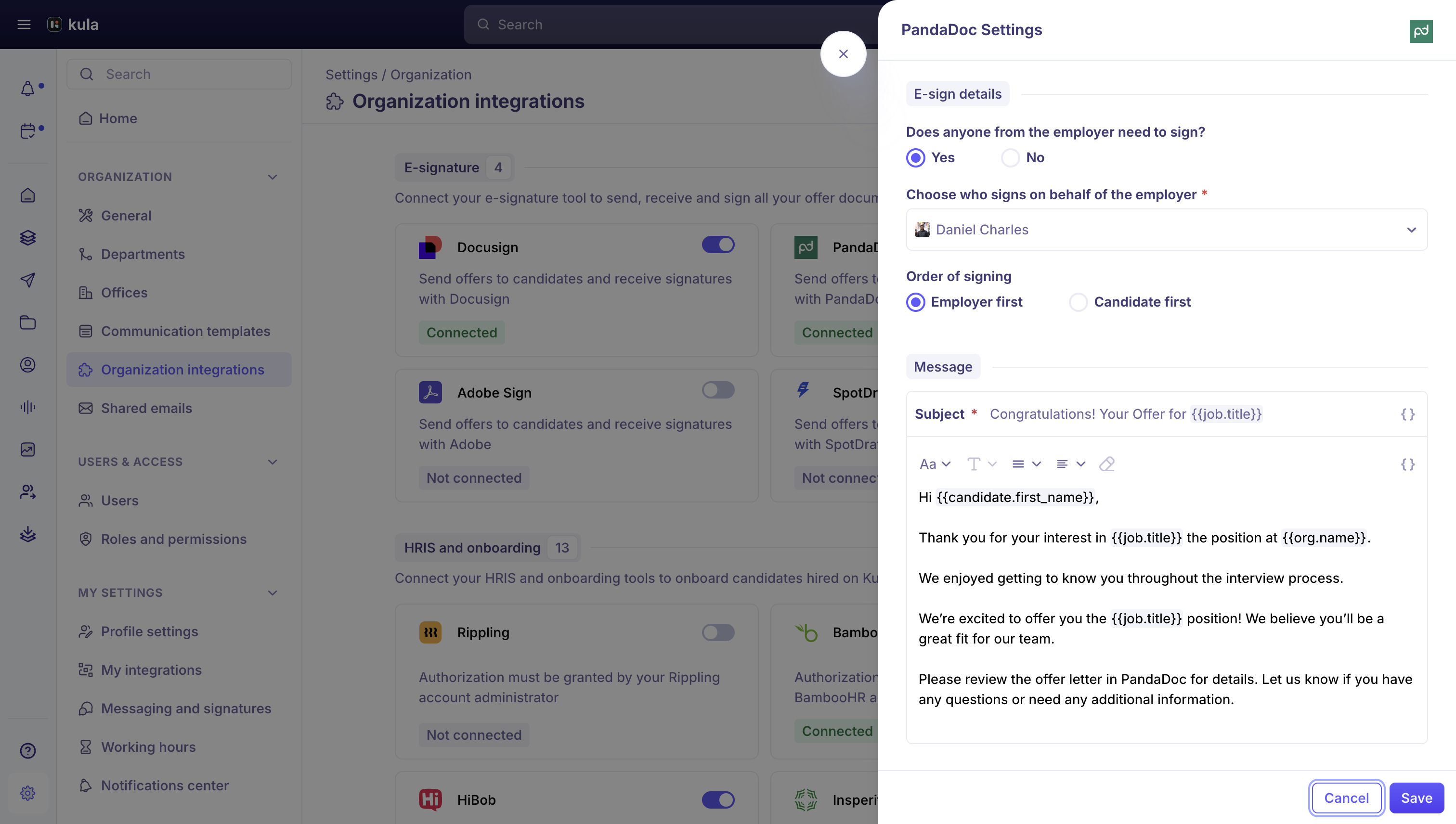
Go to Settings → Organization → Organization integrations → your provider's settings. For DocuSign, this is the Docusign Offer Settings panel.
Turn on Does anyone from the employer need to sign? and choose the Company signer.
Set the Order of signing: Employer first or Candidate first. The default is Employer first.
SpotDraft doesn't use this setting. It takes the company signer from your SpotDraft template.
Prepare your offer letter template
For signature and date fields to work, your offer letter template needs the provider's own tokens, for example {{docusign.candidate_signature}}, {{adobe.candidate_signature}} or {{pandadocs.candidate_signature}}. See Offer letter templates.
Send an offer for signature
The offer must be approved first. See Creating and sending an offer.
DocuSign
Open the approved offer and choose Send offer → Send with Docusign.
Write your message. To write a different message for the candidate, the company signer and anyone copied in, turn on Custom email for each recipient.
Choose who gets a copy of the signed offer, if anyone.
Click Send.
Preview in DocuSign first: if your organization has DocuSign preview turned on, click Preview on Docusign instead of Send. DocuSign opens so you can check the document and where the signatures go. You can send it from there, or use Send Later to schedule it; the offer then shows Scheduled on Docusign with the date and time. Adobe Sign
Open the approved offer and choose Send offer → Send with Adobe Sign.
Write your message. Adobe's message box is plain text only, with no formatting or links.
Click Send.
Open the approved offer and choose Send offer → Send with PandaDoc.
Write your message.
Click Send.
If your offer has more than one document, only the first is sent to PandaDoc for signature. The others stay in the candidate's offer preview in Kula.
SpotDraft
Choose Send offer → Generate with SpotDraft. The document is uploaded to SpotDraft, and the offer shows Awaiting e-sign preparation until someone places the signature fields in SpotDraft. The candidate is notified after that.
Only DocuSign has a preview step. With Adobe Sign and PandaDoc, sending goes straight to the signers, so check the offer details first.
Follow the signing
Click the offer's status badge to open its Signature sequence: a timeline of each signer, showing whether they've signed, declined or are still pending. When it's someone's turn, a Send reminder link appears.
With SpotDraft, the timeline shows Pending without naming who it's waiting for.
When everyone has signed, the offer changes to Accepted by candidate on its own.
When a signer declines
The candidate or the company signer can decline. The offer changes to Rejected by candidate or Rejected by company signer, and Kula records their reason where the provider shares it:
DocuSign and Adobe Sign include the reason straight away.
PandaDoc sends the reason separately, so it can appear a little later.
SpotDraft records a reason only if the signer is someone Kula recognizes.
When an envelope is voided
An envelope is voided when it's cancelled before everyone has signed. After that, you can generate a new document and send again.
Automatically: when you delete the offer, generate its document again, or replace, add or remove an offer document while it's out for signature. Kula warns you first.
Yourself (DocuSign only): choose Mark as rejected in the offer's menu. It voids the envelope and saves your reason (up to 200 characters) as the rejection reason. For PandaDoc and Adobe Sign, delete the offer to void it. Adobe Sign works differently: if an Adobe agreement is cancelled or expires in Adobe, the offer goes back to an editable draft instead of Voided, ready to fix and send again.
See Editing or revoking an offer.
Good to know
The voided label may say "voided on Docusign" whichever provider you used. It doesn't mean something went wrong.
A company signer who also sent the offer can't decline in DocuSign. DocuSign only lets them void the envelope.
Signed or declined requests can't be voided. That's a rule of the providers, not Kula.
Documents other than the offer, such as NDAs, can be sent with the Docusign e-sign document activity in the interview plan, if it's turned on for your account. See What is an interview plan?
FAQ
Can I send a different message to the candidate and the company signer?
Yes, with DocuSign. Turn on Custom email for each recipient. Can I preview the offer in Adobe Sign or PandaDoc before sending?
No. Only DocuSign has a preview step.
I attached several documents. Will the candidate see them all in PandaDoc?
Only the first document goes to PandaDoc. The rest are in the candidate's offer preview in Kula.
Why don't I see the decline reason on a PandaDoc offer yet?
PandaDoc sends it separately. It appears shortly after the decline.
An Adobe agreement was cancelled. Why is the offer a draft instead of Voided?
That's how Adobe Sign works in Kula. Fix the offer and send it again.
Why can't my company signer decline in DocuSign?
They're also the sender, and DocuSign only lets the sender void the envelope.
Can I void a PandaDoc or Adobe Sign envelope myself?
Delete the offer, or generate its document again. Mark as rejected is for DocuSign only. My offer says "voided on Docusign" but I used PandaDoc. Is that a problem?
No. Kula uses that label for every voided offer.
Can I change the company signer for one offer?
Yes. Change it when you send the offer.
Need help?
If you have questions or need assistance, reach out to us at support@kula.ai or use the in-app chat.