How to create and manage offer fields
Last updated: September 14, 2026
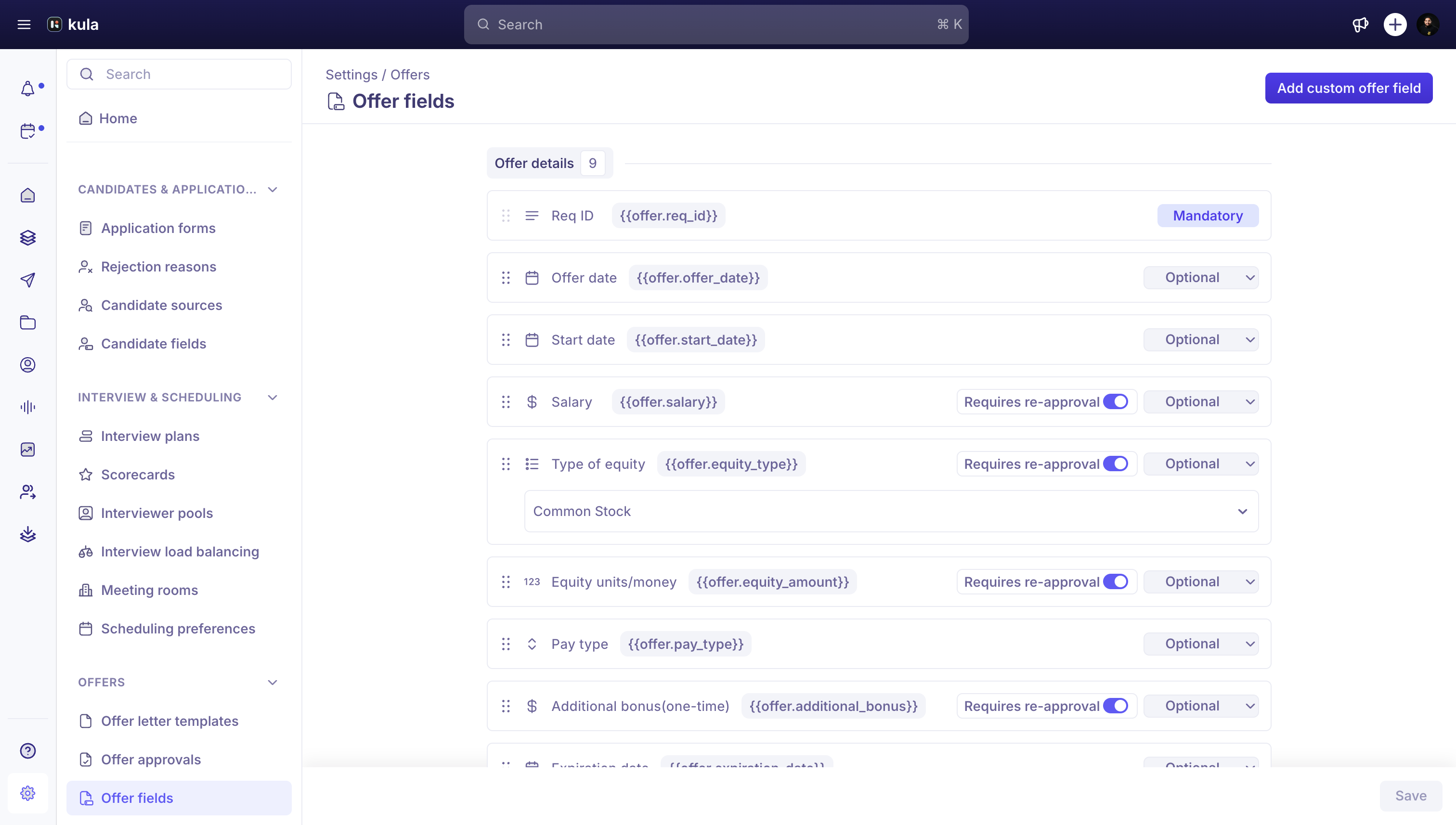
Offer fields are the fields that appear on every offer you create in Kula — a mix of built-in fields (Salary, Start Date, Equity, and so on) and any custom fields your organisation has added. This article covers creating custom offer fields, managing the full set (built-in and custom together), and the newer per-option content feature for single-select and yes/no fields.
Who can do this: Admin, Super Admin (with the permission to manage offer custom fields).
Where to find it: Settings → Custom fields → Offer fields.
Creating a custom offer field
On the Offer fields page, click Add custom offer field.
Choose a field type. Kula's custom fields generally support text, number, currency, date, single-select, multi-select, yes/no, rating, user picker, file upload, and rich text.
Set the label, whether it's required, and whether it's hidden.
Save. New custom fields land in their own Custom section on the offer form, alongside Kula's built-in sections (Offer Details, Additional Compensation, Candidate Details, Job Details).
Managing offer fields
Reorder fields by dragging them. On some accounts you can only reorder within a section; on others you can drag any field — built-in or custom — across sections entirely, depending on your account's rollout of that capability.
Require or hide a field with its toggle. If a field's token is already used in an offer letter template, hiding it shows a warning listing every template that uses it — those templates stop working until you either unhide the field or remove the token from the template.
Require re-approval on change. Any offer field — built-in or custom — can have Requires re-approval turned on. When it's on, changing that field's value on an offer that's already been through approval sends it back through the approval flow again, rather than letting the change stand unapproved.
Deleting a field isn't always possible — a field currently used as a reviewer in an approval step can't be deleted until it's removed from that approval rule first.
Some built-in fields let you set an organisation-wide default — for example, a default currency, or a default equity/bonus award type — so new offers start pre-filled instead of blank.
Adding sections to a field (per-option content)
For a single-select or yes/no offer field, you can attach different rich-text content to each option — so one offer letter template can render the right clause automatically instead of you maintaining a separate template per variant (for example, a different clause per employment type, or a yes/no addendum).
Open the single-select or yes/no field you want to add content to.
For each option, write the content that should appear when that option is selected on an offer.
Kula derives one token for the field — {{offer.<token>_section}} — which appears in the offer letter template's Available tokens panel, labeled "<Field> section," right next to its parent field. Drop that token anywhere in the template.
When the letter is generated, the token renders whichever option's content was picked on that offer. An unselected or empty section renders nothing — no stray blank line.
Good to know
Sections only work on single-select and yes/no fields — not multi-select or free-text fields.
Section content can reference other offer field tokens, and those resolve normally when the letter is generated — but a section can't reference another field's section token; that level of nesting isn't supported.
Section content renders rich text only if your account has that sub-capability on — otherwise the per-option content box is a plain text area instead. Either way, the token behaves the same in the template.
If you delete an option from a single-select field, that option's section content is cleaned up automatically — it won't linger as orphaned, unreachable content.
Requires re-approval and offer approvals are connected. If your organisation uses Offer Approvals (see "Creating offer approvals"), turning on Requires re-approval for a field is how you make sure a late change to it doesn't slip through without a fresh sign-off.
FAQ
No confirmed customer questions found specifically about creating or managing offer fields — most related support activity we found was about HRIS field-mapping gaps for specific offer fields, not the field-management screen itself.
Need help?
If you have questions or need assistance, reach out to us at support@kula.ai or use the in-app chat.