Buying and managing phone numbers
Last updated: September 25, 2026
The Coordinator Agent calls candidates from a phone number your organisation owns. You buy numbers here with credits, and each job picks which of your numbers its agent calls from.
Who can do this: Super Admin, Admin — and anyone on a custom role with the Manage interview configuration permission
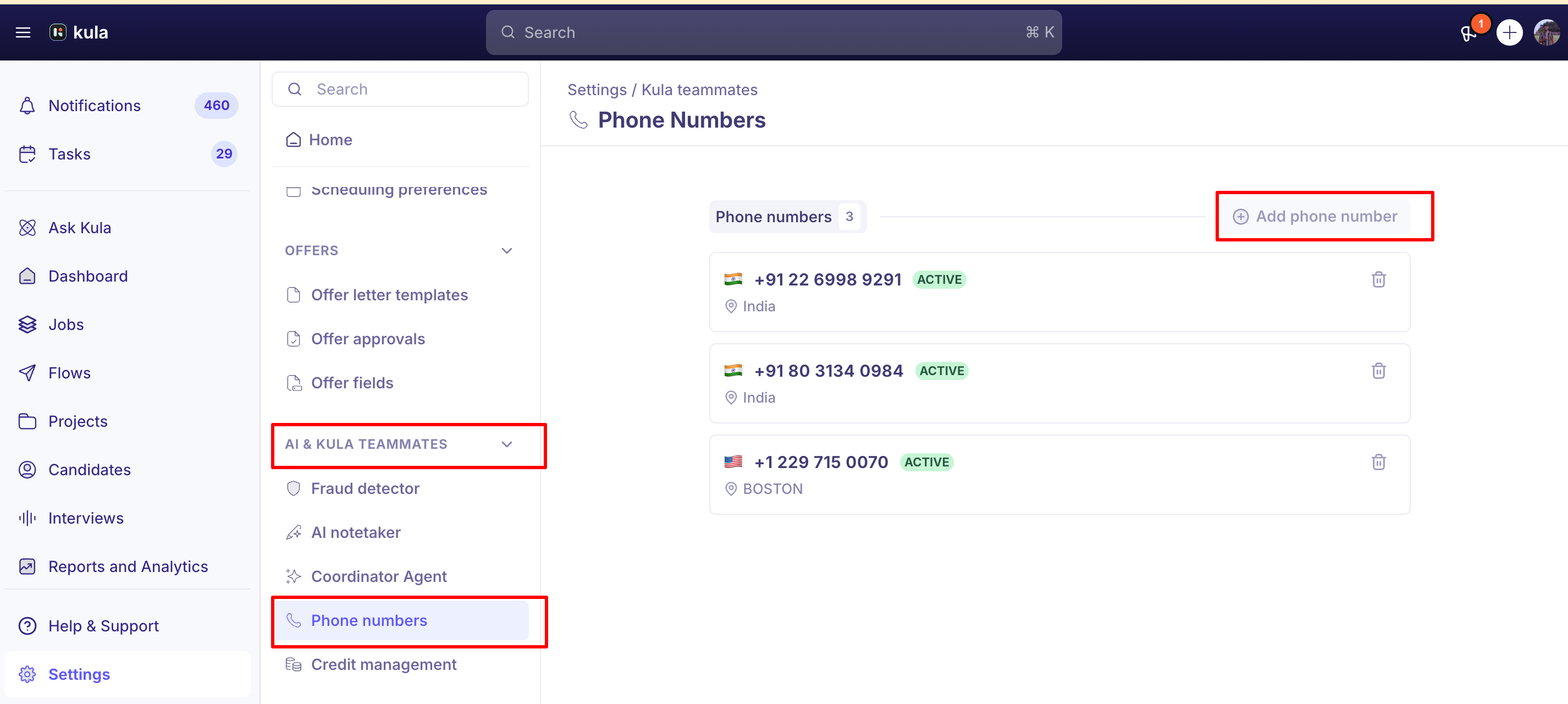
Where to find it: Settings → AI Teammates → Phone numbers
Why the number you pick matters
This number is what shows on the candidate's screen when the agent rings, and it's the number they can call back if you've turned on inbound rescheduling. Two things follow from that:
Candidates answer local numbers. An unknown international number is more likely to be ignored or blocked than one with a familiar area code. If most of your hiring is in one country, buy a number there.
Candidates will ring it back, whether or not you've enabled inbound rescheduling. Pick a number you're happy to have in candidates' call histories.
You can hold up to three numbers, so a team hiring across two or three regions can have one for each and set the right one per job.
Before you start
You need credits in your organization's balance — credits pay both for buying a number and for the calls the agent makes. With none, the page tells you: "You can't buy a phone number unless you have enough credits." Ask Kula support if you're unsure how many you have.
Buy a phone number
Go to Settings → AI Teammates → Phone numbers.
Click Add phone number.
Choose a Select country. Kula pre-fills the country matching your own time zone, so change it if you're buying for a different region.
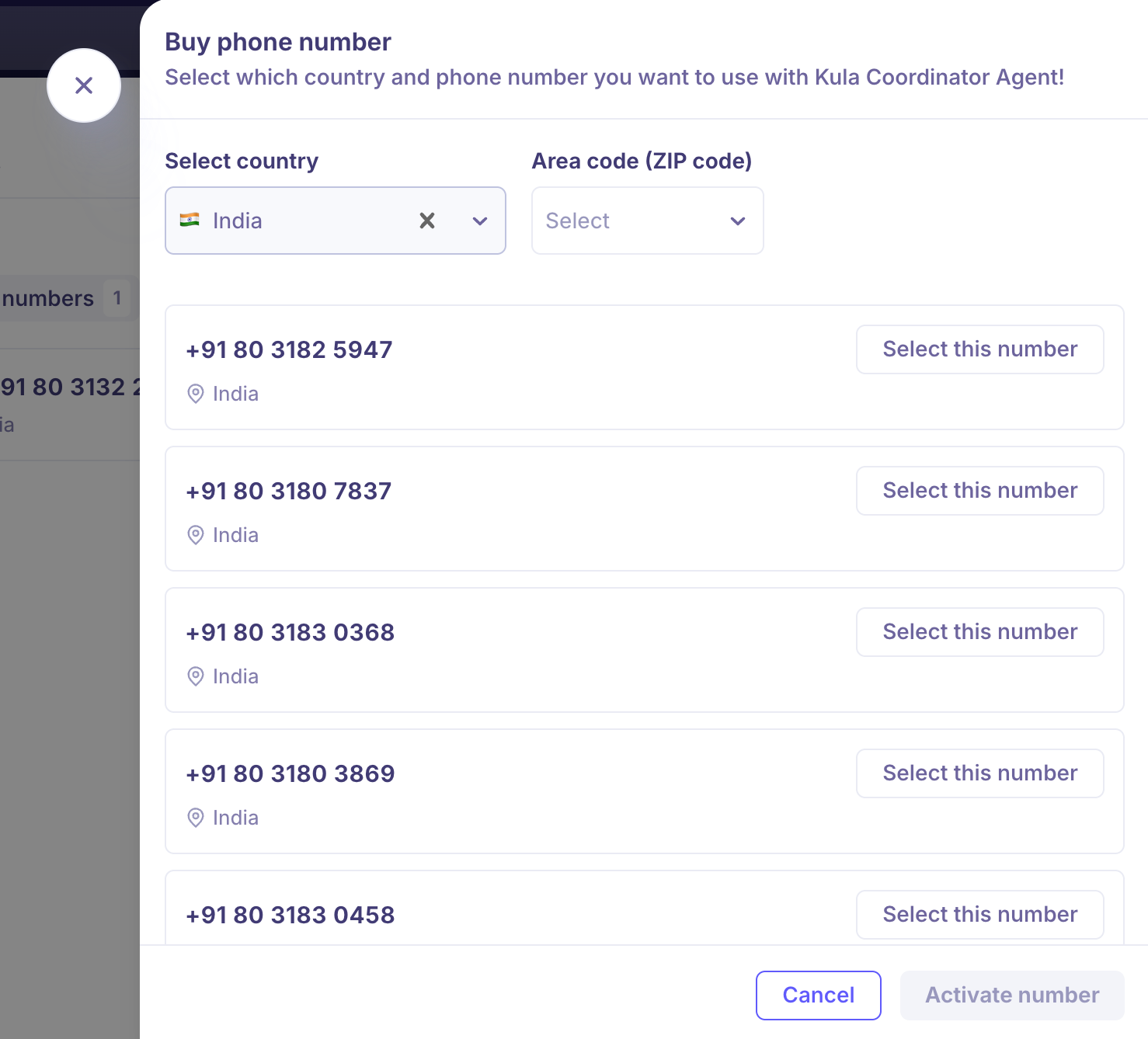
Narrow the search if you want a particular area — pick a City/Region, an Area code (ZIP code), or both. Leave them blank to see everything available in the country.
Pick a number from Available numbers. Each shows its location and monthly cost.
Click Activate number.
The number appears in your list straight away and can be selected on a job immediately. Activate number stays disabled until you've picked one from the results.
City and region filtering isn't offered for every country — where it isn't available, use the area code filter or browse the country as a whole.
See and remove your numbers
Your numbers are listed as cards showing the number, its country flag and its location, with a count beside the heading.
To release a number, click the bin icon on its card. Before you do, check no job is using it — a job whose number has been released will need a new one selected before the agent can call again.
Choosing which number a job uses
Buying a number doesn't attach it to anything. Each job picks its own under Associated phone number when the Coordinator is added. If you own only one number, Kula selects it automatically.
Numbers aren't reserved, so several jobs can share one.
Good to know
Three numbers is the maximum. At three, Add phone number is disabled with the tooltip "Max. 3 phone numbers". Release one to buy another.
Each number carries a monthly cost, shown in the search results before you buy.
Releasing a number is not reversible. Once released you cannot reclaim that specific number.
To check your credit balance, ask Kula support.
FAQ
Why is the Add phone number button greyed out? You already hold three numbers, which is the limit. Delete one you no longer need and the button becomes available again.
Can candidates call this number back? They can dial it regardless. Whether the agent answers and helps them reschedule depends on Inbound rescheduling being turned on for your organisation. For more, see Setting up the Coordinator Agent
Do I need a number in the same country as my candidates? Not technically, but candidates are far more likely to answer a local number. Buy for the region where most of your hiring happens, and use your three slots to cover more than one region if needed.
We released a number by mistake — can we get it back? No. Releasing returns the number to the carrier and it can't be reclaimed. Buy a new one and update any job that was using the old number.
Need help? If you have questions or need assistance, reach out to us at support@kula.ai or use the in-app chat.