How to Set Up and Use the Checkr Integration with Kula
Last updated: September 24, 2025
The Checkr integration in Kula allows you to run background checks on candidates directly from your Kula account, making the hiring process faster, more compliant, and easier to manage.
🔧 Prerequisites
Before enabling the integration, ensure you have:
An active Checkr account (with admin access).
Access to Kula Admin Settings.
Candidate records already created in Kula.
🔗 Enabling Checkr Integration in Kula
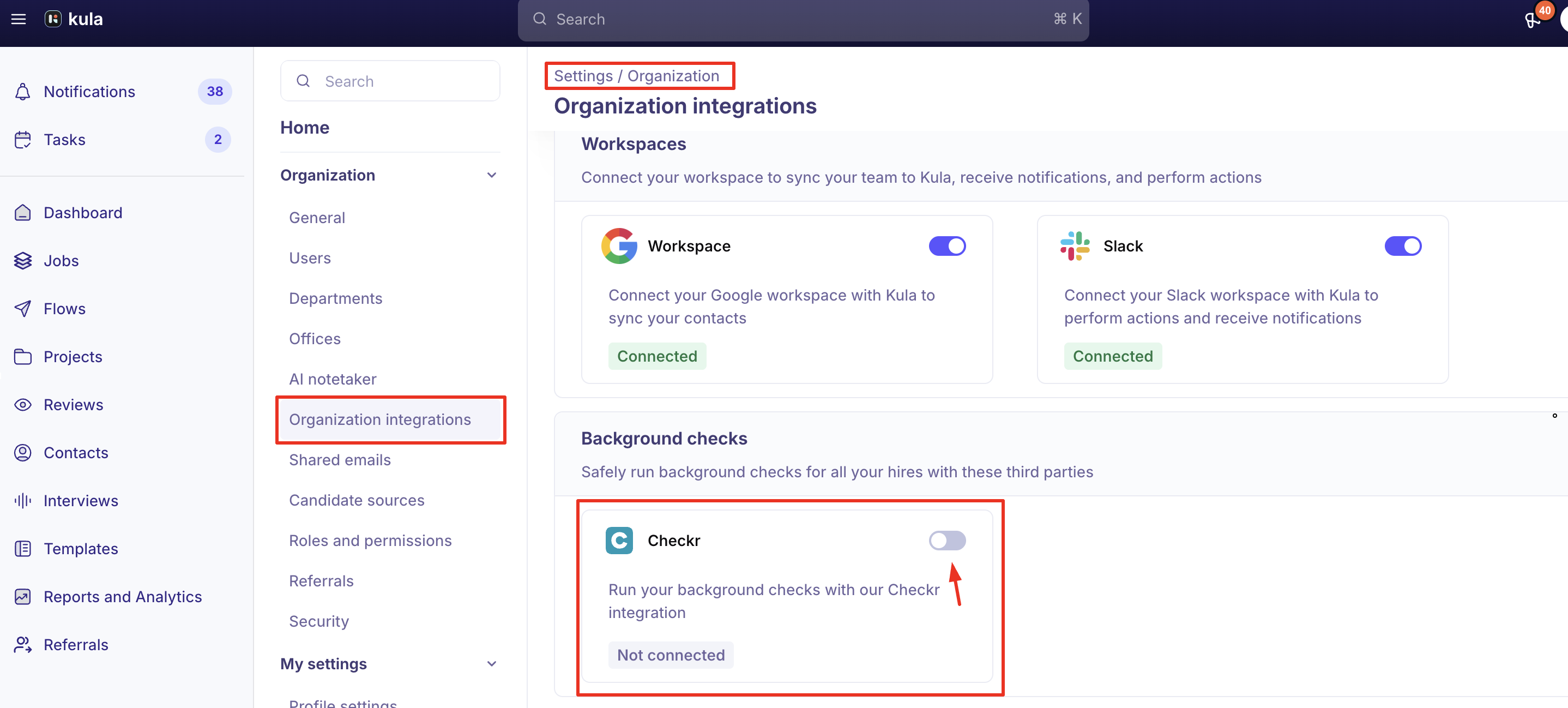
Log in to Kula with an Admin account.
Navigate to:
Settings > Integrations > Background Checks.Select Checkr from the list of available integrations.
Click Connect and log in with your Checkr Admin credentials.
Authorize Kula to access your Checkr account.
Once connected, you’ll see Checkr listed as Active under Integrations.
👤 Running a Background Check
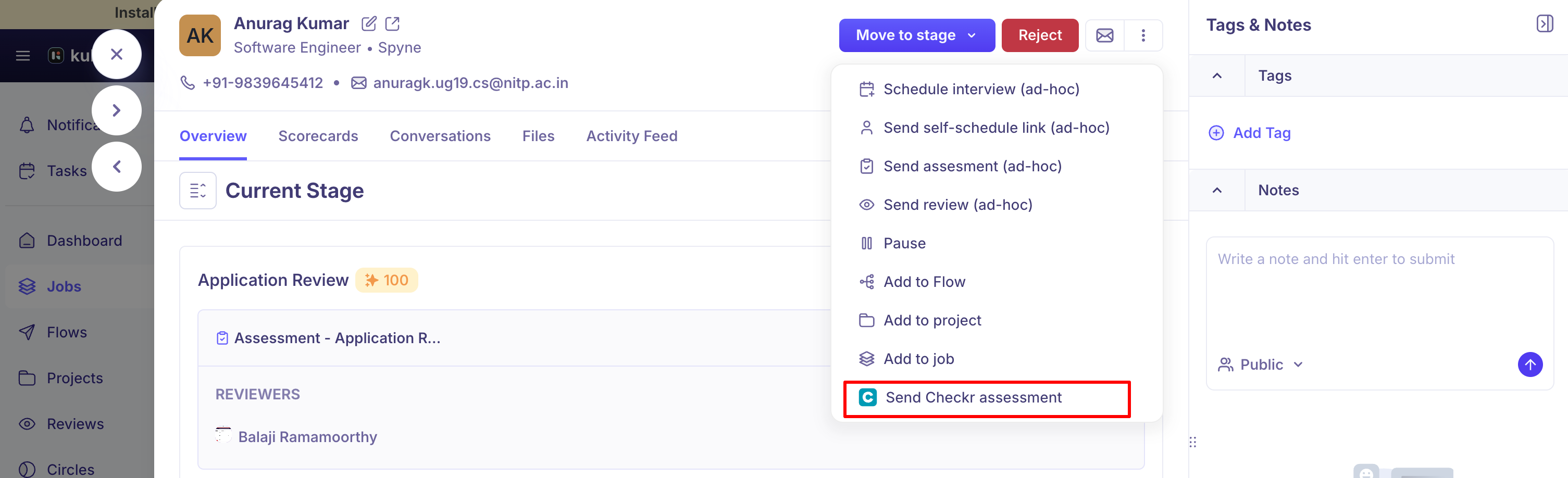
Go to the candidate’s profile in Kula.
Click on the Actions menu (⋮) and select Run Background Check.
Choose Checkr as the provider.
Select the Package (e.g., Criminal Check, Employment Verification, etc.) configured in Checkr.
Confirm and submit.
✅ The candidate will receive a consent email from Checkr to authorize the background check.
📊 Viewing Results
Once Checkr completes the background check, results are automatically synced back to Kula.
You can view the status and results under the candidate’s Background Check tab.
Common statuses include:
Pending → Candidate has not yet completed authorization.
In Progress → Background check is ongoing.
Clear / Consider → Final results from Checkr.
⚠ Important Notes
Background checks are managed entirely by Checkr—Kula only displays results.
If a candidate does not complete their authorization, the background check will remain Pending.
Any billing for background checks will be handled by Checkr directly, not Kula.
FAQ
Q: How do I enable Checkr in Kula?
A: Go to Settings > Integrations > Background Checks, select Checkr, and connect with your Checkr Admin credentials.
Q: Can I run background checks from Kula?
A: Yes, open the candidate’s profile → Actions (⋮) → Run Background Check.
Q: How are candidates notified?
A: They’ll receive a consent email directly from Checkr.
Q: Where do I see the results?
A: In the candidate’s Background Check tab in Kula.
Q: What do the statuses mean?
A: Pending = awaiting candidate action, In Progress = running, Clear/Consider = final result.
Q: Who handles billing for background checks?
A: Checkr manages billing directly.
Q: Who do I contact for issues?
A: Kula Support for setup, Checkr Support for results or billing.