Invite Your Team & Assign Roles
Last updated: June 23, 2026
Building your Kula team starts with inviting the right people and assigning roles that match their responsibilities. Whether you're adding recruiters, hiring managers, or team members, Kula's role-based system ensures everyone has the access they need to do their work effectively. This guide walks you through inviting team members and assigning the appropriate role for their function.
This article covers:
• Overview of Kula roles and permissions
• Sending invitations to team members
• Assigning roles during and after invitation
• Managing role changes and permissions
• Best practices for team management
Overview of Kula Roles and Permissions
Kula offers distinct roles designed for different functions in your recruiting process. Choose the appropriate role for each team member based on their responsibilities.
• Super Admin: Full organization control. Can manage all users, settings, billing, and permissions. Reserved for organization leadership.
• Admin: Can manage users, organization settings, and access controls. Admins assist Super Admins in managing the Kula instance.
• Hiring Manager (HM): Manages job openings and interviews. Can view candidates, schedule interviews, and provide feedback. Focused on the hiring side.
• Recruiter: Sources and manages candidate pipelines. Can create outreach, manage flows, and track candidate progress through the recruiting process.
• Recruiting Coordinator: Supports recruitment operations. Can manage scheduling, candidate communication, and administrative recruiting tasks.
• External Collaborator: Limited access for external recruiters or agencies. Can view specific candidates and submit feedback. Restricted from organization settings and candidate data outside their scope.
Tip: Use the principle of least privilege. Assign the minimum role needed for each person's function. You can always upgrade permissions later as responsibilities evolve.
Sending Invitations to Team Members
Invite team members to join your Kula organization.
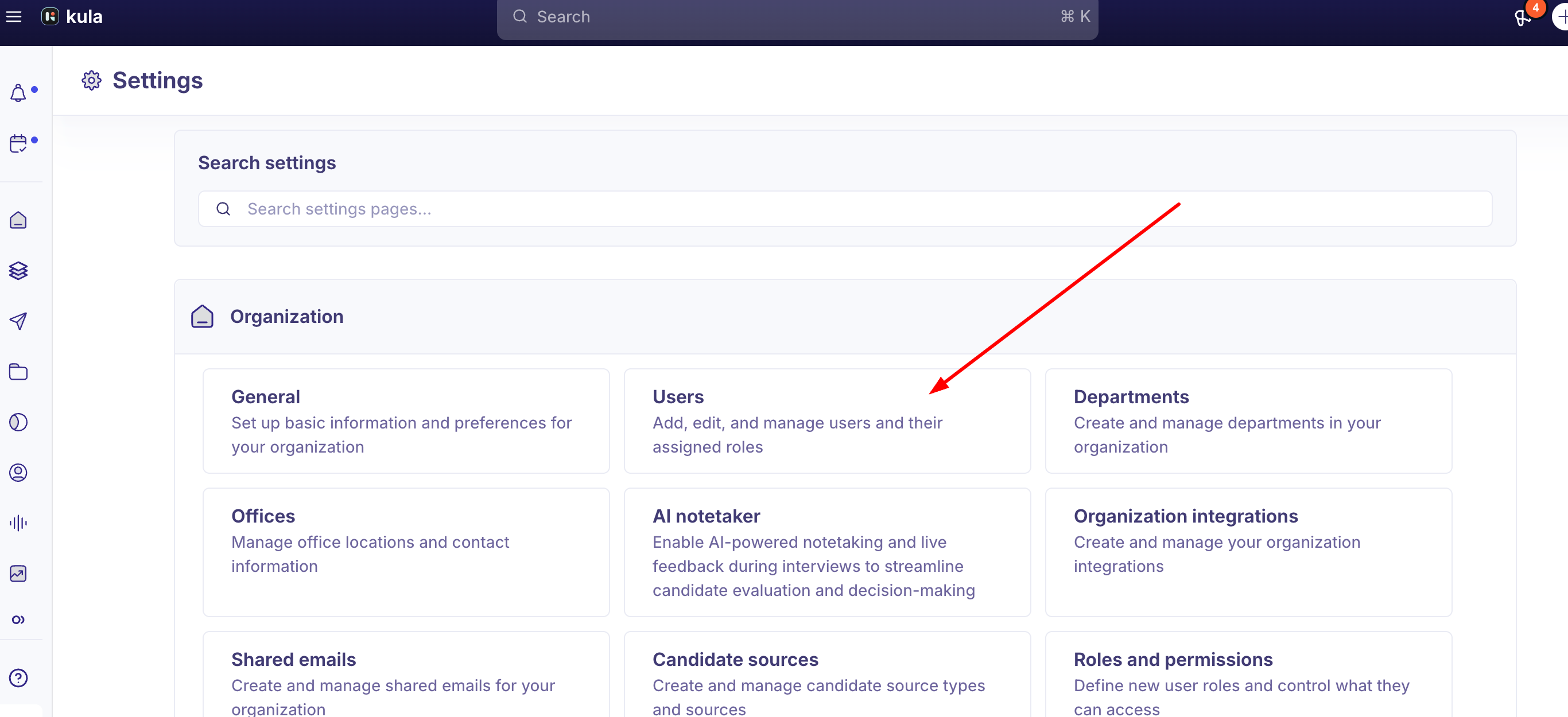
• Log in to Kula and navigate to Settings
• Select "Users."
• Click "Add User."
• Enter the email address(es) of the people you want to invite. You can add multiple emails separated by commas.
• Click "Send Invitation." Invitations are sent immediately, and team members can accept and create their accounts.
Tip: Send invitations at least a few days before team members need access. This gives them time to create their account and familiarize themselves with the platform.
Assigning Roles During and After Invitation
Assign the appropriate role during invitation or update it after the team member has joined.
When inviting a team member:
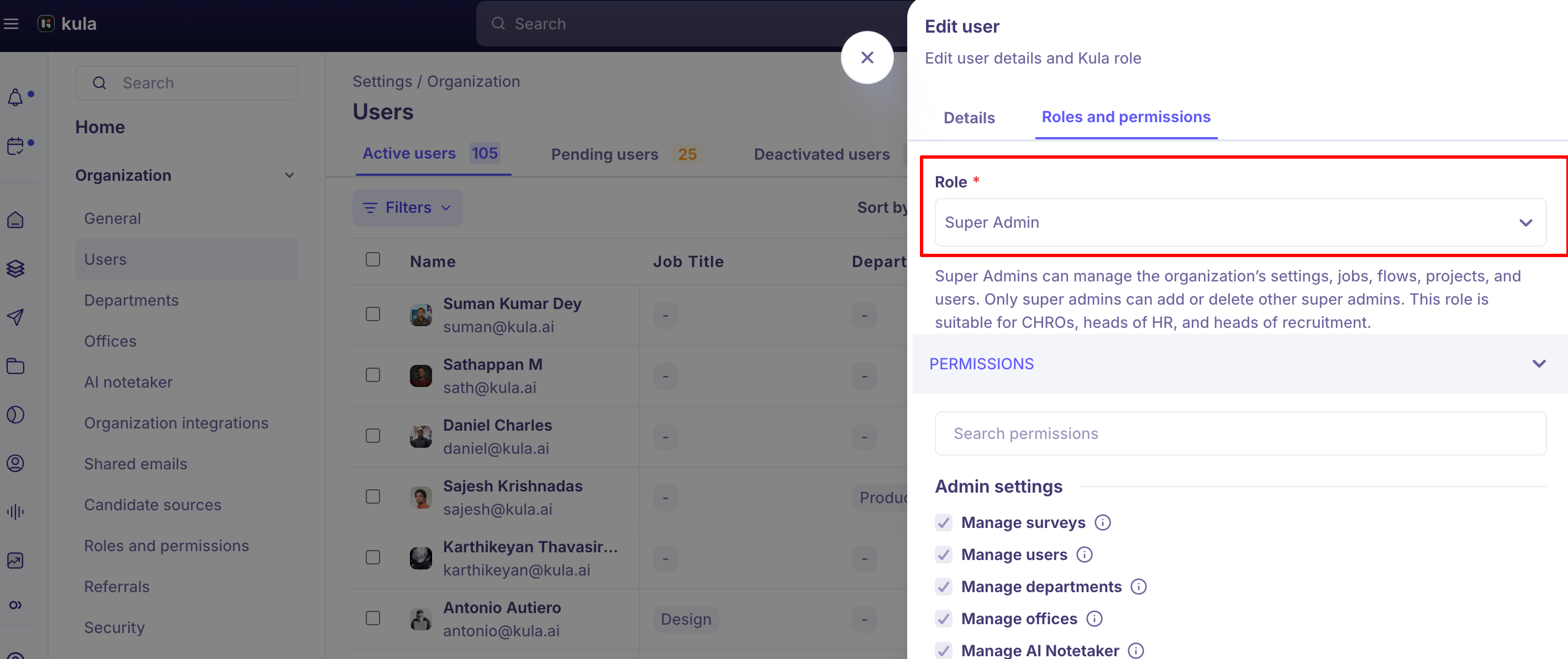
• After entering their email address, select their role from the dropdown menu.
• Click Send Invitation with the role selected. The invitee will see their assigned role when they accept the invitation.
To change a team member's role after they've joined:
• Go to Settings or Manage Users.
• Find the team member in the list.
• Click on their profile or the role dropdown next to their name.
• Select the new role and save. The change takes effect immediately.
Tip: When promoting someone to Admin, notify them of the change and any new responsibilities. Consider providing a brief walkthrough of admin features.
Frequently Asked Questions
1. Can I invite multiple team members at once?
Yes. When inviting, enter multiple email addresses separated by commas. All invitees receive an invitation with the same role. You can adjust individual roles after they join if needed.
2. What happens if someone doesn't accept their invitation?
Invitations typically expire after 30 days. If a team member doesn't accept, you can resend the invitation or reach out to them directly. They won't have access until they accept and confirm their account.
3. Can I change someone's role after they've joined?
Yes, absolutely. Go to Team/Manage Users, find the team member, and select a new role. The change takes effect immediately.
4. What's the difference between a Recruiter and a Hiring Manager?
Recruiters source candidates and manage the recruiting pipeline through outreach and flows. Hiring Managers manage job openings, conduct interviews, and provide hiring feedback. Many organizations have both roles working together.
5. How do I remove someone's access?
Go to Team/Manage Users, find the person, and select "Remove" or "Deactivate." They will immediately lose access to Kula.
6. What can an External Collaborator see?
External Collaborators have limited, scoped access. They can typically view specific candidates they're working with and submit feedback, but cannot access organization settings or candidate data outside their scope. This is ideal for external recruiters or agency partners.
Need Help?
If you have questions about inviting team members or assigning roles, reach out to support@kula.ai or use the in-app chat for help.