Connect Your Core Integrations
Last updated: June 22, 2026
Connecting HRIS, ATS, and Other Platforms to Kula
Kula integrates with your existing HR and recruiting tools to create a seamless workflow. Connect your HRIS, ATS, payroll system, and other platforms to sync candidate data, offer details, and onboarding information automatically. This eliminates manual data entry, reduces errors, and keeps your hiring process efficient from offer to hire.
This article covers:
Overview of supported integrations
Setting up your first integration
Configuring data sync and field mapping
Testing the connection
Frequently asked questions
Overview of Supported Integrations
Kula connects with the major platforms used in recruiting and HR. Here are the core integrations available:
Integration | Purpose | What Syncs |
BambooHR | Employee database and HR records | New hires, employee data, org structure |
Workday | Enterprise HRIS and payroll | Employee records, compensation, onboarding |
Greenhouse | Applicant Tracking System | Candidate profiles, job requisitions, status |
Lever | Applicant Tracking System | Pipeline management, hiring pipeline |
DocuSign | E-signature for offers | Offer signatures, acceptance tracking |
Guidepoint | Background check and reference checks | Check status, verification results |
Tip: Start with your HRIS and ATS as core integrations. These two will cover most of your hiring data flow. Add e-signature and background check integrations next.
Setting Up Your First Integration
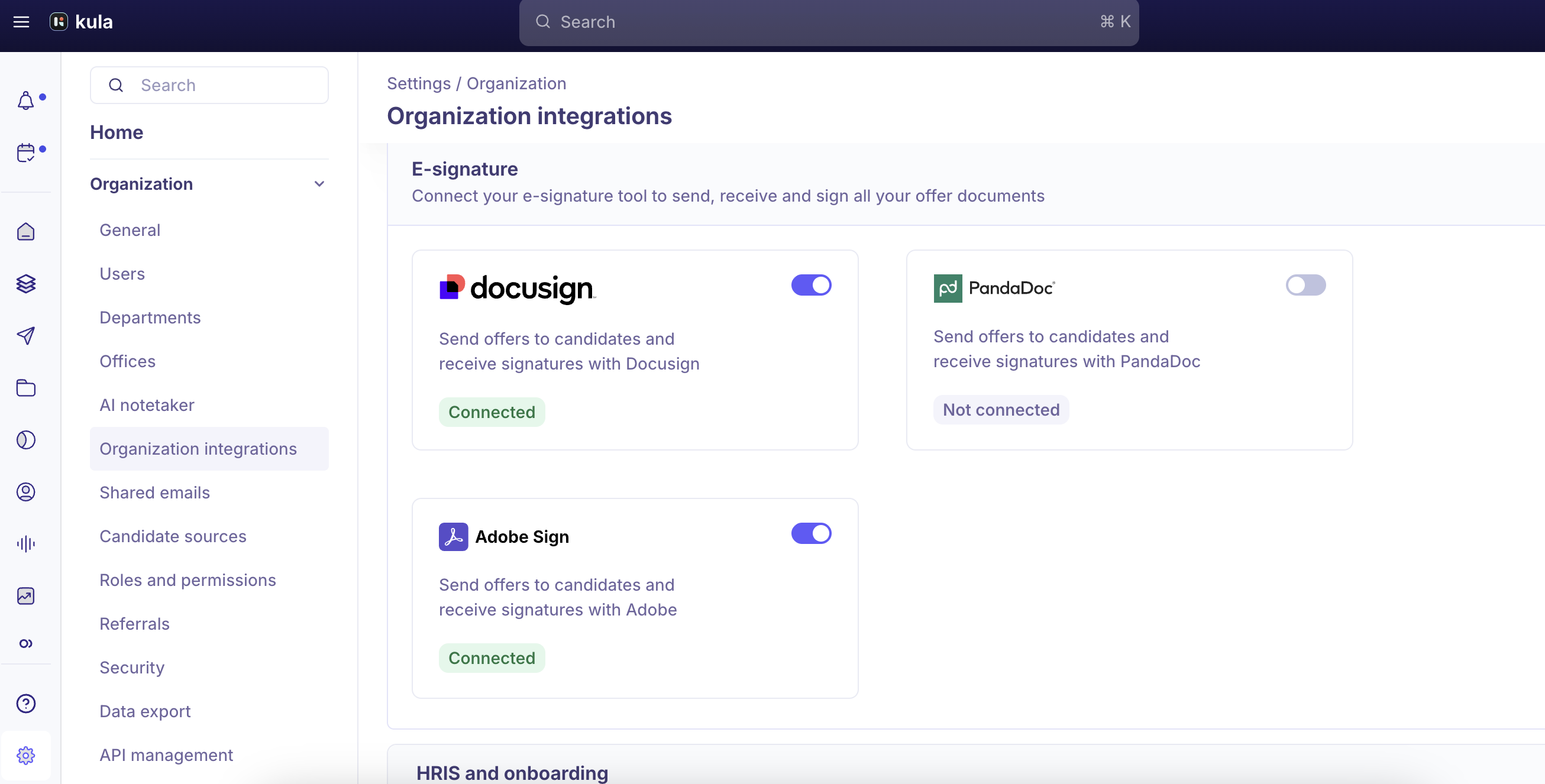
Connect integrations from Kula's admin settings.
Log in to Kula and navigate to Settings > Integrations.
Click Connect Integration or Browse Available Integrations.
Select the platform you want to connect (e.g., BambooHR, Greenhouse).
You will be prompted to authenticate. Enter your credentials for that platform.
Grant Kula permission to access and sync data from that system.
Configuring Data Sync and Field Mapping
Once connected, configure what data syncs and how fields map between systems.
In the Integration settings, select Field Mapping or Configure Sync.
Choose which data should sync (e.g., candidate profiles, offers, employee records).
Map fields between Kula and the connected system.
Example: Kula's 'Start Date' field maps to your HRIS 'Hire Date' field.
Choose sync direction: One-way (Kula to system or system to Kula) or two-way.
Set sync frequency: Real-time, hourly, daily, or on-demand.
Save your configuration.
Tip: Review field mappings carefully before enabling sync. Mismatched fields can cause data corruption. Test with a few records first.
Testing the Connection
Always test integrations before rolling out to your team.
In the Integration settings, click Test Connection or Run Sync Test.
Select a test record from your system (e.g., a test candidate or employee).
Run the test and monitor the sync process.
Verify that data appears correctly in both Kula and the connected system.
Check for any error messages or failed fields.
If issues occur, review field mappings or contact support.
Once testing passes, enable the integration for your team.
Managing Multiple Integrations
You can connect multiple integrations simultaneously. Manage them all in one place.
Go to Settings > Integrations to view all connected systems.
Each integration shows its status (Connected, Pending, Error).
Click an integration to edit field mappings or change sync settings.
To disconnect, click the three-dot menu and select Disconnect.
Monitor sync logs to ensure data is flowing correctly.
Frequently Asked Questions
1. What if my platform is not listed?
Contact Kula support to request integration with additional platforms. Many integrations are built on demand based on customer needs.
2. Can I sync data in both directions?
Yes. Most integrations support two-way sync, meaning data updates in either system are reflected in the other. Configure this when setting up field mappings.
3. What happens if a sync fails?
Kula logs all sync errors in the Integration logs. You'll receive a notification if critical data fails to sync. Review the error and contact support if needed.
4. Can I disconnect an integration without losing data?
Yes. Disconnecting stops future syncs but does not delete existing data in either system. You can reconnect later if needed.
5. How often does data sync?
You control sync frequency during setup: real-time, hourly, daily, or on-demand. Real-time is default for most integrations.
6. Is my data secure when syncing with external systems?
Yes. Kula uses OAuth authentication and encrypted connections for all integrations. Your credentials are never stored in plain text.
Need Help?
If you have questions about setting up integrations or need assistance, reach out to support@kula.ai or use the in-app chat for help.