Log In & Set Up Your Profile
Last updated: June 26, 2026
This guide walks you through logging into Kula and setting up your user profile. Whether you're a first-time user or returning to your account, we'll help you get up and running in just a few minutes. Your profile settings determine your access level, notification preferences, and how you appear to your team.
This article covers:
Logging in to Kula
First-time login setup
Accessing your profile settings
Completing your profile information
Setting notification preferences
Frequently asked questions
Logging In to Kula
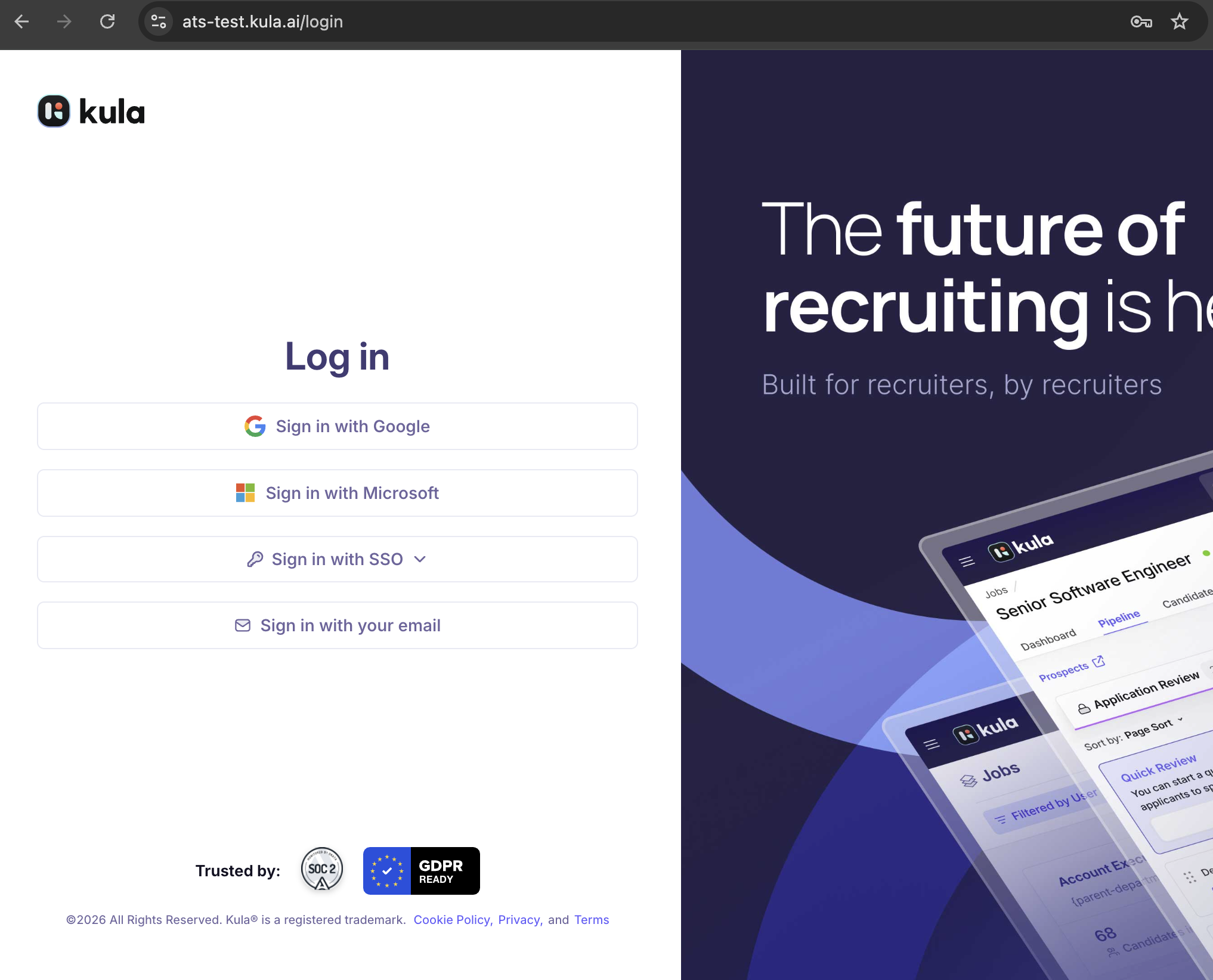
Access Kula by signing in with your account credentials.
Go to https://<subdomain>.kula.ai (replace <subdomain> with your company's Kula subdomain).
Enter your email address in the login field.
Enter your password.
Click Log In.
You will be directed to the Kula dashboard.
Tip: Save your Kula login URL as a bookmark for quick access. Your subdomain is specific to your company.
First-Time Login Setup
On your first login, you may be prompted to verify your email and set up additional security options.
Check your email for a verification message from Kula.
Click the verification link in the email.
If prompted, set up two-factor authentication (2FA) for added security.
Return to Kula and complete your profile setup.
Note: Two-factor authentication adds an extra layer of security to your account. Your admin may require this for all users.
Accessing Your Profile Settings
Edit your profile information and preferences from your Profile settings.
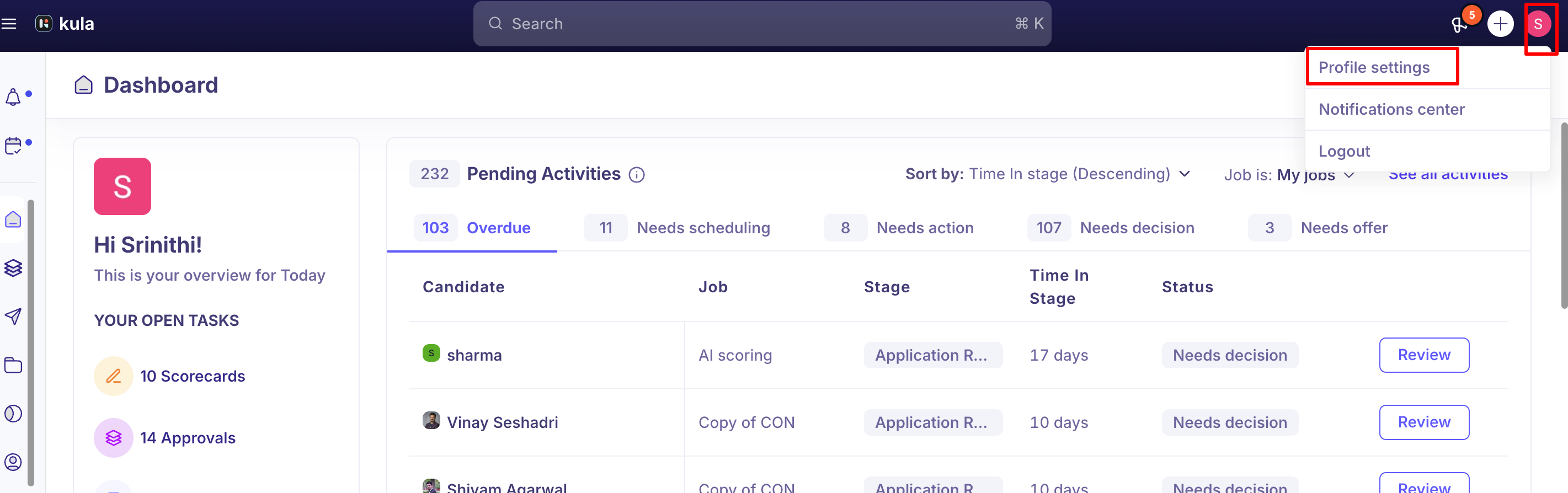
Click your profile picture or initials in the top right corner of the dashboard.
Select Profile Settings from the dropdown menu.
You are now on your profile settings page where you can edit all your information.
Completing Your Profile Information
Your profile contains key information about you and how to contact you.
Full Name: Enter or update your first and last name.
Email Address: Your primary email for Kula communications (typically cannot be changed).
Phone Number: Add your work phone number.
Department: Select your department or team.
Title: Enter your job title.
Profile Photo: Upload a professional photo of yourself.
Click Save when you're done.
Tip: A complete profile with a professional photo helps your team recognize you and builds trust. It's especially important if you work in a remote or distributed team.
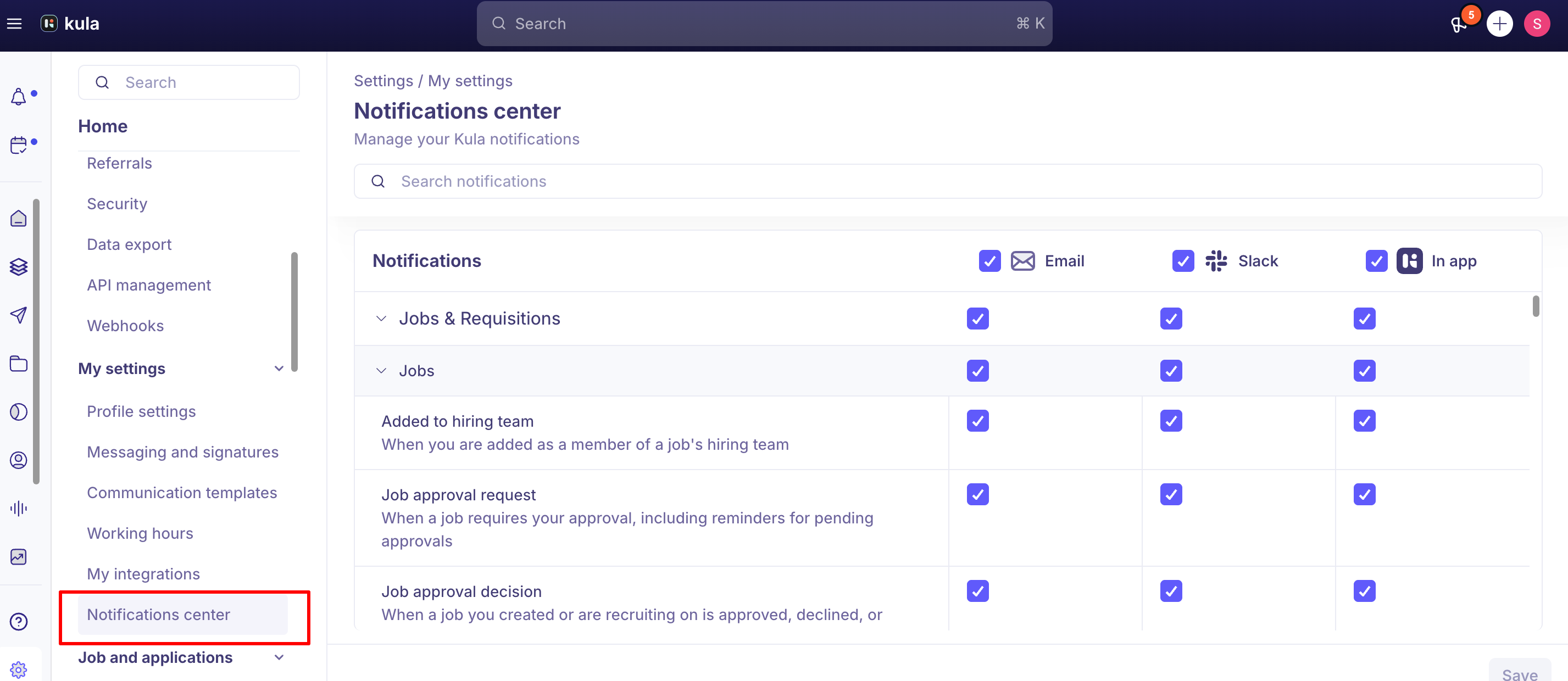
Control how and when you receive notifications from Kula.
Go to your profile settings and select Notifications.
Choose your notification preferences:
Email Notifications: Receive updates via email
In-App Notifications: See alerts within the Kula dashboard
Slack Notifications: Sync Kula notifications to Slack (if connected)
Select which types of activities trigger notifications:
New job postings
Candidate updates
Offer acceptance
Team messages
Admin announcements
Set quiet hours if you don't want to receive notifications during certain times.
Tip: Start with default notifications and adjust based on your workflow. You can always change these settings later.
Password and Security
Keep your Kula account secure by managing your password and security settings.
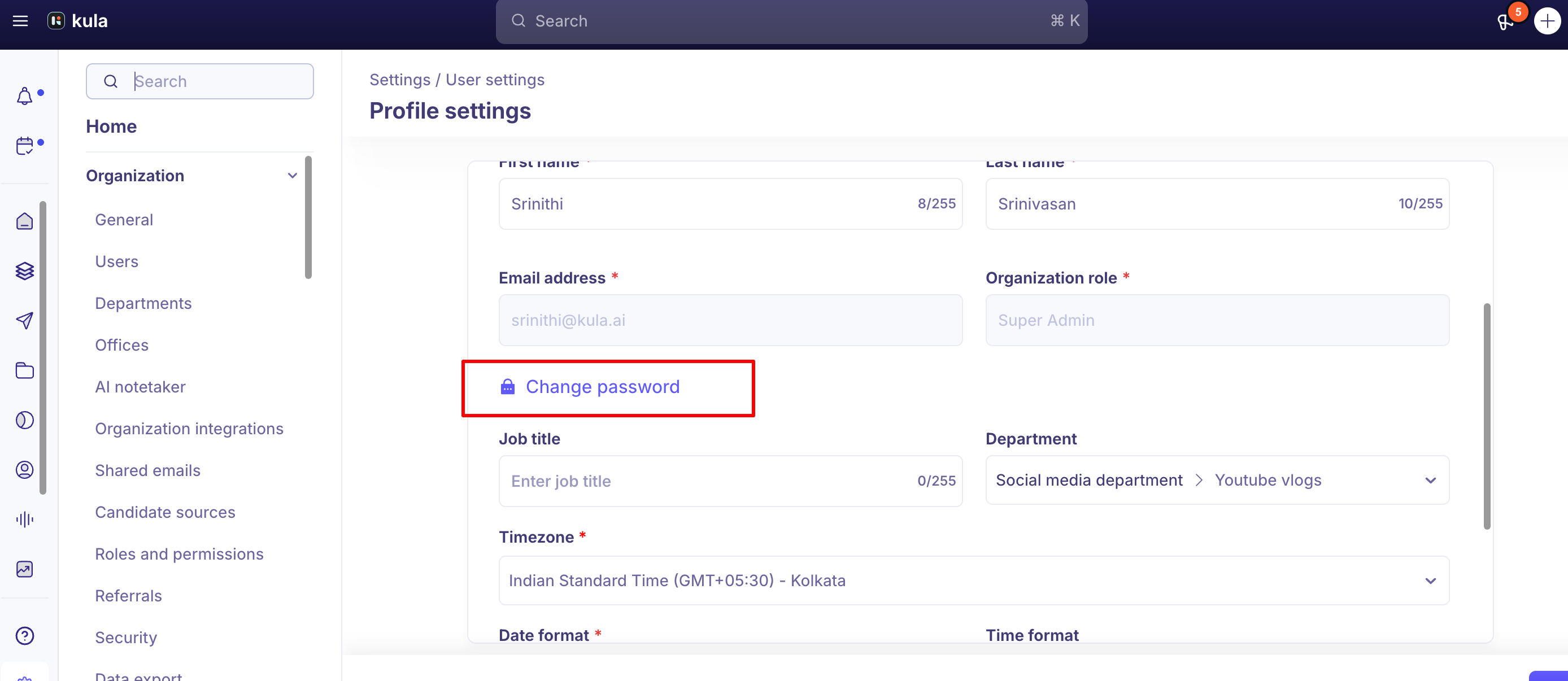
To change your password: Go to Profile Settings > click Change Password.
Enter your current password.
Enter your new password (8+ characters recommended).
Confirm your new password and click Save.
To enable two-factor authentication (2FA): Go to Security and toggle Two-Factor Authentication ON.
Note: Your admin may require two-factor authentication for all team members. If 2FA is mandatory, you'll be prompted to enable it on your next login.
Frequently Asked Questions
1. What is my Kula subdomain?
Your Kula subdomain is unique to your company. It's included in your login URL: https://<subdomain>.kula.ai. Your admin will provide this when you're invited to Kula.
2. I forgot my password. How do I reset it?
On the login page, click Forgot Password. Enter your email address and follow the reset link sent to your inbox. You'll be able to set a new password.
3. Can I change my email address?
Your primary email address cannot be changed. If you need to update it, contact your admin who can make changes to your account.
4. What should I include in my profile photo?
Use a professional headshot or portrait. This helps your team recognize you and maintain a professional appearance in Kula.
5. How do I log out of Kula?
Click your profile picture in the top right corner and select Log Out from the dropdown menu.
6. What if I have multiple Kula accounts?
You can have separate accounts for different companies or teams if they use different Kula subdomains. Log out and log back in with the appropriate email and subdomain.
Need Help?
If you have questions about logging in or setting up your profile, reach out to support@kula.ai or use the in-app chat for help.