Configuring your branded career page
Last updated: April 10, 2026
Creating a Career Portal in Kula allows you to showcase your company's brand and open positions in a professional and customizable way. This guide will walk you through setting up and customizing every section of your career portal.
Set Up your Career Portal
Navigate to Settings > Career Page Builder > Themes tab.
Click on New Theme. You have two options to begin:
Start from Scratch: Create a completely custom theme.
Select from Available Templates: Choose a pre-designed template and modify it to suit your needs.
Explore the Two Main Tabs:
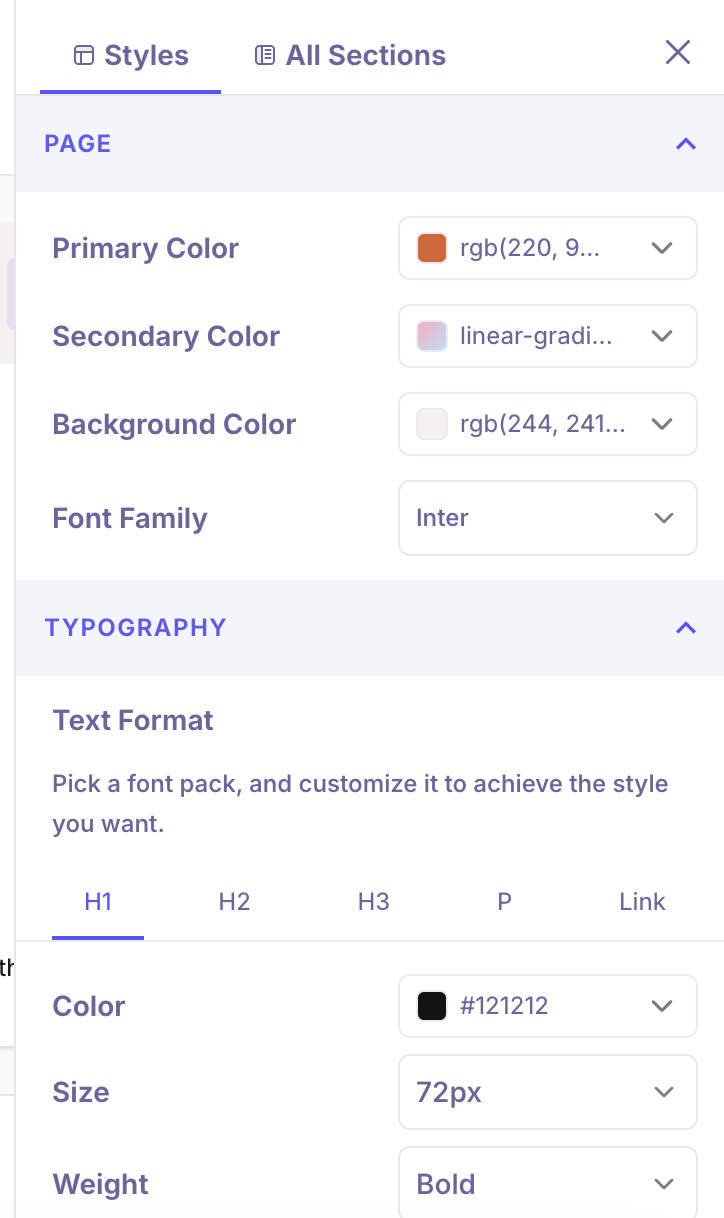
Styles Tab: This tab allows you to apply consistent styles across all sections of your career portal.
Page Section:
Primary Color: The primary color is applied to key actions, such as Apply Now buttons.
Secondary Color: The secondary color you select will be displayed on the application form.
Background Color: Choose the background color that best fits your brand.
Font Family: Select the font family that will be used throughout the portal.
Note: You can create custom fonts by providing public font URLs such as Google fonts: https://fonts.googleapis.com/css2?family=Epilogue:ital,wght@0,100..900;1,100..900&family=Space+Grotesk:wght@300..700&display=swap
Typography:
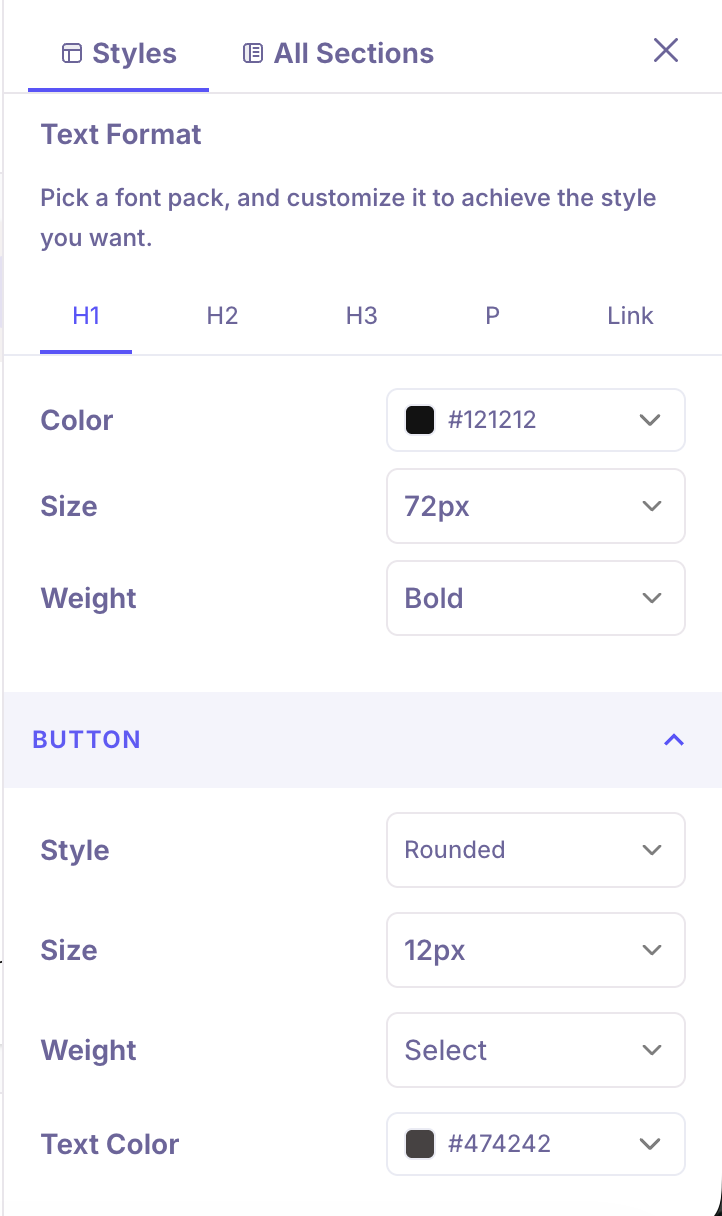
Text Format: Pick a font pack and customize it to achieve the desired style.
Button:
Style: Choose from various button styles.
Size: Adjust the button size.
Weight: Set the button weight for emphasis
Text Color: Select the color for button text
Background: Choose the background color for buttons.
All Sections Tab: This tab lists all the available sections you can add to your career portal. Each section can be customized with different variants to match your needs.
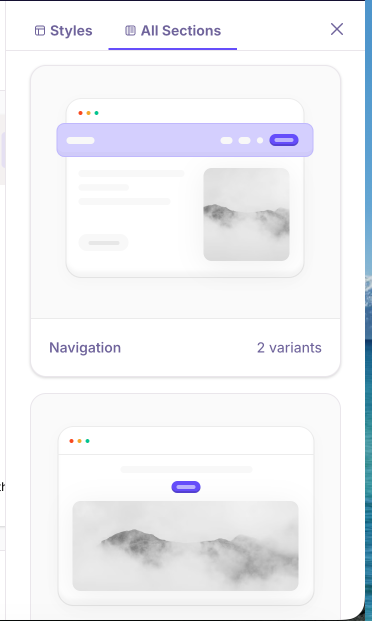
Available sections: Navigation, Hero Banner, Story, Open Jobs, Image Gallery, Testimonials, Team, FAQ, Footer.
Section Variants: Each section offers multiple variants that you can choose from when adding them to your career portal. These variants provide different layouts and designs to help you create a unique look that matches your brand identity.
How to Edit Each Section:
Navigation Section: The Navigation section appears at the top of your career portal and helps visitors navigate through your page.
Button: Show or hide the navigation button.
Background: Choose between solid or gradient background colors.
Replace Navigation: Completely replace the navigation section with a different variant
Note: The “Job Openings” button is available by default. You can add additional buttons as needed and double-click the button text to embed the corresponding link.
Hero Banner Section: The Hero Banner is the first impression visitors get of your career portal, featuring a large visual with headline text.
Heading: Show or hide the main heading text.
Sub Heading: Show or hide supporting text below the heading.
Logo: Show or hide your company logo in the hero section.
Button: Show or hide the call-to-action button.
Asset Type: Choose “Image” to add an image after the section is added, or select “None” if you do not want an image—this hides the image upload option.
Background Color: Select a solid or gradient background color.
Replace Hero Banner: Replace the entire hero banner with a different variant.
Story Section: The Story section allows you to share your company’s narrative, mission, or values with potential candidates
Heading: Show or hide the section heading
Sub Heading: Show or hide additional context text.
Story: Show or hide the main story content.
Image: Show or hide the image accompanying your story.
Background: Choose a solid or gradient background color.
Replace Story: Replace the story section with a different variant.
Open Jobs Section: This section automatically displays your currently open job positions.
Heading: Show or hide the section title.
Sub Heading: Show or hide supporting text below the heading.
Background Color: Choose a solid or gradient background color.
Replace Open Jobs: Replace with a different variant of the open jobs section.
Image Gallery Section: You can showcase your office, team events, or company culture through an image gallery.
Heading: Show or hide the gallery title.
Sub Heading: Show or hide supporting text below the heading.
Background: Choose a solid or gradient background color.
Add Images: Upload and manage images for the gallery.
Testimonials Section: Feature quotes and testimonials from current employees to give candidates insight into your company culture.
Heading: Show or hide the section title.
Sub Heading: Show or hide supporting text below the heading.
Background Color: Choose a solid or gradient background color.
Team Section: Introduce your team members to potential candidates
Heading: Show or hide the section heading.
Sub Heading: Show or hide supporting text below the heading.
Background: Choose a solid or gradient background color.
Replace Team: Replace the team section with a different variant.
FAQ Section: Answer common questions candidates may have about your company and hiring process.
Heading: Show or hide the section title.
Sub Heading: Show or hide supporting text below the heading.
Display: Choose between Accordion or List display format for FAQ items.
Replace FAQs: Replace the FAQ section with a different variant.
Footer Section: The Footer appears at the bottom of your career portal and provides important links and social media connections.
Background Color: Choose a solid or gradient background color for the footer.
Social Links: Enable or disable social media icons including X (Twitter), LinkedIn, Instagram, YouTube, Facebook, and TikTok.For enabled platforms, enter your social media profile URL in the corresponding field.
Replace Footer: Replace the footer section with a different variant.
Preview and Publish: Once you've customized your career portal, you can click the Preview Page button to see how it will look. If you're satisfied with the design, click Publish to make your career portal live.
Note: Click the image to open Image Settings, where you can replace or delete the image, adjust the image size (Fill, Contain, Cover), and set its position.This helps you control how the image appears and aligns within the section
Tips to Get the Best Results
Use consistent colors: Stick to your brand color palette across sections.
Keep text simple: Write clear, concise content in your company’s voice.
Add quality images: Use high-resolution visuals that reflect your brand and culture.
Check mobile view: Preview the portal on clearly on different devices.
Update regularly: Refresh jobs, testimonials, and team details to keep content current.
Need Help?
If you have questions about customizing your career portal or need assistance with specific features, feel free to reach out to us at support@kula.ai or use the in-app chat for assistance. We are here to help you create an outstanding career page that attracts top talent!