Configuring the AI teammates for the Job
Last updated: September 26, 2026
Kula Teammates — the Fraud detector, Scoring agent, and Coordinator — only do anything on a job once they're switched on twice: once for your organisation, and again on that specific job. This article covers the second switch: adding a teammate to a job, what each one's job-level settings actually control, and what happens to candidates already in the pipeline when you turn one on.
Who can do this: Super Admin, Admin, and Recruiters with edit access to a job can add or change teammates on that job. Turning a teammate on for the organisation in the first place — the prerequisite this article assumes is already done — is restricted to Super Admin and Admin (see "Setting up the Coordinator Agent" and "Setting up the Fraud Detector").
Where to find it: Job → your job → AI Teammates tab. The Scoring agent specifically can also be reached from Job → Pipeline → a stage header → "Set up Scoring agent."
Before you start
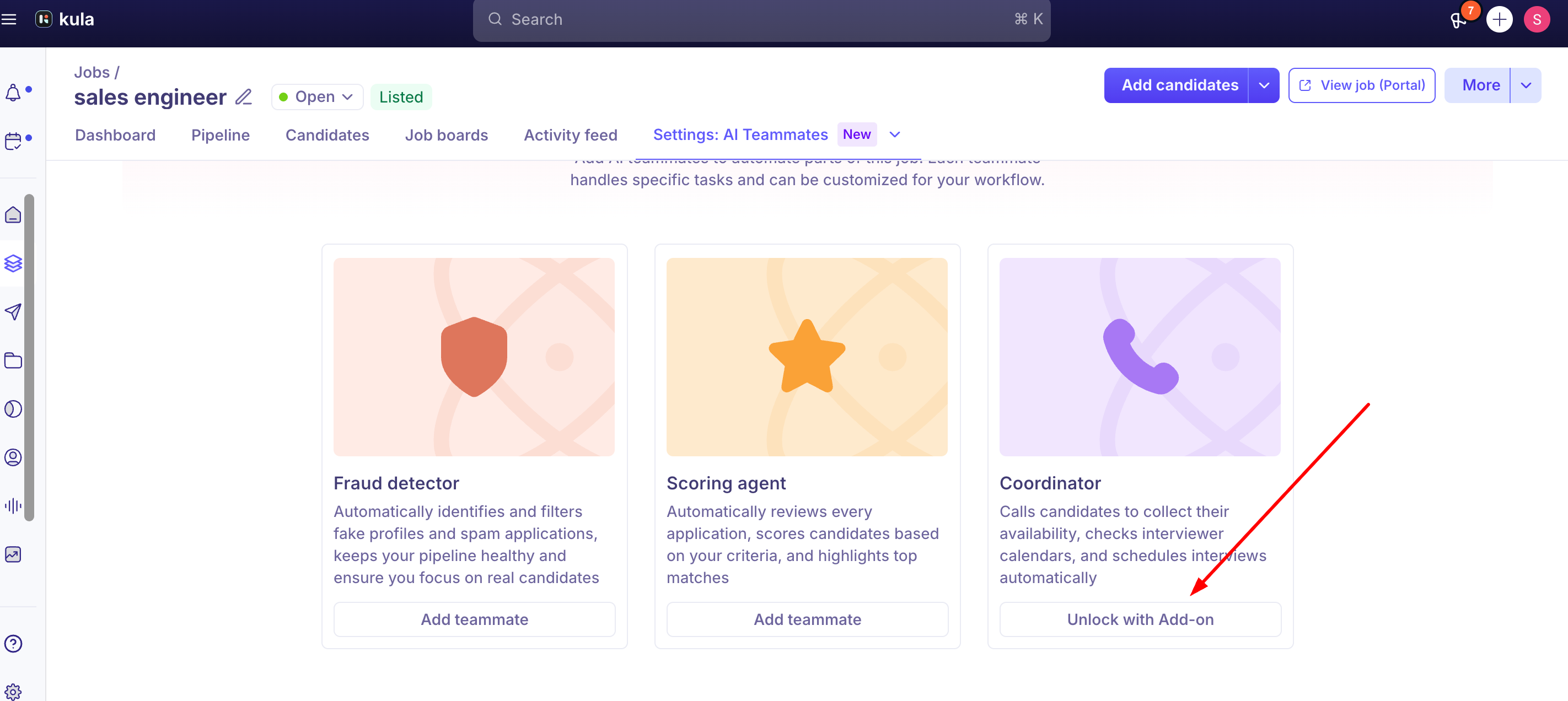
A teammate has to be turned on for your organisation before it can be added to any job. If a teammate's card on the job reads Unlock with Add-on, it isn't part of your plan — Fraud detector, Scoring agent, and Coordinator are paid add-ons, and Kula support has to enable them for your account first. If a card reads Not enabled by admin, the org-level switch simply hasn't been flipped yet — ask a Super Admin or Admin.
Adding a teammate to a job
From the AI Teammates tab on a job, each teammate shows one of four states:
Add teammate — enabled for your organisation and ready to configure here. Click it to set the teammate up for this job.
Unlock with Add-on — not part of your plan; contact Kula support.
Not enabled by admin — available on your plan, but not yet turned on for the organisation; ask an admin.
Added — already working on this job, with a pencil icon to edit the setup and a bin icon to remove it.
What "configuring" means differs by teammate:
Scoring agent — open the card and define what you're looking for; Kula pre-fills this from the job description, so review and adjust it. Confirm the criteria under "Verify attributes," then save — saving triggers scoring immediately.
Fraud detector — choose Automatic mode (checks every applicant on its own) or Manual mode (you trigger checks yourself from a candidate's profile). You can also choose whether the check runs at Application Review or at a different stage in the pipeline.
Coordinator — once the organisation-level setup (identity, voice, allowed call types) is done and at least one phone number exists, add it to the job to let it start calling candidates for that role.
What happens to candidates already in the pipeline
Turning a teammate on for a job doesn't necessarily touch everyone already sitting in that job's pipeline:
Scoring agent retroactively scores candidates still sitting in the initial Application Review stage when you enable it. Candidates who've already moved further along — interviewing, offer, hired — or who were rejected before you turned it on, are not scored retroactively.
Fraud detector, when set to check at a stage other than Application Review, is expected to prompt you about whether to also run against candidates already sitting in that stage versus only candidates who reach it going forward.
Good to know
The Fraud detector and Scoring agent interact on the same job. If Fraud detector is set to Automatic and flags a candidate as Suspicious, Scoring agent does not run for that candidate — scoring only resumes if the candidate is later reactivated. If you're wondering why a candidate's AI score is stuck or missing, check their fraud status first.
There's no dashboard showing which jobs have which teammates turned on. The only way to check today is to open each job individually and look at its AI Teammates tab — a real, currently unresolved gap for anyone managing AI teammate rollout across many jobs.
A recently-fixed bug meant the Coordinator could call candidates on a job even when nobody had explicitly added it there — including continuing to call a candidate who had already withdrawn — and logged those automated calls in the activity feed as if a specific person had made them. This has since been fixed by tying Coordinator dispatch strictly to per-job configuration, but it's a reminder to actually check a job's AI Teammates tab rather than assume a teammate is off just because you didn't add it.
Closed or archived jobs have historically restricted changes to AI teammate configuration — you generally can't add, edit, or remove a teammate once a job is closed. If you need to change AI teammate setup on a job that's already closed, reopening it may be necessary first.
Removing a permission doesn't just hide the AI Teammates tab — it disables editing, too, so someone without the right permission visiting the tab sees the existing setup but can't change it, rather than being blocked from viewing it entirely.
FAQ
I added a teammate to my job but nothing seems to be happening — why? Confirm it's actually in the "Added" state rather than "Unlock with Add-on" or "Not enabled by admin" — both of those look similar to Added at a glance but mean the teammate isn't actually running. Also check the org-level switch under Settings → AI Teammates.
If I turn on Scoring agent partway through a job's life, will it score everyone already in the pipeline? Only candidates still in Application Review. Anyone further along, or already rejected, won't be scored retroactively.
Why isn't my candidate getting an AI score even though Scoring agent is on? Check their Fraud detector status first — a Suspicious verdict blocks Scoring agent from running until the candidate is reactivated.
Where do I pick which rejection email template AI Scoring uses? Job → AI Teammates tab → Scoring agent → auto-reject section → "Send rejection email," or the same drawer via Job → Pipeline → a stage header → "Set up Scoring agent."
How do I see which of my jobs currently have a given teammate turned on? There's no centralized view for this today — you have to check each job's AI Teammates tab individually.
Can I change AI teammate settings on a job that's already closed? Historically, no — changes have been restricted once a job is closed or archived.
Need help?
Reach out to us at support@kula.ai or use the in-app chat.