Working your pipeline: board view and list view
Last updated: September 26, 2026
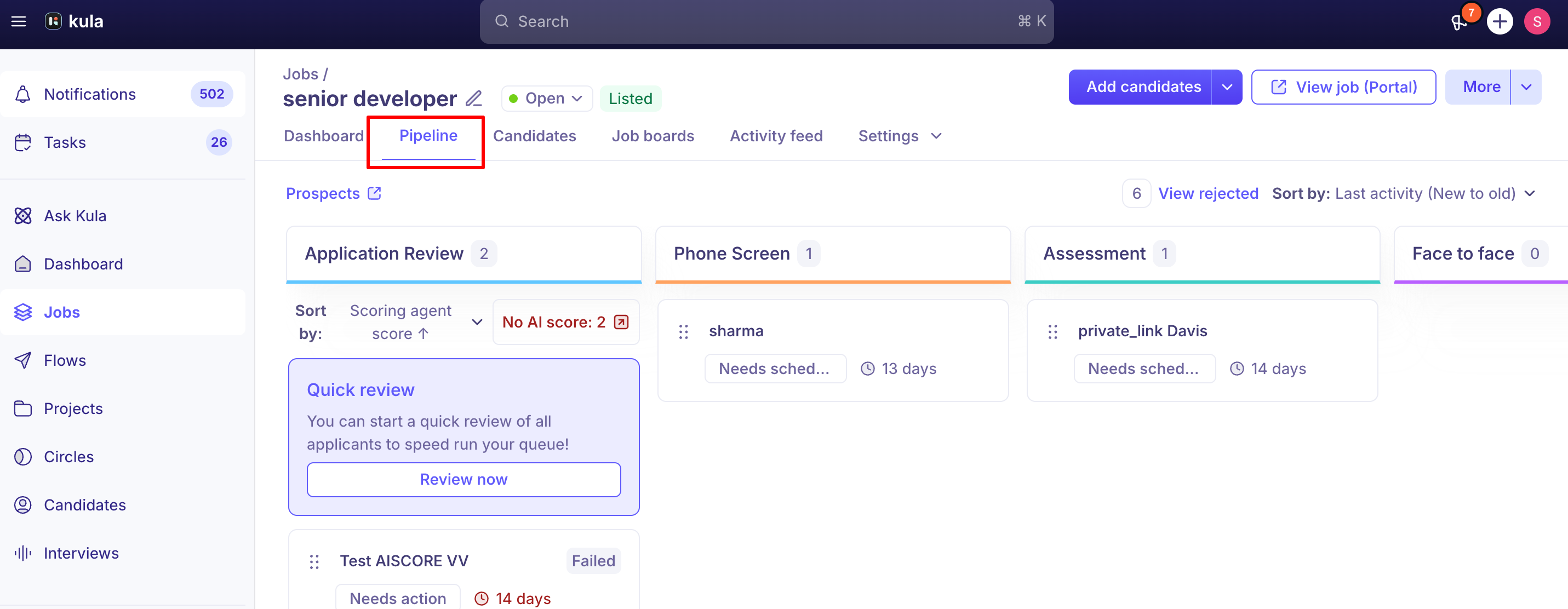
Every job in Kula gives you two different ways to work the same set of candidates: a Pipeline tab, laid out as a drag-and-drop board grouped by stage, and a Candidates tab, laid out as a sortable, filterable list. Neither is a subset of the other — they show the same candidates, just organized for different tasks.
Who can do this: Anyone with access to view and work a job's candidates — typically Recruiters, Hiring Managers, Admins, and Super Admins scoped to the jobs they're on.
Where to find it: Open a job — Pipeline and Candidates are two of the top-level tabs (alongside Dashboard, Job boards, Activity feed, and Settings).
Pipeline: the board view
The Pipeline tab is a Kanban-style board — one column per stage, one card per candidate. It's built for moving candidates through your process visually:
Drag and drop a candidate's card from one stage column to another to move them.
Each card shows the candidate's name along with Time in Stage and status.
Columns scroll independently, so a stage with a large number of candidates doesn't force you to scroll the whole board.
Actions like moving a candidate or rejecting them are available directly from the card, without opening the full profile.
For every way to move a candidate — including the "Move to stage" button and bulk moves — see "Moving candidates between stages."
Candidates: the list view
The Candidates tab shows the same candidates as the Pipeline board, but as a table — one row per candidate, with columns you can sort and filter. It's built for working at volume:
Filter and sort by stage, source, recruiter, and more — see "Filtering and sorting the pipeline" for the full set of controls.
Select multiple candidates and act on them at once — including bulk stage moves — which isn't possible from the board. See "Bulk actions on candidates" and "Moving candidates between stages."
It's the faster path when you need to work through a specific slice of candidates — for example, filtering to just your Rejected-stage candidates who reached a particular stage before being rejected, rather than scanning stage by stage on the board.
What the Card view shows
Switching the Jobs list to Card view turns each job into a card showing:
A visual breakdown of that job's candidates by pipeline stage, so you can see at a glance how a role is progressing without opening it.
The total number of candidates who've ever been part of the job — including hired, rejected, and withdrawn — alongside the count still actively in process. Earlier, cards only showed the "still in process" number; the total was only visible inside the job's own Dashboard, which meant switching back and forth to compare sourcing volume against active pipeline. Both numbers now live on the card itself.
This is useful when you're managing several roles at once and want a quick pulse check — for example, seeing which jobs have a healthy, active pipeline versus which ones need more sourcing — without clicking into each one individually.
AI scoring on the Pipeline board and Candidates list
If a job has the Scoring agent turned on (Settings → AI Teammates → Scoring agent), Kula shows an AI score for each applicant, and gives you a few things you can do with it directly from these two views:
See the score at a glance. In the Application Review stage, each candidate's card on the Pipeline board — and their row on the Candidates list — shows an AI score (a percentage match against the criteria you set for the job).
Open the full breakdown. Click a candidate's AI score to open a panel showing the attribute-by-attribute breakdown behind it — which criteria they matched, partially matched, or didn't, rather than just the headline percentage.
Jump straight to candidates the AI couldn't score. An "AI failed to score" link/filter in the Application Review stage takes you to the Candidates list already filtered to just those candidates — useful for catching resumes that failed to parse or otherwise couldn't be evaluated.
See it factored into auto-rejection. If your organization has a below-threshold auto-rejection rule configured, candidates scoring under that threshold are automatically rejected with the system-default reason "Below AI score threshold" — you'll see this reflected in the candidate's status without needing to reject them manually.
A few real limits worth knowing:
Scoring only runs for candidates in Application Review. Turning on the Scoring agent scores candidates currently sitting in Application Review — it doesn't retroactively score candidates who've already moved further into the pipeline, were already rejected, or applied before scoring was turned on.
AI scoring attributes don't feed into interview scorecards. Scorecards are built from manual questions interviewers fill in after the interview; there's currently no way to pull the AI scoring criteria into a scorecard automatically, even though the two often cover similar ground.
Good to know
Opening a candidate is faster from either view. Hovering over a candidate now prefetches their data, so the detail drawer opens immediately instead of showing a loading spinner — this applies to both the Pipeline board and the Candidates list.
The Kanban card doesn't show everything yet. There's no indicator on a card for whether a candidate is also being considered for another open role — you'd need to open their profile to check.
The board doesn't yet show an overall evaluation (thumbs up/down) on the card, even when a candidate has completed interviews with scorecards submitted — you'll need to open the candidate to see individual evaluations.
Prospect-stage candidates don't appear as a column on the Pipeline board. Sourced candidates sitting in Prospect live in a separate view — see "The sourcing pipeline view" — rather than as the board's first column, though customers have asked for this.
FAQ
What's the difference between the Pipeline tab and the Candidates tab? Same candidates, different layout. Pipeline is a drag-and-drop board grouped by stage; Candidates is a sortable, filterable list — better for working through many candidates at once or acting on several at a time.
Can I move several candidates to a new stage at once from the board? Not from the Pipeline board — drag and drop moves one candidate at a time there. For a bulk move, use the Candidates list and its bulk "Move to stage" action.
Why don't I see a Prospect column on my Pipeline board? Prospect-stage candidates aren't shown as a board column today. See "The sourcing pipeline view" for where they actually live.
Can I tell from a candidate's card if they're also in the running for another job? Not yet — that isn't shown on the Kanban card. You'd need to open their profile to check.
How do I see just the candidates I rejected who'd already reached a specific stage, like an interview? Use the Candidates list, filter to the Rejected stage, and apply the stage filter for the stage you're interested in — this is faster than scanning the board column by column.
Need help?
If you have questions or need assistance, reach out to us at support@kula.ai or use the in-app chat.