Connect Docusign to Kula
Last updated: September 25, 2026
Connecting Docusign lets you send offer letters for signature from inside Kula and see the signed document come back on the candidate's profile. Docusign connects through sign-in rather than an API key.
Who can do this: Super Admin, Admin
Where to find it: Settings → Organization → Organization integrations → E-signature
Connect Docusign
Go to Settings → Organization → Organization integrations.
Find the Docusign card under E-signature.
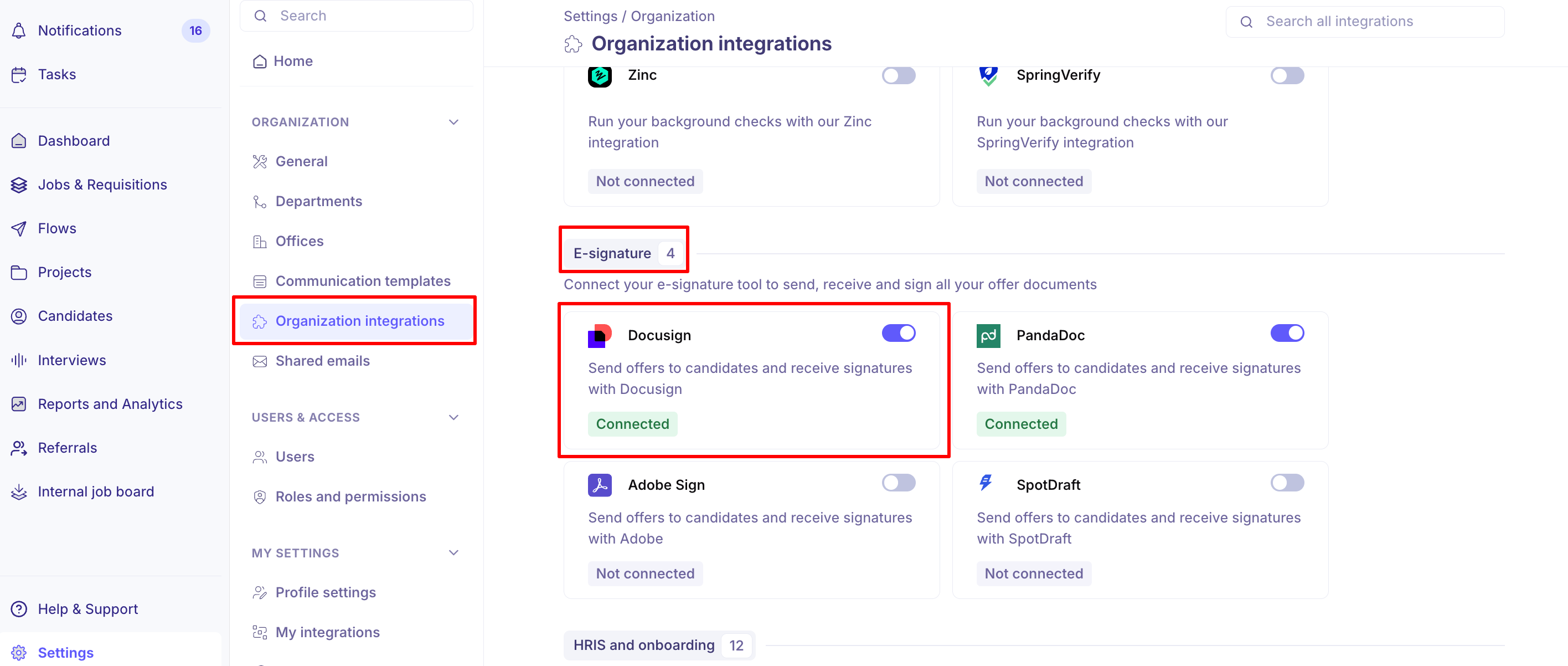
Turn the toggle on. You are redirected to Docusign.
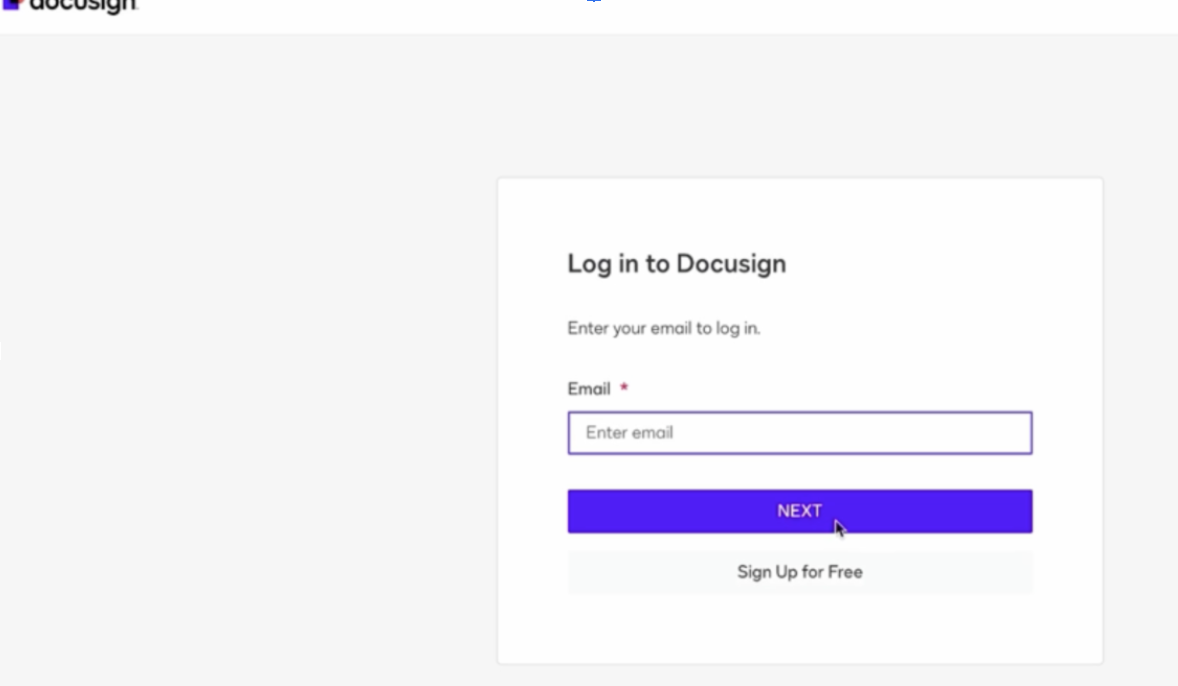
Sign in to Docusign and approve access for Kula.
The card shows Connected when Docusign returns you to Kula.
Set your signing defaults
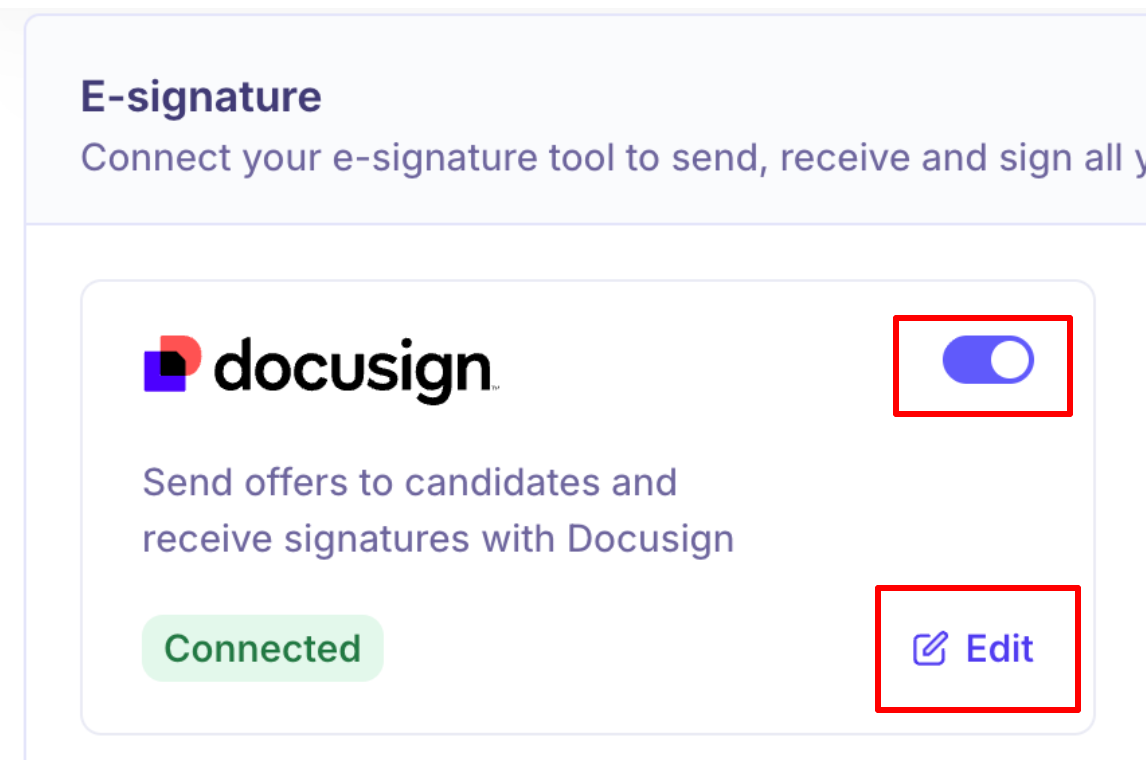
Hover over the connected card and click Edit to open the Docusign settings.
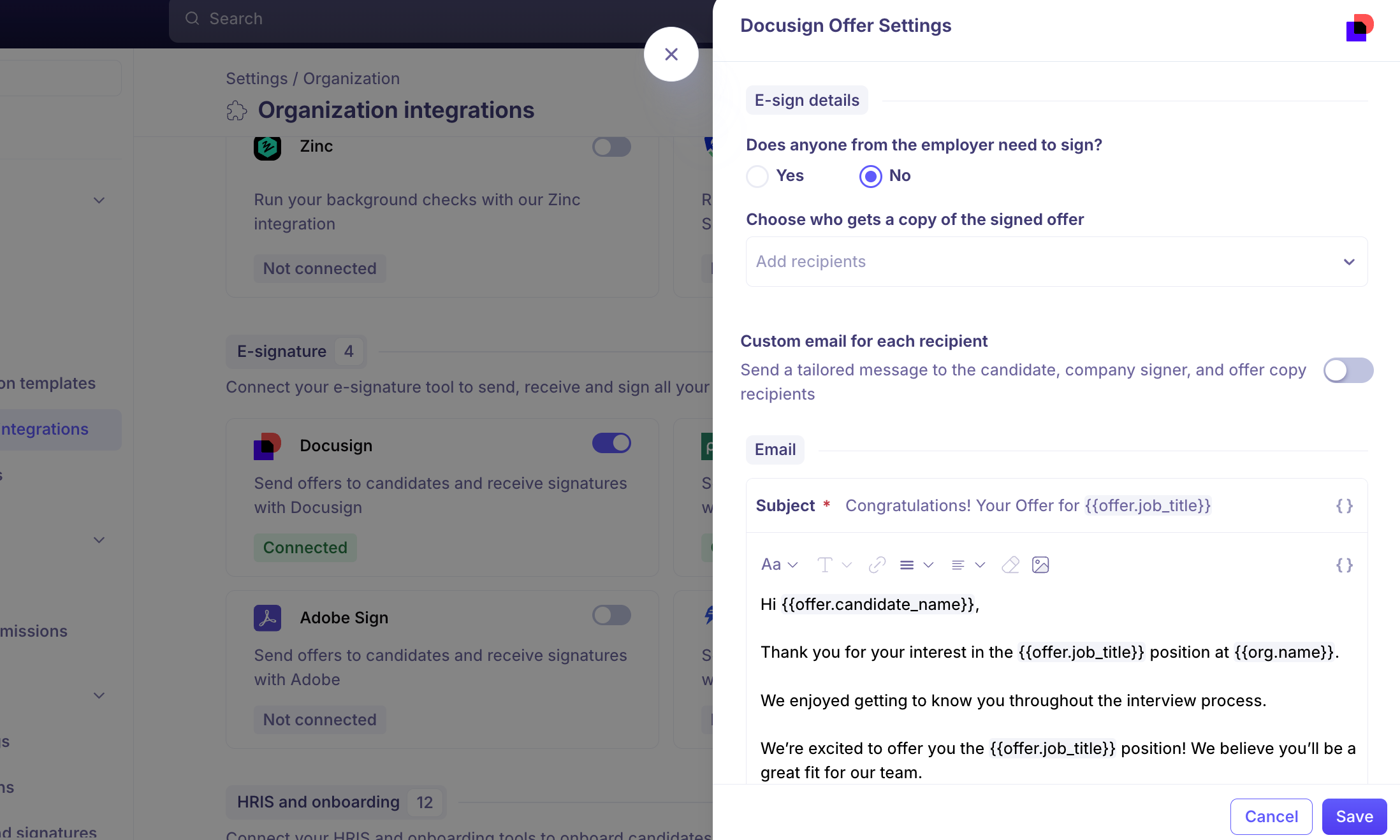
Setting | What it controls |
|---|---|
Does anyone from the employer need to sign? | Whether a company signer is added to the envelope at all. Admins only. |
Choose who signs on behalf of the employer | Which Kula user countersigns. |
Order of signing | Employer first or Candidate first. Only applies when a company signer is required. |
Message | The subject and body of the email that goes with the offer. The subject is limited to 100 characters. |
What you can do when sending an offer
Preview the offer inside Docusign before it goes out, and reposition custom fields on the document.
Send a different subject and body to the candidate, the company signer, and CC recipients, using the Custom message per recipient toggle. When it is off — the default — one shared email goes to everyone.
Add CC recipients, who are sent the completed signed offer as a Docusign carbon copy without needing to sign.
Include up to 10 documents in an offer template. For Docusign these are merged into a single file for the signers, in the order they were uploaded.
For the full flow, see Setting up e-signature.
Good to know
Docusign merges everything into one file. All documents in the template, plus any additional document, arrive as a single merged PDF for signing, and the final signed document is one merged PDF too.
Additional documents containing Docusign tokens are signed too. If a supporting document has signature fields, Docusign prompts for those as well as the main offer.
The offer template limit is 10 documents.
Expired Docusign credentials currently revert quietly rather than prompting you to reconnect. If offers stop sending, check whether the Docusign card still shows Connected.
FAQ
The Docusign preview throws a generic error when I try to send an offer — what do I do? This is usually a formatting problem in the offer letter template rather than the integration. Try previewing with a different template to confirm, then contact support with the template and candidate so we can check the document.
Can I send a different message to the candidate and to whoever countersigns? Yes. Turn on Custom message per recipient when sending the offer and you can write a separate subject and body for the candidate, the company signer, and any CC recipients.
Can I attach more than one document to an offer? Yes — up to 10 documents in a single offer template. Docusign merges them into one file for the signers.
Need help? If you have questions or need assistance, reach out to us at support@kula.ai or use the in-app chat.